
EnergyCell WHF-US00036-FT
EnergyCell Qi2 3-in-1 Wireless Charging Station User Manual
Model: WHF-US00036-FT
1. Introduction
Thank you for choosing the EnergyCell Qi2 3-in-1 Wireless Charging Station. This device is designed to provide efficient and convenient wireless charging for your iPhone, Apple Watch, and AirPods simultaneously. Please read this manual carefully before use to ensure optimal performance and safety.
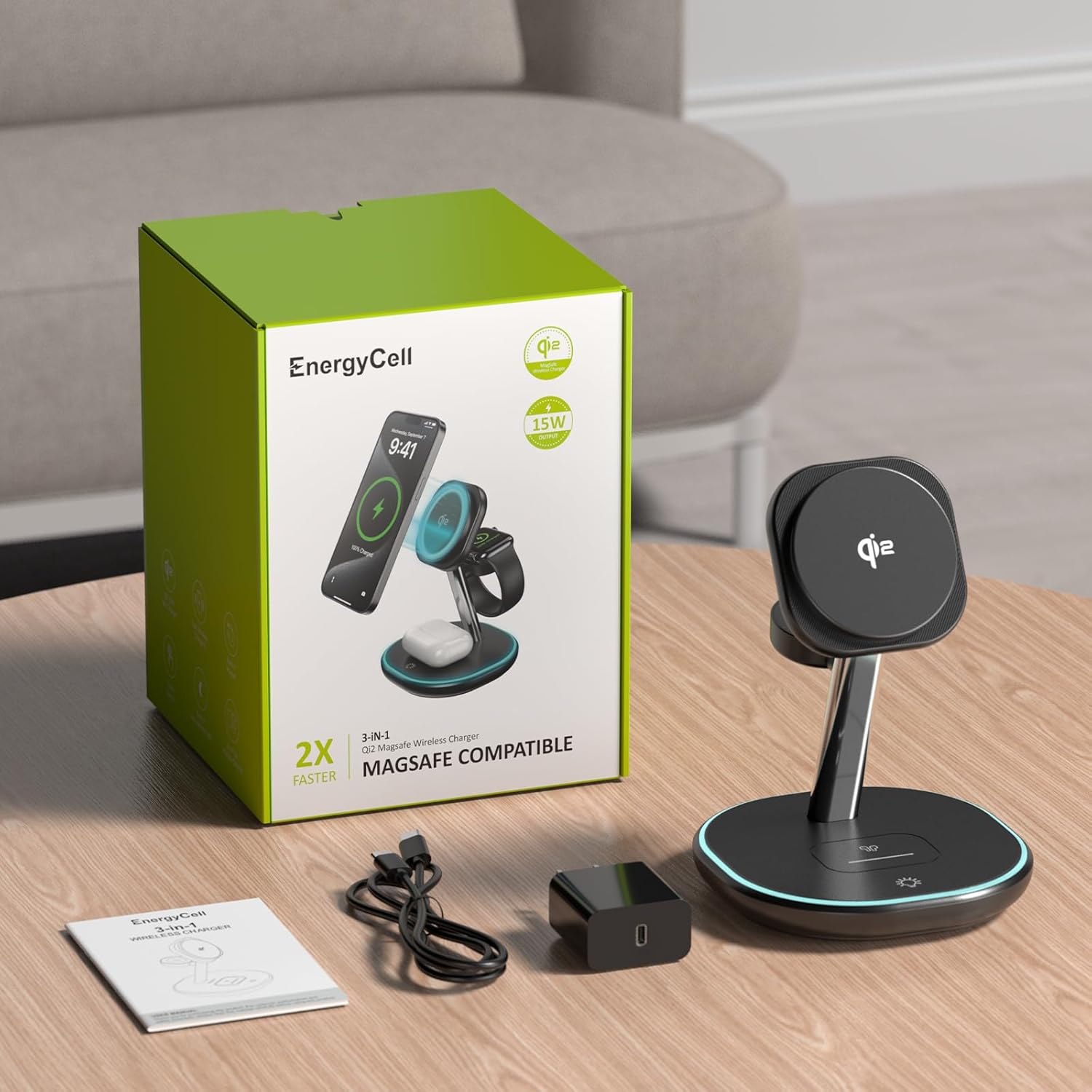
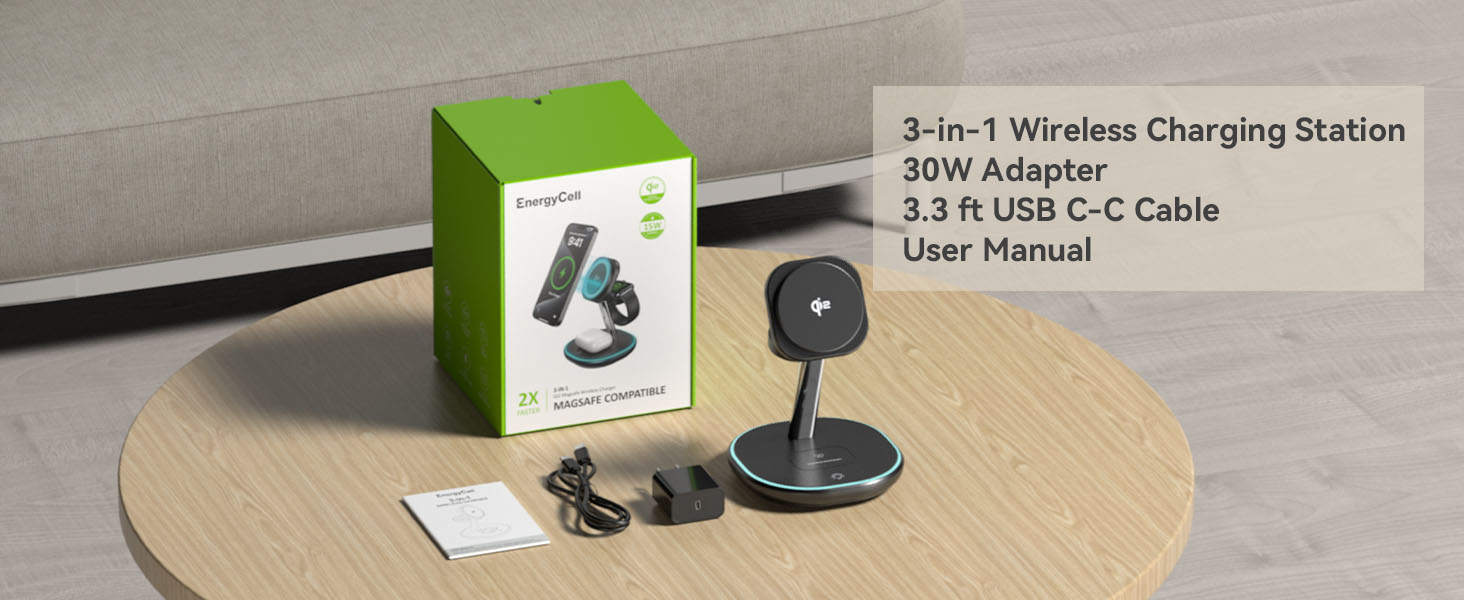
What's in the Box:
- EnergyCell Qi2 3-in-1 Wireless Charging Station
- 30W Fast Adapter
- 1m USB-C to USB-C Cable
- Product Manual
2. Key Features
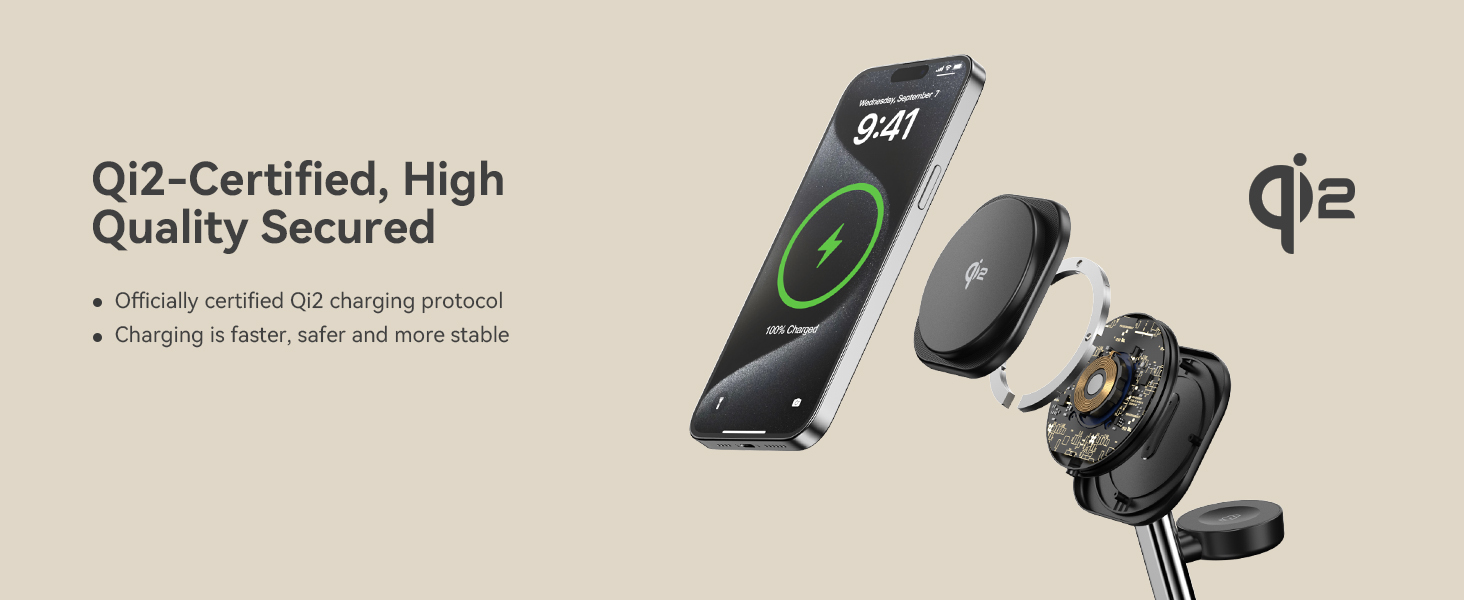
- Qi2 Certified 15W Fast Charging: Experience authentic 15W fast wireless charging for compatible iPhones, ensuring faster and more reliable power delivery.
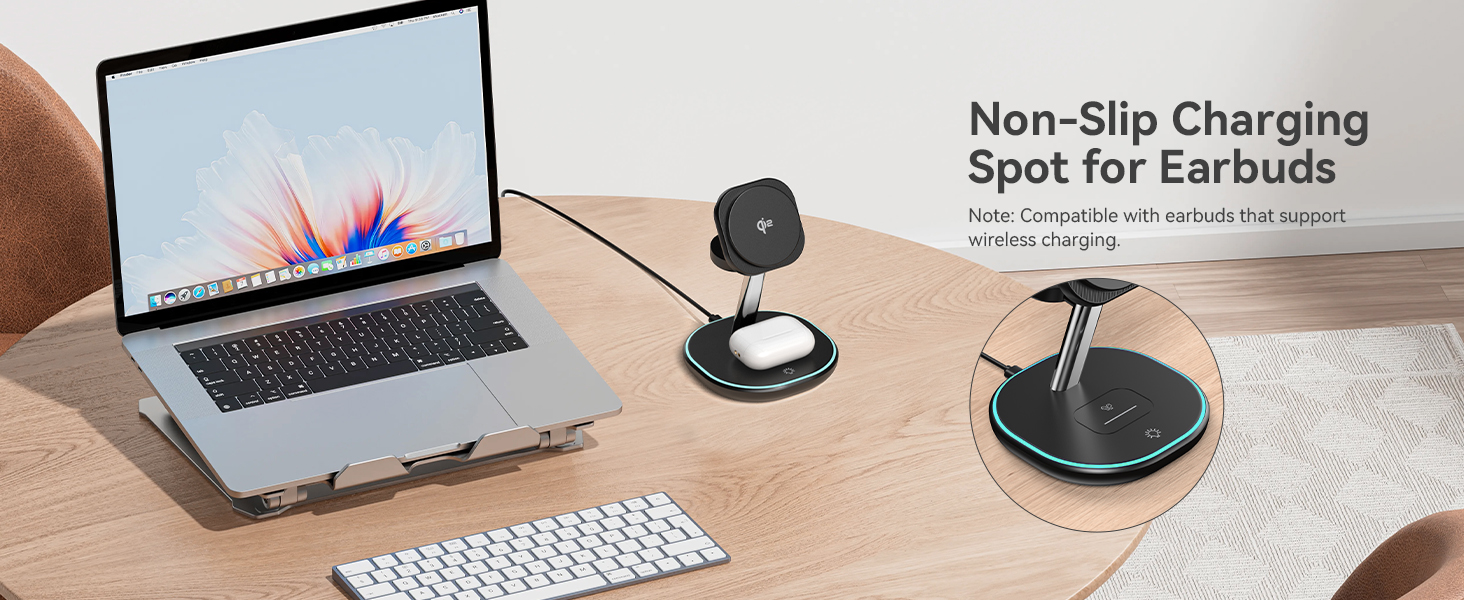
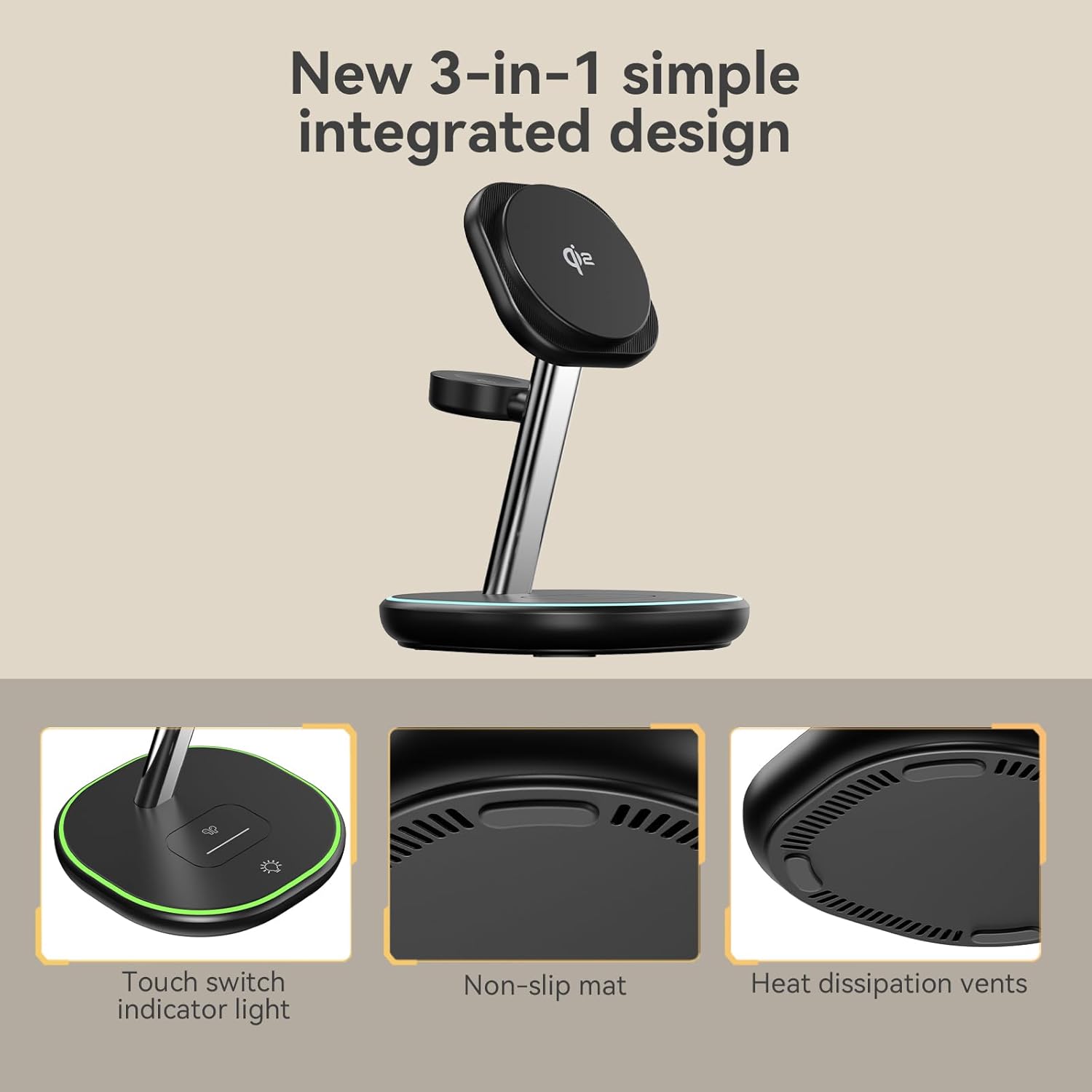
- 3-in-1 Multi-Device Charging: Simultaneously charge your iPhone, Apple Watch, and AirPods with dedicated charging spots.
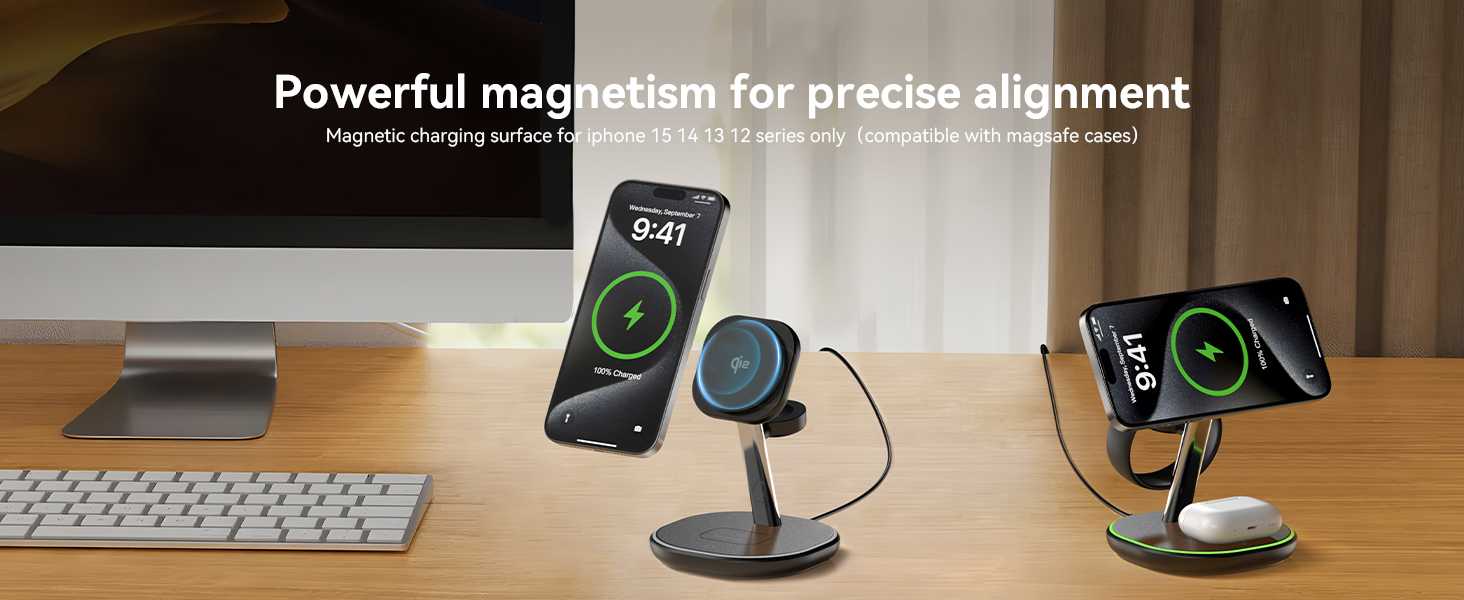
- Powerful Magnetic Alignment: 1,000 G magnetic holding force securely positions your iPhone for optimal charging.
- Advanced Safety Protections: Built-in intelligent protection algorithms provide foreign object detection, radiation shielding, overcurrent protection, overvoltage protection, and efficient heat dissipation.
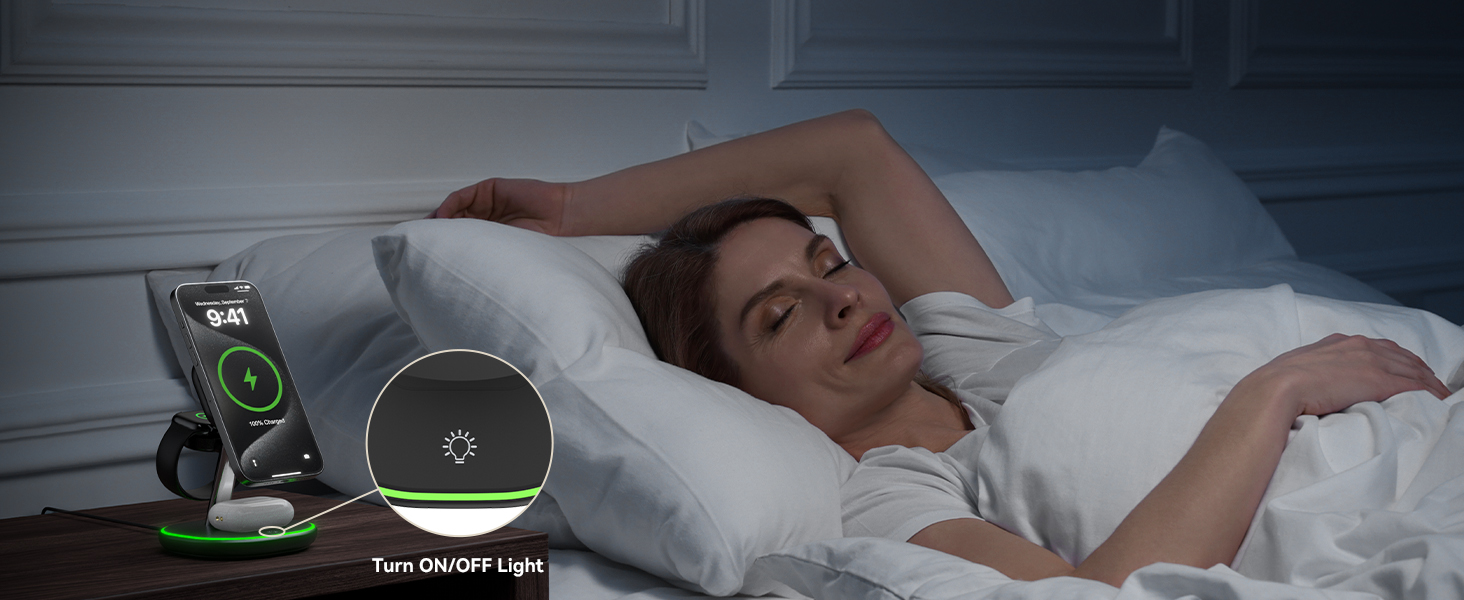
- Sleep-Friendly LED Light: A circular LED light on the base offers two optional modes, providing subtle illumination without glare, and can be turned off with a touch.
- Compact and Sleek Design: Reduces cable clutter and saves space on your desk or nightstand.


3. Specifications
| Attribute | Value |
|---|---|
| Brand | EnergyCell |
| Model Number | WHF-US00036-FT |
| Color | Black |
| Connectivity Technology | USB |
| Connector Type | USB Type C |
| Input Voltage | 9 Volts |
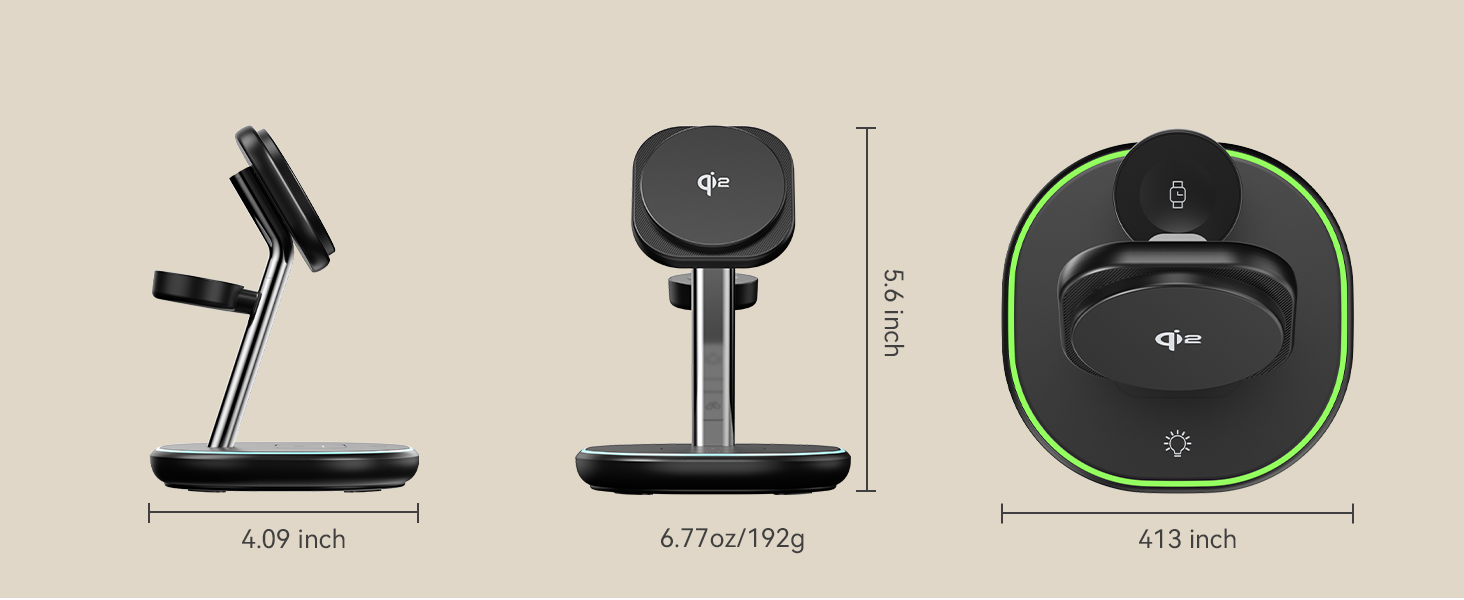
| Item Weight | 13.1 ounces (approx. 371g) |
| Package Dimensions | 6.89 x 5.31 x 5.24 inches |
| Mounting Type | Tabletop Mount |
4. Setup Guide
- Unpack: Carefully remove the charging station and all accessories from the packaging.
- Connect Power Adapter: Insert one end of the provided USB-C to USB-C cable into the USB-C port on the back of the charging station.
- Connect to Power Outlet: Insert the other end of the USB-C cable into the provided 30W fast adapter. Plug the adapter into a standard wall power outlet.
- Power On: The indicator light on the base of the charging station will illuminate briefly, indicating it is powered on and ready for use.

5. Operating Instructions
Charging Your Devices:
- For iPhone: Place your MagSafe-compatible iPhone (iPhone 12 series or newer) onto the magnetic charging pad. The strong magnetic force will align your device automatically. Ensure your iPhone is centered for optimal charging.
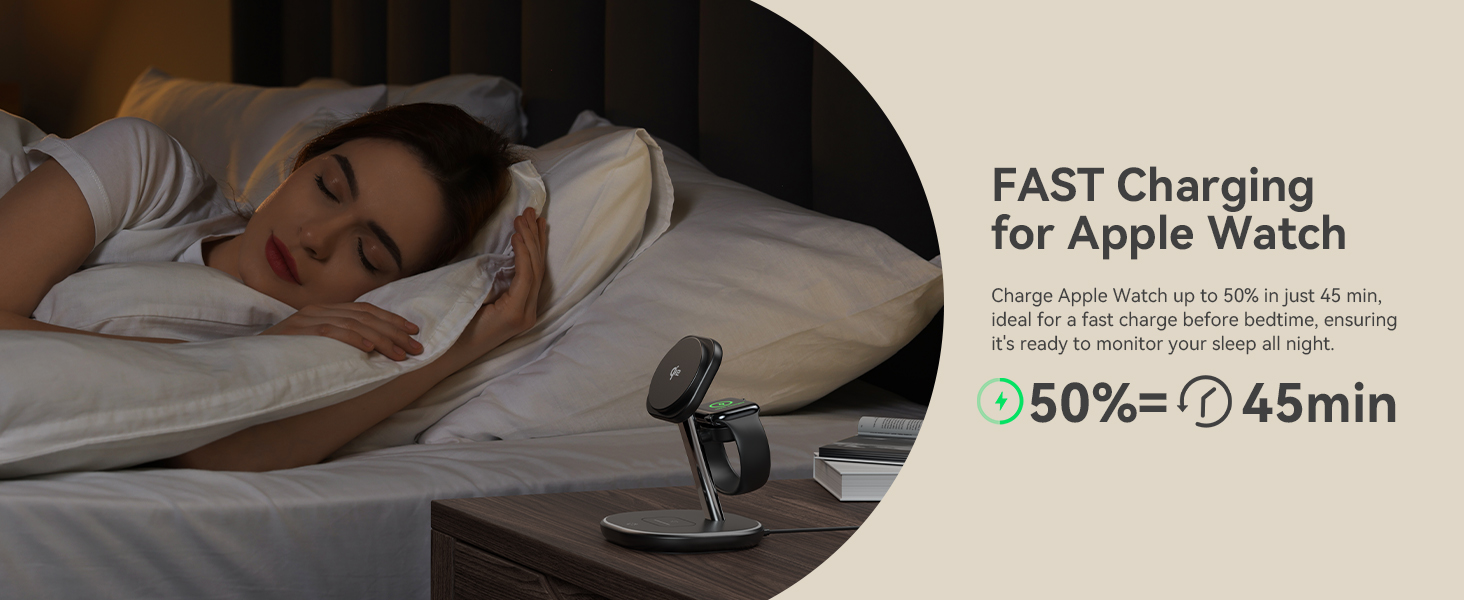
- For Apple Watch: Place your Apple Watch onto the dedicated watch charging module. The watch will magnetically snap into place and begin charging.
- For AirPods: Place your AirPods charging case (with wireless charging capability) onto the flat charging pad at the base of the station.
Charging will begin automatically upon proper placement. The indicator light on the base may change to signify charging status (refer to the light indicator section for details).

Controlling the Sleep-Friendly Light:
The circular LED light on the base can be controlled by touching the designated touch switch indicator light area. Tap once to cycle through light modes or to turn the light off.
6. Compatibility
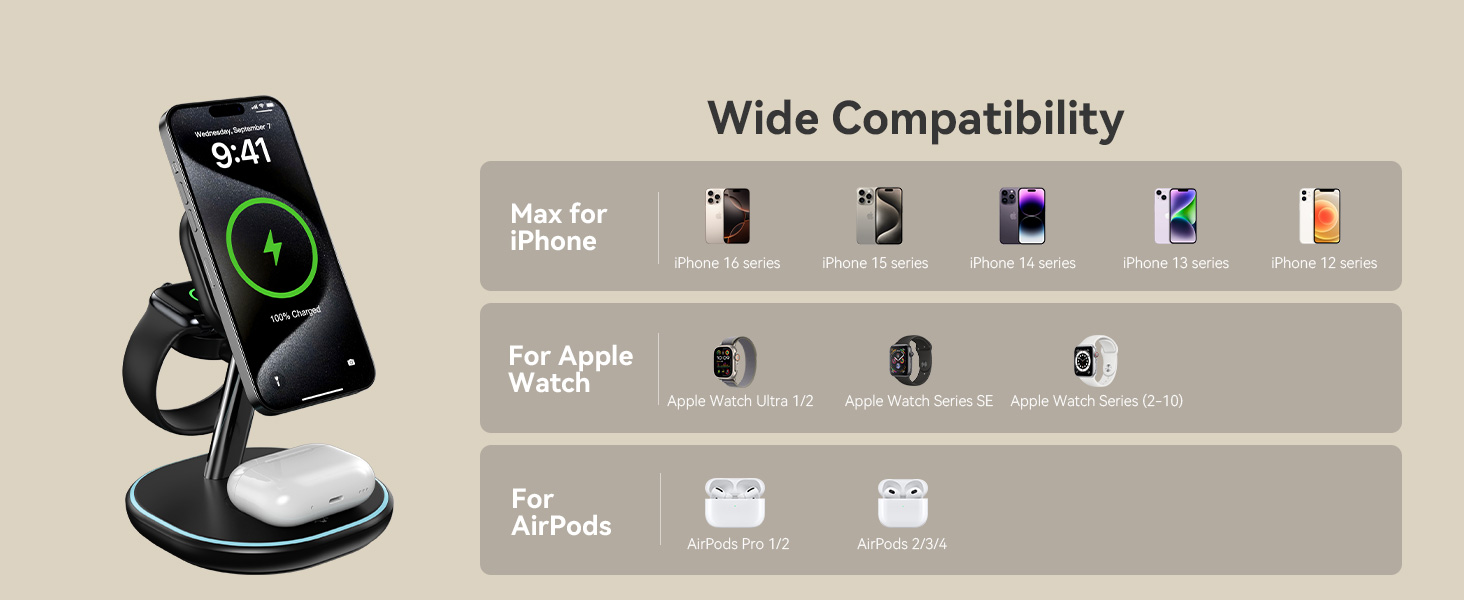
The EnergyCell Qi2 3-in-1 Wireless Charging Station is designed for wide compatibility with Apple devices:
- Max for iPhone: iPhone 16 series, iPhone 15 series, iPhone 14 series, iPhone 13 series, iPhone 12 series. (Note: iPhone 13 mini and iPhone 12 mini support MAX 12W charging).
- For Apple Watch: Apple Watch Ultra 1/2, Apple Watch SE series, Apple Watch Series 2-10.
- For AirPods: AirPods Pro 1/2, AirPods 2/3/4 (models with wireless charging case).

7. Safety Information and Protections
Your EnergyCell Qi2 3-in-1 Wireless Charging Station is equipped with multiple safety features to protect your devices and ensure safe charging:
- Over-Current Protection (OCP): Prevents damage from excessive current.
- Over-Voltage Protection (OVP): Safeguards against voltage surges.
- Over-Temperature Protection (OTP): Monitors and regulates temperature to prevent overheating.
- Foreign Object Detection (FOD): Detects metallic objects on the charging surface to prevent heating and potential damage.
- Radiation Shielding: Minimizes electromagnetic radiation.
- FCC Certified: Meets regulatory standards for electronic devices.
Always use the provided 30W adapter and USB-C cable for optimal performance and safety. Do not disassemble or modify the device.

8. Maintenance
- Cleaning: Disconnect the power before cleaning. Use a soft, dry cloth to wipe the surface of the charging station. Do not use abrasive cleaners, solvents, or immerse the device in water.
- Storage: When not in use for extended periods, store the charging station in a cool, dry place away from direct sunlight and extreme temperatures.
- Handling: Avoid dropping or subjecting the device to strong impacts.
9. Troubleshooting
| Problem | Possible Cause | Solution |
|---|---|---|
| Device not charging | 1. Device not properly aligned. 2. Foreign object on charging pad. 3. Power adapter or cable issue. 4. Device case too thick or not MagSafe compatible. | 1. Re-position device to ensure proper alignment. 2. Remove any metallic objects from the charging surface. 3. Ensure power adapter is securely plugged in and cable is not damaged. Use the provided adapter and cable. 4. Remove thick cases or use a MagSafe-compatible case. |
| Slow charging | 1. Not using the provided 30W adapter. 2. Background apps on device. 3. Device overheating. | 1. Use the included 30W fast adapter. 2. Close unnecessary background applications on your device. 3. Ensure proper ventilation around the charger. |
| LED light not working | 1. Not powered on. 2. Light turned off via touch switch. | 1. Check power connection. 2. Tap the touch switch area on the base to turn the light on. |
10. Warranty and Support
The EnergyCell Qi2 3-in-1 Wireless Charging Station comes with a 24-month warranty from the date of purchase. This warranty covers manufacturing defects and issues arising from normal use.
For any questions, technical support, or warranty claims, please contact EnergyCell customer service. We aim to provide timely answers to your questions within 24 hours.
Please retain your proof of purchase for warranty purposes.
Ask a question about this manual
Ask about setup, troubleshooting, compatibility, parts, safety, or missing instructions. Manuals+ will review the question and use this page’s manual context to help answer it.