
Introduction
This manual provides detailed instructions for the installation, operation, and maintenance of your Cidava 13-inch car stereo head unit. This unit is designed as a replacement for select Dodge RAM models from 2019-2022 (New Body Style) equipped with a 5-inch or 8.4-inch factory screen. It features Wireless CarPlay, Android Auto, a fast boot Android 11 operating system, an upgraded DSP & EQ, 4G LTE connectivity, and 8GB RAM with 128GB ROM.
Please read this manual thoroughly before installation and use to ensure proper functionality and to maximize your experience with the product.
Compatibility and Important Notes
- Compatible Vehicles: Dodge RAM 1500/2500/3500/4500 (New Body Style) from 2019-2022.
- Factory Screen Requirement: Only compatible with vehicles originally equipped with a 5-inch or 8.4-inch factory screen.
- 2022 Model Year: 2022 model-year trucks require an optional 2022 harness (sold separately).
- Incompatible Models: This radio does NOT support 2019-2021 classic old body style RAM trucks or vehicles with a factory 12-inch screen option.

Image: Cidava 13-inch car radio installed in a compatible Dodge RAM dashboard, highlighting the modern interface and a crucial note about incompatibility with classic body styles and 12-inch factory screens.
Setup and Installation
Package Contents
Verify that all components are present in your package:
- RAM Head Unit Replacement (13-inch display)
- Main Wiring Harness
- USB Cable(s)
- WiFi Antenna
- GPS Antenna
- Microphone
- RCA Audio Output Cables
- Radio Antenna Adapter
- Cam Input Cable
- DVR Cable
- Spdif Output Cable
- Canbox
- AHD Box (if included)
- External Speaker (if included)
- 4G Ant Cable
- Micro SIM Card Tray (SIM card not included)

Image: A visual representation of the various cables and components included in the product package.
Wiring Diagram and Connections
Refer to the following diagram for connecting the various cables to the head unit. Ensure all connections are secure before powering on the device.

Image: A detailed diagram illustrating the various ports and their corresponding cable connections on the back of the head unit.
For a comprehensive installation guide, please refer to the detailed installation video available on the product page or the Cidava Radio YouTube channel. An e-user manual is also pre-installed in the Foxit app on the radio.
SIM Card Installation (for 4G LTE)
To utilize the 4G LTE connectivity, you will need to install a Micro-SIM (3FF) card. The SIM card is not included with the unit. Follow these steps:
- Locate the SIM card slot on the provided 4G module cable.
- Carefully insert the Micro-SIM card into the slot as indicated by the diagram.
- Ensure the SIM card is fully seated.
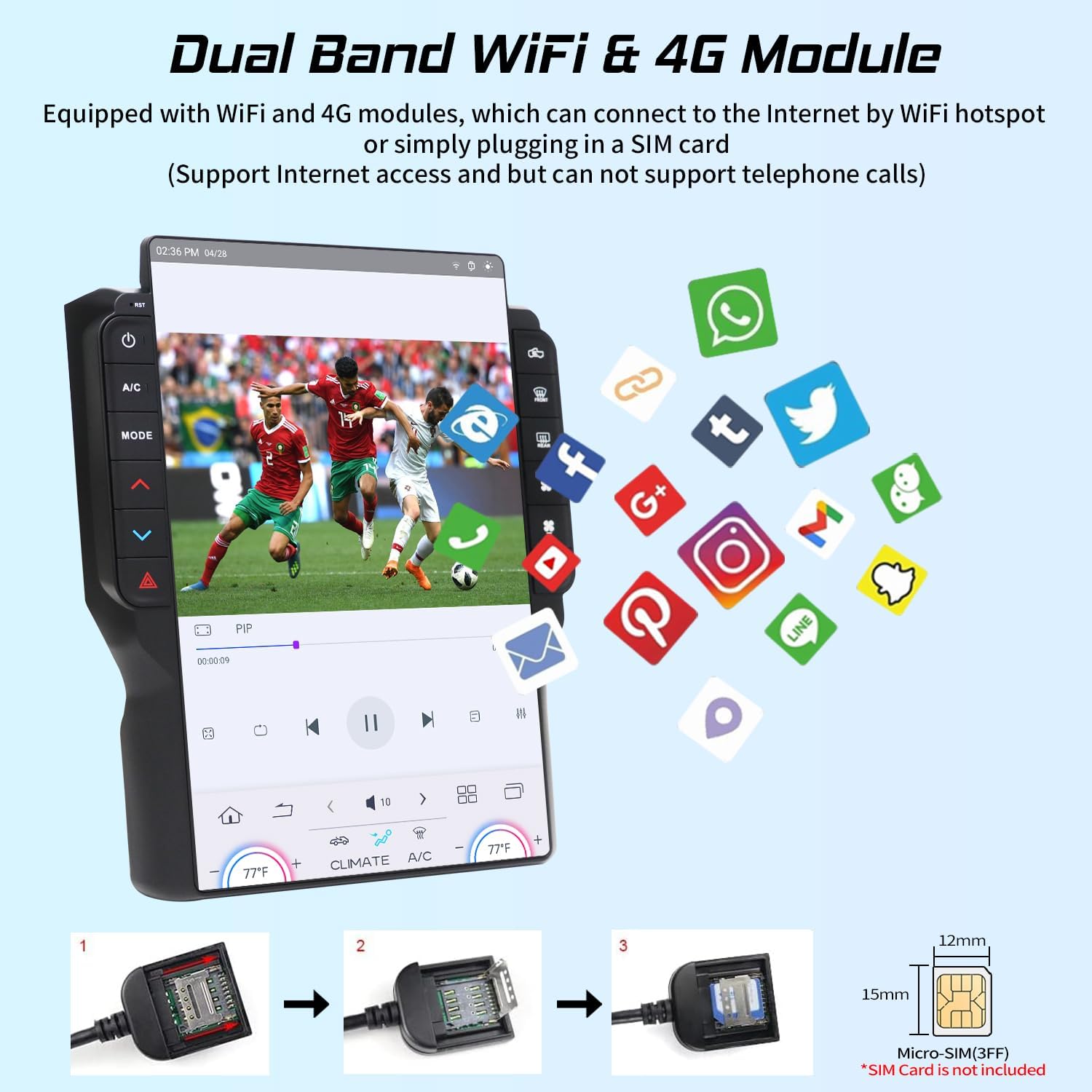
Image: Step-by-step visual guide for installing a Micro-SIM card into the 4G module for internet connectivity.
Operating Instructions
User Interface Overview
The Cidava 13-inch car radio features an intuitive Android 11 interface. The main screen provides quick access to navigation, media playback, weather information, and climate controls. The function interface allows access to all installed applications.
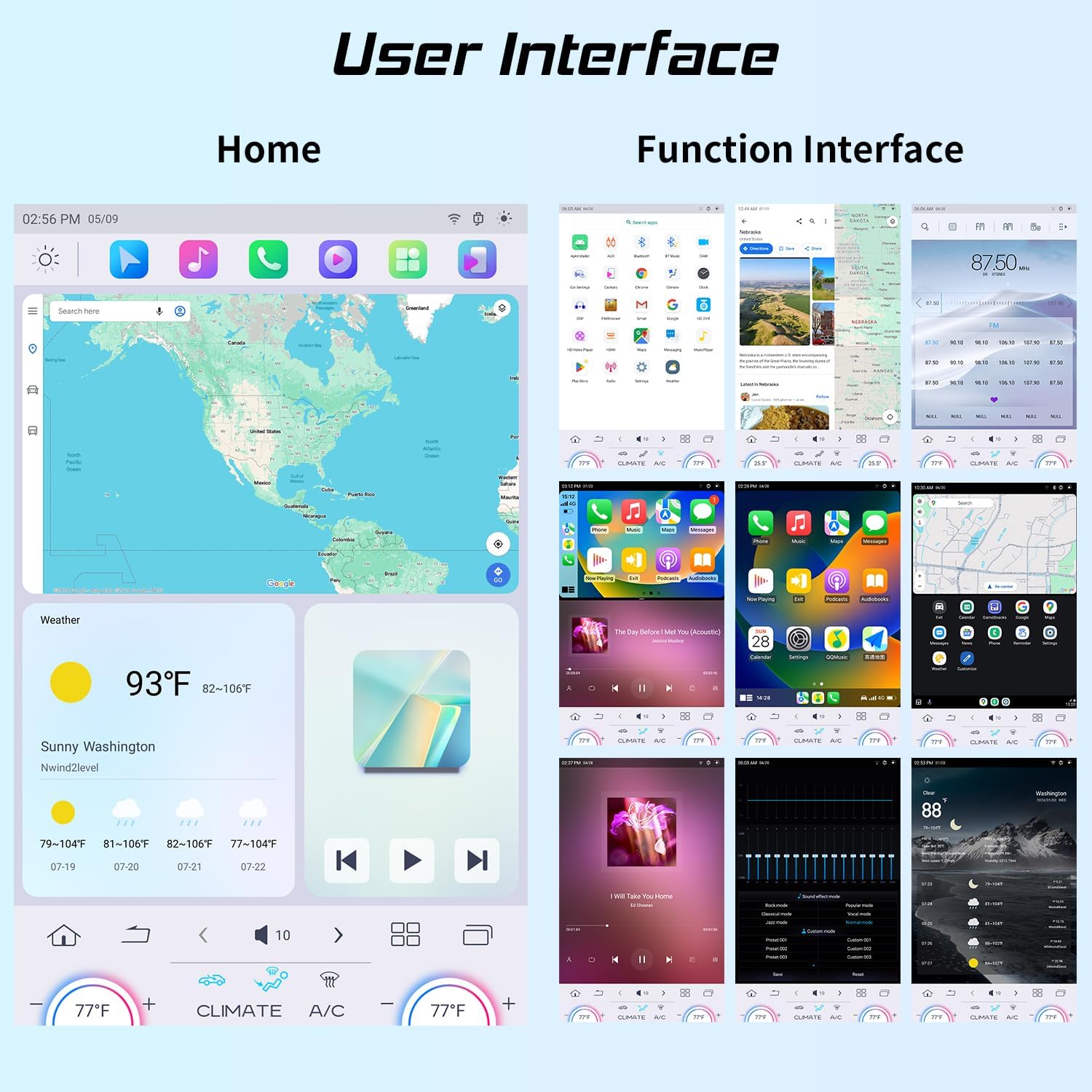
Image: Overview of the main home screen and the application grid (function interface) of the car radio.
Wireless CarPlay and Android Auto
The unit supports both Wireless Apple CarPlay and Wireless/Wired Android Auto for seamless smartphone integration. This allows you to access navigation, music, messages, and voice commands directly from the head unit's display.
- For CarPlay: Simply connect your iPhone wirelessly to the car radio via Bluetooth and Wi-Fi. Activate Siri or use the touchscreen to navigate apps.
- For Android Auto: Connect your Android phone wirelessly via Bluetooth and Wi-Fi, or use a USB cable for a wired connection. Use "Ok Google" for voice commands.

Image: Visual guide for connecting smartphones via Wireless CarPlay and Wireless/Wired Android Auto.
Audio Settings (DSP & EQ)
The built-in Digital Signal Processor (DSP) and Equalizer (EQ) allow for advanced audio customization. You can adjust frequency bands, apply low-pass and high-pass filters, and control subwoofer gain.
- 16-band Frequency Adjustment: Adjust frequencies from 20Hz to 20KHz with a gain range of -10dB to +10dB.
- Filters: Utilize low pass and high pass filters for precise sound shaping.
- Subwoofer Control: Adjust subwoofer frequency (20Hz-250Hz) and gain (0-24dB).
- Sound Effect Modes: Select from various preset modes (Rock, Classical, Jazz, Pop, Vocal, Normal) or create custom presets.

Image: Interface for adjusting the 16-band equalizer and other DSP audio settings.
Connectivity (Wi-Fi & 4G LTE)
Stay connected with built-in 2.4GHz & 5GHz Wi-Fi and 4G cellular capabilities. You can connect to the internet via a Wi-Fi hotspot or by inserting a SIM card (not included) into the 4G module. This enables access to web browsers, streaming apps (e.g., Netflix, YouTube), and social media.
Note: The 4G module supports internet access but does not support direct telephone calls.
HDMI Input and Output
The unit features both HDMI In and Out ports. The HDMI output allows you to connect external displays, such as rear-seat monitors, for shared entertainment. An HDMI input requires an adapter (sold separately).

Image: Demonstration of HDMI output functionality, allowing video content to be displayed on external screens.
Retained OEM Features
The Cidava head unit is designed to retain several original equipment manufacturer (OEM) features of your vehicle:
- Steering Wheel Controls: Retains existing steering wheel control functionality for audio and call management.
- Backup Camera: Supports both OEM and aftermarket backup cameras.
- Factory 360 Camera: Retains the vehicle's factory 360-degree camera system (if originally equipped and optional).
- Climate Controls: Integrates touch screen climate controls.

Image: Interface for configuring and utilizing OEM steering wheel controls.

Image: Demonstration of backup camera integration, supporting both factory and aftermarket cameras.
Maintenance
Screen Care
To maintain the clarity and responsiveness of your 13-inch touchscreen, regularly clean it with a soft, lint-free cloth. For stubborn smudges, lightly dampen the cloth with water or a screen-safe cleaning solution. Avoid abrasive materials or harsh chemicals.
A screen protector is available separately (ASIN: B0F21SF19R) to help prevent scratches and reduce glare.

Image: The Cidava car radio with an optional screen protector, available for purchase separately.
Software Updates
Periodically check for software updates to ensure optimal performance and access to the latest features. Updates can typically be found through the system settings menu or by contacting Cidava customer support.
Troubleshooting
If you encounter issues with your Cidava car radio, please refer to the following common troubleshooting steps:
- No Power:
- Check all power connections to ensure they are securely fastened.
- Verify the vehicle's fuse for the radio is intact.
- No Sound or Distorted Audio:
- Ensure speaker wires are correctly connected and not shorted.
- Check audio settings (DSP/EQ) for incorrect configurations.
- Verify volume levels on both the head unit and any connected devices.
- If using Pioneer speakers in a 2019 Dodge Ram, compatibility issues may arise. Contact support for assistance.
- Microphone Not Working:
- Ensure the external microphone is properly plugged into the correct port.
- Check microphone settings within the unit's software.
- Backup Camera Issues:
- Verify the camera input cable is securely connected.
- Check camera settings in the unit's menu.
- Ensure the camera itself is receiving power and functioning correctly.
- Connectivity Problems (Wi-Fi/4G LTE):
- For Wi-Fi, ensure the Wi-Fi antenna is connected and you are within range of a strong signal.
- For 4G LTE, ensure a valid and active Micro-SIM card is correctly installed in the 4G module.
- Check network settings within the Android system.
- Slow Performance / Freezing:
- Restart the unit.
- Close unnecessary background applications.
- Ensure sufficient storage space is available.
If these steps do not resolve the issue, please contact Cidava customer support for further assistance.
Specifications
| Feature | Detail |
|---|---|
| Display Size | 13 Inches |
| Operating System | Android 11 |
| Processor | Qualcomm QCM6125 (8-core) |
| RAM | 8GB |
| ROM (Internal Storage) | 128GB |
| Connectivity | Bluetooth, USB, Wi-Fi (2.4GHz & 5GHz), 4G LTE |
| Special Features | Wireless CarPlay, Wireless/Wired Android Auto, Built-in DSP & EQ, Fast Boot, HDMI In & Out, Touchscreen Climate Controls, Retains OEM 360 Camera (optional), 3 Camera Inputs (Front, Rear, Right) |
| Audio Output Mode | AUX, Stereo |
| Map Type | Worldwide (via navigation apps) |
| Mounting Type | Dashboard Mount |
| Item Weight | 7.87 pounds |
| Package Dimensions | 15 x 12.25 x 8.1 inches |
| Manufacturer | Cidava |
Warranty and Support
Product Warranty
This Cidava product comes with a one-year warranty from the date of purchase. Additionally, Cidava provides lifetime after-sales service to ensure your continued satisfaction.
If your order is past the Amazon return window, please contact us directly using the official channels provided below for further assistance.
Customer Support
Cidava is committed to providing responsive support. Our technical support team aims to respond to all inquiries within 24 hours.
- Amazon Contact: Visit the Cidava Store on Amazon and click "Ask a question" to reach our support team.
- Email Support: For general inquiries or technical assistance, you can email us at Radiotechsd06@gmail.com.
- Phone Support: For immediate assistance, you may call our technical support line at +1 951-337-342.
- Online Resources: Detailed installation videos and other helpful content are available on the Cidava Radio YouTube channel.

Image: Instructions on how to contact Cidava customer support through Amazon or via phone.

Image: Screenshot of the Cidava Radio YouTube channel, providing a resource for installation videos.