
VECHTEL A3676A4MI2
VECHTEL 7-Inch Android 13 Car Stereo User Manual
Model: A3676A4MI2
1. Introduction
This manual provides detailed instructions for the installation, operation, and maintenance of your VECHTEL Android 13 Car Stereo. Please read this manual thoroughly before using the product to ensure proper functionality and safety. Keep this manual for future reference.
Package Contents:
- 1 x Car Stereo Unit
- 1 x Power Cable
- 1 x Rear View Camera
- 1 x GPS Antenna
- 1 x Rear Camera Input Cable
- 1 x RCA Cable
- 2 x USB Cables
- 1 x Instruction Manual (this document)
- 1 x Radio Antenna
- 1 x Microphone
- 1 x Canbus Decoder
2. Vehicle Compatibility
This car stereo is designed for specific Volkswagen, Seat, and Skoda models. It includes a Plug and Play connection cable and is intended to integrate with the original factory chassis.
Compatible Models:
- For VW: Golf 5, Golf 6, Passat (B6/B7/CC/NMS/TSI/V6/Variant), Jetta, Caddy, EOS, T5, Tiguan, Touran, Polo, Amarok, Beetle, Bora, Multzvan, R36 Variant, Scirocco, Sharan, Sportline.
- For Seat: Altea (from 05/2004), Toledo (from 12/2004), Leon (from 09/2005), Altea XL (from 04/2007), Alhambra (from 2010).
- For Skoda: Fabia Limousine (02/2007-2012), Fabia Combi (04/2007-2012), Praktic (04/2007-2012), Roomster (04/2006-2012), Octavia Combi (06/2004-2012 Facelift).
Important Note:
Compatibility is not guaranteed for all years. Please verify the shape of your old car stereo and center console. If your car has a 52-pin connector, please contact customer support before installation. In case of harness incompatibility or unsuitable shape, provide your car model, year, and a photo of the central console to customer support for assistance.

Image: Examples of compatible (top) and incompatible (bottom) car stereo console designs. The top images show standard double-DIN slots suitable for installation, while the bottom images show integrated or non-standard console designs that are not compatible.
3. Setup and Installation
Professional installation is recommended for this car stereo. Incorrect installation can damage the unit or your vehicle's electrical system. Ensure the vehicle's battery is disconnected before beginning installation.
3.1 Wiring Connections:
- Power Cable: Connect the provided power cable to the vehicle's wiring harness. Ensure all connections match the vehicle's electrical system.
- Canbus Decoder: Connect the Canbus decoder as per the vehicle's specific wiring diagram. This enables steering wheel controls and other vehicle data integration.
- GPS Antenna: Mount the GPS antenna in a location with a clear view of the sky, typically on the dashboard or under the windshield, away from metal obstructions.
- Radio Antenna: Connect the radio antenna to the designated port on the stereo unit.
- USB Cables: Connect the two USB cables for external device connectivity. Route them to an accessible location, such as the glove compartment or center console.
- RCA Cable: Use the RCA cable for connecting external amplifiers or subwoofers if desired.
- Rear Camera: Connect the rear camera input cable to the stereo. Install the rear camera at the back of the vehicle, ensuring a clear view and proper wiring to the reverse light for automatic activation.
- Microphone: Connect the external microphone for improved call quality during hands-free operation. Position it near the driver for optimal voice pickup.

Image: The VECHTEL car stereo unit displayed with its essential accessories, including power cables, USB cables, GPS antenna, rear camera, and Canbus decoder, illustrating the complete package for installation.
3.2 Initial Power-On and Configuration:
- After all connections are secure, reconnect the vehicle's battery.
- Turn on the vehicle's ignition. The stereo should power on automatically.
- Follow the on-screen prompts for initial setup, including language selection and time zone.
- Connect to a Wi-Fi network to ensure the system is up-to-date and to access online features.
- Verify all functions, including radio, Bluetooth, GPS, and rear camera, are working correctly.
4. Operating Instructions
The VECHTEL car stereo features an intuitive Android 13 interface. Navigate using the 7-inch HD touchscreen or the physical buttons.
4.1 Wireless CarPlay and Android Auto:
Connect your smartphone wirelessly via Bluetooth or wired via USB to access CarPlay or Android Auto functionalities.
- Wireless Connection:
- Enable Bluetooth on your smartphone and the car stereo.
- Pair your phone with the stereo.
- Once paired, select CarPlay or Android Auto from the stereo's menu.
- Wired Connection:
- Connect your smartphone to one of the USB ports using a compatible USB cable.
- The stereo will automatically prompt you to launch CarPlay or Android Auto.
- Voice Control: Utilize Siri (for CarPlay) or Google Assistant (for Android Auto) for hands-free control of navigation, calls, and music.
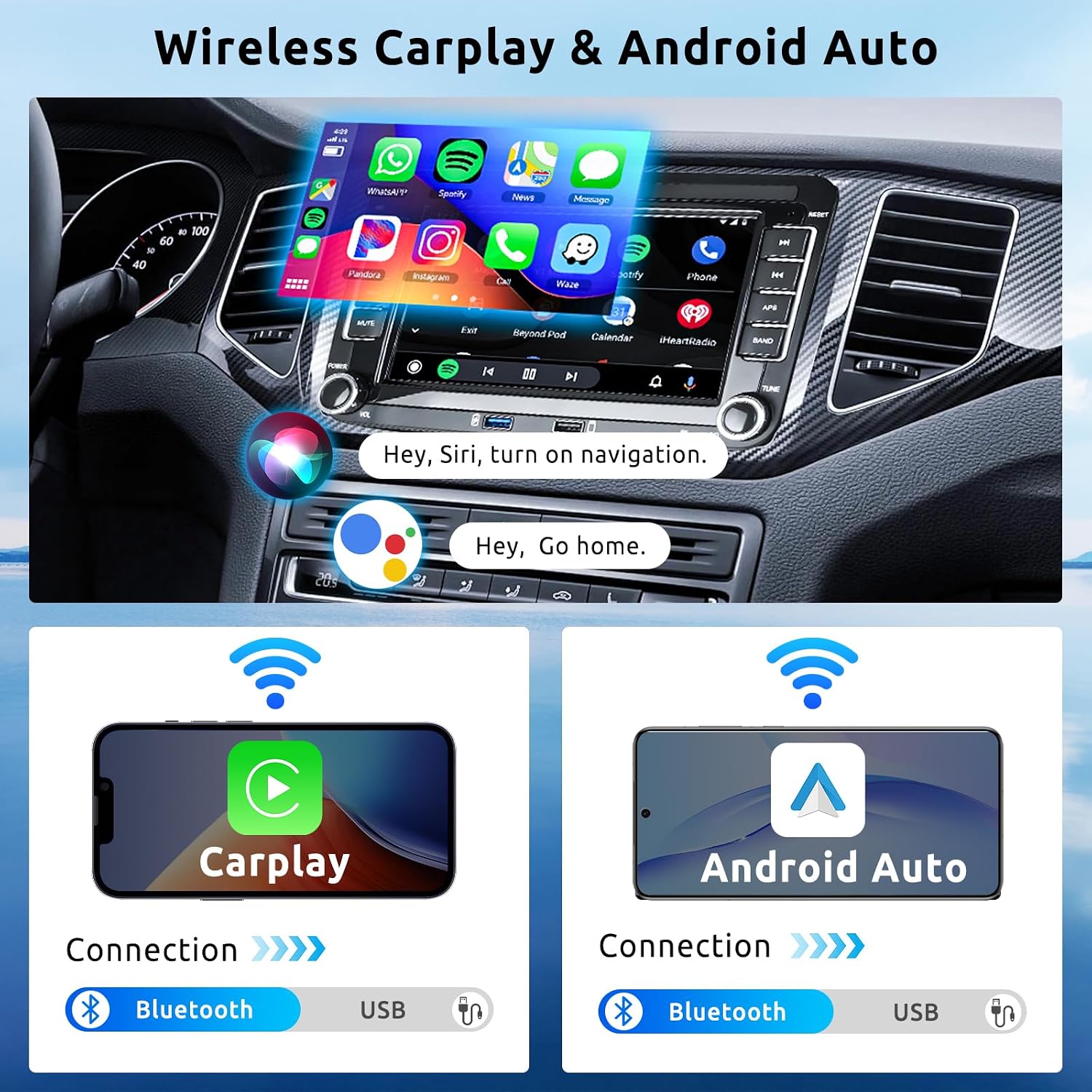
Image: A visual representation of wireless CarPlay and Android Auto connectivity, showing a smartphone screen mirroring to the car stereo and the Bluetooth/USB connection options.
4.2 GPS Navigation:
The unit includes an integrated GPS module supporting both online and offline maps.
- Offline Maps: Pre-installed maps allow navigation without an internet connection.
- Online Maps: Connect to Wi-Fi to use real-time online navigation applications.
- Access navigation applications from the main menu.

Image: The car stereo displaying GPS navigation, highlighting both online and offline map capabilities with route planning and destination information.
4.3 Wi-Fi Connectivity:
Connect to a Wi-Fi network or a mobile hotspot to access online features.
- Go to Settings > Network & Internet > Wi-Fi.
- Select your desired network and enter the password.
- Once connected, you can download apps from the Play Store, stream online videos, and use online navigation.
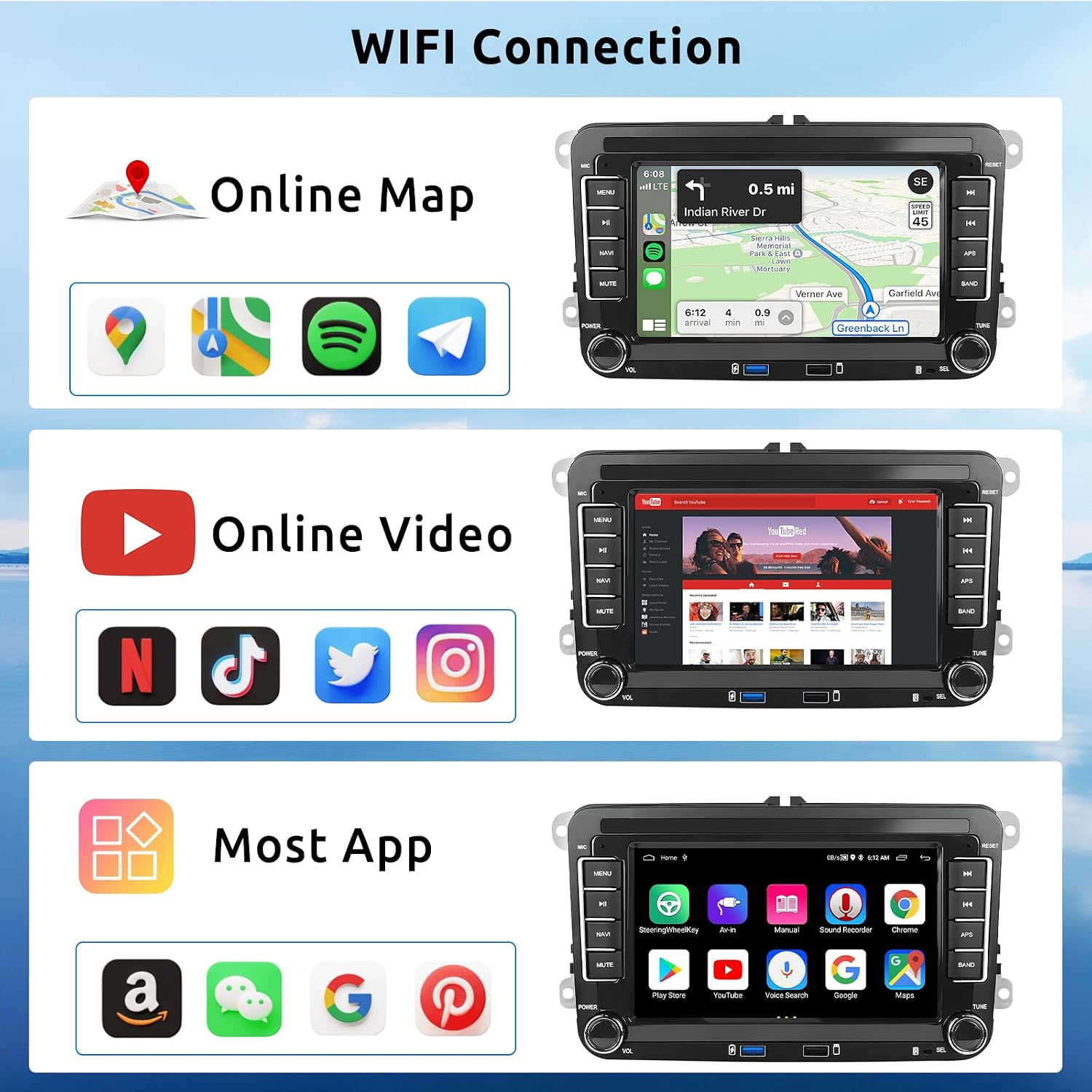
Image: The car stereo screen showing various online functionalities enabled by Wi-Fi, including online maps, video streaming apps (YouTube, Netflix), and other applications.
4.4 Bluetooth Functions:
Pair your phone via Bluetooth for hands-free calling and audio streaming.
- Go to Settings > Connected devices > Bluetooth.
- Enable Bluetooth and search for available devices.
- Select your phone from the list and confirm pairing.
- You can now make/receive calls and stream music wirelessly.
4.5 Rear View Camera:
The system automatically displays the rear camera feed when the vehicle is in reverse gear.
- Ensure the camera is properly installed and connected.
- The camera provides an HD, waterproof, night vision, and wide-angle view.
4.6 Steering Wheel Control (SWC):
If your vehicle supports it and the Canbus decoder is correctly installed, you can control the stereo using your steering wheel buttons.
- Access the SWC settings in the stereo menu to configure button functions if needed.
4.7 FM/RDS Radio:
Tune into FM radio stations with RDS support for station information display.
- Use the radio application to scan for stations and save your favorites.
- The unit supports 18 preset stations.

Image: A composite image detailing key operational features: the HD rear camera view with guidelines, the interface for steering wheel controls, the FM/RDS radio tuner, and the Bluetooth hands-free calling interface.
4.8 Mirror Link:
Synchronize your smartphone screen with the car stereo display.
- Follow the instructions within the Mirror Link application on the stereo to connect your phone.
4.9 Split Screen:
The 7-inch HD touchscreen supports split-screen functionality, allowing you to run two applications simultaneously (e.g., navigation and music).
- To activate split screen, long-press the recent apps button or drag an app to one side of the screen.
5. Maintenance
Regular maintenance ensures the longevity and optimal performance of your car stereo.
- Cleaning: Use a soft, dry cloth to clean the touchscreen and unit exterior. For stubborn marks, slightly dampen the cloth with water or a screen-safe cleaner. Avoid harsh chemicals or abrasive materials.
- Software Updates: Periodically check for system software updates via Wi-Fi to ensure you have the latest features and security patches.
- Factory Settings: The factory settings password is 1234. Use this with caution, as resetting to factory settings will erase all personal data and configurations.
6. Troubleshooting
If you encounter issues, refer to the following common problems and solutions:
| Problem | Possible Cause | Solution |
|---|---|---|
| Unit does not power on. | Loose power connection, blown fuse, vehicle battery issue. | Check power cable connections. Inspect vehicle fuses. Ensure vehicle battery is charged. |
| No sound. | Volume too low, mute activated, speaker wiring issue, incorrect audio output settings. | Increase volume. Check if mute is active. Verify speaker connections. Check audio settings. |
| GPS signal lost or inaccurate. | GPS antenna obstructed or improperly installed, outdated maps. | Ensure GPS antenna has a clear view of the sky. Update maps if necessary. |
| Bluetooth connection issues. | Phone not discoverable, incorrect pairing, interference. | Ensure phone Bluetooth is on and discoverable. Delete previous pairings and re-pair. Restart both devices. |
| Rear camera not displaying. | Camera cable loose, camera faulty, reverse light trigger not connected. | Check all camera connections. Ensure reverse light trigger wire is correctly connected. |
| Buttons illumination problem (as per review). | Internal software issue, hardware defect. | Check for available software updates. If issue persists, contact customer support. |
If the problem persists after trying these solutions, please contact VECHTEL customer support for further assistance.
7. Specifications
| Brand | VECHTEL |
| Model Number | A3676A4MI2 |
| Operating System | Android 13 |
| Processor | Quad-Core |
| RAM | 2GB |
| ROM (Internal Storage) | 64GB |
| Screen Size | 7 Inches |
| Display Type | HD Touchscreen (1080P support) |
| Connectivity | Wi-Fi, Bluetooth, USB, RCA |
| Special Features | Wireless CarPlay, Wireless Android Auto, GPS Navigation, Integrated Wi-Fi, Touchscreen, Rear Camera Support, Steering Wheel Control, Mirror Link, Split Screen, FM/RDS Radio, Subwoofer Output |
| Audio Output Power | 4*45W |
| Supported Audio Formats | APE, FLAC, WAV, MP3, WMA, etc. |
| Supported Video Formats | MKV, RMVB, AVI, MP4, MDV, H.264, H.265/HEVC, MPEG-4, etc. |
| Factory Settings Password | 1234 |
| Manufacturer | VECHTEL |
| Country of Origin | China |
8. Warranty Information
This product comes with a manufacturer's warranty of three years. Please retain your proof of purchase for warranty claims.
The warranty covers defects in materials and workmanship under normal use. It does not cover damage caused by improper installation, accident, misuse, abuse, neglect, unauthorized modification, or natural disasters.
For warranty service, please contact VECHTEL customer support.
9. Customer Support
For any questions, technical assistance, or support regarding your VECHTEL car stereo, please contact our customer service team.
- Contact Method: Please reach out via the Amazon messaging system.
- When contacting support, please provide your product model number (A3676A4MI2) and a detailed description of your issue.
- For compatibility issues, include your car's model, year, and a photo of the central console.
Related documentsA3676A4MI2

Ask a question about this manual
Ask about setup, troubleshooting, compatibility, parts, safety, or missing instructions. Manuals+ will review the question and use this page’s manual context to help answer it.