
Introduction
This manual provides detailed instructions for the installation, operation, and maintenance of your Duex DX270QGP165 27-inch QHD IPS Gaming Monitor. Please read this manual thoroughly before using the product to ensure proper setup and functionality. Keep this manual for future reference.
Safety Information
Observe the following safety precautions to prevent damage to the monitor and ensure user safety:
- Do not expose the monitor to rain or moisture to avoid fire or electric shock.
- Do not open the monitor casing. There are no user-serviceable parts inside. Refer all servicing to qualified personnel.
- Place the monitor on a stable, flat surface to prevent it from falling.
- Ensure proper ventilation around the monitor. Do not block ventilation openings.
- Use only the power adapter supplied with the monitor.
- Disconnect the power cable from the outlet during lightning storms or when unused for long periods.
- Avoid placing heavy objects on the power cord.
Package Contents
Verify that all items are present in the package:
- Duex DX270QGP165 Monitor
- Monitor Base
- Power Adapter (12V 4A)
- HDMI Cable
- User Manual (this document)
Setup
1. Monitor Assembly
To attach the monitor base:
- Carefully remove the monitor from its packaging, keeping the screen protected.
- Attach the stand neck to the monitor panel.
- Secure the base to the stand neck using the provided screws.
- Place the assembled monitor on a stable, flat surface.
Alternatively, the monitor supports VESA 100x100mm mounting for wall or arm installation. Ensure the mounting bracket can support the monitor's weight (approximately 4.72 kg).
2. Connecting Cables
Connect the necessary cables to the monitor and your computer:
- Power Cable: Connect the power adapter to the monitor's DC12V input and then to a power outlet (100-200V AC, 50/60Hz).
- Video Cable:
- For optimal performance, use a DisplayPort (DP 1.4) cable to connect to your graphics card. The monitor has two DP 1.4 inputs.
- Alternatively, use an HDMI (HDMI 2.0) cable. The monitor has two HDMI 2.0 inputs.
- Audio Output: Connect headphones or external speakers to the 3.5mm earphone jack on the monitor.

Image: Rear view of the monitor's connectivity panel, showing DC12V power input, USB port, two HDMI inputs (HD-IN1, HD-IN2), a DisplayPort input (DP), and an earphone jack.
Operating the Monitor
1. Power On/Off
Press the power button, usually located on the back or bottom right of the monitor, to turn it on or off. The power indicator light will illuminate when the monitor is on.
2. On-Screen Display (OSD) Menu
The OSD menu allows you to adjust various monitor settings. Access it using the control buttons (joystick or individual buttons) typically found on the back or bottom of the monitor.
Common OSD Menu Options:
- Picture Settings: Adjust Brightness (250cd/m² max), Contrast (1000:1), Sharpness, and Color Temperature (6500K default).
- Color Gamut: sRGB: 99% / NTSC: 74%.
- Input Select: Manually switch between HDMI 1, HDMI 2, and DisplayPort inputs.
- Gaming Features:
- Adaptive Sync (FreeSync/G-Sync Compatible): Enable this feature in the OSD and your graphics card settings for tear-free gaming.
- Overdrive: Adjust for faster pixel response time (1ms).
- Low Blue Light: Reduces blue light emission for eye comfort.
- Flicker Free: Technology to reduce screen flickering.
- HDR: High Dynamic Range support for enhanced contrast and color.
- OSD Settings: Adjust OSD language, transparency, and timeout.
- Reset: Restore all settings to factory defaults.

Image: Front view of the Duex DX270QGP165 monitor, showcasing its slim bezels and stable stand, with a gaming image on screen.

Image: A slightly different front perspective of the Duex DX270QGP165 monitor, highlighting its design and screen display.
Maintenance
Cleaning the Monitor
- Always unplug the monitor from the power outlet before cleaning.
- Use a soft, lint-free cloth slightly dampened with water or a mild, non-abrasive screen cleaner.
- Do not spray cleaner directly onto the screen. Apply it to the cloth first.
- Avoid using benzene, thinner, ammonia-based cleaners, or abrasive pads, as these can damage the screen or casing.
Storage
If storing the monitor for an extended period, disconnect all cables, pack it in its original packaging if possible, and store it in a cool, dry place away from direct sunlight and extreme temperatures.
Troubleshooting
If you encounter issues with your monitor, refer to the following common problems and solutions:
| Problem | Possible Cause / Solution |
|---|---|
| No image on screen |
|
| Flickering or unstable image |
|
| Colors appear incorrect |
|
| Monitor does not power on |
|
Specifications
Detailed technical specifications for the Duex DX270QGP165 monitor:
| Model | DX270QGP165 |
| Panel Type | IPS |
| Screen Size | 27 inches |
| Aspect Ratio | 16:9 |
| Resolution | QHD (2560 x 1440) |
| Refresh Rate | 165Hz |
| Response Time | 1ms |
| Contrast Ratio | 1000:1 |
| Brightness | 250 cd/m² |
| Viewing Angle | 178°/178° |
| Color Gamut | sRGB: 99% / NTSC: 74% |
| Video Inputs | 2 x HDMI 2.0, 2 x DisplayPort 1.4 |
| Audio Output | 1 x Earphone Jack |
| Power Input | 12V 4A |
| Power Consumption | <30W |
| VESA Mount | 100x100mm |
| Dimensions (P x L x A) | 13P x 69L x 44A cm (approximate, with stand) |
| Weight | 4.72 kg (approximate, with stand) |
| Special Features | AMD FreeSync, Nvidia G-Sync Compatible, Low Blue Light, Ultra Vivid, Flicker Free, HDR, Overdrive |

Image: Side profile of the Duex DX270QGP165 monitor, illustrating its thin design and the angle of the stand.

Image: A different side view of the Duex DX270QGP165 monitor, demonstrating its adjustable tilt feature.
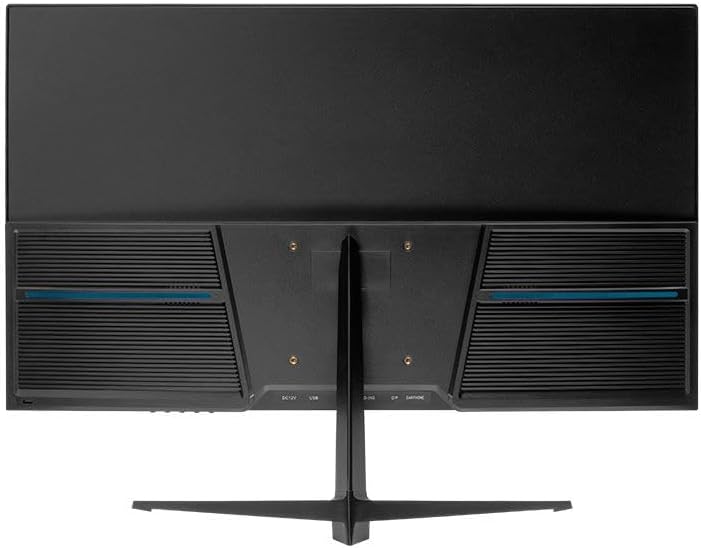
Image: Rear view of the Duex DX270QGP165 monitor, highlighting the VESA mounting holes and ventilation grilles.
Warranty Information
The Duex DX270QGP165 monitor comes with a 12-month warranty from the date of purchase. This warranty covers manufacturing defects and malfunctions under normal use. It does not cover damage caused by misuse, accidents, unauthorized modifications, or external factors.
Please retain your proof of purchase for warranty claims. For detailed warranty terms and conditions, refer to the warranty card included with your product or contact customer support.
Support
For technical assistance, troubleshooting beyond this manual, or warranty inquiries, please contact Duex customer support. Contact information can typically be found on the official Duex website or on the product packaging.
When contacting support, please have your monitor model number (DX270QGP165) and proof of purchase readily available.