
1. Introduction
This manual provides essential information for the safe and efficient operation of your Philips Evnia 34M2C6500 QD OLED Curved Gaming Monitor. Please read these instructions carefully before using the product and retain them for future reference.
The Philips Evnia 34M2C6500 is a 34-inch curved QD-OLED monitor designed for immersive gaming and professional use. It features WQHD (3440 x 1440) resolution, a 175Hz refresh rate, and a USB-C hub for versatile connectivity.
2. Safety Information
Observe the following safety precautions to prevent damage to the monitor and ensure user safety:
- Do not expose the monitor to rain or moisture.
- Do not open the monitor casing. Refer all servicing to qualified personnel.
- Ensure proper ventilation around the monitor.
- Use only the power adapter supplied with the monitor.
- Avoid placing heavy objects on the power cord.
- Clean the screen with a soft, lint-free cloth. Do not use liquid cleaners directly on the screen.
3. What's in the Box
Verify that all components are present:
- Monitor
- HDMI Cable
- Power Cord
- User Manual

Image: The Philips Evnia 34M2C6500 monitor with its stand, showcasing the display and the included accessories like cables.
4. Setup Instructions
4.1 Assembling the Stand
- Carefully remove the monitor from its packaging.
- Attach the stand base to the stand neck. Ensure it clicks securely into place or is fastened with screws if provided.
- Attach the assembled stand to the back of the monitor. Align the mounting points and secure firmly.

Image: Side profile of the Philips Evnia 34M2C6500 monitor, illustrating the attached stand and its ergonomic design.
4.2 Connecting the Monitor
The monitor offers various connectivity options:
- Power Connection: Connect the power cord to the monitor's power input and then to a power outlet.
- Video Input:
- HDMI: Use an HDMI cable to connect your computer or gaming console to one of the monitor's HDMI 2.0 ports.
- DisplayPort: Use a DisplayPort 1.4 cable to connect your computer to the monitor's DisplayPort.
- USB-C: Connect a USB-C cable from your device to the monitor's USB-C port for video, data, and 90W power delivery.
- USB Hub: Connect the USB-B upstream cable from your computer to the monitor to enable the USB 3.2 ports.
- Audio Output: Connect external speakers or headphones to the Audio Out port.
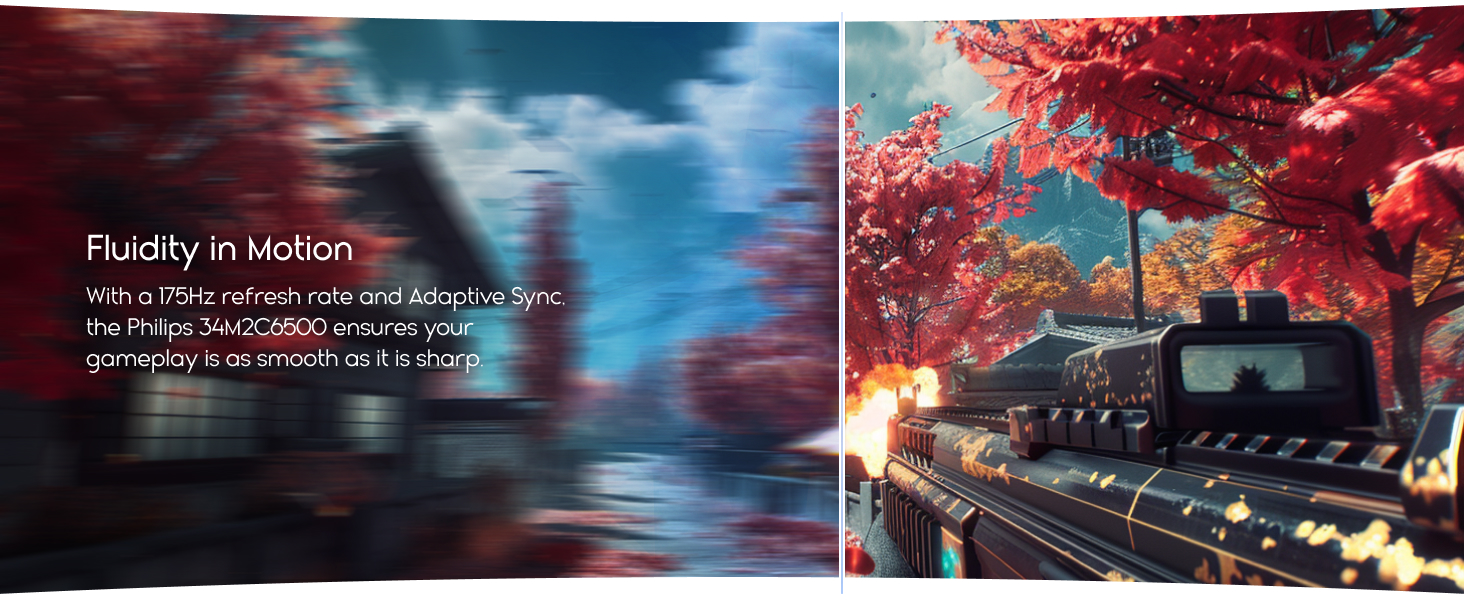
Image: Close-up view of the rear panel of the Philips Evnia 34M2C6500 monitor, highlighting the various input and output ports including HDMI, DisplayPort, USB-C, and USB-A ports.
5. Operating Instructions
5.1 Power On/Off
Press the power button, usually located on the back or bottom right of the monitor, to turn it on or off.
5.2 On-Screen Display (OSD) Menu
The OSD menu allows you to adjust various monitor settings. Access it using the joystick or buttons typically found on the back of the monitor.
- Picture Settings: Adjust brightness, contrast, sharpness, and color temperature.
- Input Selection: Manually select the input source (HDMI 1, HDMI 2, DisplayPort, USB-C).
- Audio Settings: Control volume and select audio input/output.
- Ambiglow: Configure the adaptive lighting feature.
- OSD Settings: Adjust OSD language, transparency, and timeout.
5.3 Ambiglow Feature
The 3-sided Ambiglow technology projects a halo of light from the monitor's back, matching on-screen colors. This feature can be enabled or disabled and its intensity adjusted via the OSD menu.
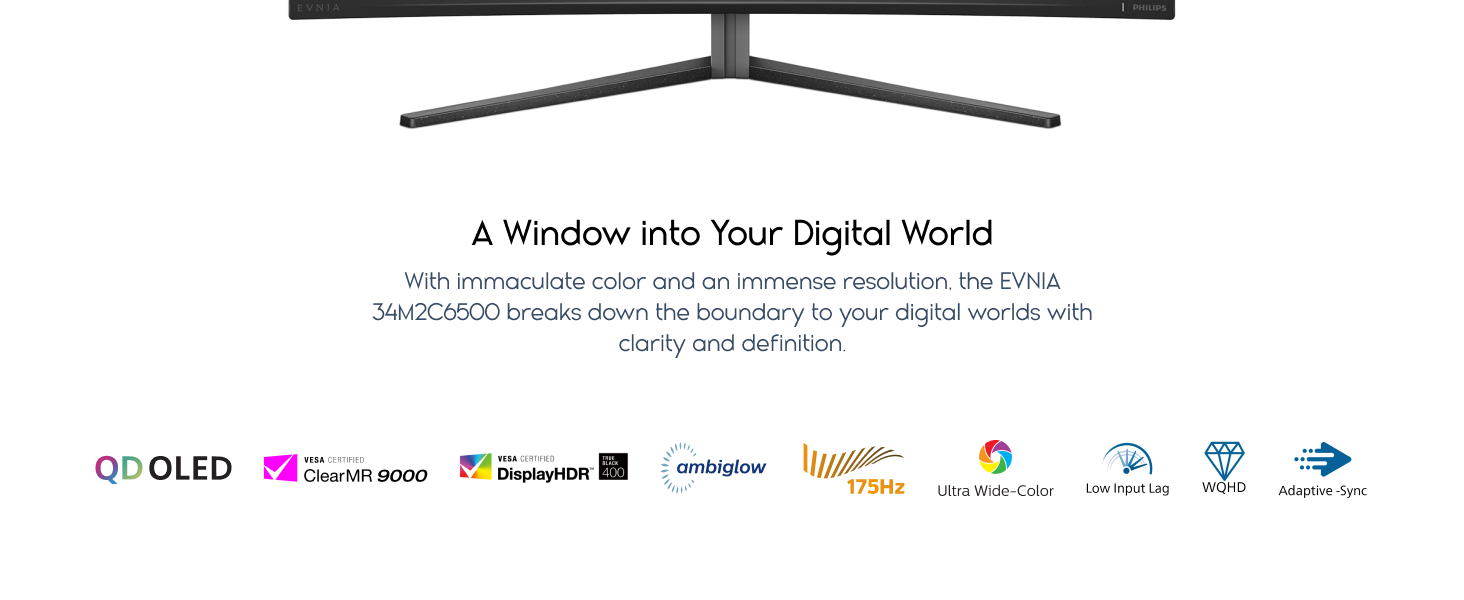
Image: Top-down view of the Philips Evnia 34M2C6500 monitor, showing the Ambiglow LEDs emitting light from the top and sides, creating an immersive ambiance.
5.4 MultiView Functionality
The MultiView feature allows simultaneous display from two different sources. Consult the OSD menu for options to configure picture-by-picture (PbP) or picture-in-picture (PiP) modes and select input sources for each window.
5.5 Adaptive Sync
This monitor supports Adaptive Sync technology to synchronize the monitor's refresh rate with your graphics card's frame rate, reducing screen tearing and stuttering during gaming. Ensure Adaptive Sync is enabled in both the monitor's OSD and your graphics card settings.
6. Maintenance
6.1 Cleaning the Monitor
- Always unplug the monitor before cleaning.
- Use a soft, clean, lint-free cloth to wipe the screen and cabinet.
- For stubborn marks, lightly dampen the cloth with water or a mild, non-abrasive screen cleaner. Do not spray liquids directly onto the screen.
- Avoid using benzene, thinner, ammonia-based cleaners, or abrasive materials.
6.2 Pixel Refresh (OLED Care)
OLED panels may be susceptible to image retention (burn-in) with prolonged display of static images. This monitor includes pixel refresh functions to mitigate this. The monitor may periodically prompt for a pixel refresh cycle. Allow this process to complete when prompted.
7. Troubleshooting
| Problem | Possible Cause | Solution |
|---|---|---|
| No image on screen | Power cable disconnected, video cable disconnected, incorrect input source selected. | Check power and video cable connections. Select the correct input source via the OSD menu. |
| Image is blurry or distorted | Incorrect resolution, faulty video cable. | Set the display resolution to 3440 x 1440. Try a different video cable. |
| No sound | Audio cable disconnected, volume too low, incorrect audio output selected. | Check audio cable connections. Adjust volume in OSD and computer settings. Ensure correct audio output is selected. |
| Ambiglow not working | Feature disabled in OSD, incorrect settings. | Enable Ambiglow in the OSD menu and adjust its settings. |
8. Specifications
| Feature | Detail |
|---|---|
| Model Number | 34M2C6500 |
| Screen Size | 34 Inches |
| Panel Type | QD-OLED |
| Resolution | 3440 x 1440 (WQHD) |
| Refresh Rate | 175Hz |
| Curvature | 1800R |
| HDR Certification | VESA DisplayHDR TrueBlack 400 |
| Connectivity | 2x HDMI 2.0, 1x DisplayPort 1.4, 1x USB-C (90W PD), 4x USB 3.2 (downstream), 1x USB-B (upstream), Audio Out |
| Weight | 23.2 pounds (10.5 kg) |
| Dimensions (LxWxH) | 6.4 x 32 x 14.4 inches (16.26 x 81.28 x 36.58 cm) |
9. Warranty and Support
Philips Computer Monitors typically offer a 4-year advance replacement warranty. For detailed warranty information, terms, and conditions, please refer to the warranty card included with your product or visit the official Philips support website.
For technical support, troubleshooting assistance, or service requests, please contact Philips customer support. Contact information can usually be found on the Philips website or in your product documentation.
Online Resources: For additional support and driver downloads, visit the official Philips Computer Monitors Store.


