
1. Introduction
Thank you for choosing the UYIKOO WiFi 5G Spy Camera USB Charger. This device is designed to provide discreet surveillance and security for your home or office. It functions as a standard USB charger while secretly recording high-definition video, offering peace of mind through remote monitoring and motion detection capabilities. Please read this manual carefully to ensure proper installation and operation.

Figure 1.1: Versatile applications for the UYIKOO Spy Camera.
2. Product Overview
2.1. Components
The package includes:
- 1 x UYIKOO WiFi 5G Spy Camera USB Charger
- User Manual (this document)
2.2. Key Features
- Discreet Design: Functions as a regular USB charger, making it virtually unnoticeable.
- Dual-Band WiFi Connectivity: Connects to your smartphone via the free Tuyasmart APP using both 2.4GHz and 5G networks for stable live streaming.
- 1080P HD Video: Provides clear, high-definition live video feeds to your phone or tablet from anywhere.
- Motion Detection Alerts: Sends instant notifications to your app when activity is detected, ideal for security monitoring.
- Automatic Overwrite Recording: Automatically overwrites older video files when the Micro SD card is full, ensuring continuous recording.
- Cloud Storage Option: Ability to subscribe to a cloud service for secure video storage.
- Multi-Camera Support: Combine up to 4 hidden cameras and view them from the same application.
- Functional USB Charger: The USB port can be used to charge other devices.

Figure 2.1: UYIKOO WiFi 5G Spy Camera USB Charger and its app interface.
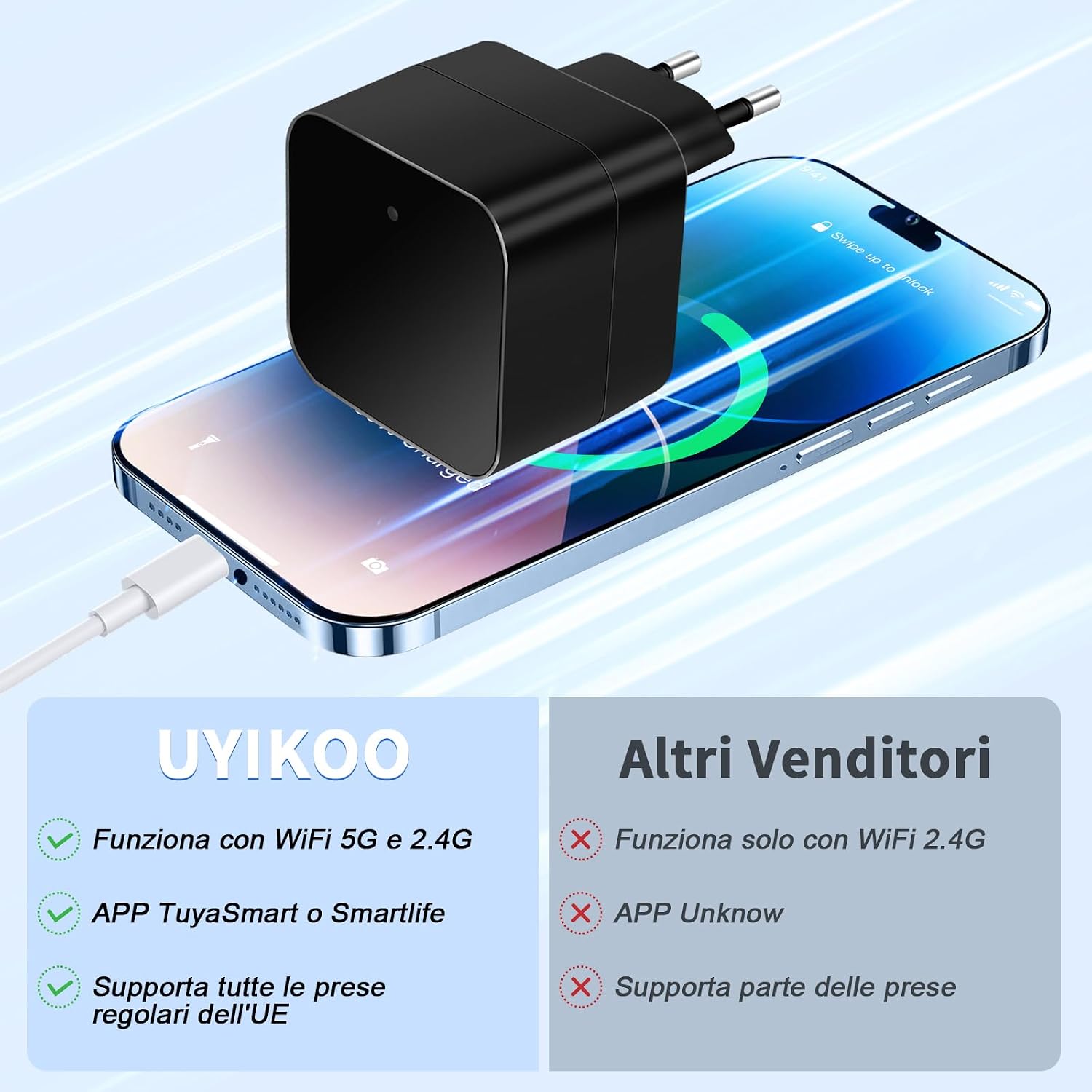
Figure 2.2: UYIKOO product advantages over other vendors.
3. Setup Guide
Follow these steps for quick installation and setup of your UYIKOO Spy Camera:
- Install the APP: Download and install the free Tuyasmart or Smartlife application on your smartphone from the App Store (iOS) or Google Play Store (Android).
- Plug in the Camera: Insert the UYIKOO Spy Camera into a standard wall socket. Ensure it is securely plugged in.
- Activate Bluetooth & Connect to WiFi: On your smartphone, activate Bluetooth and connect to your home WiFi network (both 2.4GHz and 5G are supported). Open the Tuyasmart/Smartlife app and follow the on-screen prompts to add a new device. The app will guide you through the connection process.
- Remote Viewing: Once connected, you can access the live video feed and manage settings directly from your smartphone, enabling remote viewing from anywhere.

Figure 3.1: Quick Installation Guide.

Figure 3.2: Dual Band WiFi Connection Process.
4. Operating Instructions
4.1. Live Viewing
Once the camera is connected to the app, you can view live 1080P HD video from anywhere with an internet connection. Simply open the Tuyasmart/Smartlife app and select your camera from the device list.

Figure 4.1: Remote Viewing via APP.
4.2. Motion Detection
The camera is equipped with motion detection capabilities. When motion is detected, the camera will automatically start recording and send a push notification to your smartphone via the app. You can adjust the sensitivity of the motion detection in the app settings.

Figure 4.2: Real-time Motion Notifications.
4.3. Storage Options
The camera supports two primary storage methods:
- Micro SD Card: Insert a Micro SD card (up to 256GB, not included) into the designated slot for local storage. The camera features an automatic overwrite function, ensuring continuous recording by deleting the oldest files when the card is full.
- Cloud Storage: For enhanced security and accessibility, you can subscribe to the optional cloud storage service through the Tuyasmart/Smartlife app. This allows your recordings to be stored securely off-site.

Figure 4.3: Flexible and Secure Storage Options.
4.4. Sharing and Multi-Camera Management
The Tuyasmart/Smartlife app allows you to share camera access with family and friends. You can also manage multiple UYIKOO cameras (up to 4) from a single app interface, providing comprehensive surveillance for different locations.

Figure 4.4: Sharing Camera Access.
5. Maintenance
To ensure the longevity and optimal performance of your UYIKOO Spy Camera, follow these maintenance guidelines:
- Cleaning: Gently wipe the camera's exterior with a soft, dry cloth. Do not use liquid cleaners or aerosols, as they may damage the device.
- Placement: Ensure the camera is placed in a well-ventilated area, away from direct sunlight, heat sources, and excessive moisture.
- Firmware Updates: Periodically check the Tuyasmart/Smartlife app for any available firmware updates for your camera. Keeping the firmware updated ensures the best performance and security features.
- SD Card Management: If using a Micro SD card, consider formatting it periodically (e.g., once a month) through the app to maintain optimal recording performance and prevent data corruption. Back up any important recordings before formatting.
6. Troubleshooting
If you encounter issues with your UYIKOO Spy Camera, refer to the following common troubleshooting steps:
| Problem | Possible Cause | Solution |
|---|---|---|
| Camera not connecting to WiFi | Incorrect WiFi password; Camera too far from router; Router settings (e.g., firewall, 5G/2.4G band issues). | Double-check WiFi password. Move camera closer to the router. Ensure your router supports both 2.4GHz and 5G, and try connecting to the other band if one fails. Restart your router. |
| No live video feed | Internet connection issue; Camera offline; App malfunction. | Check your phone's internet connection. Verify the camera is plugged in and its indicator light (if any) is normal. Restart the app. Unplug and replug the camera. |
| Motion detection not working | Motion detection disabled in app; Sensitivity too low; Incorrect notification settings. | Enable motion detection in the app settings. Increase motion sensitivity. Check app notification permissions on your phone. |
| SD card not recording or full | SD card not inserted correctly; Card corrupted; Card full and overwrite not enabled. | Reinsert the SD card. Format the SD card via the app (this will erase all data). Ensure automatic overwrite is enabled in settings. Try a different SD card. |
| Poor video quality | Insufficient light; Network bandwidth issues; Lens obstruction. | Ensure adequate lighting. Check your internet speed. Clean the camera lens. |
If these steps do not resolve your issue, please refer to the support section or contact customer service.
7. Specifications
| Feature | Detail |
|---|---|
| Model Number | CC8 |
| Video Capture Resolution | 1080p HD |
| Wireless Communication Technology | Wi-Fi (2.4GHz & 5G) |
| Dimensions (LxWxH) | 50 x 50 x 30 mm |
| Item Weight | 130 grams |
| Mounting Type | Wall Mount |
| Special Features | HD Resolution, Motion Sensor |
| Battery Type | Lithium Polymer (1 P76 battery included) |
| Indoor/Outdoor Use | Indoor |
| Max Micro SD Card Support | 256 GB (card not included) |
8. Warranty and Support
For warranty information and technical support, please refer to the official UYIKOO website or contact the retailer from whom you purchased the product. Keep your purchase receipt as proof of purchase for any warranty claims.
For app-related issues or further assistance, you can also check the help section within the Tuyasmart or Smartlife application.