
1. Introduction
Thank you for choosing the Generic CineMaster Pro 4K Smart Movie Projector. This projector is designed to transform any room into a home theater, offering Ultra HD visuals with WiFi and Bluetooth connectivity. Its portable design and advanced features make it ideal for movies, gaming, and various entertainment needs. Please read this manual thoroughly before operating the device to ensure proper use and maintenance.
2. What's in the Box
Upon opening your CineMaster Pro package, please verify that all the following items are included:
- CineMaster Pro 4K Smart Movie Projector
- Remote Control
- Power Cable
- User Manual

Figure 2.1: The CineMaster Pro 4K Smart Movie Projector, accompanied by its remote control and user manual, as included in the package.
3. Key Features
The CineMaster Pro is equipped with a range of features designed to enhance your viewing experience:
- Versatile Smart Projection System: Combines speakers and projector into one compact device with a 180-degree rotating stand for projection on various surfaces.
- Effortless Auto Keystone Correction: Features manual focus and automatic vertical keystone correction, with manual left and right adjustments for optimal clarity.
- Immersive Cinema Experience: Native resolution of 1280*720, supports Full HD 4K videos, 50% zoom function, and low noise level of 25 decibels.
- Seamless Connectivity: Latest 5G dual-band WiFi for higher transmission rates and lower latency, plus built-in BT 5.0 chip for connecting to Bluetooth speakers.
- Portable Entertainment: Compact and easy to carry for use in various indoor and outdoor settings.

Figure 3.1: The CineMaster Pro projector highlighting its key specifications: 120 ANSI Lumens brightness, 720P native resolution, up to 130-inch screen projection, 4K video decoding support, and dual-band WiFi connectivity.

Figure 3.2: A detailed view of the Allwinner H713 Quad-core ARM Cortex-A53 chipset, illustrating the advanced processing power within the projector.
4. Specifications
| Feature | Specification |
|---|---|
| Native Resolution | 1280*720p |
| Color Temperature | 8000k ±(1000k) |
| Brightness | 120 ANSI Lumens |
| Contrast Ratio | 1500:1 |
| Aspect Ratio | 16:9 & 4:3 |
| Throw Ratio | 1.37 |
| Speaker | 1*3W |
| Operation Mode | Button Panel And Remote Control |
| Projection Distance | 1.2-4m |
| Projection Size | 40-130 Inch |
| Connectivity Technology | Wi-Fi (5G dual-band), Bluetooth 5.0 |
| Operating System | Android 11.0 |

Figure 4.1: An illustration showcasing the CineMaster Pro's Android 11.0 operating system and recommended projection distances for various screen sizes (40, 80, and 130 inches).
5. Setup Guide
Follow these steps to set up your CineMaster Pro projector:
- Placement: Place the projector on a stable, flat surface. Utilize the 180-degree rotating stand to adjust the projection angle as needed (e.g., wall, ceiling, floor).
- Power Connection: Connect the power cable to the projector's power input and then to a power outlet.
- Power On: Press the power button on the projector or the remote control to turn on the device.
- Focus Adjustment: Use the manual focus ring on the projector to achieve a clear image.
- Keystone Correction: The projector features automatic vertical keystone correction. For horizontal adjustments, use the manual controls in the settings menu.
- Network Connection: Navigate to the settings menu to connect to your Wi-Fi network (supports 2.4G and 5G dual-band).
- Bluetooth Pairing: If desired, pair Bluetooth speakers or headphones via the Bluetooth settings for an enhanced audio experience.
6. Operating Instructions
Operating your CineMaster Pro is intuitive. Here are common functions:
6.1. Navigation
Use the remote control's directional buttons and OK button to navigate through the Android 11.0 interface. The home screen provides access to installed applications like Netflix, YouTube, and Amazon Prime.
6.2. Input Source Selection
To switch between different input sources (e.g., HDMI, USB, or internal apps), use the 'Source' button on the remote or navigate through the input options in the settings menu.
6.3. Screen Mirroring
The projector supports wireless screen mirroring from your smartphone or tablet. Access the screen mirroring function from the home screen or apps menu and follow the on-screen instructions to connect your device.
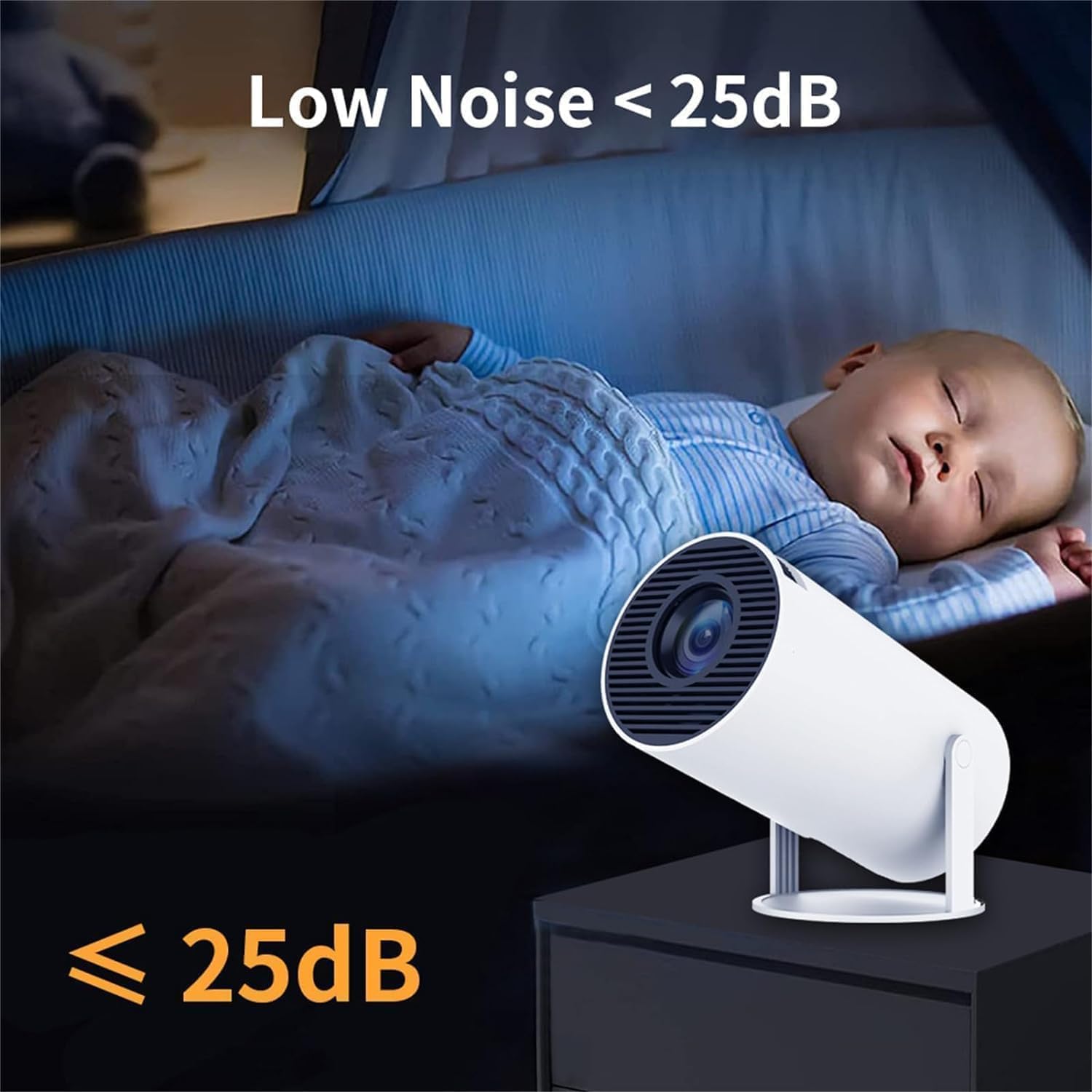
Figure 6.1: A visual guide demonstrating the seamless screen mirroring capability, allowing content from a smartphone to be wirelessly projected onto a large display by the CineMaster Pro.
6.4. Audio Output
The projector has a built-in 3W Hi-Fi speaker. For external audio, connect Bluetooth speakers or soundbars via the Bluetooth settings.
6.5. Power Off
Press the power button on the remote or projector to turn off the device. It is recommended to allow the projector to cool down before unplugging it.

Figure 6.2: The CineMaster Pro projector in an outdoor setting, showcasing its portability and suitability for various entertainment scenarios, such as an outdoor movie night.

Figure 6.3: The CineMaster Pro projector demonstrating its low noise operation (under 25dB), making it suitable for quiet environments, such as a child's bedroom.
7. Maintenance
Proper maintenance ensures the longevity and optimal performance of your projector:
- Cleaning the Lens: Gently wipe the projector lens with a soft, lint-free cloth specifically designed for optical surfaces. Do not use abrasive cleaners or excessive force.
- Cleaning the Exterior: Use a soft, dry cloth to clean the projector's exterior. For stubborn marks, a slightly damp cloth can be used, followed by a dry one.
- Ventilation: Ensure the projector's ventilation openings are not blocked to prevent overheating. Do not place the projector on soft surfaces that may obstruct airflow.
- Storage: When not in use for extended periods, store the projector in a cool, dry place, away from direct sunlight and extreme temperatures.
8. Troubleshooting
If you encounter issues with your CineMaster Pro, refer to the following common problems and solutions:
| Problem | Possible Cause | Solution |
|---|---|---|
| No image projected | Power cable loose; Projector off; Incorrect input source. | Check power connection; Turn on projector; Select correct input source. |
| Image is blurry | Focus not adjusted; Projector too close/far; Lens dirty. | Adjust manual focus; Adjust projection distance; Clean the lens. |
| Image is distorted (trapezoid shape) | Projector not perpendicular to screen. | Utilize automatic keystone correction; Manually adjust horizontal keystone in settings. |
| No sound | Volume too low; Muted; External audio device not connected/paired. | Increase volume; Unmute; Check Bluetooth connection or external audio cable. |
| Wi-Fi/Bluetooth connection issues | Out of range; Incorrect password; Interference. | Move closer to router/device; Re-enter password; Reduce interference. |
9. Warranty and Support
The Generic CineMaster Pro 4K Smart Movie Projector comes with a standard manufacturer's warranty. Please refer to the warranty card included in your package for specific terms and conditions. For technical support, troubleshooting assistance, or warranty claims, please contact the retailer or manufacturer's customer service through the contact information provided with your purchase documentation.
For the latest updates and support resources, you may also visit the official Generic product support website (if available, link not provided in data).
