
Introduction
This instruction manual provides detailed guidance for the safe and efficient use of your Merkury Innovations Smart Wi-Fi Outdoor Plug. Please read this manual thoroughly before installation and operation, and retain it for future reference.
Product Overview
The Merkury Innovations Smart Wi-Fi Outdoor Plug allows you to control outdoor devices remotely via Wi-Fi. It is designed for outdoor use, featuring weather resistance and scheduling capabilities.

An angled view of the Merkury Innovations Smart Wi-Fi Outdoor Plug, highlighting its compact design and key features such as 'No Hubs Required', 'Weather Resistant', 'Schedule in Advance', 'Operate Remotely', and 'Save Money and Energy'.
Package Contents
- Merkury Innovations Smart Wi-Fi Outdoor Plug (1 unit)
- Instruction Manual (this document)
Setup Instructions
- Download the Geeni App: Search for "Geeni" in your smartphone's app store (iOS or Android) and download the free application.
- Create an Account: Open the Geeni app and follow the on-screen instructions to create a new user account.
- Plug In the Device: Connect the Merkury Innovations Smart Wi-Fi Outdoor Plug to a standard outdoor electrical outlet. Ensure the outlet is protected from direct water exposure.
- Add Device in App: In the Geeni app, tap the "+" icon to add a new device. Select "Smart Plug" or "Outdoor Plug" from the list of available devices.
- Connect to Wi-Fi: Follow the app's instructions to connect the smart plug to your home's 2.4 GHz Wi-Fi network. Ensure your Wi-Fi password is correct.
- Confirm Connection: Once connected, the indicator light on the plug will confirm its status, and the device will appear in your Geeni app.
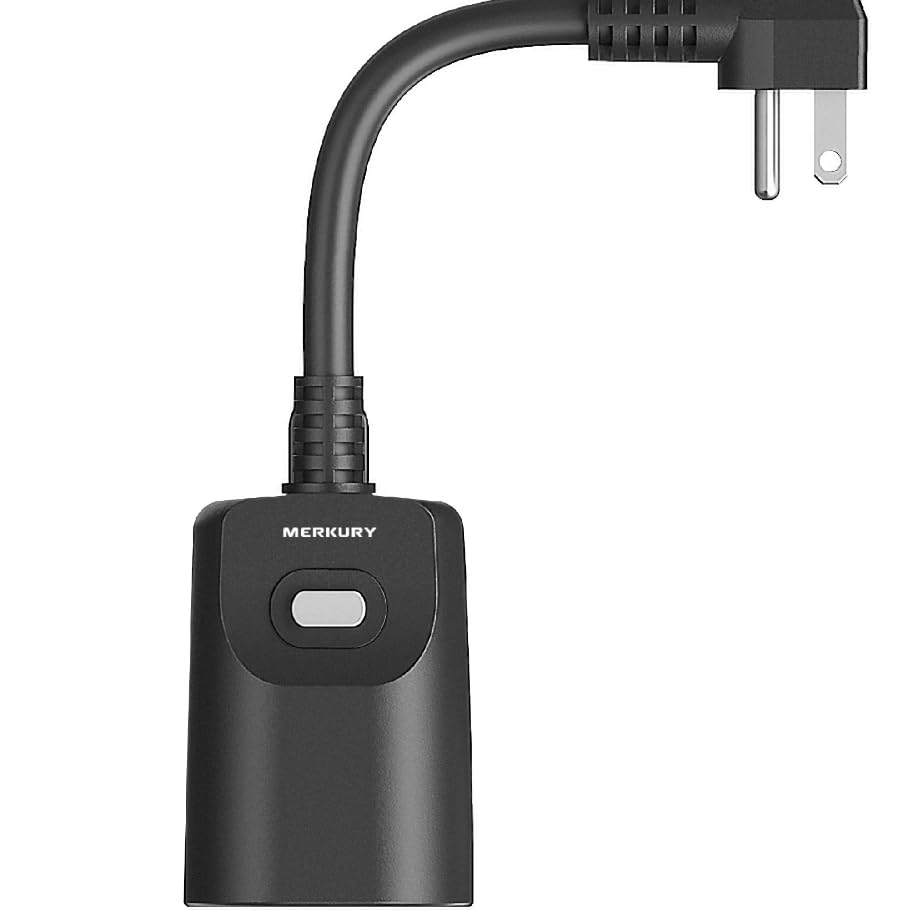
A close-up image of the Merkury Innovations Smart Wi-Fi Outdoor Plug, showing the 'Merkury' branding and the manual control button on the device body, along with the angled plug.
Operating Instructions
Manual Control
Press the physical button on the smart plug to manually turn the connected device ON or OFF. The indicator light will change to reflect the power status.
App Control
- Open the Geeni app on your smartphone.
- Select your Merkury Innovations Smart Wi-Fi Outdoor Plug from the device list.
- Tap the power icon to toggle the connected device ON or OFF remotely.
Scheduling
Use the Geeni app to set up custom schedules for your outdoor plug. You can program devices to turn ON or OFF at specific times, on specific days of the week.
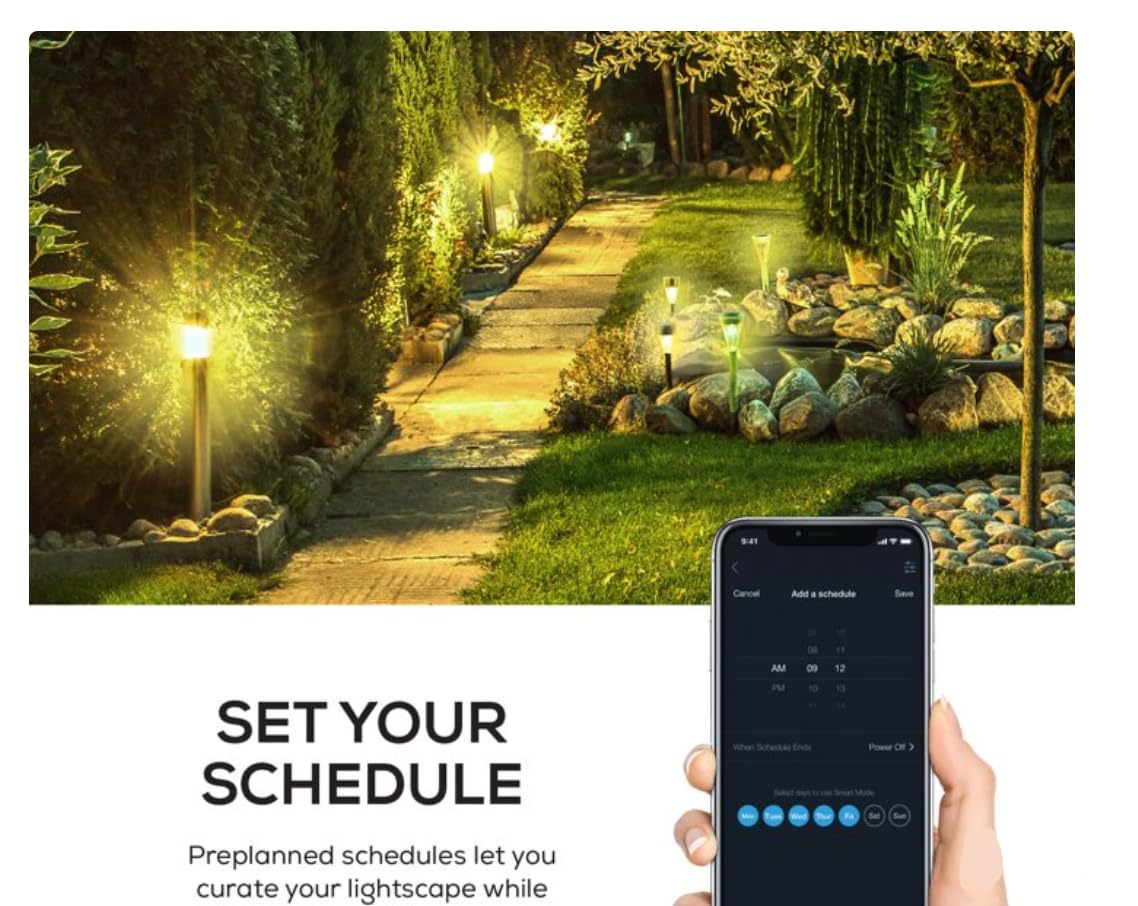
An image depicting a smartphone screen displaying the 'Add a schedule' interface within the Geeni app, with options for setting times and days. In the background, an outdoor pathway is illuminated by smart-controlled lights, demonstrating the scheduling feature in use.
Voice Control Integration
The smart plug is compatible with Google Assistant and Microsoft Cortana. Follow the instructions within the Geeni app to link your account with these voice assistants for hands-free control.
Maintenance
- Cleaning: Disconnect the smart plug from the power outlet before cleaning. Wipe the exterior with a soft, damp cloth. Do not use harsh chemicals or abrasive cleaners.
- Weather Protection: While weather-resistant, it is recommended to install the plug in a location that offers some protection from extreme weather conditions (e.g., under an overhang or in a weather-resistant enclosure) to prolong its lifespan. Ensure the outlet cover is securely closed when not in use.
- Inspection: Periodically inspect the plug and its cord for any signs of damage. If damage is found, discontinue use and replace the unit.

A close-up image of the Merkury Innovations Smart Wi-Fi Outdoor Plug mounted on a brick wall, with water droplets visible on its surface, illustrating its weather-resistant design. The text 'RAIN OR SHINE' emphasizes its durability against outdoor elements.
Troubleshooting
- Problem: Device cannot connect to Wi-Fi.
- Solution: Ensure your Wi-Fi network is 2.4 GHz. The plug does not support 5 GHz networks. Check your Wi-Fi password for accuracy. Move the plug closer to your Wi-Fi router. Restart your router and try again.
- Problem: Plug is unresponsive.
- Solution: Check if the plug is securely connected to the power outlet. Verify that the outlet has power. Try pressing the manual control button on the plug. If issues persist, unplug the device for 10 seconds and plug it back in.
- Problem: Voice control is not working.
- Solution: Ensure your Geeni account is correctly linked to your Google Assistant or Microsoft Cortana account. Check your internet connection. Verify the commands you are using are correct.
Specifications
| Feature | Specification |
|---|---|
| Model Number | MIC-OW101-101W |
| Dimensions | 8.99 x 8.99 x 17.78 cm |
| Item Weight | 500 g |
| Material | Other (Weather-resistant housing) |
| Mounting Type | Wall Mount |
| Plug Format | Type B |
| Connectivity | Wi-Fi (2.4 GHz only) |
| Voice Assistant Compatibility | Google Assistant, Microsoft Cortana |
Warranty and Support
For warranty information and technical support, please refer to the official Merkury Innovations website or contact their customer service. Keep your purchase receipt as proof of purchase.
Online Support: Visit www.merkuryinnovations.com/support (example link, actual link may vary)
Customer Service: Refer to the contact information provided on the product packaging or the official website.
