
1. Introduction
This manual provides detailed instructions for the safe and efficient use of your Generic 4G LTE USB Portable WiFi Router. Please read this manual thoroughly before operating the device and retain it for future reference. This device allows you to establish a portable Wi-Fi hotspot using a 4G LTE SIM card, providing internet access for up to 10 devices simultaneously.
2. Product Overview
The 4G LTE USB Portable WiFi Router is a compact device designed for mobile internet access. It features a USB connector for power and a SIM card slot for network connectivity.
2.1 Device Components
- USB Connector: For power supply.
- SIM Card Slot: For inserting a 4G LTE SIM card.
- Indicator Lights: Display network status and Wi-Fi activity.
- Device Label: Located on the back, contains default SSID, Wi-Fi Key, Router IP, and Login Password.
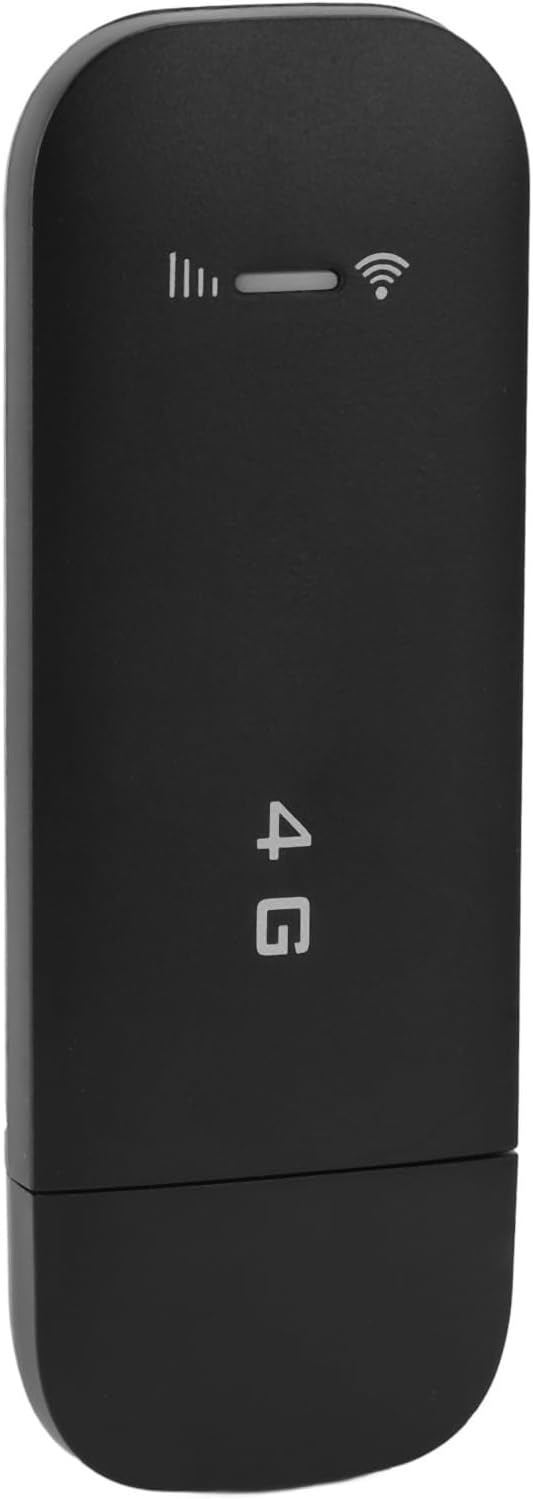
Figure 2.1: Front view of the 4G LTE USB Portable WiFi Router, showing its compact design.

Figure 2.2: Side view illustrating the integrated USB connector for power.
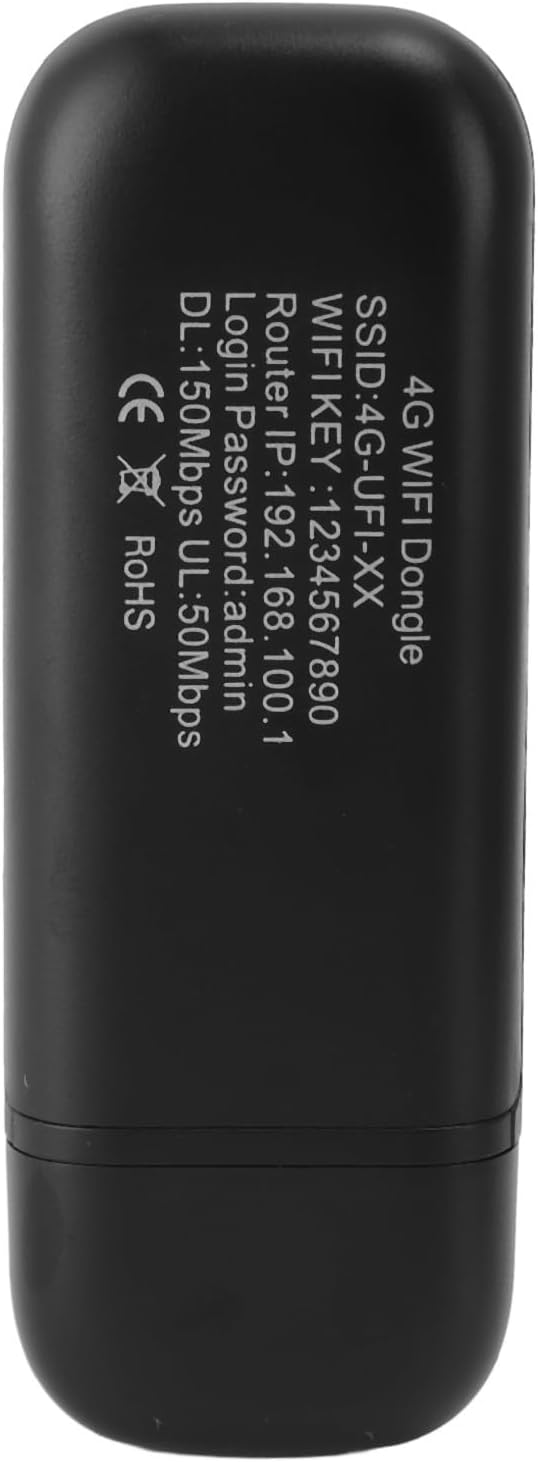
Figure 2.3: Back view displaying the product label with default network credentials.

Figure 2.4: Close-up of the indicator lights, showing signal strength and Wi-Fi status.
3. Setup
Follow these steps to set up your 4G LTE USB Portable WiFi Router:
- Insert SIM Card: Locate the SIM card slot on the device. Carefully insert a standard 4G LTE SIM card into the slot until it clicks into place. Ensure the SIM card is correctly oriented.
- Connect to Power: Plug the USB connector of the device into a compatible USB power source. This can be a USB port on a computer, a wall adapter (phone charger), a car charger, or a portable power bank. The device will power on automatically.
- Wait for Network Connection: The indicator lights will illuminate. Wait for the network indicator to show a stable connection (refer to Section 2.1 for indicator light details). This may take a few moments.

Figure 3.1: Illustrates a user connecting to the portable WiFi router with a smartphone after setup.

Figure 3.2: Examples of compatible USB power sources, including car chargers, wall adapters, and power banks.
4. Operating Instructions
Once the device is set up and connected to the 4G network, you can connect your devices.
4.1 Connecting Devices to Wi-Fi
- On your Wi-Fi enabled device (smartphone, tablet, laptop, etc.), open the Wi-Fi settings.
- Search for available Wi-Fi networks.
- Select the network name (SSID) displayed on the device label (e.g., "SSID 4G-UFI-XX").
- Enter the Wi-Fi Key (password) also found on the device label (e.g., "WIFIKEY: 1234567890").
- Your device should now be connected to the internet. The router supports up to 10 connected devices simultaneously.
4.2 Accessing the Web Management Interface
To customize settings such as SSID, password, or view network status, access the web management interface:
- Ensure your device is connected to the router's Wi-Fi network.
- Open a web browser on your connected device.
- In the address bar, type the Router IP address found on the device label (e.g., "192.168.100.1") and press Enter.
- When prompted, enter the Login Password (e.g., "admin") from the device label.
- You can now modify Wi-Fi settings, check data usage, and manage connected devices.
4.3 Security
The device supports WPA/WPA2 Wi-Fi encryption to secure your network. It is recommended to change the default Wi-Fi Key and Login Password through the web management interface for enhanced security.
5. Maintenance
Proper maintenance ensures the longevity and optimal performance of your device.
- Cleaning: Use a soft, dry cloth to clean the exterior of the device. Do not use liquid cleaners or aerosols.
- Storage: When not in use, store the device in a cool, dry place away from direct sunlight and extreme temperatures.
- Avoid Physical Damage: Protect the device from drops, impacts, and excessive pressure.
- Software Updates: Periodically check the manufacturer's website (if available) for any firmware updates that may improve performance or security.
6. Troubleshooting
If you encounter issues with your device, refer to the following troubleshooting tips:
- No Internet Connection:
- Ensure the SIM card is correctly inserted and active with a data plan.
- Check the network indicator lights for a stable 4G signal. Move to an area with better reception if needed.
- Verify that your connected device has Wi-Fi enabled and is connected to the correct SSID with the correct password.
- Restart the router by unplugging and re-plugging it from the power source.
- Slow Internet Speed:
- Check your 4G signal strength.
- Reduce the number of connected devices.
- Ensure your data plan has not been exhausted or throttled by your service provider.
- Cannot Connect to Wi-Fi:
- Double-check the Wi-Fi Key (password). It is case-sensitive.
- Ensure the router is powered on and its Wi-Fi indicator is active.
- Try forgetting the network on your device and reconnecting.
- Device Not Powering On:
- Verify the USB power source is functional and providing adequate power. Try a different USB port or adapter.
- Ensure the USB connector is fully inserted into the power source.
7. Specifications
| Brand | Generic |
| Model Name | Gev91g8nhw3s-11 |
| Connectivity Technology | USB, Wi-Fi |
| Color | Black |
| Communication/Connection Interface | USB, Wi-Fi |
| Product Type | Mobile Broadband Device |
| Origin | China |
| Supported Devices | Up to 10 devices simultaneously |
| Security | WPA/WPA2 Encryption |
| Download Speed (DL) | 150Mbps (as per device label) |
| Upload Speed (UL) | 50Mbps (as per device label) |
8. Safety Information
Please observe the following safety precautions:
- Do not expose the device to water, moisture, or extreme temperatures.
- Avoid dropping or subjecting the device to severe impact.
- Do not attempt to disassemble or repair the device yourself. Refer to qualified service personnel.
- Use only compatible power sources.
- Keep the device away from children.