
1. Introduction
Thank you for choosing the PINSTONE Android TV Box W3. This device is designed to transform your television into a smart entertainment hub, offering access to a wide range of streaming content, applications, and multimedia features. This manual provides essential information for setting up, operating, and maintaining your device to ensure optimal performance.
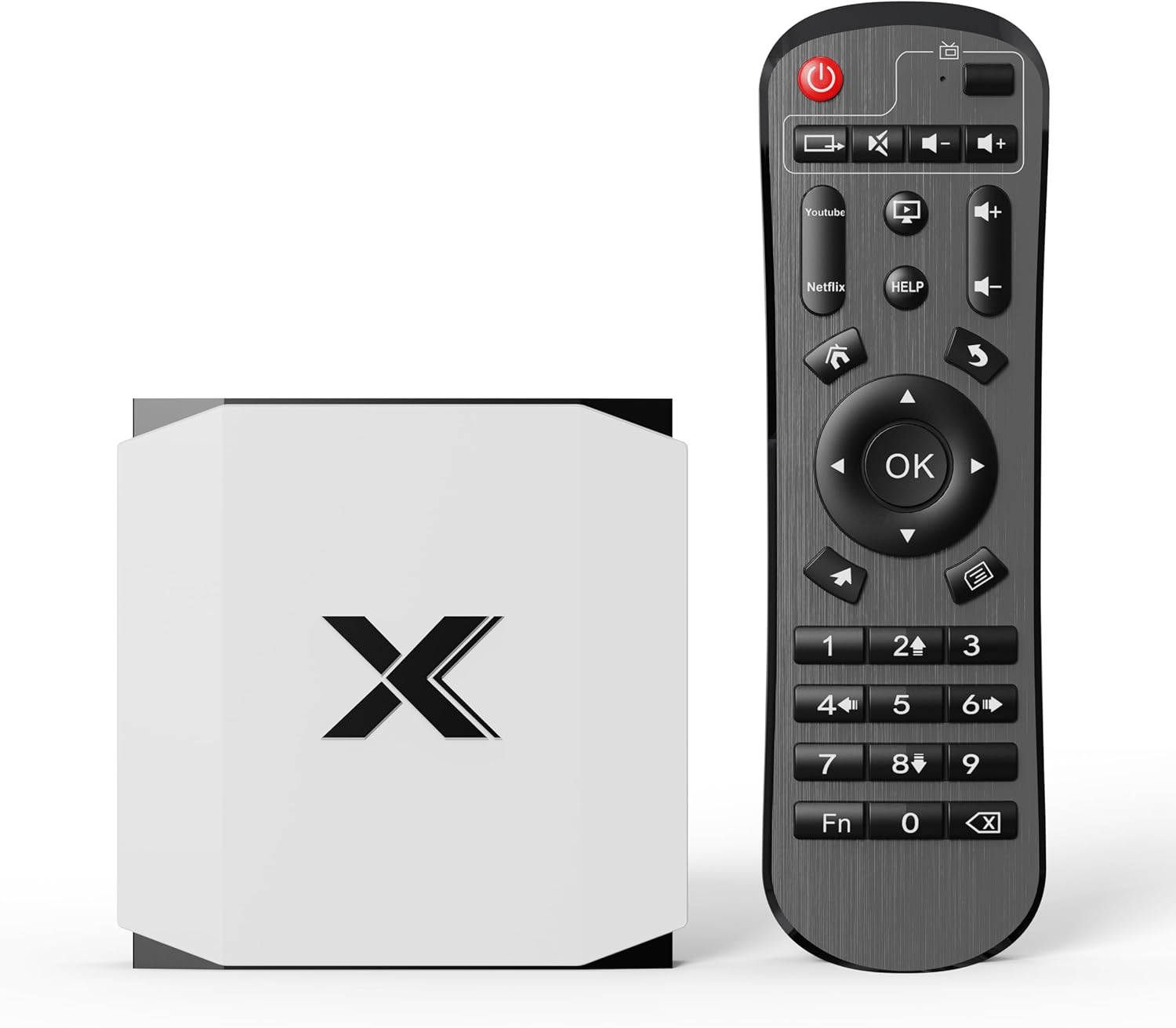
Image 1.1: PINSTONE Android TV Box W3 and its remote control.
2. Package Contents
Please check the package contents upon unboxing. If any items are missing or damaged, contact customer support.
- PINSTONE Android TV Box W3
- Remote Control
- HDMI Cable
- Power Adapter
- User Manual (this document)

Image 2.1: Standard package contents.
3. Device Overview
The PINSTONE Android TV Box W3 features multiple ports for connectivity and expansion.

Image 3.1: Overview of device interfaces.
- DC Power Input: Connect the provided power adapter.
- HDMI Port: Connect to your TV or monitor.
- LAN Port: For wired internet connection.
- AV Port: For older televisions or audio output.
- SPDIF Port: For digital audio output.
- USB 2.0 Ports (x2): For connecting external storage, keyboards, mice, or other USB devices.
- TF Card Slot: For expanding storage with a MicroSD card.
4. Setup Guide
Follow these steps to set up your PINSTONE Android TV Box W3.
- Connect to TV: Connect one end of the HDMI cable to the HDMI port on the TV Box and the other end to an available HDMI input on your television.
- Connect Power: Plug the power adapter into the DC Power input on the TV Box, then plug the adapter into a wall outlet.
- Power On: The device should power on automatically. If not, press the power button on the remote control.
- Select Input: On your TV, select the correct HDMI input source using your TV's remote control.
- Initial Setup: Follow the on-screen instructions to complete the initial setup, which typically includes:
- Language selection
- Network connection (Wi-Fi or Ethernet)
- Google account sign-in (optional, but recommended for app access)
- Date and time settings
- System Update: It is highly recommended to check for and install any available system updates immediately after initial setup. This ensures optimal performance and compatibility with applications.
5. Operating Instructions
5.1 Remote Control Usage
The included remote control allows you to navigate the Android TV interface.
- Power Button: Turns the device on/off or puts it into standby.
- Navigation Buttons (Arrow Keys): Move cursor or selection.
- OK Button: Confirms selection.
- Back Button: Returns to the previous screen.
- Home Button: Returns to the main home screen.
- Volume Buttons: Adjust audio volume.
- App Shortcut Buttons: Dedicated buttons for popular streaming services like Netflix and YouTube.
5.2 Network Connectivity
The TV Box supports both wired (Ethernet) and wireless (Wi-Fi 6) connections.
- Wi-Fi: Supports dual-band 2.4G/5G Wi-Fi 6 for fast and stable wireless internet access. Navigate to Settings > Network & Internet to connect to a Wi-Fi network.
- Ethernet: For a more stable connection, plug an Ethernet cable into the LAN port on the TV Box and your router.

Image 5.1: High-speed Wi-Fi 6 connectivity.
5.3 Application Management
Access and manage applications through the Google Play Store.
- Install Apps: Open the Google Play Store, search for desired applications (e.g., Netflix, Hulu, Amazon Prime Video, YouTube), and install them.
- Manage Apps: In Settings > Apps, you can view, uninstall, or force stop applications.

Image 5.2: Access to a wide range of applications.
5.4 4K UHD Video Playback
The TV Box supports 4K Ultra HD resolution at 60Hz and H.265 decoding for a detailed and realistic viewing experience.

Image 5.3: Enhanced 4K UHD H.265 video quality.
5.5 Wireless Casting (Miracast)
Utilize the Miracast feature to wirelessly cast content from compatible devices (e.g., smartphones, tablets) to your TV.
- Ensure your mobile device and the TV Box are connected to the same Wi-Fi network.
- On the TV Box, open the Miracast application (or similar screen mirroring app).
- On your mobile device, enable screen mirroring/casting (the exact name may vary by device, e.g., "Smart View," "Screen Cast," "Wireless Display").
- Select the TV Box from the list of available devices on your mobile device.

Image 5.4: Wireless screen casting functionality.
5.6 Bluetooth Connectivity
Connect Bluetooth 5.0 compatible devices such as speakers, headphones, game controllers, or keyboards.
- Go to Settings > Connected devices > Pair new device.
- Put your Bluetooth device into pairing mode.
- Select your device from the list on the TV Box screen to pair.

Image 5.5: Bluetooth connection to various devices.

Image 5.6: Diverse usage scenarios for the TV Box.
6. Maintenance
Proper maintenance ensures the longevity and optimal performance of your PINSTONE Android TV Box W3.
- Cleaning: Use a soft, dry cloth to clean the device. Avoid liquid cleaners or abrasive materials.
- Ventilation: Ensure the device is placed in a well-ventilated area to prevent overheating. Do not block ventilation openings.
- Environment: Avoid exposing the device to extreme temperatures, humidity, or direct sunlight.
- Software Updates: Regularly check for and install system and application updates to improve performance and security.
- Storage Management: Periodically clear cache and uninstall unused applications to free up storage space and maintain system speed.
7. Troubleshooting
If you encounter issues with your TV Box, refer to the following common solutions.
| Problem | Possible Cause / Solution |
|---|---|
| No Power / Device Not Turning On |
|
| No Signal on TV Screen |
|
| Remote Control Not Responding |
|
| Slow Performance / Apps Crashing |
|
| Network Connection Issues |
|
| Streaming Apps (Netflix, Prime Video) Not Working |
|
8. Specifications
Key technical specifications for the PINSTONE Android TV Box W3.
| Feature | Detail |
|---|---|
| Brand | PINSTONE |
| Model Name | W3 |
| RAM | 4 GB |
| ROM (Internal Storage) | 32 GB |
| Processor | Quad-Core |
| Operating System | Android TV OS |
| Video Resolution | 4K UHD (H.265 decoding) |
| Wireless Connectivity | Dual-Band WiFi 6 (2.4G/5G) |
| Bluetooth | Bluetooth 5.0 |
| Connectivity Technology | HDMI |
| Special Features | Miracast |
| Supported Internet Services | Netflix, Hulu, Amazon Prime Video (via apps) |
| Color | White |
9. Customer Support
PINSTONE provides professional technical support. If you encounter any issues or have questions not covered in this manual, please contact us via Amazon email.
For further assistance, please refer to the product page on Amazon or contact the seller directly through the Amazon messaging system.