1. Introduction
The ACEMAX Audiocast Pro M20 is a versatile wireless audio receiver designed to transform your traditional wired speaker system into a modern, connected music hub. It supports multiple streaming technologies including Wi-Fi, Bluetooth, AirPlay, and DLNA, allowing you to enjoy high-quality audio from various sources across your home.
This manual provides detailed instructions for setting up, operating, and maintaining your Audiocast Pro M20 to ensure optimal performance and an enjoyable listening experience.
2. Package Contents
Please check the box for the following items:
- Audiocast Pro Audio Receiver (M20)
- Remote Control
- Power Adapter
- User Manual
- USB Cable (for power)
- Line Out Cable (3.5mm)
- Line Out Cable (3.5mm to RCA)

Image: Rear panel of the Audiocast Pro M20 showing various ports, alongside the included remote control, power adapter, USB cable, 3.5mm audio cable, and 3.5mm to RCA cable.
3. Product Overview and Features
The Audiocast Pro M20 is designed to seamlessly integrate with your existing audio equipment, offering a range of features for a modern listening experience:
- Wireless Connectivity: Supports Wi-Fi (2.4GHz), Bluetooth, AirPlay (iOS 14.4+), and DLNA for flexible audio streaming.
- Multi-Room Audio: Group multiple Audiocast units to play synchronized music in different rooms or stream different tracks to different zones.
- Stable Performance: Features both 2.4 GHz Wi-Fi and an Ethernet RJ45 port for reliable, high-quality streaming.
- High-Fidelity Audio: Built-in DAC/VRMS analog stereo output and optical output supporting up to 44.1kHz/16bit.
- Remote Control: Included IR remote for convenient control of volume, playback, EQ presets, and input selection.
- App Control: Manage your music, devices, and settings through the dedicated Audiocast app available on App Store and Google Play.
- Supported Services: Compatible with popular streaming services like Spotify, Tidal, Qobuz, Internet Radio, and more.

Image: The ACEMAX Audiocast Pro M20 positioned between two white bookshelf speakers on a white console, illustrating a typical home audio setup.
4. Setup Guide
Follow these steps to set up your Audiocast Pro M20:
- Connect to Speakers: Use the provided 3.5mm Line Out cable or 3.5mm to RCA cable to connect the Audiocast Pro M20 to your existing powered speakers or amplifier.
- Power On: Connect the USB power cable to the Audiocast Pro M20 and then to the power adapter. Plug the power adapter into a wall outlet. The device will power on automatically.
- Network Connection (Wi-Fi):
- Ensure your mobile device (phone/tablet) is connected to a 2.4GHz Wi-Fi network. The Audiocast Pro M20 only supports 2.4GHz networks.
- Download the "Audiocast" app from the Apple App Store or Google Play Store.
- Open the Audiocast app. The app will search for available devices.
- If the device is not found, go to your phone's Wi-Fi settings and connect to the Wi-Fi network starting with "AudioCast_XXXX".
- Return to the Audiocast app. The app should now detect the device.
- Follow the in-app instructions to connect the Audiocast Pro M20 to your home Wi-Fi network.
- Network Connection (Ethernet - Optional): For a more stable connection, you can connect an Ethernet cable from your router to the RJ45 port on the Audiocast Pro M20.
- Bluetooth Connection (Optional):
- Once the device is powered on, enable Bluetooth on your mobile device.
- Search for "Audiocast Pro M20" in your Bluetooth settings and pair with it.
Video: A detailed guide on setting up the ACEMAX Audiocast Pro M20, including physical connections and initial app configuration.
Video: Instructions on how to set up the ACEMAX Audiocast Pro M20 using an iPhone, demonstrating the app connection process.
5. Operating Instructions
5.1. App Control
The Audiocast app is your primary interface for controlling the M20. It allows you to:
- Browse and play music from various streaming services (Spotify, Tidal, Qobuz, Internet Radio, etc.).
- Access local music files from your phone or network-attached storage (NAS).
- Manage multi-room audio groups.
- Adjust device settings, including EQ and sound balance.
- Switch between Wi-Fi and Bluetooth sources.

Image: Multiple screenshots of the Audiocast mobile application, displaying options for browsing music services like Spotify and Tidal, playback controls, and device settings.
5.2. Remote Control
The included IR remote control provides convenient access to essential functions without needing your phone:
- Power: Turn the device on/off.
- Volume: Adjust volume up or down.
- Playback: Play, pause, skip tracks (next/previous).
- Input Selection: Switch between Line In, Optical In, Bluetooth, and Wi-Fi sources.
- EQ Presets: Select predefined equalizer settings (Bass+, Treble+, Bass Boost, 3D Sound).
- Preset Buttons (1-6): Quickly access your favorite saved radio stations or playlists.
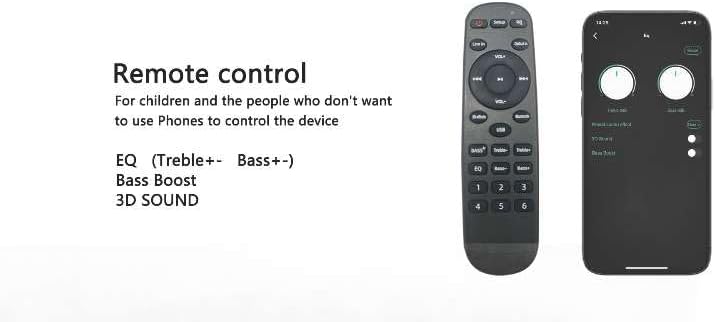
Image: The physical remote control for the Audiocast Pro M20 shown next to a smartphone displaying the corresponding app interface, highlighting both control methods.
5.3. Multi-room Streaming
The Audiocast Pro M20 supports multi-room audio, allowing you to create a synchronized listening experience throughout your home:
- Group Devices: Use the Audiocast app to group multiple Audiocast units together.
- Synchronized Playback: Play the same music across all grouped speakers for a party mode experience.
- Independent Zones: Play different music in different rooms by assigning units to separate zones within the app.

Image: A diagram showing a house layout with multiple Audiocast devices connected to speakers in different rooms, demonstrating the multi-room streaming feature.
6. Connectivity Ports
The Audiocast Pro M20 features the following ports on its rear panel:
- LAN Port (RJ45 Ethernet): For a wired network connection, providing stable streaming.
- Optical Out: Digital audio output for connecting to compatible audio equipment.
- Stereo Out (3.5mm): Analog audio output for connecting to speakers or amplifiers.
- DC 5V (Power Input): For connecting the power adapter.
- Reset Button: Used to reset the device to factory settings (refer to troubleshooting for details).
7. Specifications
| Feature | Detail |
|---|---|
| Model Number | M20 |
| Connectivity Technology | Bluetooth, Ethernet, Infrared, Wi-Fi 2.4GHz |
| Controller Type | App Control, Remote Control |
| Compatible Devices | Home Stereo System, Smartphone, Tablet |
| Connector Type | 3.5mm Jack, RCA |
| Audio Output Mode | Stereo |
| Surround Sound Channel Configuration | 2.0 |
| Optical Output Support | Up to 44.1kHz/16bit |
| Item Weight | 2.5 ounces |
| Package Dimensions | 6.5 x 4.53 x 2.91 inches |
8. Troubleshooting
- Device not found in app: Ensure your phone is connected to a 2.4GHz Wi-Fi network. If still not found, try connecting your phone directly to the "AudioCast_XXXX" Wi-Fi network in your phone's settings, then return to the app.
- No audio output: Check all cable connections (power, audio to speakers). Ensure the correct input source is selected via the app or remote. Verify speaker volume and device volume are not muted or too low.
- Intermittent streaming/dropouts: Ensure the device is within range of your Wi-Fi router. Consider using an Ethernet cable for a more stable connection. Check for network interference from other devices.
- Remote control not working: Ensure there are no obstructions between the remote and the device. Check and replace batteries if necessary.
- Resetting the device: If experiencing persistent issues, locate the reset button on the rear panel (often a small pinhole). Use a paperclip to press and hold the button for approximately 5-10 seconds until the indicator light changes, then release. The device will restart.
9. Maintenance
- Keep the device in a dry, well-ventilated area, away from direct sunlight, heat sources, and moisture.
- Clean the device with a soft, dry cloth. Do not use liquid cleaners or aerosols.
- Avoid dropping or subjecting the device to strong impacts.
- Ensure proper ventilation around the device to prevent overheating.
10. Warranty and Support
For warranty information and technical support, please refer to the official ACEMAX website or contact your retailer. Keep your purchase receipt as proof of purchase for warranty claims.
11. Unboxing Video
Video: An unboxing video of the ACEMAX Audiocast Pro M20, showcasing the device and its included accessories.