
1. Product Overview
The Rimoody 4Core Android 13 Car Stereo Radio is a versatile in-dash navigation system designed for various VW models, including Passat, Jetta, Tiguan, Golf MK5, MK6, T5, EOS, and Polo. This unit features a 9-inch HD touchscreen display with a 1280x720 resolution, powered by a 4Core CPU with 4GB RAM and 64GB ROM for smooth operation.
Key functionalities include wireless CarPlay and Android Auto, Mirror Link, built-in GPS navigation, Wi-Fi connectivity, Bluetooth for hands-free calling and audio streaming, FM/RDS radio, a 32-band equalizer, steering wheel control (SWC) support, and input for a reversing camera. It also offers advanced AI DSP sound effects and split-screen multitasking.

Image 1.1: The Rimoody 4Core Android 13 Car Stereo Radio unit, showcasing its 9-inch display and the included accessories: a microphone, a backup camera, and a smartphone displaying CarPlay and Android Auto icons.
2. What's in the Box
Verify that all components are present upon unboxing:
- Car Radio Unit
- Backup Camera
- Microphone
- Wiring Harness
- RCA Cable
- GPS Antenna
- Rear Camera Input Cable
- USB Cable (x2)
- Bracket
- User Manual
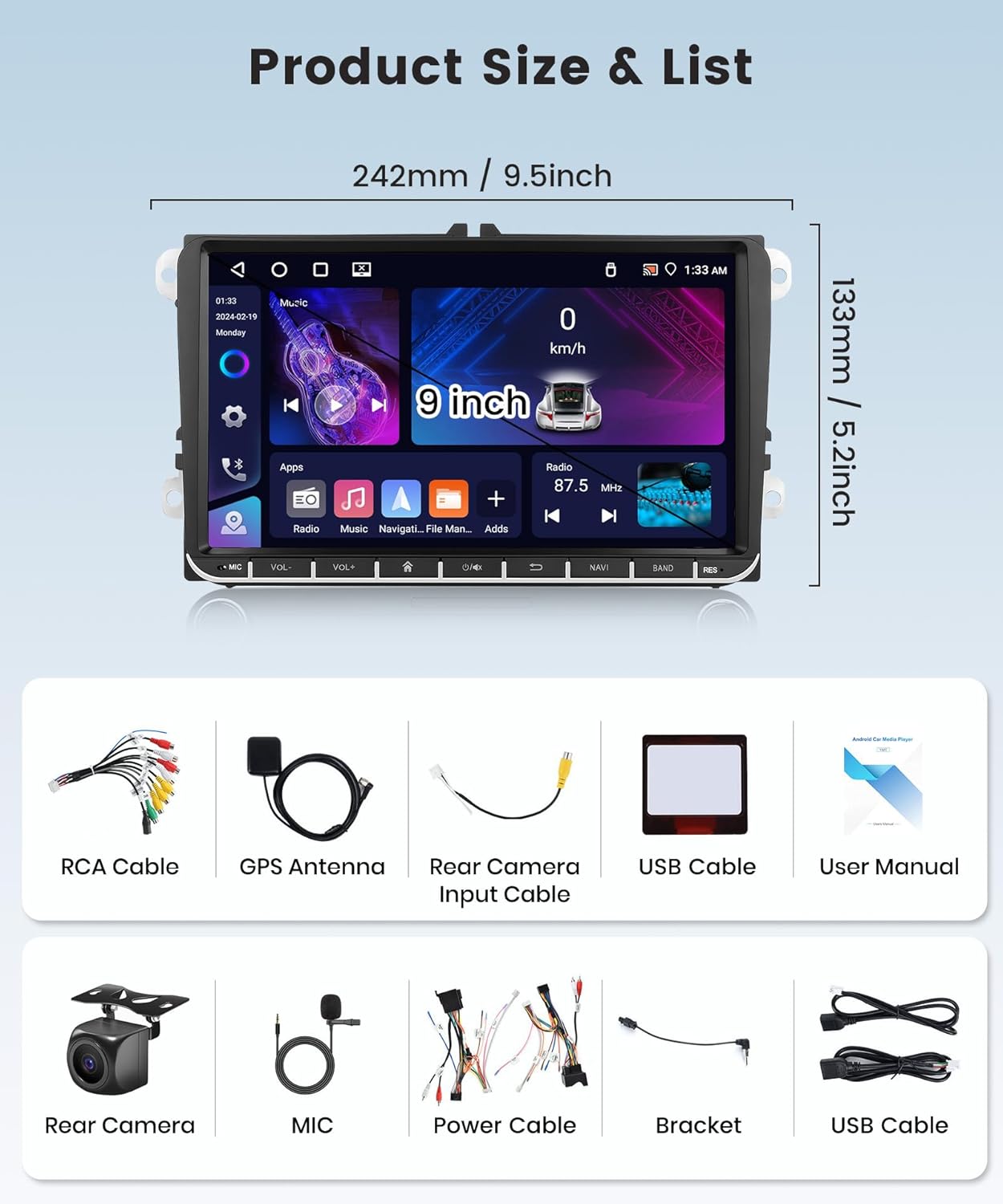
Image 2.1: Visual representation of the car stereo unit and all included accessories, such as cables, antenna, microphone, and backup camera.
3. Specifications
| Feature | Detail |
|---|---|
| Model Number | b2331657-5798-4776-92d3-ec5d1bbdcf28 |
| Operating System | Android 13 |
| CPU | 4Core |
| Memory (RAM+ROM) | 4GB RAM + 64GB ROM |
| Screen Size | 9 Inches |
| Screen Resolution | 1280x720 HD |
| Connectivity | Wireless CarPlay, Wireless Android Auto, Mirror Link, Bluetooth, Wi-Fi |
| Navigation | Built-in GPS Module (supports online/offline maps) |
| Audio Features | FM/RDS Radio, 32-band EQ, AI DSP (Optional activation) |
| Input/Output | Rear Camera Input, Steering Wheel Control (SWC) |
| Compatible Vehicles | VW Passat, Jetta, Tiguan, Golf MK5, MK6, T5, EOS, Polo, Seat, Skoda, Touran, Sharan |
4. Installation Guide
Proper installation is crucial for optimal performance. It is recommended that installation be performed by a qualified professional.
4.1. Vehicle Compatibility
This car stereo is designed to fit specific VW group vehicles. Please ensure your vehicle's dashboard matches the compatible configurations shown below.

Image 4.1: Examples of compatible vehicle dashboards for Seat Altea, Toledo, Leon, VW Touran, Sagitar, Jetta, Magotan, Passat, Golf, Skoda Fabia, and Roomster.
4.2. Installation Comparison and Fitment
Observe the visual comparison of the dashboard before and after installation. Also, verify the fitment based on the existing radio slot in your vehicle.

Image 4.2: Top section shows a dashboard before and after the Rimoody stereo installation. The bottom section illustrates correct and incorrect fitment examples based on the original radio unit's shape.
4.3. Wiring Connections
Refer to the included wiring diagram for detailed connection instructions. Ensure all cables are securely connected to their respective ports.
- Power Cable: Connect to the vehicle's power supply.
- RCA Cables: For audio/video output to external amplifiers or monitors.
- GPS Antenna: Mount in a location with a clear view of the sky for optimal signal reception.
- Rear Camera Input Cable: Connect the backup camera to this input.
- USB Cables: For connecting USB devices or for Mirror Link functionality.
- Microphone: Connect for hands-free calling and voice commands.
5. Initial Setup
After physical installation, power on the unit and follow the on-screen prompts for initial setup.
- Language Selection: Choose your preferred language.
- Time and Date: Set the correct time zone, date, and time.
- Wi-Fi Connection: Connect to an available Wi-Fi network for internet access, map updates, and app downloads. Go to Settings > Network & Internet > Wi-Fi.
- Bluetooth Pairing: Pair your smartphone for hands-free calling and audio streaming. Go to Settings > Connected devices > Pair new device.
- Steering Wheel Control (SWC) Learning: Configure your vehicle's steering wheel buttons to control the stereo functions. Refer to Section 6.7 for detailed instructions.
6. Operating Instructions
6.1. Wireless CarPlay & Android Auto / Mirror Link
Connect your iPhone or Android phone wirelessly to access apps, navigation, music, and make calls via voice control or touch. Mirror Link functionality allows mirroring your phone's screen via USB or Wi-Fi.

Image 6.1: Various user interfaces demonstrating CarPlay, Android Auto, and Mirror Link features on the car stereo display and connected smartphones.
6.2. GPS Navigation & Wi-Fi
The unit features a built-in GPS module supporting both online and offline maps. Connect to Wi-Fi via a hotspot or tethering to access real-time traffic information, download apps, and browse the web.

Image 6.2: The GPS navigation screen displaying a map with route information and estimated travel time, with a car driving on a road in the background.
6.3. Bluetooth Functionality
Pair your phone via Bluetooth to make and receive calls hands-free, stream music, and transfer files wirelessly.
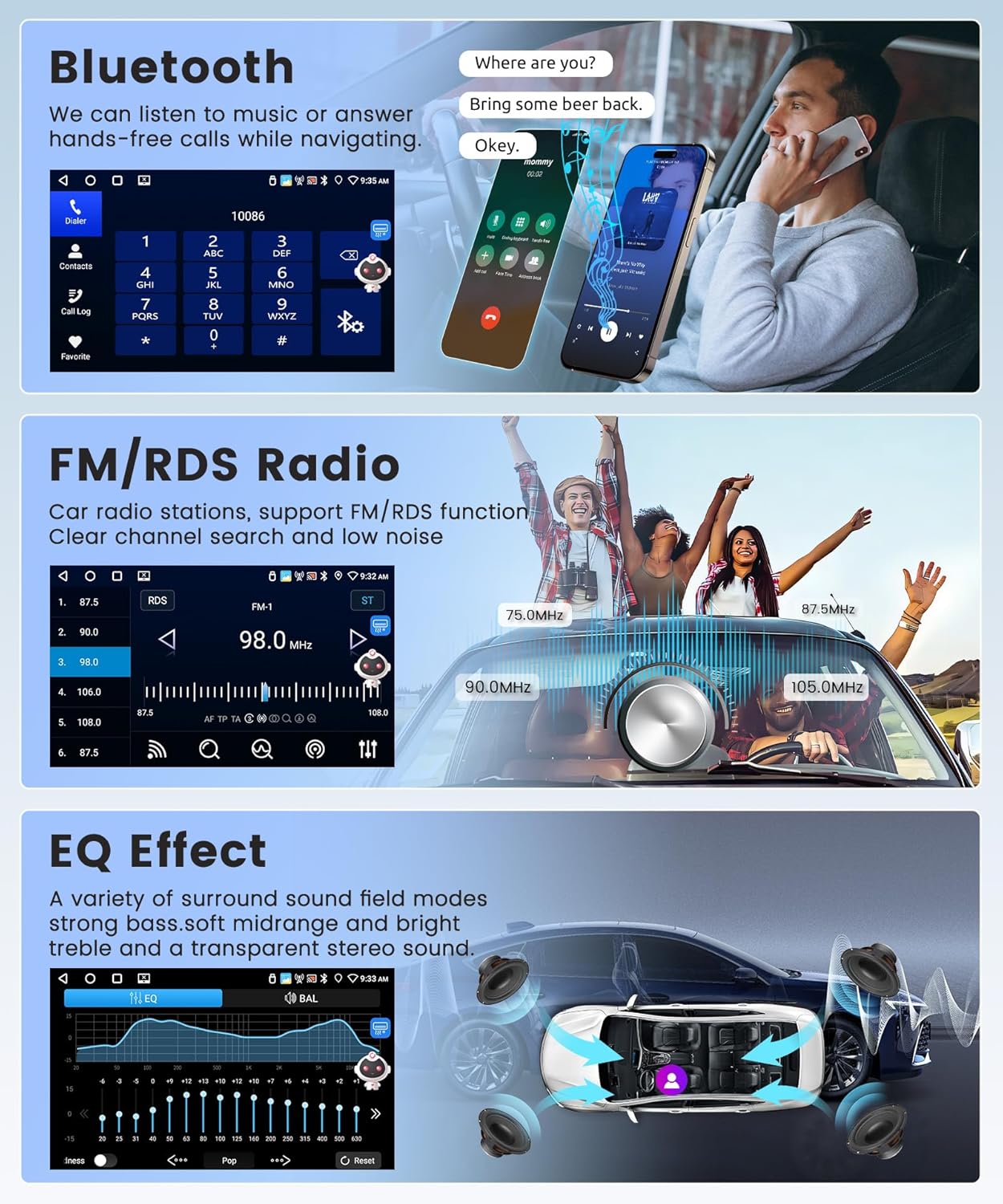
Image 6.3: Top left shows the Bluetooth dialer interface. Top right shows a phone call in progress. Bottom left shows the FM/RDS radio interface. Bottom right shows the 32-band equalizer settings.
6.4. FM/RDS Radio
Access various radio stations with clear sound quality. The RDS (Radio Data System) feature provides additional information like station name and program type.
6.5. EQ-32 and AI DSP
Utilize the 32-band equalizer to fine-tune audio output. The optional AI DSP feature offers advanced sound effects such as 3D optimized, 5.1 Panorama, and HiFi scene modes for an enhanced listening experience.
6.6. Split Screen and Home Page Customization
The split-screen function allows running two applications simultaneously. You can adjust the size and position of each app. Customize your home page by selecting and rearranging app icons.
6.7. Reversing Camera and Steering Wheel Control (SWC)
Connect the included reversing camera to display the rear view on the screen when shifting into reverse, aiding in safe parking. The unit supports learning functions for your original car's steering wheel buttons, allowing convenient control of stereo features.

Image 6.7: Top section shows a car backing up with a visual representation of the rear camera's field of view. The bottom section displays the on-screen interface for configuring steering wheel controls.
7. Maintenance
- Screen Cleaning: Use a soft, lint-free cloth to clean the touchscreen. Avoid abrasive cleaners or solvents.
- Software Updates: Periodically check for software updates via the system settings to ensure optimal performance and access to new features.
- General Care: Avoid exposing the unit to extreme temperatures, direct sunlight for prolonged periods, or excessive moisture.
8. Troubleshooting
| Problem | Possible Cause | Solution |
|---|---|---|
| Unit does not power on | Incorrect wiring, blown fuse, vehicle power issue. | Check power connections and vehicle fuses. Consult a professional if unsure. |
| No sound | Volume too low, incorrect audio source, speaker wiring issues. | Increase volume, select correct audio source, check speaker connections. |
| CarPlay/Android Auto not connecting | Bluetooth/Wi-Fi not enabled, phone compatibility, app issues. | Ensure Bluetooth/Wi-Fi is on, restart phone and stereo, update phone OS/apps. |
| GPS signal lost or inaccurate | GPS antenna obstruction or faulty connection. | Ensure GPS antenna has a clear view of the sky and is securely connected. |
| Backup camera not displaying | Camera wiring issue, incorrect input selected. | Check camera connections, ensure vehicle is in reverse. |
For further assistance, please contact customer support.
9. Warranty and Support
Rimoody is committed to providing quality products and customer satisfaction.
- Technical Support: Lifetime technical support is available for this product.
- Customer Service: Expect a quick response to inquiries within 24 hours.
- Returns: A 90-day free return policy is offered for refunds or exchanges.
- Installation Guidance: Professional installation guide manuals and videos may be available.
For support, please visit the official Rimoody store or contact their customer service directly.