
1. Introduction
This manual provides essential information for the installation, operation, and maintenance of the BAISULI JT-IS303CW-61TS L2-Managed Industrial Gigabit Ethernet Din Rail Switch. Please read this manual thoroughly before using the device to ensure proper functionality and safety. Keep this manual for future reference.
2. Product Overview
2.1 Key Features
- L2-Managed Gigabit Ethernet capabilities.
- Designed for harsh industrial environments with robust and reliable construction.
- Supports a wide operating temperature range: -30°C to +75°C (-22°F to 167°F).
- Dual power supply for enhanced reliability and automatic failure switching.
- Artificial control via DIP switches for flexible configuration.
- Supports ring protection.
- Interface Type: 1*1.25G SFP Ports + 5*1.25G RJ45 Ports.
2.2 Package Contents
Please verify the package contents upon receipt. If any items are missing or damaged, contact your vendor immediately.
- BAISULI JT-IS303CW-61TS Industrial Gigabit Ethernet Switch
- Din Rail Mounting Kit
- Terminal Block for Power Connection
- User Manual (this document)
2.3 Device Layout and Dimensions
The following image illustrates the front panel layout and key dimensions of the JT-IS303CW-61TS switch.
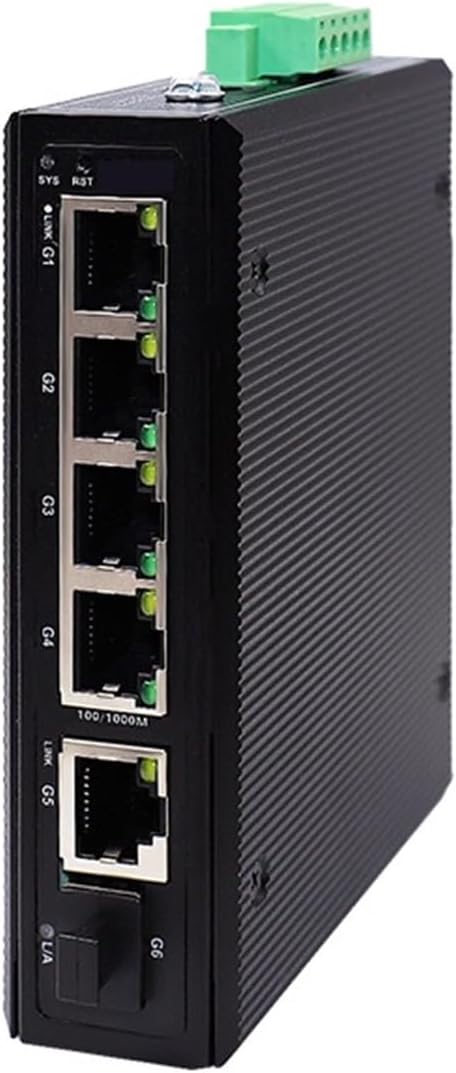
Figure 1: Front view and dimensions of the JT-IS303CW-61TS Industrial Switch. It features five RJ45 Gigabit Ethernet ports (G1-G5), one SFP Gigabit port (G6), SYS and RST indicators, and a terminal block for power. The dimensions are approximately 118mm (height) x 100mm (width) x 30mm (depth).
3. Safety Information
- Ensure the power supply voltage is within the specified range (DC12-57V) to prevent damage.
- Do not open the device casing. Refer all servicing to qualified personnel.
- Install the device in a well-ventilated area, away from direct sunlight, heat sources, and excessive moisture.
- Ensure proper grounding to prevent electrical hazards.
- Use appropriate cables and connectors for network connections.
4. Installation and Setup
4.1 Din Rail Mounting
The JT-IS303CW-61TS switch is designed for Din Rail mounting. Attach the provided Din Rail clip to the rear of the switch, then securely snap the switch onto a standard 35mm Din Rail.
4.2 Power Connection
The switch supports a wide DC power input range (12-57V) and features dual redundant power inputs for reliability. Connect your DC power source(s) to the terminal block located on the bottom panel of the switch. Ensure correct polarity (V+ and V-).

Figure 2: Bottom view showing the power input terminal block and grounding point. The terminal block accepts DC 12-57V input.
- Connect the positive (+) wire of your DC power supply to the V+ terminal.
- Connect the negative (-) wire of your DC power supply to the V- terminal.
- For redundant power, connect a second DC power supply to the alternate V+ and V- terminals.
- Ensure the grounding screw is properly connected to an earth ground.
4.3 Network Connection
- RJ45 Ports (G1-G5): Use standard Ethernet cables (Cat5e or higher) to connect network devices such as computers, servers, or other switches to the RJ45 ports. These ports support 10/100/1000Mbps speeds.
- SFP Port (G6): Insert a compatible 1.25G SFP transceiver module into the SFP slot. Connect fiber optic cables to the SFP module for long-distance or fiber-based network connections.
4.4 DIP Switch Configuration
The switch features DIP switches for specific configurations, including ring protection. Refer to the detailed product documentation or contact technical support for specific DIP switch settings and their functions.
5. Operation
Once powered on and connected, the switch will begin operating. The SYS LED indicator will illuminate to show the system status. Link/Act LEDs for each port will indicate connection status and data activity.
- SYS LED: Indicates system power and operational status.
- Link/Act LEDs (G1-G6): Solid green indicates a valid network link. Blinking green indicates data activity.
- RST Button: Used to reset the device. Consult specific instructions before using.
As an L2-Managed switch, advanced configurations such as VLANs, QoS, and port mirroring are typically accessible via a web-based interface or command-line interface (CLI). Refer to the comprehensive software manual for detailed management instructions.
6. Maintenance
- Cleaning: Periodically clean the exterior of the switch with a soft, dry cloth. Do not use liquid or aerosol cleaners.
- Environmental Conditions: Ensure the operating environment remains within the specified temperature and humidity ranges.
- Firmware Updates: Check the manufacturer's website for available firmware updates to ensure optimal performance and security.
7. Troubleshooting
7.1 No Power
- Verify that the power supply is correctly connected to the terminal block and that the power source is active.
- Check the power supply voltage to ensure it is within the DC12-57V range.
- Ensure the SYS LED is illuminated. If not, try an alternative power source or cable.
7.2 No Link on Port
- Check the Ethernet cable connection at both ends. Ensure it is securely plugged in.
- Verify the cable type and integrity. Try a different cable.
- Ensure the connected device is powered on and functioning correctly.
- For SFP ports, ensure the SFP module is correctly inserted and compatible, and the fiber cable is intact.
7.3 Network Performance Issues
- Check for excessive network traffic or loops.
- Ensure all connected devices are operating at their optimal speeds.
- Review the switch's management interface for error logs or port statistics.
8. Specifications
| Feature | Specification |
|---|---|
| Product Model | JT-IS303CW-61TS |
| Transmission Rate | 10/100/1000Mbps |
| Switch Capacity | 10Gbps |
| Communication Mode | Full-Duplex & Half-Duplex |
| Interface Type | 1*1.25G SFP Ports + 5*1.25G RJ45 Ports |
| Operating Voltage | DC12-57V (Excluding Power Supply) |
| Rating | 6KV |
| Operating Temperature | -30°C ~ +75°C (-22°F ~ 167°F) |
| Dimensions | 118mm * 100mm * 30mm |
| Item Weight | 200 Grams |
9. Warranty and Support
BAISULI products are designed for reliability and performance. For warranty information, technical support, or service inquiries, please refer to the warranty card included with your product or visit the official BAISULI website. Please have your product model number (JT-IS303CW-61TS) and purchase details ready when contacting support.