
1. Introduction
This manual provides detailed instructions for the installation, operation, and maintenance of the Ubiquiti UniFi U6 Mesh Pro Dual-Band Indoor/Outdoor Wi-Fi 6 Access Point. The U6 Mesh Pro is designed to deliver fast and reliable wireless connections in various environments, supporting Wi-Fi 6 (802.11ax) with dual-band capabilities.
Key features include:
- Wi-Fi 6 (802.11ax) support for high efficiency and throughput.
- Dual-band operation (2.4 GHz and 5 GHz) with 4 spatial streams.
- Integrated omnidirectional super antenna providing up to 185 m² (2,000 ft²) coverage.
- Capable of supporting over 350 concurrent connected devices.
- Power over Ethernet (PoE) for simplified installation.
- Weatherproof (IPX6 rated) design for indoor and outdoor deployment.
2. Package Contents
Verify that all components are present in your package:
- UniFi U6 Mesh Pro Device
- PoE Injector
- Mounts (for wall and pole installation)
- Screws and anchors

Image: The UniFi U6 Mesh Pro device, PoE injector, various mounting brackets, screws, and anchors, laid out on a dark surface, representing the complete package contents.
3. Product Overview
The UniFi U6 Mesh Pro features a sleek, rectangular design suitable for discreet installation. It includes an integrated omnidirectional super antenna and a status LED light for operational feedback. Connectivity is provided via Gigabit Ethernet ports, supporting PoE input and passthrough.

Image: A technical diagram illustrating the dimensions of the UniFi U6 Mesh Pro (343.2 mm height, 181.2 mm width, 60.2 mm depth) and highlighting key features such as the integrated omnidirectional super antenna, status LED light, dual-radio Wi-Fi 6 with 4 spatial streams, 2,000 ft² coverage, 350+ connected devices support, weatherproof IPX6 rating, wall and pole mount compatibility, GbE PoE In RJ45 port, and reset button.
4. Installation and Setup
4.1 Mounting Options
The U6 Mesh Pro can be mounted on a wall or a pole. Ensure the mounting location provides optimal coverage and is within reach of a power source (PoE).
Pole Mounting
For pole mounting, use the provided pole mount bracket and screws. Securely attach the bracket to the pole, then slide the U6 Mesh Pro onto the bracket until it clicks into place.

Image: The UniFi U6 Mesh Pro access point is shown mounted vertically on a metal pole outdoors, with a blurred background of foliage and a building, demonstrating its outdoor installation capability.

Image: A diagram showing the UniFi U6 Mesh Pro being attached to a pole mount. Blue lines indicate the secure connection points between the device and the mounting bracket, which is fastened to the pole with screws.
Wall Mounting
For wall mounting, use the wall mount bracket. Mark the drill holes, install anchors if necessary, and secure the bracket to the wall. Then, attach the U6 Mesh Pro to the bracket.
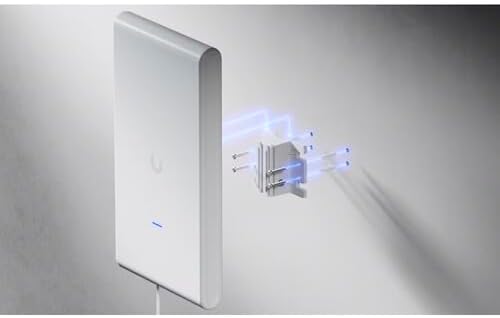
Image: A diagram depicting the UniFi U6 Mesh Pro being mounted on a wall. Blue lines illustrate the connection points between the device and the wall mount bracket, which is secured to the wall with screws.
4.2 Powering the Device
The U6 Mesh Pro is powered using Power over Ethernet (PoE). Connect an Ethernet cable from the included PoE injector to the GbE PoE In RJ45 port on the U6 Mesh Pro. The PoE injector will supply both power and data to the device.
4.3 Network Configuration
To set up, configure, and manage your UniFi U6 Mesh Pro, use the UniFi Network application. Download the application to your mobile device or access the UniFi Network Controller software on a computer. Follow the on-screen instructions to adopt the device into your UniFi network.
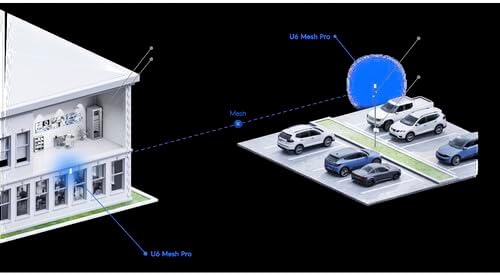
Image: A network diagram illustrating the deployment of UniFi U6 Mesh Pro devices. One U6 Mesh Pro is shown indoors, connected to a network, while another is deployed outdoors, extending Wi-Fi coverage to an external area like a parking lot, demonstrating mesh networking capabilities.
5. Operation
Once installed and configured, the UniFi U6 Mesh Pro will broadcast Wi-Fi signals on both 2.4 GHz and 5 GHz bands. Client devices can connect to the network using the configured SSID and password. The device automatically manages client connections to optimize performance and coverage.
The UniFi Network application provides a centralized interface for monitoring network status, connected devices, and adjusting settings such as Wi-Fi security (WPA3 encryption is supported), guest network isolation, and firmware updates.
6. Maintenance
Regular maintenance ensures optimal performance and longevity of your U6 Mesh Pro:
- Cleaning: Periodically wipe the device with a soft, dry cloth to remove dust and debris. Do not use liquid cleaners or aerosols.
- Firmware Updates: Keep the device's firmware updated through the UniFi Network application. Firmware updates often include performance improvements, security patches, and new features.
- Environmental Conditions: Ensure the device operates within its specified temperature and humidity ranges. While weatherproof, avoid direct exposure to extreme conditions beyond its IPX6 rating.
7. Troubleshooting
If you encounter issues with your UniFi U6 Mesh Pro, consider the following troubleshooting steps:
- No Power/LED Off: Ensure the PoE injector is properly connected and receiving power. Check the Ethernet cable connection to the device.
- Connectivity Issues: Verify that the U6 Mesh Pro is adopted and online in the UniFi Network application. Check network cable integrity. Ensure there are no IP address conflicts.
- Poor Performance: Check for potential interference from other wireless devices. Ensure the device is mounted in an optimal location for coverage. Verify that the firmware is up to date.
- Device Unresponsive: If the device becomes unresponsive, locate the reset button (typically a small pinhole) and press it briefly to restart the device. For a factory reset, press and hold the reset button for more than 10 seconds while the device is powered on.
8. Technical Specifications
| Feature | Specification |
|---|---|
| Model Number | U6-Mesh-Pro |
| Wireless Standard | 802.11ax (Wi-Fi 6) |
| Frequency Band Class | Dual-Band (2.4 GHz & 5 GHz) |
| Spatial Streams | 4 |
| Coverage Area | Up to 185 m² (2,000 ft²) |
| Concurrent Devices | 350+ |
| Connectivity Technology | Wi-Fi, Ethernet |
| Ethernet Ports | 2 x Gigabit Ethernet (PoE In, Passthrough) |
| Power Method | PoE (Power over Ethernet) |
| Weather Rating | IPX6 (Weatherproof) |
| Antenna Type | Internal Omnidirectional |
| Dimensions (L x W x H) | 343.2 x 181.2 x 60.2 mm (approx. 13.5 x 7.1 x 2.4 inches) |
| Item Weight | 4.64 pounds |
9. Warranty Information
The Ubiquiti UniFi U6 Mesh Pro is covered by a limited warranty provided by Ubiquiti Networks. For detailed information regarding warranty terms, conditions, and duration, please refer to the official Ubiquiti Networks website or the warranty card included with your product. Keep your proof of purchase for warranty claims.
10. Technical Support
For technical assistance, product inquiries, or troubleshooting beyond the scope of this manual, please contact Ubiquiti Networks support:
- Online Support: Visit the official Ubiquiti Networks support website for knowledge base articles, forums, and support tickets.
- Community Forums: Engage with other UniFi users and experts on the Ubiquiti Community Forums for shared solutions and advice.
Always provide your product model number (U6-Mesh-Pro) and a detailed description of your issue when seeking support.