
1. Introduction
This manual provides detailed instructions for the setup, operation, maintenance, and troubleshooting of your new HP 727pm 27-inch 4K UHD LCD Monitor. Please read this manual thoroughly before using the product to ensure proper functionality and to prevent damage.
2. Package Contents
Verify that all items listed below are included in your product package. If any items are missing or damaged, please contact your retailer or HP support.
- HP 727pm 27" 4K UHD LCD Monitor
- Monitor Stand (Base and Riser)
- Power Cable
- HDMI Cable
- USB-C Cable
- Quick Setup Guide
3. Setup
3.1 Assembling the Stand
- Carefully remove the monitor and stand components from the packaging.
- Attach the stand riser to the monitor panel by aligning the tabs and pushing until it clicks into place. Ensure it is securely fastened.
- Attach the stand base to the riser. Tighten the captive screw on the bottom of the base to secure it.
- Place the assembled monitor on a stable, flat surface.
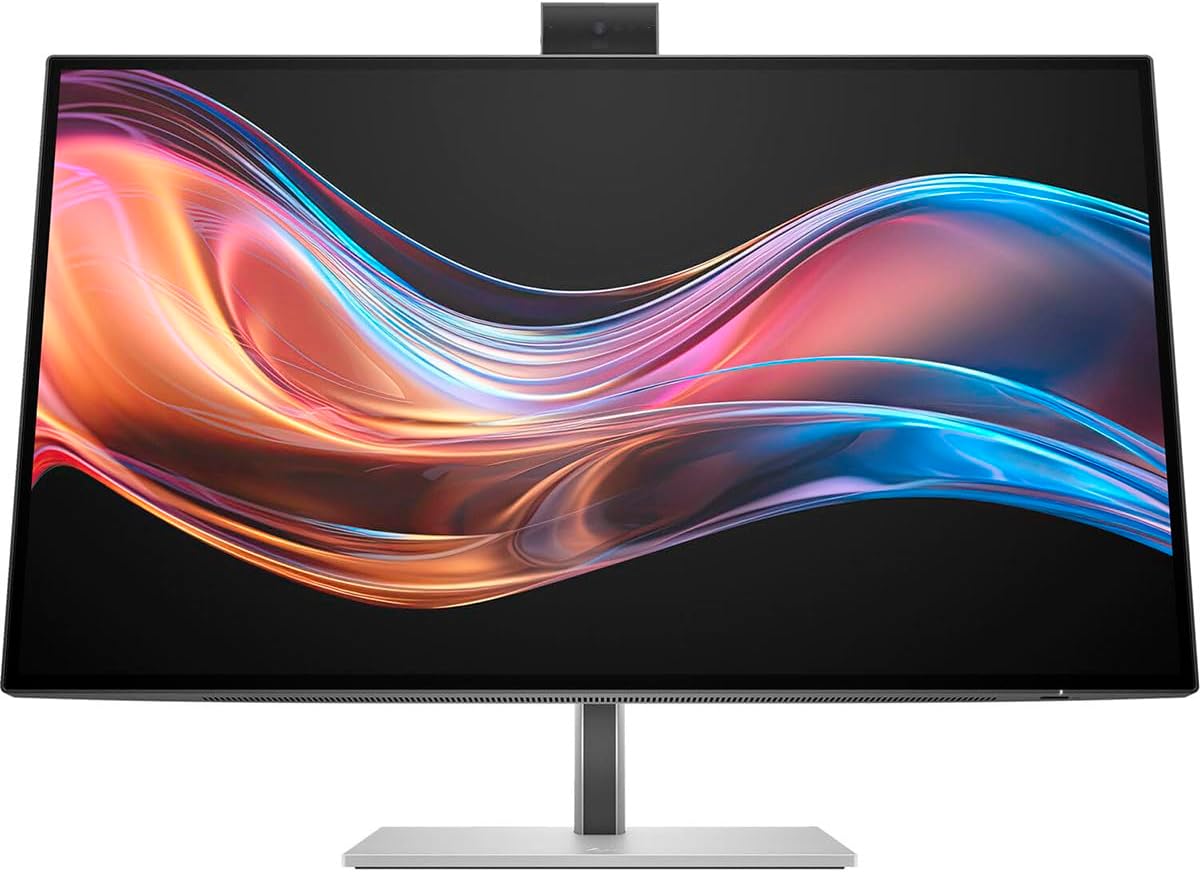
Figure 3.1: Front view of the HP 727pm monitor with its stand fully assembled, ready for use.
3.2 Connecting the Monitor
Before connecting, ensure all devices are powered off.
- Power Connection: Connect the power cable to the monitor's power input and then to a wall outlet.
- Video Connection: Connect one end of the provided HDMI or USB-C cable to the corresponding port on your computer and the other end to the monitor. For optimal 4K resolution, use the recommended cable type.
- USB Peripherals (Optional): Connect USB devices such as a keyboard, mouse, or webcam to the available USB ports on the monitor.
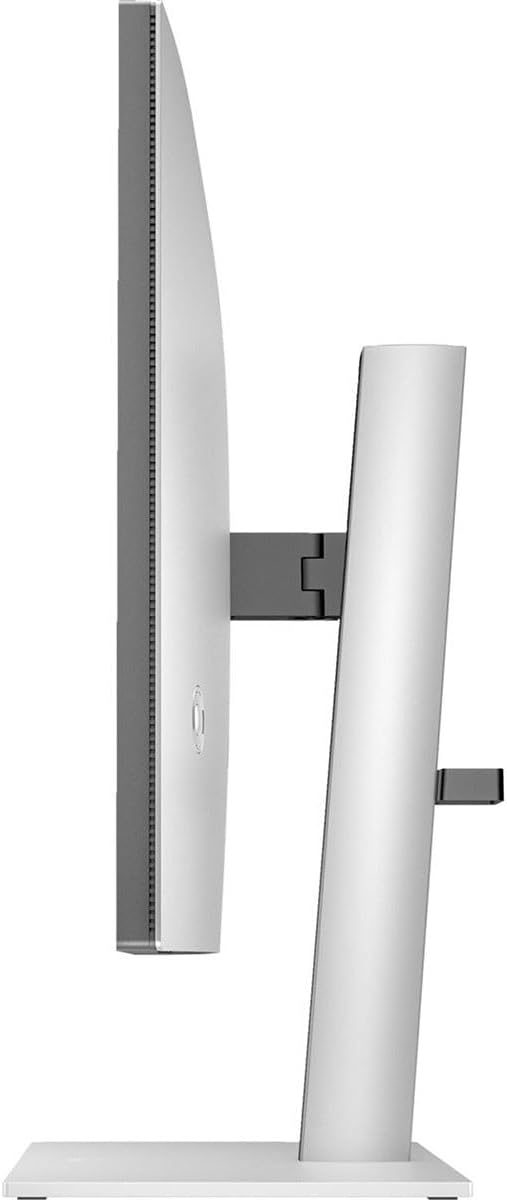
Figure 3.2: Rear view of the HP 727pm monitor, highlighting the various input ports including power, HDMI, DisplayPort, and USB connections.
4. Operating Instructions
4.1 Powering On/Off
Press the power button located on the monitor to turn it on or off. The power indicator light will illuminate when the monitor is on.
4.2 Basic Display Settings
Use the control buttons, typically located on the bottom or rear of the monitor, to access and adjust settings such as:
- Brightness: Adjusts the overall luminance of the screen.
- Contrast: Controls the difference between the lightest and darkest areas of the image.
- Input Source: Manually select the video input (e.g., HDMI, USB-C) if auto-detection fails.
4.3 Using the On-Screen Display (OSD) Menu
The OSD menu provides advanced settings for image quality, color, audio, and system configurations. Navigate the OSD using the control buttons. Refer to the on-screen prompts for specific menu options.
4.4 Adjusting the Stand
The monitor stand allows for ergonomic adjustments:
- Height Adjustment: Gently push or pull the monitor up or down to your desired height.
- Tilt Adjustment: Tilt the screen forward or backward to find the optimal viewing angle.
- Swivel Adjustment: Rotate the monitor left or right on its base.

Figure 4.4: Angled view of the HP 727pm monitor, illustrating the flexibility of its stand for tilt and height adjustments.
5. Maintenance
5.1 Cleaning the Monitor
To clean the monitor screen and casing:
- Always power off the monitor and unplug the power cable before cleaning.
- Use a soft, lint-free cloth slightly dampened with water or a non-abrasive screen cleaner.
- Do not spray liquid directly onto the screen or casing.
- Avoid using benzene, thinner, ammonia-based cleaners, or abrasive materials, as these can damage the surface.
5.2 Storage
If storing the monitor for an extended period, ensure it is powered off, unplugged, and stored in a cool, dry place away from direct sunlight and extreme temperatures. Use original packaging if available for best protection.
6. Troubleshooting
This section addresses common issues you might encounter with your monitor. If the problem persists after trying these solutions, please contact HP support.
- No Power:
Solution: Ensure the power cable is securely connected to both the monitor and the power outlet. Check if the power outlet is functional. - No Signal:
Solution: Verify that the video cable (HDMI, USB-C) is correctly connected to both the monitor and the computer. Ensure the correct input source is selected on the monitor via the OSD menu. Try restarting your computer. - Image is Distorted or Blurry:
Solution: Ensure the monitor's resolution is set to its native resolution (3840 x 2160). Check the video cable for damage. Adjust brightness and contrast settings. - Screen Flickering:
Solution: Check the refresh rate setting on your computer's display settings. Ensure it is compatible with the monitor. Try a different video cable. - No Audio (if applicable):
Solution: Check the monitor's volume settings and your computer's audio output settings. Ensure the correct audio output device is selected on your computer.
7. Specifications
Below are the key technical specifications for the HP 727pm 27" 4K UHD LCD Monitor:
| Feature | Specification |
|---|---|
| Screen Size | 27 inches |
| Resolution | 3840 x 2160 (4K UHD) |
| Aspect Ratio | 16:9 |
| Screen Mode | 4K UHD |
| Panel Type | LCD |
| Connectivity | HDMI, USB-C, DisplayPort (specific ports may vary, refer to product for exact configuration) |
| USB Ports | 1 (Total USB Ports) |
| Product Dimensions (W x D x H) | 28.1 x 6.3 x 17.9 inches |
| Item Weight | 22.8 pounds |
| Manufacturer | Hewlett Packard |
8. Warranty and Support
Your HP 727pm monitor is covered by a limited warranty. For detailed warranty information, terms, and conditions, please refer to the warranty card included with your product or visit the official HP support website. For technical assistance, driver downloads, or service requests, please visit www.hp.com/support and search for your specific model number (727pm).