1. Introduction
This manual provides comprehensive instructions for the setup, operation, and maintenance of your CENMATE Aluminum Dual Bay 10Gbps Hard Drive Enclosure. Designed for both 2.5-inch and 3.5-inch SATA HDDs and SSDs, this enclosure offers high-speed data transfer, hot-swappable convenience, and daisy chain expansion capabilities. Please read this manual thoroughly before use to ensure optimal performance and longevity of your device.

Image: The CENMATE Dual Bay Hard Drive Enclosure, showcasing its two drive bays and sleek black aluminum design.
2. Features
- High-Speed Data Transfer: Equipped with VL822+ASM235CM chips and a USB 3.2 Gen 2 output interface, enabling transfer speeds up to 10Gbps. Transfer 1GB files in 3-5 seconds. Achieves R/W speeds of 500MB/s for 2 HDDs and 510MB/s for 1 SSD.
- Large Capacity Support: Supports 2.5-inch and 3.5-inch SATA HDDs and SSDs, with a maximum capacity of up to 20TB per hard drive, totaling 40TB for the dual bay model.
- Efficient Cooling System: Features an aluminum-alloy casing and a built-in 2-inch cooling fan to maximize data security and heat dissipation. Note: Fan noise is approximately 40-50 decibels.
- Hot Swappable: Allows for the replacement of hard drives without powering off the device, enhancing convenience and efficiency.
- Daisy Chain Expansion: Includes a USB HOST port for connecting additional external hard drive enclosures, allowing for capacity expansion up to 120TB by daisy-chaining up to 3 devices.
- Wide Compatibility: Plug-and-play functionality with Windows 7 and above, Mac 9.1 and above, and Linux. The USB Type-C interface supports USB 3.0, USB 3.1, USB 3.2, Thunderbolt 3, and Thunderbolt 4.
- Tool-Free Installation: Designed for tool-free installation of 3.5-inch hard drives.
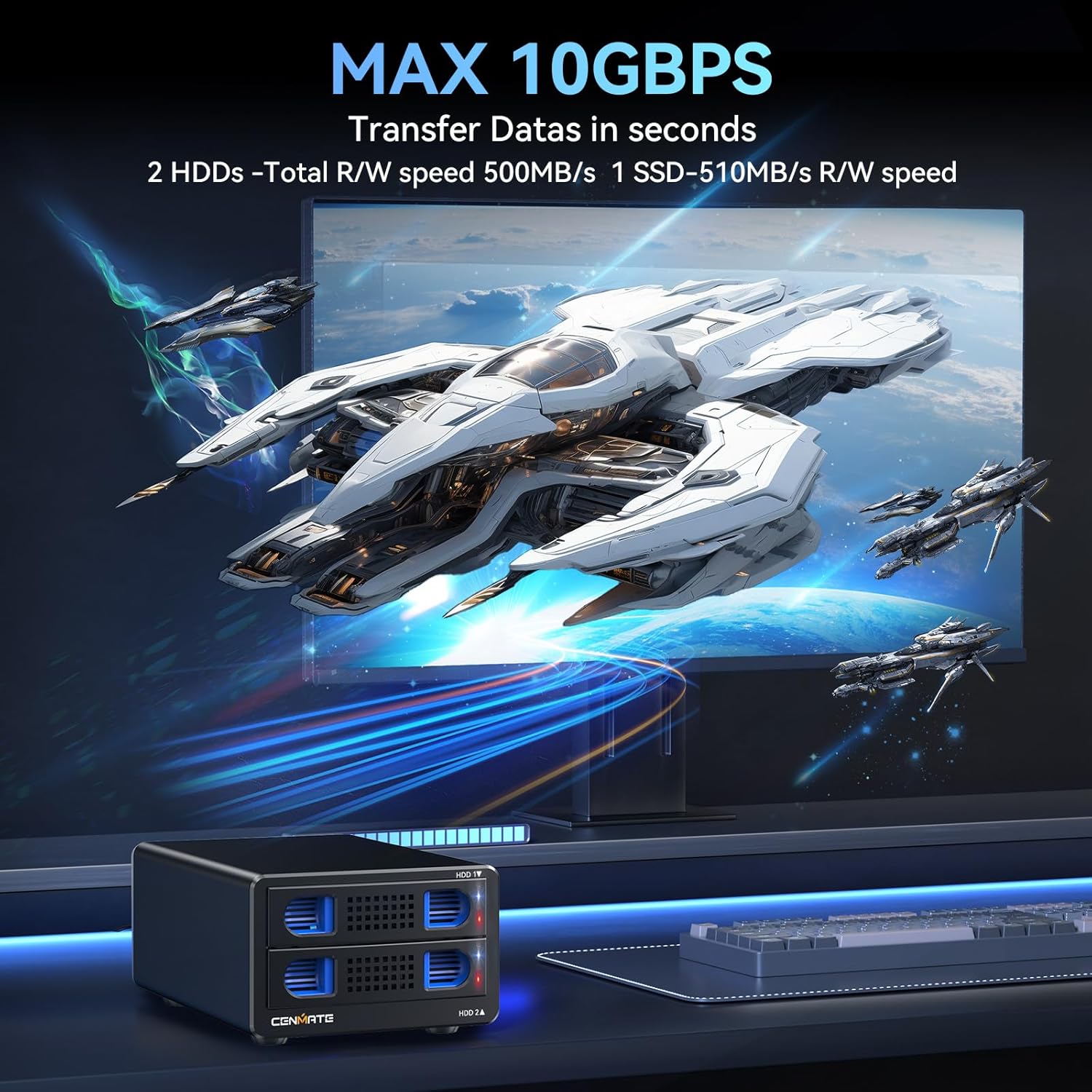
Image: Illustration demonstrating the 10Gbps data transfer capability of the enclosure, showing fast file transfers.

Image: Visual representation of the 40TB large capacity support, highlighting compatibility with 2.5-inch and 3.5-inch SATA HDDs/SSDs.

Image: An internal view of the enclosure, showing the integrated cooling fan and airflow for heat dissipation.

Image: A comparison showing the tool-free installation method of the CENMATE enclosure versus other methods requiring screws, emphasizing ease of use.
3. Package Contents
Please verify that all items are present in the package:
- CENMATE Dual Bay 10Gbps Hard Drive Enclosure (NO RAID)
- USB A/C 3.2 Cable
- User Manual (this document)
- Power Adapter
4. Setup Instructions
4.1 Installing Hard Drives
- Open Drive Bay: Gently pull the handle of an empty drive bay to slide out the drive tray.
- Insert Drive:
- For 3.5-inch HDDs/SSDs: Align the drive with the connectors on the tray and push it firmly until it clicks into place. No tools are required.
- For 2.5-inch HDDs/SSDs: Place the 2.5-inch drive onto the tray. You may need to secure it with screws (not always included, but often necessary for stability) through the designated holes on the tray.
- Close Drive Bay: Slide the loaded drive tray back into the enclosure until it is fully seated and locked.
- Repeat for the second drive bay if installing two drives.
4.2 Connecting to Your Computer
- Connect USB Cable: Connect one end of the provided USB A/C 3.2 cable to the USB port on the back of the enclosure.
- Connect to Computer: Connect the other end of the USB cable to an available USB 3.2 (or compatible USB 3.0/3.1/Thunderbolt) port on your computer. For optimal performance, use a USB 3.2 Gen 2 port.
4.3 Powering On
- Connect Power Adapter: Plug the power adapter into the DC 12V input port on the back of the enclosure.
- Plug into Outlet: Plug the power adapter into a wall outlet.
- Power On: Flip the power switch on the back of the enclosure to the 'ON' position. The power indicator light should illuminate.

Image: Diagram illustrating the connection of the 12V power adapter to the enclosure and a laptop, ensuring stable power supply.
5. Operating Instructions
5.1 Drive Recognition and Formatting
Once powered on and connected, your operating system (Windows, macOS, Linux) should automatically detect the installed hard drives. New drives may need to be initialized and formatted before they can be used. Refer to your operating system's documentation for instructions on disk management.
5.2 Hot Swapping Drives
The enclosure supports hot swapping. To safely remove a drive while the enclosure is powered on and connected:
- Eject Drive: In your operating system, safely eject or unmount the specific hard drive you wish to remove. This prevents data corruption.
- Remove Drive: Once safely ejected, gently pull the handle of the corresponding drive bay to slide out the drive tray and remove the drive.
- Insert New Drive: Insert a new drive into the empty bay as described in Section 4.1. The new drive should be detected automatically.
5.3 Daisy Chain Expansion
The enclosure features a USB HOST port for daisy-chaining multiple units, allowing for significant storage expansion. To daisy chain:
- Connect the main enclosure to your computer via the USB A/C 3.2 cable.
- Connect a second CENMATE enclosure to the USB HOST port on the back of the first enclosure using a compatible USB cable.
- Ensure each daisy-chained enclosure has its own power supply connected and is powered on.
- You can daisy chain up to 3 enclosures for a total expanded capacity of 120TB (with 20TB drives).

Image: Visualizing the daisy chain expansion capability, showing multiple enclosures connected to a single computer for increased storage.

Image: A detailed rear view of the enclosure, highlighting the USB HOST port used for daisy-chaining additional devices, demonstrating excellent data management.
5.4 Compatibility
The enclosure is compatible with a wide range of operating systems and USB interfaces:
- Operating Systems: Windows 7 and above, Mac 9.1 and above, Linux.
- USB Interfaces: USB 3.0, USB 3.1, USB 3.2, Thunderbolt 3, and Thunderbolt 4.

Image: A diagram illustrating the wide compatibility of the enclosure with various operating systems (Windows, Mac OS, Linux) and devices (Laptop, PC).
6. Maintenance
6.1 Cooling Fan
The built-in cooling fan helps maintain optimal operating temperatures for your hard drives. Periodically check the fan vents for dust accumulation. If necessary, gently clean the vents with compressed air to ensure unobstructed airflow.
Note: The fan operates at approximately 40-50 decibels. If you are highly sensitive to noise, consider the placement of the enclosure.
6.2 General Cleaning
To clean the exterior of the enclosure, use a soft, dry cloth. Avoid using liquid cleaners or abrasive materials, as they may damage the aluminum finish.
7. Troubleshooting
- Drives Not Recognized:
- Ensure the power adapter is securely connected and the enclosure is powered on.
- Verify that the USB cable is firmly connected to both the enclosure and your computer.
- Try connecting the enclosure to a different USB port on your computer.
- Check your computer's Disk Management (Windows) or Disk Utility (macOS) to see if the drives are detected but uninitialized or unformatted.
- Ensure the hard drives are properly seated in their bays.
- Slow Data Transfer Speeds:
- Ensure you are connected to a USB 3.2 Gen 2 port on your computer for maximum speed. Older USB ports will result in lower speeds.
- Try using a different USB A/C 3.2 cable. Sometimes, cable quality can affect performance.
- On Windows, check if write caching is enabled for the drives. This can sometimes improve performance. (Go to Device Manager > Disk drives > Properties > Policies tab). Remember to safely eject drives if write caching is enabled.
- Performance can also be affected by the hard drive's own speed and your computer's specifications.
- Fan Noise is Noticeable:
- The fan operates at 40-50 decibels, which is audible. This is normal operation.
- Ensure the fan vents are not obstructed, which could cause the fan to work harder and potentially louder.
- Daisy Chain Not Working:
- Ensure each daisy-chained enclosure has its own power supply connected and is powered on.
- Verify the USB cables between enclosures are securely connected.
8. Specifications
| Feature | Detail |
|---|---|
| Model | 2 Bay (802TC-10G) |
| Max Supported Devices | 2 (per enclosure) |
| Data Transfer Rate | 10 Gigabits Per Second (USB 3.2 Gen 2) |
| Supported Drive Types | 2.5" / 3.5" SATA HDD/SSD |
| Max Capacity per Drive | 20TB |
| Total Max Capacity | 40TB (per enclosure) |
| Daisy Chain Expansion | Up to 3 devices (120TB total) |
| Material Type | Aluminum |
| Color | Black |
| Cooling | Built-in 2-inch Fan |
| Product Dimensions | 20.19 x 13.21 x 8.79 cm (7.95 x 5.20 x 3.46 inches) |
| Item Weight | 957.08 g (2.11 Pounds) |
| Compatible OS | Windows 7+, Mac 9.1+, Linux |
| Hardware Interface | USB 3.2 Gen 2 (USB A/C) |
9. Warranty and Support
CENMATE provides friendly technical support for its products. If you encounter any questions or issues regarding your CENMATE Aluminum Dual Bay Hard Drive Enclosure, please do not hesitate to contact us. We are committed to replying and solving your problem within 24 hours.
For support, please refer to the contact information provided on the product packaging or the official CENMATE website.


