
1. Introduction
This manual provides comprehensive instructions for the setup, operation, maintenance, and troubleshooting of your GRAUGEAR 40Gbps M.2 NVMe SSD Enclosure Docking Station. Designed for high-speed data transfer and optimal SSD cooling, this docking station offers a reliable solution for managing your M.2 NVMe SSDs.
2. Product Overview
The GRAUGEAR G-M2DK-U4-40G is a high-performance M.2 NVMe SSD docking station engineered for ultra-fast data transfer. It features a robust design with an integrated cooling fan and an aluminum heatsink to ensure efficient heat dissipation, protecting your SSD from overheating and maintaining consistent high speeds. The tool-free design allows for easy installation and removal of M.2 SSDs.
Key Features:
- 40Gbps Ultra High Speed: Utilizes a USB 4.0 ASM2464PD chipset for data transmission speeds up to PCIe 4.0 x4 40Gbps. Compatible with Thunderbolt 4/3 and backward compatible with USB 3.2/3.1/3.0/2.0.
- Optimal Cooling: Features a 50mm low-noise cooling fan and an aluminum heatsink for active and passive heat dissipation, reducing SSD temperature by up to 60%.
- Tool-Free Design: Allows for easy installation and quick removal of M.2 SSDs without the need for tools.
- Stability and Safety: Advanced ASM2464PD controller with built-in short-circuit, over-current, and multi-protection features.
- Plug and Play: No driver needed for operation.

Image: The GRAUGEAR 40Gbps M.2 NVMe SSD Enclosure Docking Station with its included USB-C to USB-C cable.

Image: Detailed view of the GRAUGEAR USB 4.0 Docking Station, highlighting its dimensions, 50mm active cooling fan, and Type-C port with 40Gbps speed indication.
3. What's in the Box
- GRAUGEAR USB4 M.2 SSD Docking Station
- USB-C to USB-C cable
- Aluminum heatsink
- Thermal pads
- Rubber rim
- Warranty card
- Manual (this document)
4. Specifications

Image: Diagram showing the physical dimensions and key specifications of the GRAUGEAR Docking Station and its cable.
| Feature | Detail |
|---|---|
| Model Number | 18111 |
| Internal Interface | M.2 M-Key |
| External Interface | USB 4.0 |
| Transfer Speed | USB 4.0 up to 40Gbit/s (Theoretic) |
| Supported SSD | M.2 NVMe SSD 2230, 2242, 2260, 2280, 22110 |
| Controller | ASM2464PD |
| Product Material | Plastic / Aluminum |
| Cable Length | 60cm / 18 inches |
| Color | Black |
| Item Weight | 8.1 ounces (0.23 Kilograms) |
| Package Dimensions | 6.73 x 3.9 x 2.4 inches |
5. System Requirements
To ensure optimal performance and compatibility, please verify your system meets the following requirements:

Image: Table detailing the operating system, CPU, and minimum system requirements for macOS, iPad OS, iOS, and Windows.
| OS | CPU | Minimum System Requirements |
|---|---|---|
| macOS | Apple Silicon or Intel | macOS 13.5 or above |
| iPad OS | A Series (USB-C interface) | / |
| iOS | A Series (USB-C interface) | iPhone 15 or above |
| Windows | AMD Ryzen 6000 or above Intel 12th Gen or above Intel 11th Gen Intel 10th Gen | Windows 11 10.0.22621 TGL NVM 46.1/47.3 or above NVM 85.1/86 or above |
Note: Please ensure your operating system build and NVM FW version are updated to the latest version to achieve 40Gbps transfer speed. Backward compatibility will limit the speed, and the device might not be recognized if requirements are not met.
6. Setup
6.1 Installing the M.2 NVMe SSD
The GRAUGEAR docking station features a tool-free design for easy SSD installation.
- Gently insert your M.2 NVMe SSD into the slot on the docking station. The strong bracket is designed to fix the M.2 SSD without tilting, ensuring stability.
- If your SSD requires a heatsink (recommended for optimal performance), apply the thermal pad to the SSD and then attach the aluminum heatsink provided. The docking station is suitable for M.2 SSDs with various heat sinks.
- Ensure the SSD is securely seated in the slot.

Image: Demonstrates the tool-free installation of an M.2 SSD into the docking station, highlighting the SSD fixing bracket.

Image: Illustrates the layers of an SSD, thermal pad, and heatsink for effective heat dissipation.

Image: Shows the compatibility of the docking station with M.2 SSDs equipped with various types of heatsinks.
6.2 Connecting to Your Device
Use the provided USB-C to USB-C cable to connect the docking station to your computer or compatible device.
- Connect one end of the USB-C cable to the Type-C port on the GRAUGEAR docking station.
- Connect the other end of the USB-C cable to a USB 4.0 or Thunderbolt 4/3 port on your host device (e.g., laptop, desktop, PS5).
- The docking station is plug-and-play, requiring no additional drivers.
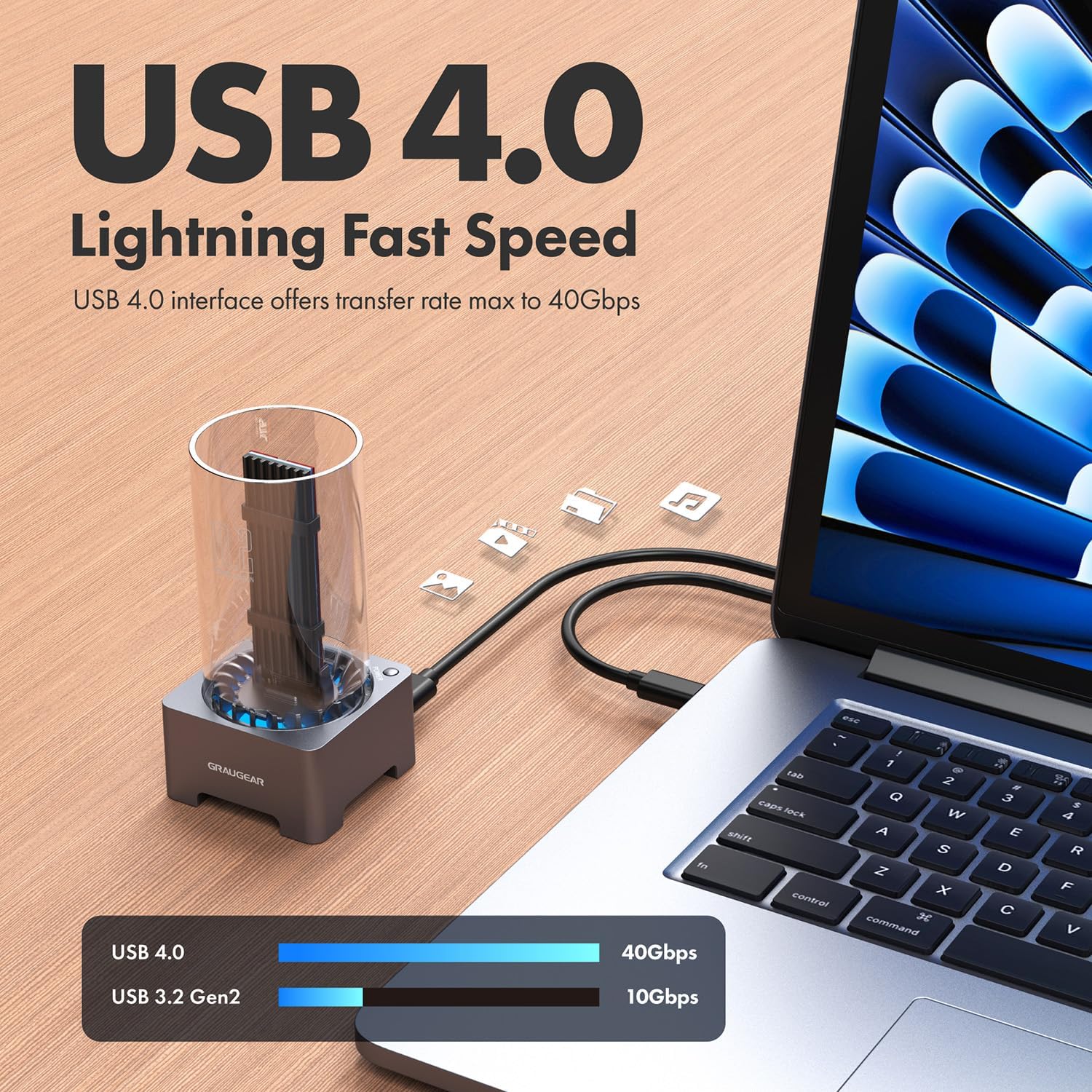
Image: The GRAUGEAR docking station connected to a laptop via USB 4.0, illustrating its lightning-fast speed capabilities.
Video: An official GRAUGEAR video demonstrating the setup and key features of the 40Gbps M.2 NVMe SSD Enclosure Docking Station, including SSD installation and connectivity.
7. Operating Instructions
7.1 Data Transfer
Once connected, your M.2 NVMe SSD will be recognized by your operating system as an external storage device. You can now transfer files to and from the SSD at speeds up to 40Gbps, depending on your SSD and host device capabilities.
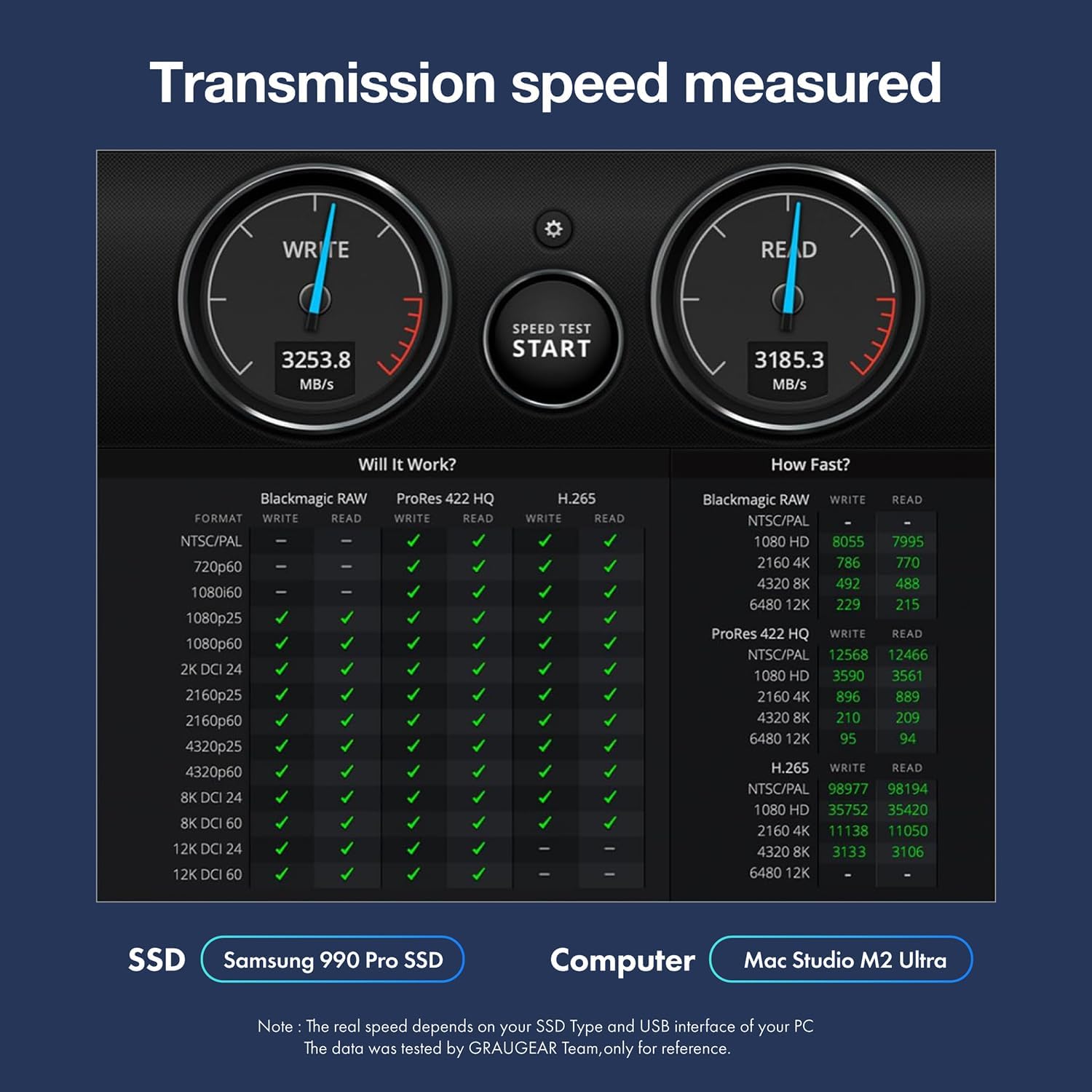
Image: A benchmark showing measured transmission speeds (Read/Write) of the docking station with a Samsung 990 Pro SSD and Mac Studio M2 Ultra.

Image: Highlights the high read and write speeds achievable with the GRAUGEAR USB 4.0 M.2 NVMe SSD Enclosure, along with icons for 40Gbps, UASP & TRIM support, 50mm fan, aluminum heatsink, and 10 mins auto-sleep.
7.2 Cooling Fan Operation
The built-in 50mm cooling fan automatically activates to dissipate heat generated by the M.2 SSD, ensuring stable performance during intensive operations. The fan is optimized for low-noise operation.

Image: Diagram illustrating the airflow generated by the built-in cooling fan to keep the SSD cool and prevent overheating.

Image: A close-up view of the built-in cooling fan within the docking station.
7.3 Auto-Sleep Function
The docking station features an auto-sleep function that activates after 10 minutes of inactivity to conserve power and prolong the life of your SSD.

Image: Icon indicating the 10-minute auto-sleep feature of the docking station.
8. Maintenance
To ensure the longevity and optimal performance of your GRAUGEAR docking station, follow these maintenance guidelines:
- Cleaning: Use a soft, dry cloth to clean the exterior of the docking station. Avoid using liquid cleaners or aerosols.
- Dust Prevention: Periodically inspect the cooling fan area for dust accumulation. While the design helps prevent dust, excessive buildup can impede airflow. Use compressed air to gently clear any dust.
- Handling: Handle the docking station with care. Avoid dropping it or subjecting it to strong impacts.
- Environment: Operate the device in a well-ventilated area, away from direct sunlight, excessive heat, or moisture.
9. Troubleshooting
If you encounter issues with your GRAUGEAR docking station, please refer to the following common problems and solutions:
9.1 Device Not Recognized or Disconnecting
- Check Cable Connection: Ensure the USB-C cable is securely connected to both the docking station and your host device.
- Verify Port Compatibility: For 40Gbps speeds, ensure you are using a USB 4.0 or Thunderbolt 4/3 port. Connecting to older USB ports (e.g., USB 3.2/3.1/3.0/2.0) will result in slower speeds and may cause recognition issues.
- Update OS and Firmware: Ensure your operating system (OS build) and NVMe SSD firmware (NVM FW) are updated to the latest versions. Outdated software can cause compatibility problems.
- Try Another Port/Cable: Test with a different USB 4.0/Thunderbolt port on your device or a different compatible cable to rule out port or cable issues.
- Re-seat SSD: Ensure the M.2 NVMe SSD is properly seated in the docking station slot.
9.2 Slow Transfer Speeds
- Port Type: As mentioned, ensure you are connected to a USB 4.0 or Thunderbolt 4/3 port. Older USB standards will limit speeds.
- SSD Performance: The actual transfer speed is also dependent on the performance of your M.2 NVMe SSD. Ensure your SSD is capable of high speeds.
- System Load: High CPU usage or other background processes on your computer can affect transfer speeds.
- Overheating: While the docking station has excellent cooling, prolonged heavy use in a hot environment could potentially lead to thermal throttling. Ensure adequate ventilation.
9.3 Overheating Concerns
The GRAUGEAR docking station is designed with active cooling (fan) and passive cooling (aluminum heatsink) to prevent overheating. If you suspect your SSD is still running hot:
- Ensure Heatsink is Applied: Verify that the aluminum heatsink and thermal pads are correctly installed on your M.2 SSD.
- Check Fan Operation: Listen for the cooling fan. If it's not spinning, ensure the docking station is powered and connected correctly.
- Environmental Factors: Ensure the docking station is not placed in an enclosed space or an area with poor airflow.
9.4 Frequently Asked Questions (FAQs)
- Does PS5 SSD overheat? The PS5 SSD can reach temperatures of up to 71 degrees Celsius. Excessively high temperatures may affect the life of the SSD, so it's best to have a heat sink on hand.
- Do I really need a heatsink for NVME SSD? This is not common with consumer SSDs, but monitoring the temperature of your SSD can help prolong its life.
- How can I improve my PS5 cooling? Sony recommends installing a heatsink to the internal PS5 SSD in order to maintain performance. A heatsink works by cooling down the SSD and transferring the heat away from the device.
10. Warranty and Support
GRAUGEAR products are manufactured with high-quality standards. For warranty information and technical support, please refer to the warranty card included in your package or visit the official GRAUGEAR website. Please have your model number (G-M2DK-U4-40G) and purchase details ready when contacting support.
Manufacturer: CHAB GmbH
