
1. Introduction
Thank you for choosing the MMK Mini Bluetooth Keyboard. This compact and versatile wireless keyboard is designed for enhanced productivity across various devices. It features a comfortable scissor-switch key structure for quiet and efficient typing, an AZERTY layout, and a long-lasting rechargeable battery. This manual provides detailed instructions for setup, operation, maintenance, and troubleshooting to ensure optimal performance.
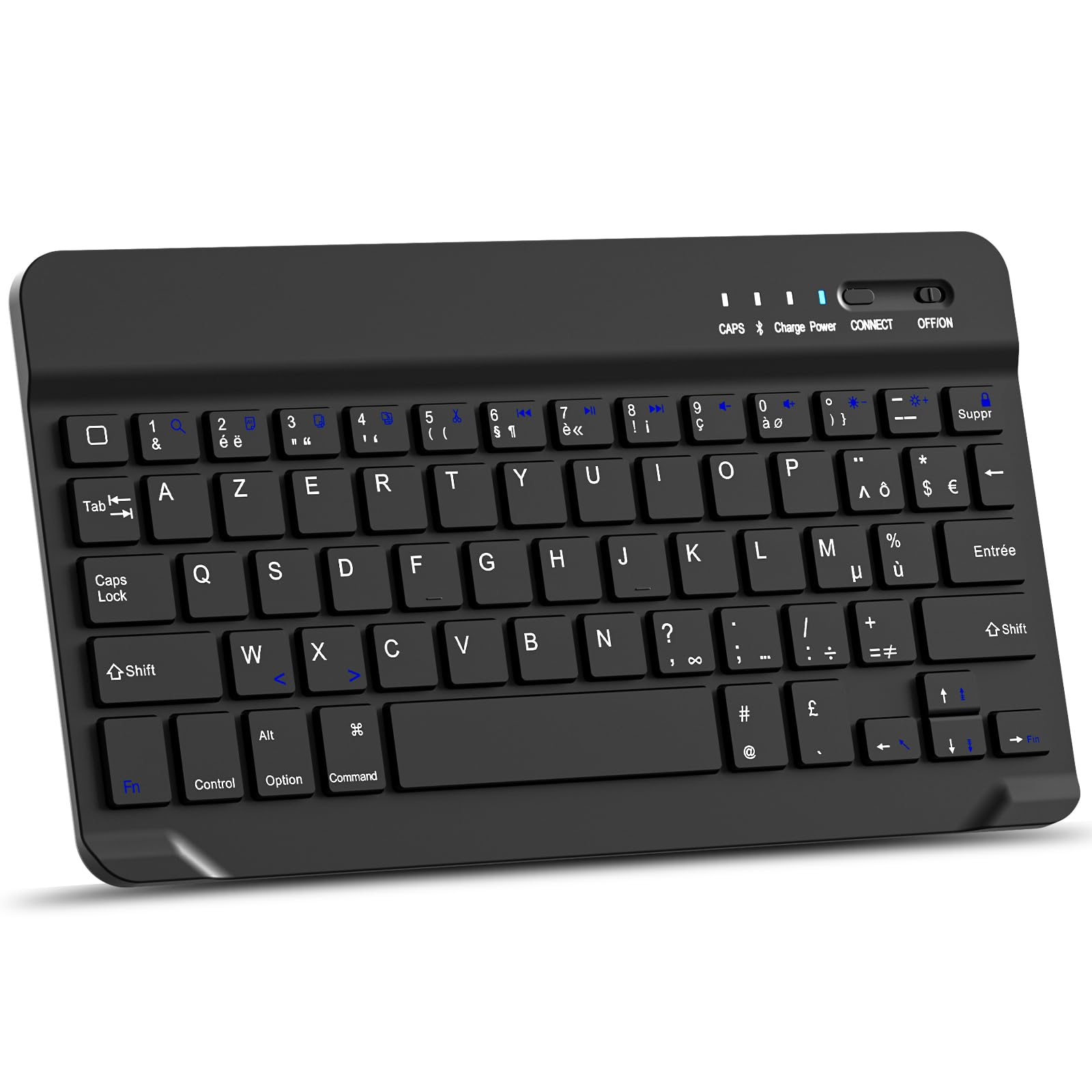
Image: Top-down view of the MMK Mini Bluetooth Keyboard, showcasing its compact design and AZERTY key layout.
2. Package Contents
- MMK Mini Bluetooth Keyboard
- USB Charging Cable
- User Manual (this document)
3. Setup Instructions
3.1 Charging the Keyboard
Before first use, fully charge the keyboard.
- Locate the charging port on the keyboard.
- Connect the provided USB charging cable to the keyboard's charging port.
- Connect the other end of the USB cable to a USB power source (e.g., computer USB port, USB wall adapter).
- The "Charge" indicator light will illuminate during charging. It typically takes 2-3 hours for a full charge.
- Once fully charged, the "Charge" indicator light may turn off or change color, depending on the model.

Image: Close-up view of the MMK Mini Bluetooth Keyboard showing the charging port with a USB cable connected. Text indicates over 130 days standby time and 2 hours charging time.
3.2 Bluetooth Pairing
The MMK Mini Bluetooth Keyboard is compatible with iOS, Android, and Windows devices.
- Ensure the keyboard is charged and turn on the keyboard by sliding the ON/OFF switch to the "ON" position. The "Power" indicator light will briefly illuminate.
- Press the CONNECT button on the keyboard. The "CONNECT" indicator light will start blinking, indicating the keyboard is in pairing mode.
- On your device (iPad, iPhone, Android tablet/phone, Windows PC):
- Go to Settings.
- Navigate to Bluetooth.
- Turn on Bluetooth.
- Your device will search for available Bluetooth devices. Look for "Bluetooth Keyboard" or a similar name in the list.
- Select the keyboard from the list to initiate pairing.
- If prompted, enter the pairing code displayed on your device using the MMK keyboard and press Enter.
- Once successfully paired, the "CONNECT" indicator light on the keyboard will stop blinking and turn off. The keyboard is now ready for use.

Image: The MMK Mini Bluetooth Keyboard with icons indicating compatibility with Android, Windows, and iOS operating systems. It also highlights Fn key combinations (Fn+A, Fn+S, Fn+D) for selecting the appropriate system layout.
Important: After pairing, select the correct operating system mode on the keyboard for optimal functionality:
- For Android: Press Fn + A
- For Windows: Press Fn + S
- For iOS (iPad/iPhone): Press Fn + D
4. Operating Instructions
4.1 Basic Typing
The keyboard features a standard AZERTY layout. Simply open any text input application on your paired device and begin typing. The scissor-switch keys provide a comfortable and quiet typing experience.

Image: An overhead shot of hands typing on the MMK Mini Bluetooth Keyboard, demonstrating its use in a typical workspace setup.

Image: A close-up of a key on the MMK Mini Bluetooth Keyboard, illustrating the scissor-switch mechanism that provides a comfortable and silent typing experience.
4.2 Multimedia and Shortcut Keys
The keyboard includes 14 shortcut keys for quick access to common functions. These keys are typically activated by pressing the Fn key in combination with the desired function key.

Image: A detailed view of the MMK Mini Bluetooth Keyboard highlighting the multimedia function keys. Labels indicate functions such as Search, Copy, Cut, Play/Pause, Volume control, Brightness adjustment, and Screen Lock.
Common multimedia functions include:
- Volume Control (Up, Down, Mute)
- Media Playback (Play/Pause, Previous Track, Next Track)
- Screen Brightness Adjustment
- Search Function
- Copy, Cut, Paste
- Home Page
- Select All
- Screen Lock
Refer to the specific key legends on your keyboard for exact functions.
5. Maintenance
To ensure the longevity and optimal performance of your MMK Mini Bluetooth Keyboard, follow these maintenance guidelines:
- Cleaning: Use a soft, lint-free cloth slightly dampened with water or a mild cleaning solution to wipe the surface of the keyboard. Avoid excessive moisture. Do not spray cleaners directly onto the keyboard.
- Dust Removal: Use compressed air to remove dust and debris from between the keys.
- Storage: When not in use, store the keyboard in a cool, dry place away from direct sunlight and extreme temperatures. Its compact design makes it easy to store in a laptop bag.
- Avoid Liquids: Do not expose the keyboard to liquids. Spills can cause permanent damage.
- Handle with Care: Avoid dropping the keyboard or subjecting it to strong impacts, as this can damage internal components.

Image: The MMK Mini Bluetooth Keyboard neatly tucked into a grey laptop sleeve, demonstrating its portability and ease of storage.
6. Troubleshooting
If you encounter issues with your MMK Mini Bluetooth Keyboard, please refer to the following common problems and solutions:
| Problem | Possible Cause / Solution |
|---|---|
| Keyboard does not connect or frequently disconnects. |
|
| Keys are not responding or require multiple presses. |
|
| Incorrect character output (e.g., QWERTY instead of AZERTY, missing symbols). |
|
| Keyboard does not turn on. |
|
7. Specifications
| Feature | Detail |
|---|---|
| Brand | MMK |
| Connectivity Technology | Bluetooth 3.0 |
| Compatible Devices | iOS (iPad, iPhone), Android (Tablets, Smartphones), Windows (PCs, Tablets) |
| Keyboard Description | Multi-functional, Mini Wireless Keyboard |
| Special Features | Portable, Shortcut keys, Multimedia keys, Rechargeable, Silent typing (Scissor-switch mechanism) |
| Color | Black |
| Keyboard Layout | AZERTY (French) |
| Number of Keys | 78 |
| Power Source | Battery Powered (Rechargeable Lithium Battery) |
| Charging Time | 2-3 hours |
| Standby Time | ≥130 days |
| Operating Range | Up to 10 meters (33 feet) |
| Included Components | USB Cable |
8. Warranty Information
The MMK Mini Bluetooth Keyboard comes with a 360-day warranty from the date of purchase. This warranty covers manufacturing defects and malfunctions under normal use. It does not cover damage caused by misuse, accidents, unauthorized modifications, or improper maintenance. Please retain your proof of purchase for warranty claims.
9. Customer Support
For any questions, technical assistance, or warranty claims, please contact MMK customer support through the retailer where you purchased the product or visit the official MMK brand store online.
Online Store: MMK Official Store on Amazon

