
1. Introduction
The GEYILO Dual Band WiFi Extender Signal Booster is designed to expand the coverage of your existing wireless network, eliminating Wi-Fi dead zones and providing a stable, high-speed internet connection throughout your home or office. This device supports both 2.4GHz and 5GHz frequency bands, ensuring compatibility with a wide range of devices and optimizing performance for various online activities.

Figure 1: The GEYILO Dual Band WiFi Extender Signal Booster, a compact device designed to enhance wireless network coverage.
2. Setup Guide
Setting up your GEYILO WiFi Extender is a straightforward process. Follow these steps for quick installation:
- Locate Your Router: Identify the location of your existing Wi-Fi router or modem. For initial setup, it is recommended to plug the extender into an electrical outlet near your router.
- Power On the Extender: Plug the GEYILO WiFi Extender into a power outlet. The indicator lights for 2.4GHz and 5GHz will begin to flash as the device powers on and attempts to establish a connection.
- Activate WPS on Router: Once the 2.4GHz and 5GHz LED indicators on the extender are lit (indicating it's ready), locate the WPS (Wi-Fi Protected Setup) button on your main Wi-Fi router. Press and hold the WPS button on your router for approximately 1-2 seconds.
- Activate WPS on Extender: Within two minutes of pressing the WPS button on your router, press and hold the WPS button on the GEYILO WiFi Extender for approximately 1 second. The indicator lights on the extender will start flashing, signifying that it is attempting to sync with your router.
- Verify Connection: Once the extender's indicator lights for both 2.4GHz and 5GHz become solid (no longer flashing), it means the device has successfully synced and is connected to your router.
- Relocate the Extender: Unplug the extender from the outlet near your router. You can now place it in a central location between your router and the area where you need improved Wi-Fi coverage. Ensure the indicator lights remain solid after relocation to confirm a strong signal.
- Connect Devices: On your Wi-Fi enabled devices (smartphones, laptops, etc.), you will now see new Wi-Fi network names (SSIDs) corresponding to the extended network (e.g., "SETUP-8561-pro" for 2.4GHz and "SETUP-8561-pro_5G" for 5GHz). Connect to these networks using your existing Wi-Fi password.
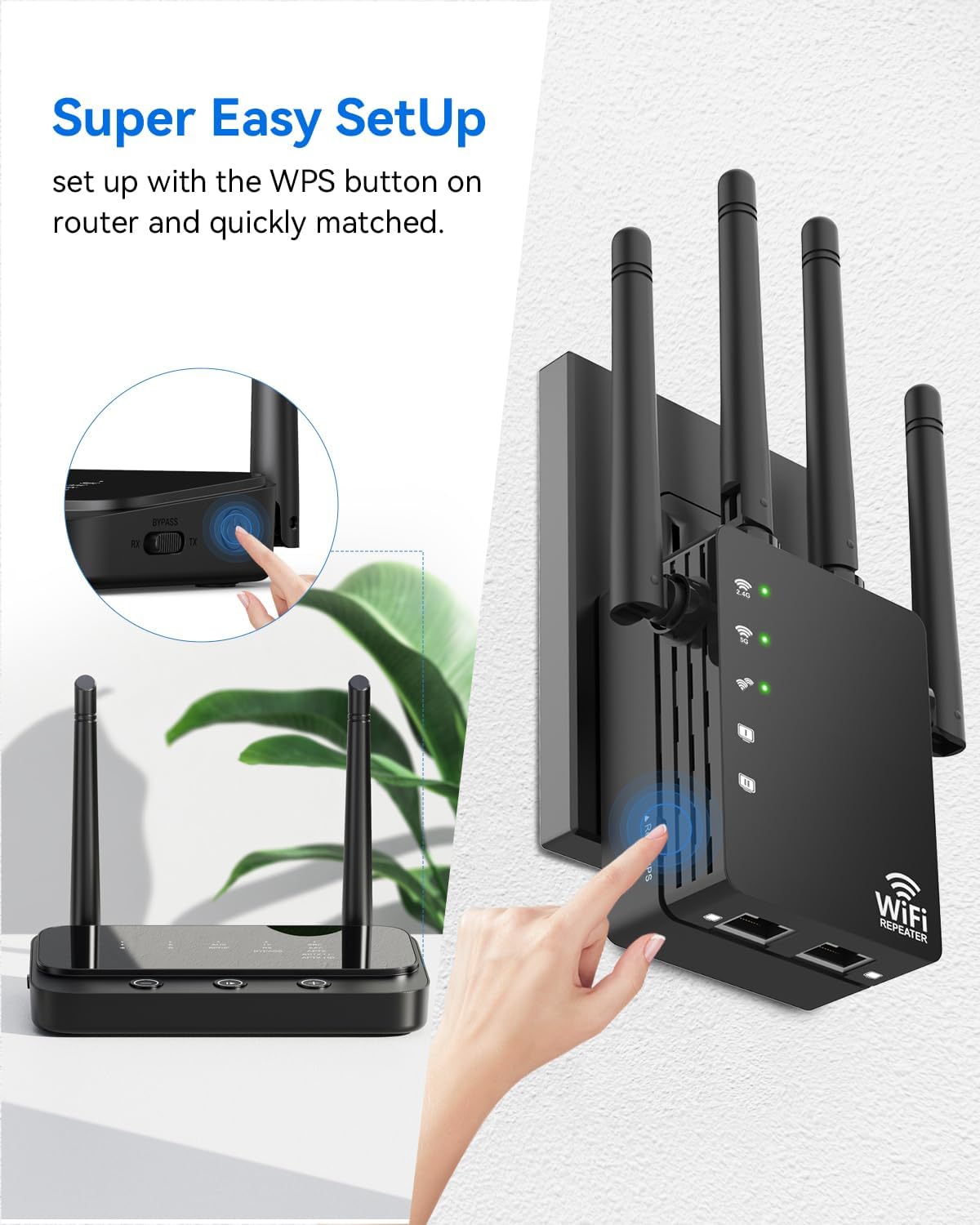
Figure 2: Visual representation of the WPS setup process, showing the interaction between the router and the extender.
3. Operating Modes
The GEYILO WiFi Extender supports multiple operating modes to suit various networking needs:
- Repeater Mode: This is the primary mode for extending existing Wi-Fi coverage. The extender receives the wireless signal from your main router and re-broadcasts it, effectively expanding the range.
- AP (Access Point) Mode: In AP mode, the extender connects to a wired network (via Ethernet cable) and transforms it into a wireless access point, allowing wireless devices to connect.
- Router Mode: The device can also function as a basic router, creating a new private network from a wired internet connection.

Figure 3: Overview of the three primary operating modes for the GEYILO WiFi Extender.
4. Key Features
- Dual Band Connectivity: Supports both 2.4GHz (up to 300Mbps) and 5GHz (up to 867-1200Mbps) bands for versatile and high-speed connections.
- Wide Coverage: Designed to increase Wi-Fi coverage up to 12880 sq. ft., ensuring uninterrupted signal even through walls and floors.
- 4 External Antennas: Equipped with four specially designed external antennas to ensure a stable and strong network environment.
- Ethernet Port: Includes an Ethernet port for wired connections, ideal for devices like gaming consoles, smart TVs, or desktop computers that require a stable physical link.
- Broad Compatibility: Connects up to 105 devices, supporting a wide range of Wi-Fi enabled electronics.
- Easy Setup: Features a 1-Tap Setup via WPS button for quick and convenient pairing with your existing router.

Figure 4: Visual representation of the extender's key features.

Figure 5: The extender's ability to increase Wi-Fi coverage significantly, reaching up to 12880 sq. ft.
5. Maintenance
To ensure optimal performance and longevity of your GEYILO WiFi Extender, consider the following maintenance tips:
- Optimal Placement: Place the extender in an open area, away from obstructions like large metal objects, thick walls, or other electronic devices that may cause interference. A good location is typically halfway between your router and the Wi-Fi dead zone.
- Keep it Clean: Regularly dust the device to prevent accumulation that could lead to overheating. Use a soft, dry cloth.
- Firmware Updates: Check the manufacturer's website periodically for any available firmware updates. Updating the firmware can improve performance, add new features, and fix bugs.
- Avoid Overheating: Ensure the extender has adequate ventilation. Do not cover it or place it in enclosed spaces.
- Power Cycle: If you experience intermittent connectivity issues, try power cycling the extender (unplug it for 10 seconds, then plug it back in). This can often resolve minor glitches.
6. Troubleshooting
If you encounter issues with your GEYILO WiFi Extender, refer to the following common problems and solutions:
| Problem | Possible Cause | Solution |
|---|---|---|
| Extender not connecting to router (LEDs flashing/off) | Incorrect WPS pairing, too far from router during setup, router issues. |
|
| Weak signal or dead zones persist after setup | Extender placed too far from router or in an area with too much interference. |
|
| Connected but no internet access | Router internet issue, incorrect network settings. |
|
| Extender gets hot during operation | Normal operation, or poor ventilation. |
|
| Cannot access admin console (192.168.188.1) | Incorrect IP, network conflict, or device not fully booted. |
|
7. Specifications
| Feature | Detail |
|---|---|
| Brand | GEYILO |
| Model Number | GEYILO-K1 |
| Product Dimensions | 3.74 x 7.48 x 2.8 inches |
| Item Weight | 5.3 ounces |
| Wireless Communication Standard | 802.11a/b/g/n/ac |
| Data Transfer Rate | 1200 Megabytes Per Second |
| Frequency Band Class | Dual-Band (2.4GHz & 5GHz) |
| Special Features | 1-Tap Setup, 360 Degree, Directional Antenna, Firewall, WiFi Mesh |
8. Warranty & Support
GEYILO products are designed for reliability and performance. For detailed warranty information and technical support, please refer to the official GEYILO website or contact their customer service. Keep your purchase receipt for warranty claims.
Contact Information:
- Website: Visit the GEYILO Store on Amazon
- Customer Service: Please refer to the contact details provided in your product packaging or on the official GEYILO website.