Introduction
This manual provides essential information for the safe and effective operation of your E99 K3 Pro 4K Single/Dual Camera FPV 6-Axis RC Drone. Please read it thoroughly before first use and retain it for future reference.
The E99 K3 Pro drone features a foldable design for portability, 4K camera capabilities for aerial photography and video, altitude hold for stable flight, and various intelligent flight modes including headless mode and trajectory flight.
Safety Information
- Always operate the drone in open areas, away from people, animals, and obstacles.
- Do not fly near airports, restricted airspace, or sensitive installations.
- Ensure the battery is fully charged before each flight.
- Do not fly in strong winds or adverse weather conditions.
- Keep fingers and loose clothing away from rotating propellers.
- Supervise children operating the drone.
- Follow all local laws and regulations regarding drone operation.
- Do not modify the drone or its components.
Package Contents
Verify that all items listed below are included in your package.

Image: The E99 K3 Pro drone, its remote control, multiple batteries, and a compact carrying case, illustrating the complete package contents.
- E99 K3 Pro Drone
- Remote Control
- Rechargeable Drone Battery(ies)
- USB Charging Cable
- Spare Propellers
- Screwdriver
- User Manual (this document)
- Carrying Case (may vary by package)
Product Overview
Familiarize yourself with the main components of your E99 K3 Pro drone and its remote control.

Image: A detailed front view of the E99 K3 Pro drone, showcasing its foldable arms, integrated 4K camera, and bright front LED lights.
Drone Components
- Foldable Arms: For compact storage and portability.
- Propellers: Four propellers for lift and thrust.
- 4K Camera: High-resolution camera for photo and video capture.
- LED Lights: Front and rear lights for orientation and night flight.
- Battery Compartment: Located on the underside of the drone.
- Optical Flow Sensor (if applicable): For stable hovering.
Remote Control Guide

Image: A comprehensive diagram of the remote control, clearly labeling all buttons, joysticks, and their corresponding functions, including antenna, headless mode, speed gears, trim adjustments, one-touch takeoff/landing, 360° roll, and mobile phone bracket.
Refer to the diagram for button layout and functions:
- Left Operating Lever: Controls ascent/descent and left/right turn.
- Right Operating Lever: Controls forward/backward and left/right flight.
- One Touch Takeoff/Landing Button: Initiates automatic takeoff or landing.
- Headless Mode Button: Activates headless flight.
- Fast/Slow Gear Button: Switches between flight speeds.
- 360° Roll Button: Performs a flip.
- Photo/Video Button: Captures photos or starts/stops video recording.
- Trim Buttons: Adjusts drone drift (Front, Rear, Left, Right Trim).
- One Button Reset: Resets drone calibration.
- Mobile Phone Bracket: Holds your smartphone for FPV viewing.
Setup
1. Unfolding the Drone
Gently unfold the drone arms until they click into place. Ensure all four arms are fully extended.
2. Battery Installation
Drone Battery
- Open the battery compartment on the underside of the drone.
- Insert the fully charged drone battery, ensuring correct polarity.
- Close the battery compartment securely.
Remote Control Batteries
- Open the battery cover on the back of the remote control.
- Insert 3 x AA batteries (not included), observing the correct polarity.
- Close the battery cover.
3. Propeller Installation (if not pre-installed)
Each propeller is marked with an 'A' or 'B'. Match the propeller type to the corresponding motor shaft. Ensure they are securely fastened.
4. Charging the Battery
Connect the drone battery to the USB charging cable, then plug the USB cable into a 5V/1A USB adapter (e.g., computer USB port, phone charger). The indicator light will show charging status and turn off when fully charged. Charging time is approximately 60-80 minutes.
5. App Installation and Connection
For FPV (First Person View) and advanced features, download the companion app (e.g., "WiFi_CAM" or similar, check packaging for exact app name) from your smartphone's app store (iOS/Android).
- Power on the drone.
- Go to your phone's Wi-Fi settings and connect to the drone's Wi-Fi network (e.g., "WiFi_UFO-XXXXXX").
- Open the installed app. The drone's camera feed should appear on your phone screen.
Operating Instructions
1. Pairing the Drone and Remote Control
- Place the drone on a flat, level surface.
- Power on the drone. The LED lights will flash.
- Power on the remote control.
- Push the left operating lever (throttle) all the way up, then pull it all the way down. The drone's LED lights will stop flashing and remain solid, indicating successful pairing.
2. Gyroscope Calibration
After pairing, push both operating levers down and to the right simultaneously for 2-3 seconds. The drone's lights will flash rapidly and then become solid, indicating successful calibration. This ensures stable flight.
3. Takeoff and Landing
One-Key Takeoff
After pairing and calibration, press the One Touch Takeoff/Landing button. The drone will automatically ascend and hover at a certain altitude.
Manual Takeoff
After pairing and calibration, slowly push the left operating lever (throttle) upwards. The propellers will spin, and the drone will ascend.
One-Key Landing
During flight, press the One Touch Takeoff/Landing button. The drone will automatically descend and land gently.
Manual Landing
Slowly pull the left operating lever (throttle) downwards until the drone lands. Once landed, pull the lever all the way down to stop the propellers.
4. Basic Flight Controls
| Action | Remote Control Input |
|---|---|
| Ascend | Push Left Operating Lever Up |
| Descend | Pull Left Operating Lever Down |
| Turn Left | Push Left Operating Lever Left |
| Turn Right | Push Left Operating Lever Right |
| Fly Forward | Push Right Operating Lever Up |
| Fly Backward | Pull Right Operating Lever Down |
| Fly Left (Sideways) | Push Right Operating Lever Left |
| Fly Right (Sideways) | Push Right Operating Lever Right |
5. Special Flight Modes and Features
Headless Mode

Image: An illustration of the drone in flight, surrounded by circular patterns symbolizing its ability to identify direction automatically in headless mode, making control easier for beginners.
Press the Headless Mode button on the remote. In headless mode, the drone's orientation is relative to the pilot, regardless of the drone's actual front. This simplifies control, especially for beginners. Press the button again to exit headless mode.
Altitude Hold

Image: The drone maintaining a stable hover above a body of water, with a rocky cliff in the background, demonstrating its intelligent air pressure altitude hold feature for steady flight and improved photography.
The E99 K3 Pro features an altitude hold function, allowing the drone to maintain a stable height automatically. This makes it easier to control and capture steady photos/videos.
360° Roll (Flip)
Press the 360° Roll button, then quickly push the Right Operating Lever in any direction (forward, backward, left, or right) to perform a flip in that direction. Ensure sufficient altitude before attempting.
Speed Adjustment
Press the Fast/Slow Gear button to cycle through different speed modes (e.g., low, medium, high). The remote will typically beep to indicate the current speed setting.
Camera Operation (via App)

Image: A visual representation of the drone's 4K dual camera system, highlighting its ability to adjust the lens angle freely for both head-up (front lens) and top-view (bottom lens) shooting, capturing diverse perspectives.
- Photo: Tap the camera icon in the app to take a photo.
- Video: Tap the video icon to start recording; tap again to stop.
- Dual Camera Switch: If your model has dual cameras, use the app to switch between the front and bottom cameras.
- Face Recognition Automatic Photo: Enable this feature in the app for automatic photo capture when a face is detected.
- Trajectory Flight: Draw a path on your phone screen in the app, and the drone will follow the designated trajectory.
- Gravity Sensor: Control the drone's flight by tilting your smartphone (enable in app).
- 50x Zoom Shooting: The app may offer digital zoom capabilities for closer shots.

Image: The drone flying above ocean waves, with an inset showing a magnified view of a distant surfer, illustrating the 50x zoom shooting capability for capturing details from afar.
One-Key Return
Press the One-Key Return button on the remote control. The drone will automatically fly back towards its takeoff point. Note: This function relies on the drone's initial takeoff coordinates and may not be precise.
Night Flight
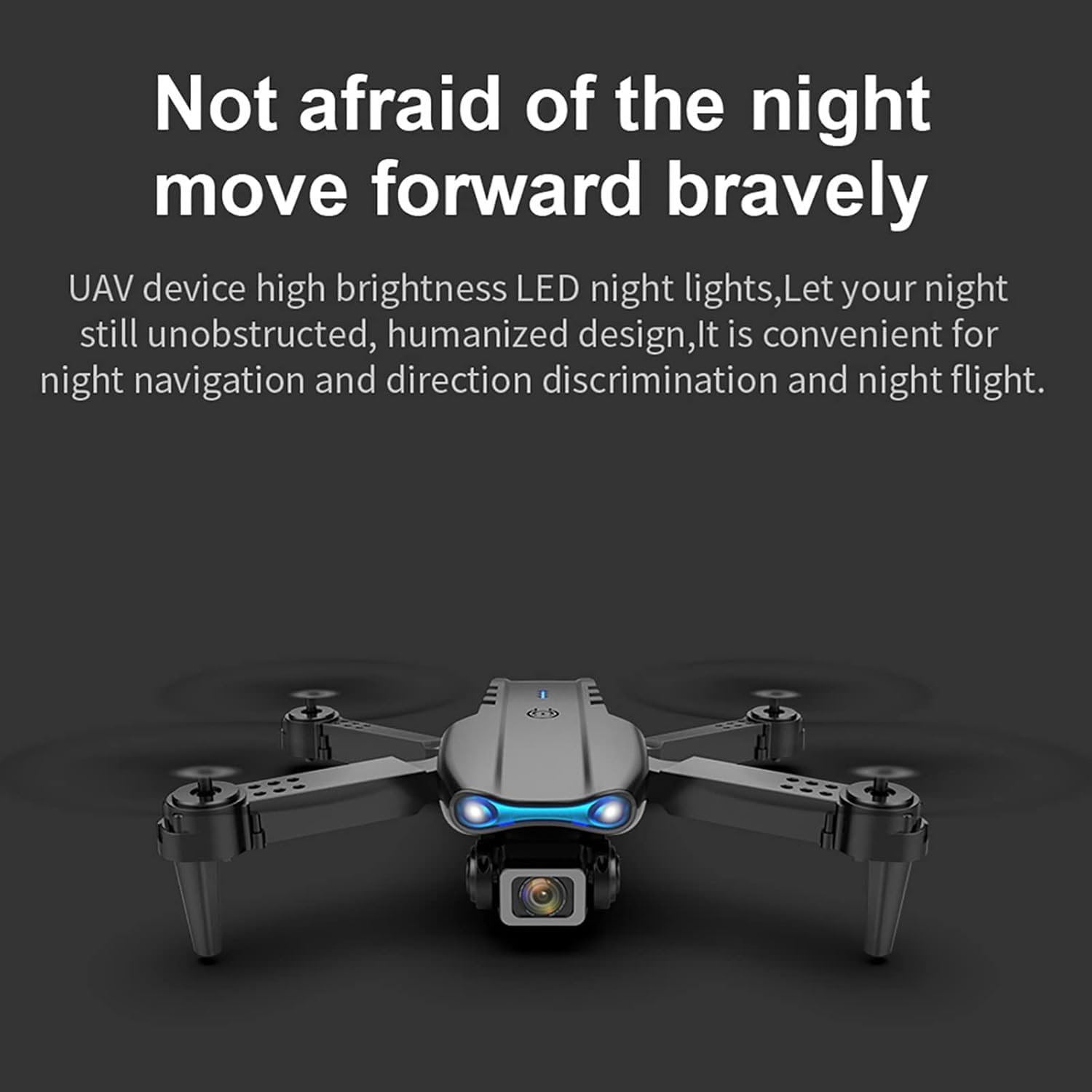
Image: The drone positioned in a dark environment with its bright LED lights illuminated, highlighting its design for unobstructed night navigation and direction discrimination.
The drone is equipped with high brightness LED night lights, allowing for improved visibility and navigation during low-light conditions or night flights.
Maintenance
Cleaning
Use a soft, dry cloth to clean the drone and remote control. Do not use liquid cleaners or solvents.
Propeller Replacement
If a propeller is damaged, replace it with a spare propeller of the correct type (A or B). Use the provided screwdriver to remove and install screws.
Battery Care
- Do not overcharge or over-discharge the battery.
- Store batteries in a cool, dry place away from direct sunlight and extreme temperatures.
- If not used for a long period, charge the battery to about 50% capacity every 3 months.
- Discard damaged or swollen batteries safely according to local regulations.
Storage
Fold the drone arms and store it in its carrying case or original packaging when not in use. Keep it away from dust and moisture.
Troubleshooting
| Problem | Possible Cause | Solution |
|---|---|---|
| Drone does not respond to remote. | Not paired or low battery. | Ensure drone and remote are powered on and paired correctly. Charge batteries. |
| Drone drifts during flight. | Not calibrated or trim settings incorrect. | Perform gyroscope calibration. Use trim buttons to adjust. |
| Propellers do not spin. | Battery low, propellers obstructed, or motor issue. | Charge battery. Check for obstructions. Contact support if motors are faulty. |
| FPV image is blurry or disconnected. | Weak Wi-Fi signal or app issue. | Ensure strong Wi-Fi connection. Restart app and drone. Fly closer to drone. |
| Drone crashes easily. | Lack of experience, strong winds, or damaged propellers. | Practice in open areas. Avoid windy conditions. Replace damaged propellers. |
Specifications
| Feature | Detail |
|---|---|
| Brand | Generic |
| Model Name | E99 |
| Model Number | E99006 |
| Special Features | Dual Camera FPV, Altitude Hold, Face Recognition, Gravity Sensor, Trajectory Flight, Height-fixing function |
| Video Capture Resolution | 4K |
| Connectivity Technology | Wi-Fi |
| Control Type | Remote Control |
| Item Weight | 450 Grams (approx. 15.9 ounces) |
| Battery Capacity | 450 Milliamp Hours (Li-Po) |
| Product Dimensions | Approx. 300"L x 300"W x 300"H (Note: This dimension seems unusually large, likely a data entry error, but provided as per source.) |
| Material | Plastic |
| Skill Level | Intermediate |
Warranty and Support
For warranty information and technical support, please refer to the contact details provided on the product packaging or contact the seller directly. Keep your purchase receipt as proof of purchase.
For further assistance, you may also visit the product page on Amazon.com: E99 K3 Pro Drone Product Page.


