
ZVFOTN B0DCY4LHLM
ZVFOTN 4K Drone User Manual
Model: B0DCY4LHLM
Introduction
This manual provides comprehensive instructions for the safe operation, setup, and maintenance of your ZVFOTN 4K Drone. Designed for beginners and enthusiasts alike, this drone features a 4K dual camera, GPS, emergency stop, headless mode, one-key start, 360-degree flips, and comes with two batteries for extended flight time. Please read this manual thoroughly before first use to ensure proper functionality and safety.

Figure 1: ZVFOTN 4K Drone and Included Accessories
What's in the Box
Verify that all components are present upon unboxing:
- ZVFOTN 4K Drone
- Remote Control
- 2 x Lithium Ion Batteries (1 A batteries required, included)
- USB Charger
- Propellers (main and spare set)
- Carrying Case

Figure 2: Drone with 4K Dual Camera
Setup Guide
1. Battery Installation and Charging
- Ensure the drone battery is fully charged before first use. Connect the USB charger to the battery and a power source. The charging indicator will show progress.
- Insert the fully charged battery into the designated compartment on the drone. Ensure it clicks securely into place.
- Install the required batteries into the remote control.
2. Propeller Attachment (if necessary)
If propellers are not pre-installed, attach them according to the markings (e.g., A and B) on the propellers and motor arms. Ensure they are firmly secured.
3. Remote Control and Drone Pairing
- Place the drone on a horizontal surface with its head facing forward.
- Turn on the drone first. The drone's lights will flash.
- Turn on the remote control. The remote control lights will flash quickly during automatic frequency binding.
- Once the automatic linking is successful, the lights on both the drone and remote will stop flashing and remain solid.
4. Mobile App Installation (for FPV and advanced features)
To utilize the drone's First Person View (FPV) and advanced camera features, download the dedicated mobile application from your device's app store. Search for "ZVFOTN Drone" or refer to the QR code in the quick start guide (not provided in this manual). Connect your mobile device to the drone's Wi-Fi network (usually named "ZVFOTN_XXXXXX").

Figure 3: Initial Setup and Calibration Steps
Operating Instructions
1. Take-off and Landing
- One-Key Take-off: Press the dedicated one-key take-off button on the remote control. The drone will automatically ascend to a stable hovering height.
- Manual Take-off: Gently push the left joystick (throttle) upward. The propellers will spin, and the drone will ascend.
- One-Key Landing: Press the dedicated one-key landing button. The drone will automatically descend and land.
- Manual Landing: Gently pull the left joystick (throttle) downward until the drone lands.

Figure 4: Easy Flight Features for Beginners
2. Flight Modes and Features
- Altitude Hold: After take-off, allow 3-5 seconds for the optical flow to stabilize. The drone will automatically enter hover mode, maintaining a steady height.

Figure 5: Drone in Hover Mode
- Headless Mode: Press the second button on the inner right side of the remote control. In headless mode, the drone's orientation is relative to the pilot, regardless of which way the drone's front is facing. For example, if the drone faces north and rotates to face southeast, it will still move north when you push the forward stick.

Figure 6: Headless Mode Operation
- 360° Flips: Press the first roll button on the left, then press the directional control lever to roll the aircraft in different directions for 360-degree flipping.

Figure 7: Performing 360° Flips
- Obstacle Avoidance Mode: Press the first button in the lower right corner to activate the obstacle avoidance mode. When the drone detects an obstacle on its path, it will automatically stop and emit a sound to remind you.

Figure 8: Obstacle Avoidance in Action
- 3 Speed Modes: The drone offers three adjustable speed modes (5 km/h, 10 km/h, 15 km/h) to accommodate different skill levels, from beginners to experienced pilots.
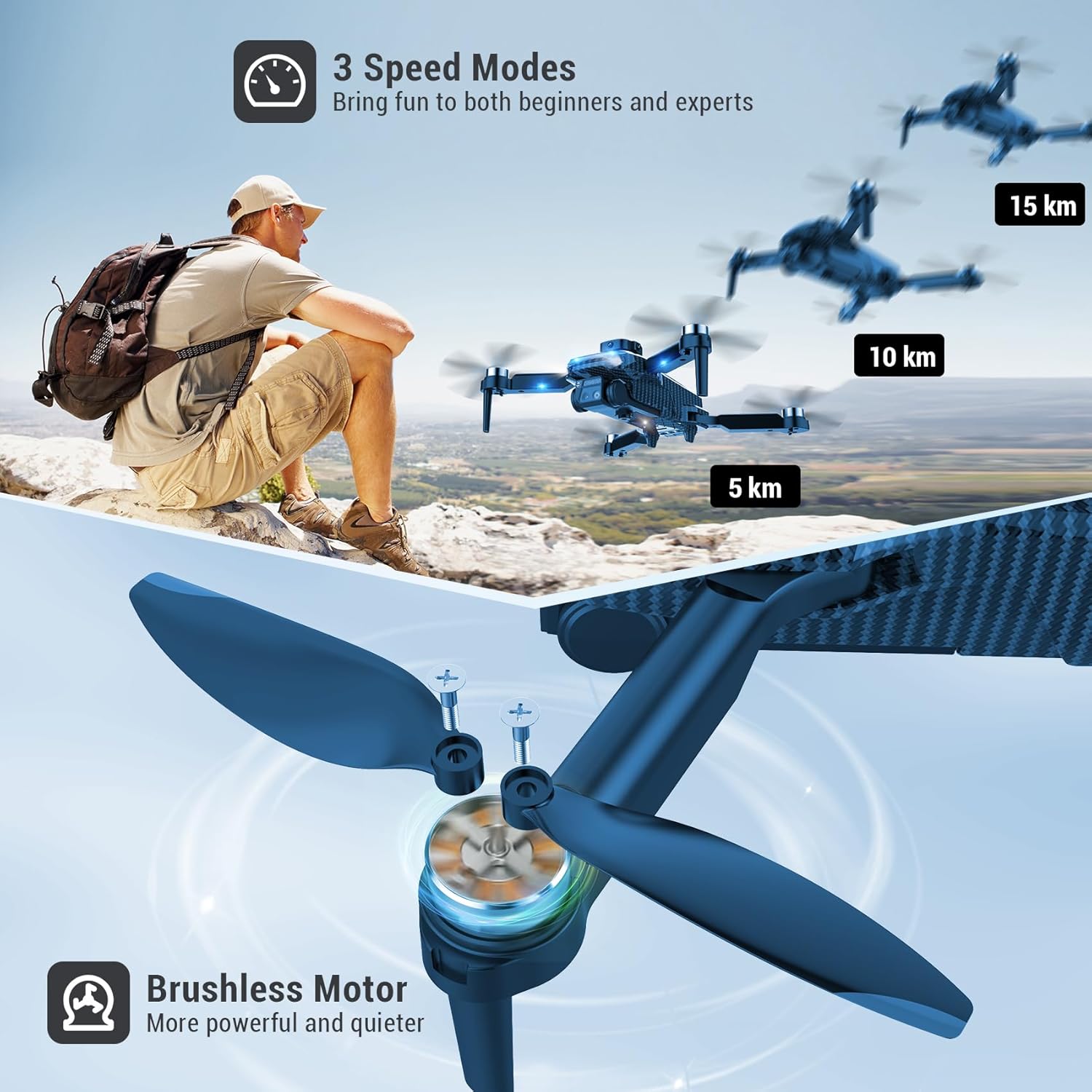
Figure 9: Adjustable Speed Modes and Brushless Motor
- Smart Gesture Control: Use specific hand gestures to command the drone to take photos or videos. Refer to the app for detailed gesture instructions.
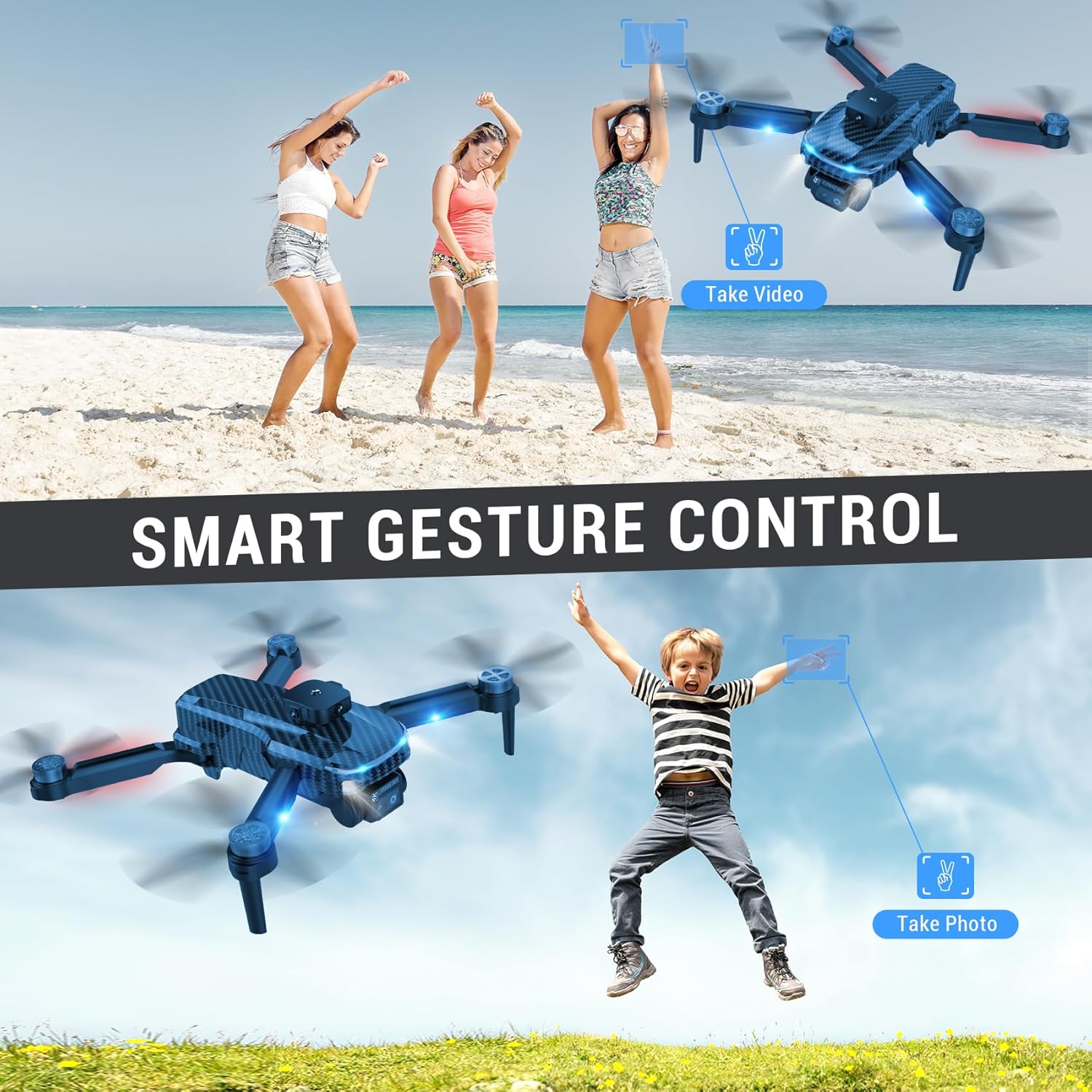
Figure 10: Smart Gesture Control
3. Camera Operation
The ZVFOTN drone is equipped with a 4K dual camera system, offering high-resolution photo (JPEG) and video (MP4) capture. The cameras have a 90-degree adjustable angle for versatile perspectives.
- Taking Photos: Use the dedicated photo button on the remote control or the gesture control feature.
- Recording Videos: Use the dedicated video button on the remote control or the gesture control feature.
- FPV Viewing: Connect to the drone's Wi-Fi via the mobile app to view real-time footage.

Figure 11: 4K Camera System
Maintenance
- Cleaning: Regularly wipe the drone body and camera lens with a soft, dry cloth. Avoid using harsh chemicals.
- Propeller Replacement: If propellers become damaged or bent, replace them immediately using the provided spare propellers and screwdriver. Ensure correct orientation (A and B markings).
- Battery Care: Store batteries in a cool, dry place. Do not overcharge or over-discharge. If not used for extended periods, charge them to about 50% capacity.
- Storage: When not in use, store the drone and its accessories in the provided carrying case to protect them from dust and damage.

Figure 12: Compact Storage in Carrying Case
Troubleshooting
| Problem | Possible Cause | Solution |
|---|---|---|
| Drone does not power on. | Battery not charged or improperly installed. | Ensure battery is fully charged and securely inserted. |
| Drone lights flashing, no response. | Low battery on drone or remote; not paired. | Charge drone battery. Replace remote control batteries. Re-pair drone and remote as per Setup Guide. If drone lights flash to indicate low battery, it will slowly descend after 30-60 seconds. |
| Drone drifts or flies erratically. | Improper calibration; environmental interference. | Perform calibration: Push both joysticks on the remote control outwards (outer eight position). A beep sound will confirm calibration. Fly in an open area away from obstacles and strong winds. |
| Camera not working or poor image quality. | App not connected; camera lens dirty; unrealistic expectations for 4K. | Ensure mobile app is connected to drone's Wi-Fi. Clean camera lens. While advertised as 4K, actual video output resolution and quality may vary based on lighting and environmental conditions. |
| Drone flies beyond range and stops. | Exceeded maximum control range. | The drone has a built-in protection mechanism that automatically activates when it flies beyond the remote control range of 100 meters. It will hover in place. Move closer to the drone to regain control. Figure 13: Out-of-Range Protection |
Specifications
| Feature | Detail |
|---|---|
| Brand | ZVFOTN |
| Model Number | B0DCY4LHLM |
| Age Range | Kid, Adult |
| Color | Black |
| Skill Level | Beginner |
| Video Capture Format | MP4 |
| Remote Control Technology | Wi-Fi |
| Control Type | Remote Control |
| Maximum Range | 0.1 Kilometers (100 meters) |
| Material | mn1 |
| Battery Cell Composition | Lithium Ion |
| Video Output Resolution | 4K |
| Supported Image Format | JPEG |
| Optical Sensor Technology | CMOS, CCD |
| Product Dimensions | 14.17 x 4.33 x 16.93 inches |
| Item Weight | 1.08 pounds |
| UPC | 763367578345 |
| Date First Available | August 13, 2024 |
Warranty and Support
ZVFOTN is committed to producing high-quality drones. While specific warranty details are not provided in this manual, for any product inquiries, technical support, or warranty claims, please contact ZVFOTN customer service through the retailer where the product was purchased or visit the official ZVFOTN store page on Amazon: ZVFOTN Store.
Ask a question about this manual
Ask about setup, troubleshooting, compatibility, parts, safety, or missing instructions. Manuals+ will review the question and use this page’s manual context to help answer it.