
Introduction
The Zoom ZDM-1 Podcast Mic Pack is a comprehensive solution designed for high-quality audio recording and streaming. This pack includes the ZDM-1 dynamic microphone, ZHP-1 over-ear headphones, a TPS-4 tabletop tripod stand, a custom windscreen, and an XLR cable. This manual provides detailed instructions for setting up, operating, and maintaining your ZDM-1 Podcast Mic Pack to ensure optimal performance.

Image: The complete Zoom ZDM-1 Podcast Mic Pack, showcasing the microphone, headphones, and tripod.
What's in the Box
Verify that all the following items are included in your package:
- ZDM-1 Dynamic Microphone
- ZHP-1 Over-Ear Headphones
- TPS-4 Tabletop Tripod Stand
- Custom Windscreen
- 2-Meter XLR Cable
- Cleaning Kit (if included in your specific bundle)

Image: All components of the ZDM-1 Podcast Mic Pack, including the microphone, headphones, tripod, windscreen, and XLR cable.
Setup Guide
- Assemble the TPS-4 Tripod Stand:
Unfold the legs of the TPS-4 tabletop tripod stand. Ensure it is stable on a flat surface. The stand features a universal 5/8"-27 thread for microphone attachment.
- Attach the ZDM-1 Microphone:
Carefully screw the ZDM-1 dynamic microphone onto the 5/8"-27 thread of the TPS-4 tripod stand. Ensure it is securely fastened but do not overtighten. The microphone includes an integrated pivot mount for angle adjustment.

Image: The ZDM-1 microphone securely attached to the TPS-4 tabletop tripod stand.
- Install the Windscreen:
Gently slide the custom windscreen over the head of the ZDM-1 microphone. This helps reduce plosive sounds (P, B, T, K) and breath noise during recording.

Image: The ZDM-1 microphone with its custom windscreen in place.
- Connect the XLR Cable:
Connect one end of the provided 2-meter XLR cable to the XLR output port at the base of the ZDM-1 microphone. Connect the other end of the XLR cable to an audio interface, mixer, or portable recorder that provides an XLR input.
- Connect the ZHP-1 Headphones:
Plug the 3.5mm (1/8-inch) stereo mini-jack of the ZHP-1 headphones into the headphone output of your audio interface, mixer, or recording device. If your device has a 6.35mm (1/4-inch) jack, use an appropriate adapter (not included).

Image: The ZHP-1 over-ear headphones, ready for connection.
Operating Instructions
Using the ZDM-1 Microphone
- Microphone Placement: Position the ZDM-1 microphone approximately 6-12 inches (15-30 cm) from your mouth for optimal vocal capture. The supercardioid polar pattern is designed to pick up sound primarily from the front, minimizing off-axis noise. Experiment with distance to find the best sound for your voice and environment.
- Gain Setting: Adjust the input gain on your audio interface or mixer. Start with the gain low and gradually increase it while speaking into the microphone at your normal volume. Aim for a strong signal level without clipping (distortion). Most digital audio workstations (DAWs) or interfaces have meters to help you monitor this.
- Using the Windscreen: Keep the custom windscreen on the microphone to effectively reduce plosives and breath sounds, especially when speaking close to the microphone.
Using the ZHP-1 Headphones
- Monitoring Audio: The ZHP-1 headphones provide accurate and neutral sound reproduction for monitoring your recordings. Adjust the headphone volume on your audio interface or mixer to a comfortable listening level.
- Comfort and Fit: The ZHP-1 features a self-adjusting headband and rotatable earcups for a comfortable fit during extended sessions. The closed-back design helps isolate sound, preventing leakage into your microphone.
Maintenance
- Cleaning the Microphone: Use a soft, dry cloth to wipe down the body of the ZDM-1 microphone. For the grille, a soft brush can be used to remove dust. Do not use liquid cleaners directly on the microphone.
- Cleaning the Headphones: Wipe the earcups and headband of the ZHP-1 headphones with a soft, slightly damp cloth. Avoid getting moisture into the speaker drivers. The leatherette earpads are replaceable if they become worn.
- Windscreen Care: The foam windscreen can be gently hand-washed with mild soap and water, then allowed to air dry completely before reattaching to the microphone.
- Storage: When not in use, store the ZDM-1 Podcast Mic Pack components in a clean, dry place, away from extreme temperatures and humidity. Disconnecting cables and storing them neatly can prolong their lifespan.
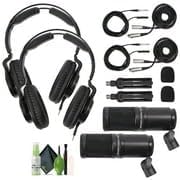
Image: Example of a cleaning kit that can be used for maintenance.
Troubleshooting
| Problem | Possible Cause | Solution |
|---|---|---|
| No sound from microphone |
|
|
| Poor sound quality (e.g., muffled, distorted) |
|
|
| No sound from headphones |
|
|
Specifications
ZDM-1 Dynamic Microphone
- Type: Dynamic
- Polar Pattern: Supercardioid
- Frequency Response: 50 Hz - 18 kHz
- Maximum SPL: 135 dB
- Connectivity: XLR
- Special Features: Large-diaphragm, internal shockmount, humbucking circuit
ZHP-1 Over-Ear Headphones
- Type: Closed-back, Dynamic
- Driver: Neodymium
- Frequency Response: 10 Hz - 20 kHz
- Connectivity: 3.5mm (1/8-inch) stereo mini-jack (detachable cable)
- Special Features: Self-adjusting headband, rotatable earcups, replaceable earpads
TPS-4 Tabletop Tripod Stand
- Construction: Metal
- Thread: 5/8"-27 (universal)
- Adjustable Height: 3.85 to 5 inches
Warranty and Support
For specific warranty information regarding your Zoom ZDM-1 Podcast Mic Pack, please refer to the warranty card included with your product or visit the official Zoom website.
For technical support, product registration, or additional resources, please visit the Zoom North America Store on Amazon or the official Zoom Corporation website.


