
1. Introduction and Overview
This manual provides essential information for setting up, operating, and maintaining your Haiz LM25GM 25-inch 144Hz Gaming Monitor. Please read it thoroughly before use to ensure optimal performance and longevity of your device.
Key Features:
- Fast 0.5ms Response Time: Experience smooth, blur-free visuals with a rapid 0.5ms Moving Picture Response Time (MPRT), crucial for fast-paced gaming.
- Vibrant IPS Panel: Enjoy accurate and consistent colors across a 178° wide viewing angle, ideal for both gaming and content creation.
- Slim Bezel Design: Maximizes screen real estate and enhances multi-monitor setups with its ultra-thin bezels.
- Versatile Connectivity: Features two HDMI 2.0 ports and two DisplayPort 1.2 ports for broad compatibility with PCs, consoles, and other devices, along with an audio output for external sound systems.

Figure 1: Front view of the Haiz LM25GM monitor.
2. Setup
2.1 Unpacking
Carefully remove all components from the packaging. Ensure all items listed in the packing list are present. Keep the packaging for future transport or warranty claims.
2.2 Stand Assembly
- Place the monitor face down on a soft, clean surface to prevent scratches.
- Attach the stand neck to the monitor's rear panel.
- Secure the stand base to the stand neck using the provided screws.

Figure 2: Side view of the monitor, showing the stand attachment point.
2.3 Connecting Cables
Connect the necessary cables to the monitor and your computer/device.
- Power Cable: Connect the power adapter to the monitor's DC 12V input and then to a power outlet.
- Video Cable: Connect either an HDMI cable (to one of the HDMI 2.0 ports) or a DisplayPort cable (to one of the DP 1.2 ports) from your computer's graphics card to the corresponding port on the monitor. For 144Hz refresh rate, DisplayPort is recommended.
- Audio Output (Optional): If desired, connect external speakers or headphones to the 3.5mm audio output jack.

Figure 3: Rear view of the monitor, highlighting connectivity ports.
2.4 VESA Mounting (Optional)
The monitor supports VESA mounting for wall mounts or monitor arms. Remove the stand and attach your VESA-compatible mount (100x100mm) using appropriate screws.
3. Operating Instructions
3.1 Powering On/Off
Press the power button located on the monitor to turn it on or off. The power indicator light will illuminate when the monitor is on.
3.2 On-Screen Display (OSD) Navigation
Use the control buttons on the monitor (usually located on the back or bottom right) to access and navigate the OSD menu. The OSD allows you to adjust various display settings.
3.3 Adjusting Display Settings
- Brightness/Contrast: Adjust these settings to suit your viewing environment.
- Color Modes: Select from predefined color profiles (e.g., Standard, Game, Movie, sRGB) or customize color temperature and gamma. The monitor supports 99% sRGB for accurate color reproduction.
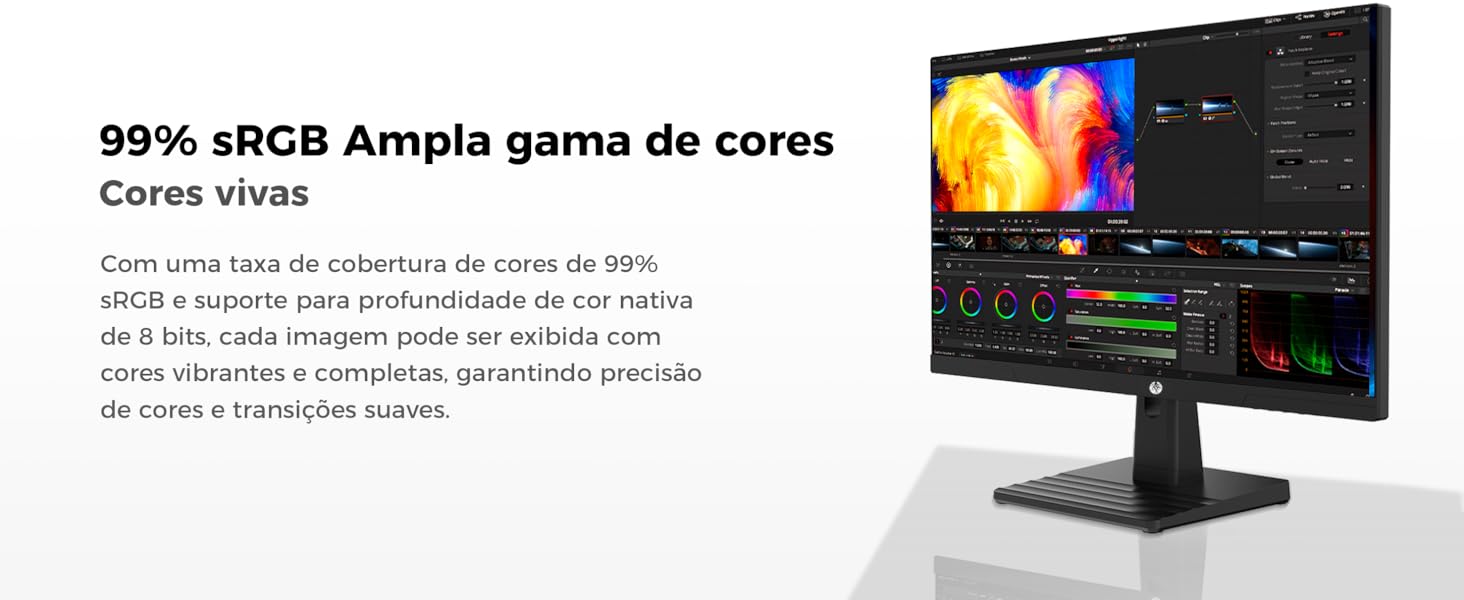
Figure 4: Illustration of 99% sRGB wide color gamut.
3.4 Setting Refresh Rate (144Hz)
To achieve the optimal 144Hz refresh rate, ensure your graphics card and video cable (DisplayPort recommended) support it. You may need to adjust the refresh rate setting in your operating system's display settings.
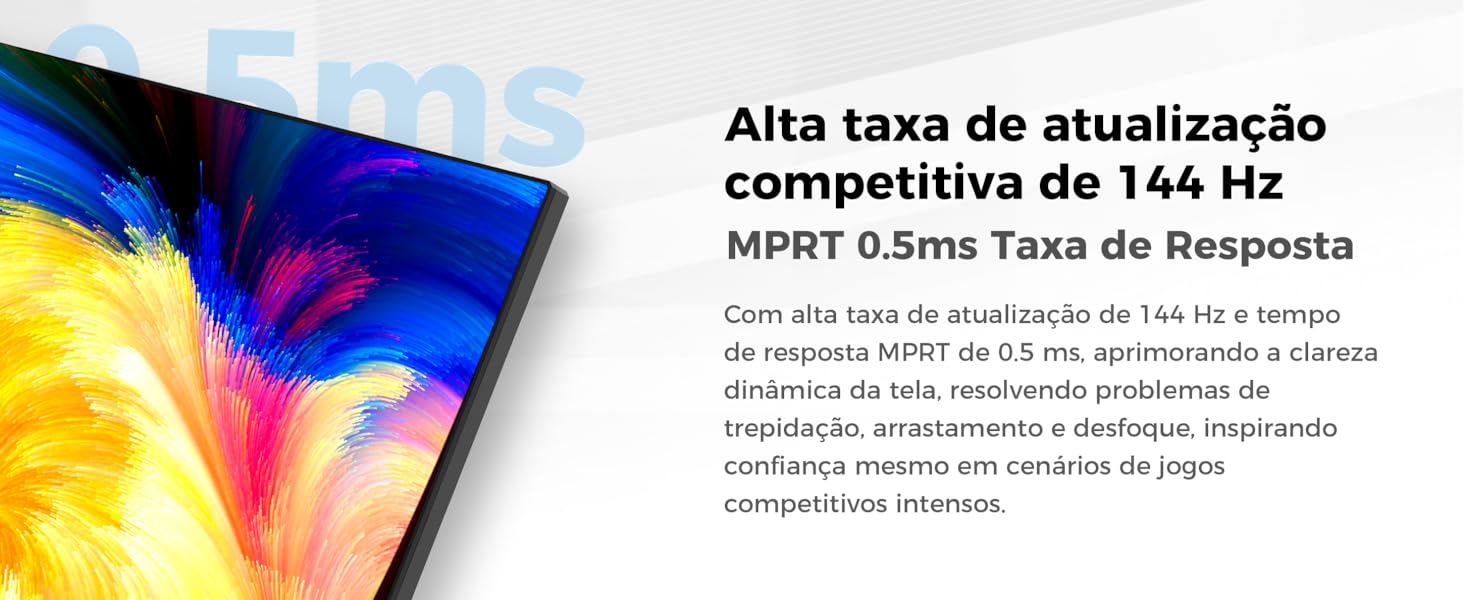
Figure 5: High refresh rate of 144Hz for smooth visuals.
3.5 Enabling Adaptive Sync
This monitor supports Adaptive Sync technology. To enable it, ensure your graphics card supports it and activate the feature in both your graphics card control panel and the monitor's OSD menu.
3.6 Low Blue Light Mode
The monitor features hardware-level low blue light technology to reduce eye strain during prolonged use. This can be enabled or adjusted through the OSD menu.

Figure 6: Explanation of hardware low blue light technology.
3.7 HDR Settings
The monitor supports HDR10 for enhanced contrast and color depth. Enable HDR in your operating system's display settings and ensure your content is HDR-compatible.
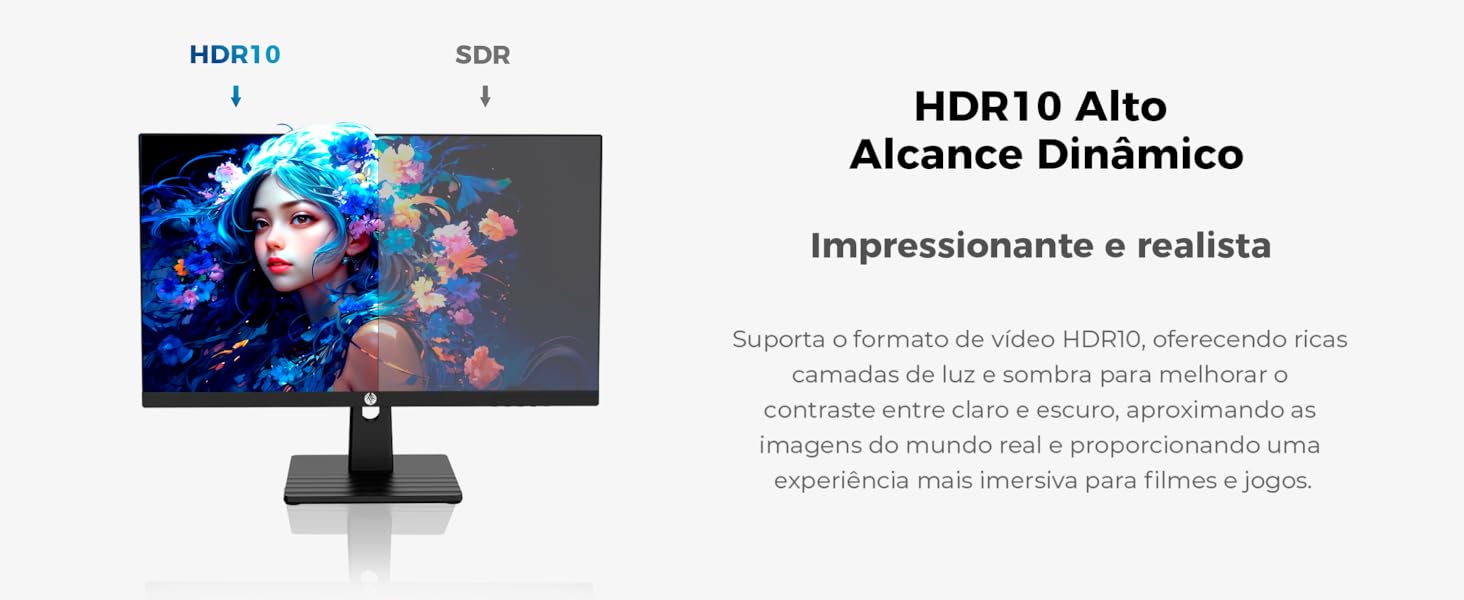
Figure 7: Visual representation of HDR10 dynamic range.
4. Maintenance
4.1 Cleaning the Screen
To clean the screen, gently wipe it with a soft, lint-free cloth. For stubborn marks, lightly dampen the cloth with water or a specialized screen cleaner. Avoid using harsh chemicals or abrasive materials.
4.2 General Care
- Avoid placing heavy objects on the monitor.
- Do not expose the monitor to direct sunlight or extreme temperatures.
- Ensure proper ventilation around the monitor to prevent overheating.
5. Troubleshooting
5.1 No Power
- Check if the power cable is securely connected to both the monitor and the power outlet.
- Verify the power outlet is functional.
5.2 No Signal
- Ensure the video cable (HDMI or DisplayPort) is firmly connected to both the monitor and your computer.
- Select the correct input source on the monitor using the OSD menu.
- Check if your computer is powered on and outputting a signal.
5.3 Image Flickering or Ghosting
- Verify the refresh rate setting in your operating system.
- Ensure the video cable is not damaged.
- Disable or adjust Adaptive Sync settings if issues persist.
5.4 Incorrect Resolution or Refresh Rate
- Adjust display settings in your operating system (Windows Display Settings, NVIDIA Control Panel, AMD Radeon Software).
- Ensure your graphics card drivers are up to date.
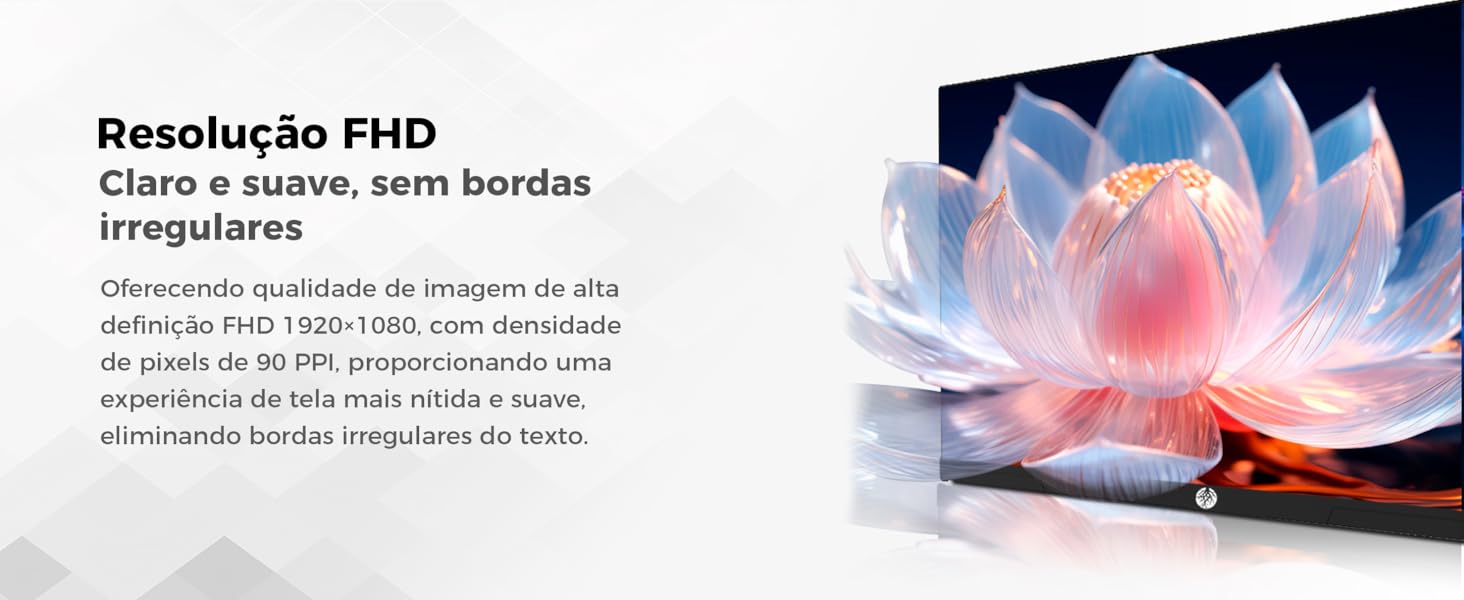
Figure 8: Full HD 1920x1080 resolution for clear visuals.
6. Specifications
| Feature | Specification |
|---|---|
| Brand | HAIZ |
| Model Number | LM25GM |
| Screen Size | 25 Inches |
| Panel Type | IPS |
| Resolution | 1920x1080 (FHD) |
| Aspect Ratio | 16:9 |
| Refresh Rate | 144Hz |
| Response Time | 0.5ms (MPRT) |
| Connectivity | 2x HDMI 2.0, 2x DisplayPort 1.2, Audio Out |
| Power Supply | DC 12V 4A |
| Product Dimensions | 56 x 37.95 x 33 cm |
| Product Weight | 3.95 Kilograms |
| VESA Compatibility | Yes |
| Color | Black |
7. Warranty and Support
7.1 Warranty Information
This product comes with a standard manufacturer's warranty. For detailed information regarding warranty terms, duration, and coverage, please refer to the warranty card included in your product packaging or contact the retailer.
7.2 Customer Support
For technical assistance, troubleshooting, or any product-related inquiries, please visit the official HAIZ store or contact their customer support channels. You can find more information at the Haiz Official Store on Amazon.


