
1. Introduction
This manual provides detailed instructions for the setup, operation, and maintenance of your RXFSP 49-inch Digital Signage Display Kiosk, Model GGJ. This device is designed for indoor advertising and information display, featuring an Android 11.0 operating system, a 1080P non-touchscreen, and various connectivity options.

Two RXFSP digital signage kiosks, one displaying an advertisement for shopping discounts and the other for a music party, demonstrating the product's primary function.
2. Safety Information
- Ensure the device is placed on a stable, level surface to prevent tipping.
- Do not expose the device to water, moisture, or extreme temperatures.
- Use only the provided power cord and connect to a grounded outlet.
- Avoid blocking ventilation openings to prevent overheating.
- Do not attempt to open or repair the device yourself. Refer all servicing to qualified personnel.
3. Package Contents
Verify that all items listed below are included in your package:

An image detailing the packaging contents, including the main body, base, wheels, power cord, WiFi antenna, screwdriver, keys, and various screws, along with the user manual.
- Display Kiosk Body x1
- Base x1
- Wheels x4
- Power Cord x1
- WiFi Antenna x1
- Cross Screwdriver x1
- Keys x2
- M6 Screws x16
- M8 Screws x6
- User Manual x1
4. Setup Instructions
4.1. Assembly
- Carefully unpack all components from the packaging.
- Attach the base to the bottom of the display kiosk body using the provided M8 screws.
- If desired, attach the four wheels to the base using the M6 screws for mobility.
- Screw the WiFi antenna into the designated port on the rear of the display.
4.2. Power Connection
- Connect the power cord to the power input port on the rear of the display.
- Plug the other end of the power cord into a standard grounded electrical outlet.
- Press the power button to turn on the display.
5. Operating Instructions
5.1. Android 11.0 System
The kiosk operates on Android 11.0, equipped with 4GB RAM and 64GB ROM, providing a stable platform for content management and playback. Navigate the interface using the remote control.
5.2. Multi-Function Playback
The display supports various content playback methods:
- USB Plug-and-Play: Insert a USB flash drive containing media files (images, videos) into the USB port. The system can automatically detect and play content.
- Auto Playback: Configure the system to automatically play content in a loop upon startup.
- Remote Control: Use the provided remote control to navigate menus, select content, and adjust settings.
5.3. Content Management System (CMS)
The integrated CMS system allows for efficient content management and scheduling.
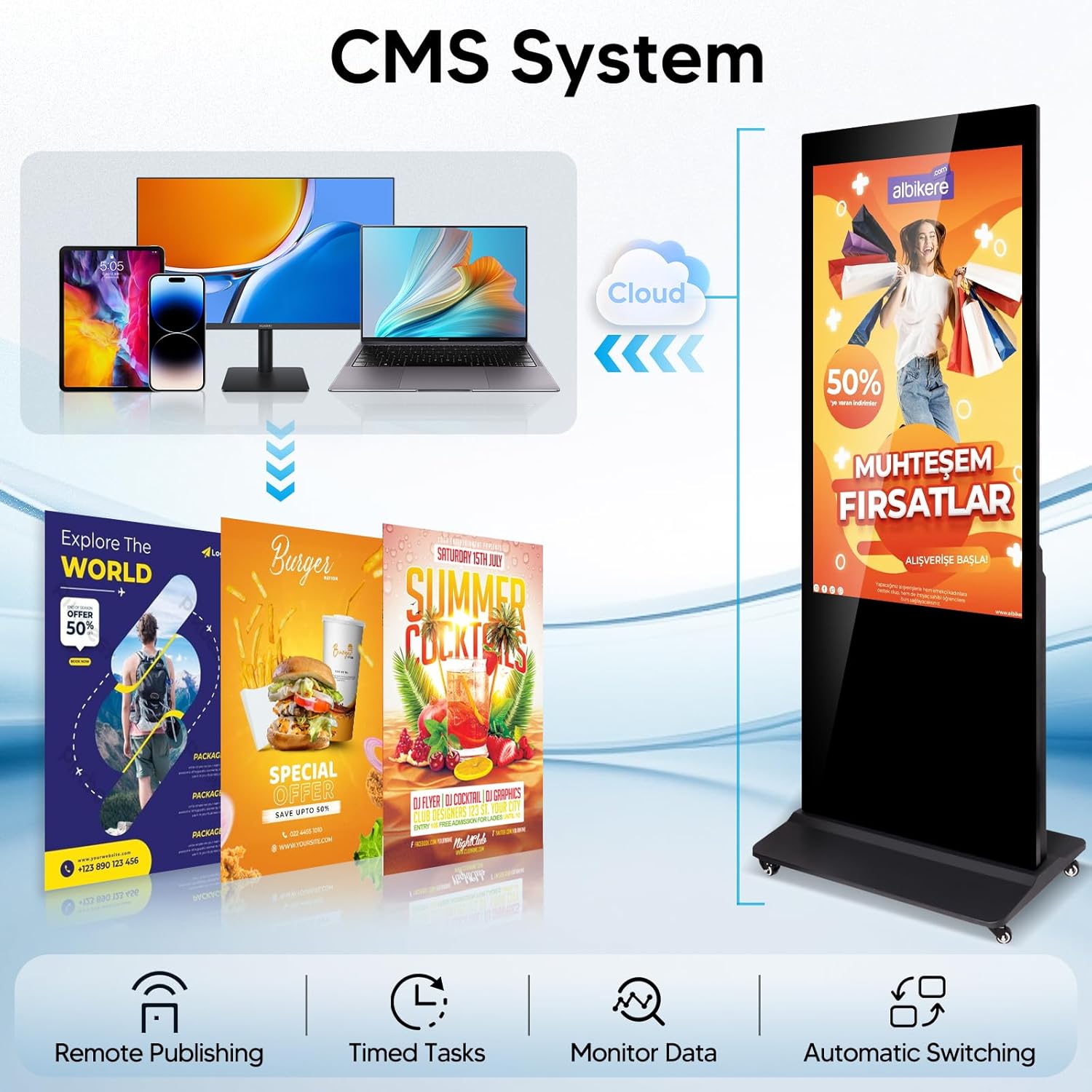
An overview of the CMS system, showing how content can be managed and published remotely from various devices (phone, computer) to the digital signage kiosk via cloud, with features like remote publishing, timed tasks, monitor data, and automatic switching.
- Remote Publishing: Upload and publish content to the display remotely via a network connection.
- Timed Tasks: Schedule specific content to play at designated times and dates.
- Monitor Data: Track playback status and device performance.
- Automatic Switching: Configure the system to switch between different content playlists or modes automatically.
5.4. Intelligent Split Screen
Utilize the intelligent split-screen function to display multiple content formats simultaneously.

Three digital signage kiosks demonstrating the intelligent split-screen feature, with each screen divided into multiple sections to display different videos and images simultaneously.
- Access various pre-set split-screen modules through the CMS or device settings.
- Display videos, images, and text in different windows on the same screen.
5.5. Auto Play and Timing Switch
The display supports 24-hour auto loop playback and programmable timing switches.

A digital signage kiosk illustrating its capability for 24/7 continuous play and programmable timing switches, allowing content to change automatically at set times throughout the day, such as sunrise and sunset.
- Set specific on/off times for the display.
- Schedule content changes throughout the day to match business hours or promotional cycles.
6. Connectivity
The display offers multiple input and network connectivity options:
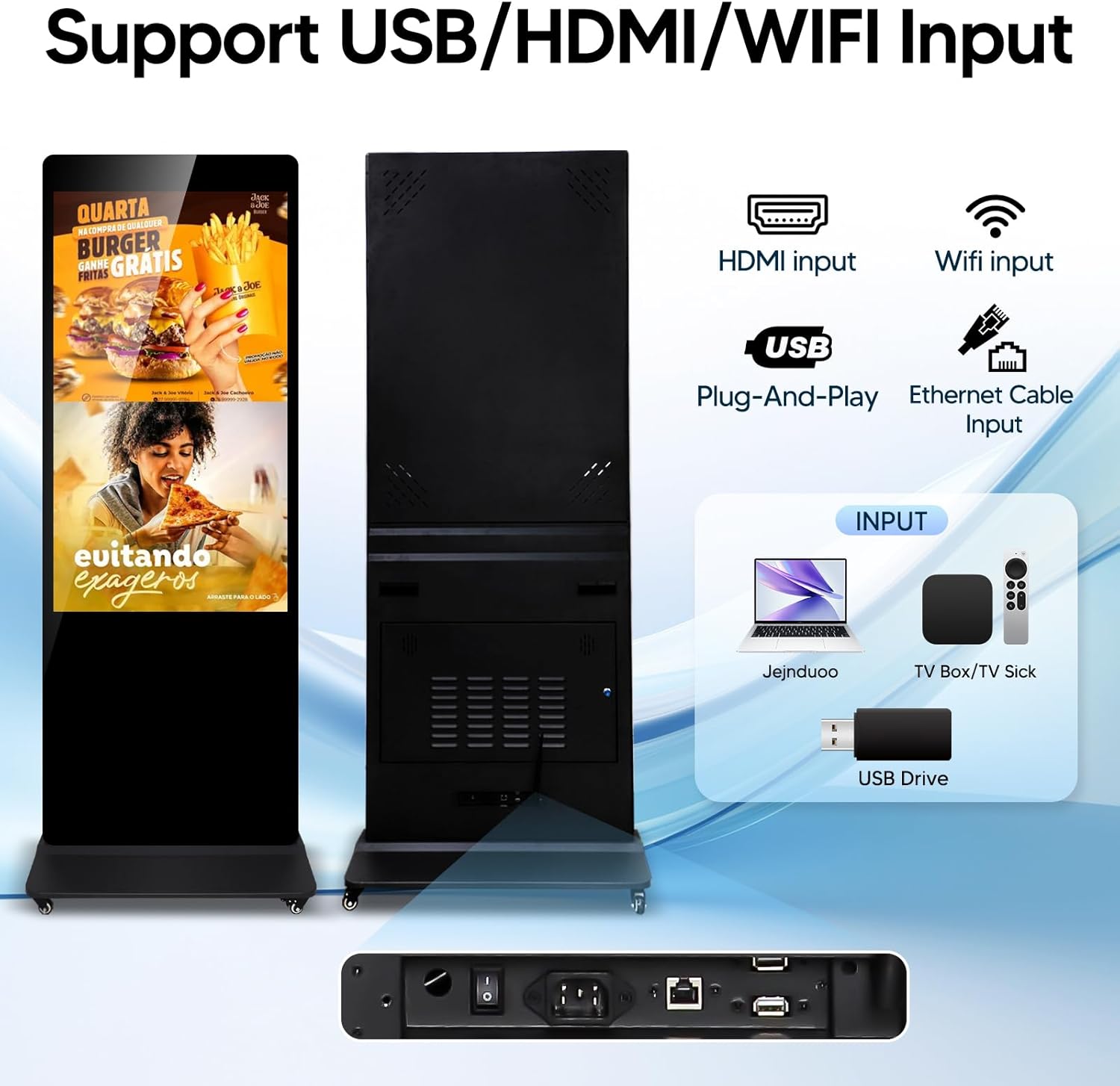
A rear view of the digital signage kiosk, illustrating its various input options including HDMI, USB, WiFi, and Ethernet, along with a diagram showing connections to a laptop, TV box, and USB drive.
- HDMI-in: Connect external devices such as laptops or media players for direct content display.
- USB: For plug-and-play media, software updates, or connecting peripherals.
- WiFi: Supports 2.4GHz and 5GHz networks for wireless internet access and remote content management.
- Ethernet: Provides a stable wired network connection for reliable content delivery and management.
7. Maintenance
- Cleaning: Gently wipe the screen with a soft, lint-free cloth. For stubborn marks, use a screen-cleaning solution applied to the cloth, not directly to the screen.
- Software Updates: Periodically check for and install system updates to ensure optimal performance and security.
- Ventilation: Ensure the ventilation openings are clear of dust and obstructions to prevent overheating.
8. Troubleshooting
| Problem | Possible Cause | Solution |
|---|---|---|
| No display/Power off | Power cord disconnected, power button off, power outlet issue. | Check power cord connection, press power button, test power outlet. |
| No network connection | WiFi not connected, Ethernet cable loose, router issue. | Check WiFi settings, reconnect Ethernet cable, restart router. |
| Content not playing | Incorrect file format, USB drive not detected, CMS schedule error. | Ensure compatible file formats, reinsert USB, check CMS schedule. |
| Screen frozen/unresponsive | Software glitch. | Restart the device. If issue persists, perform a factory reset (consult support). |
9. Specifications
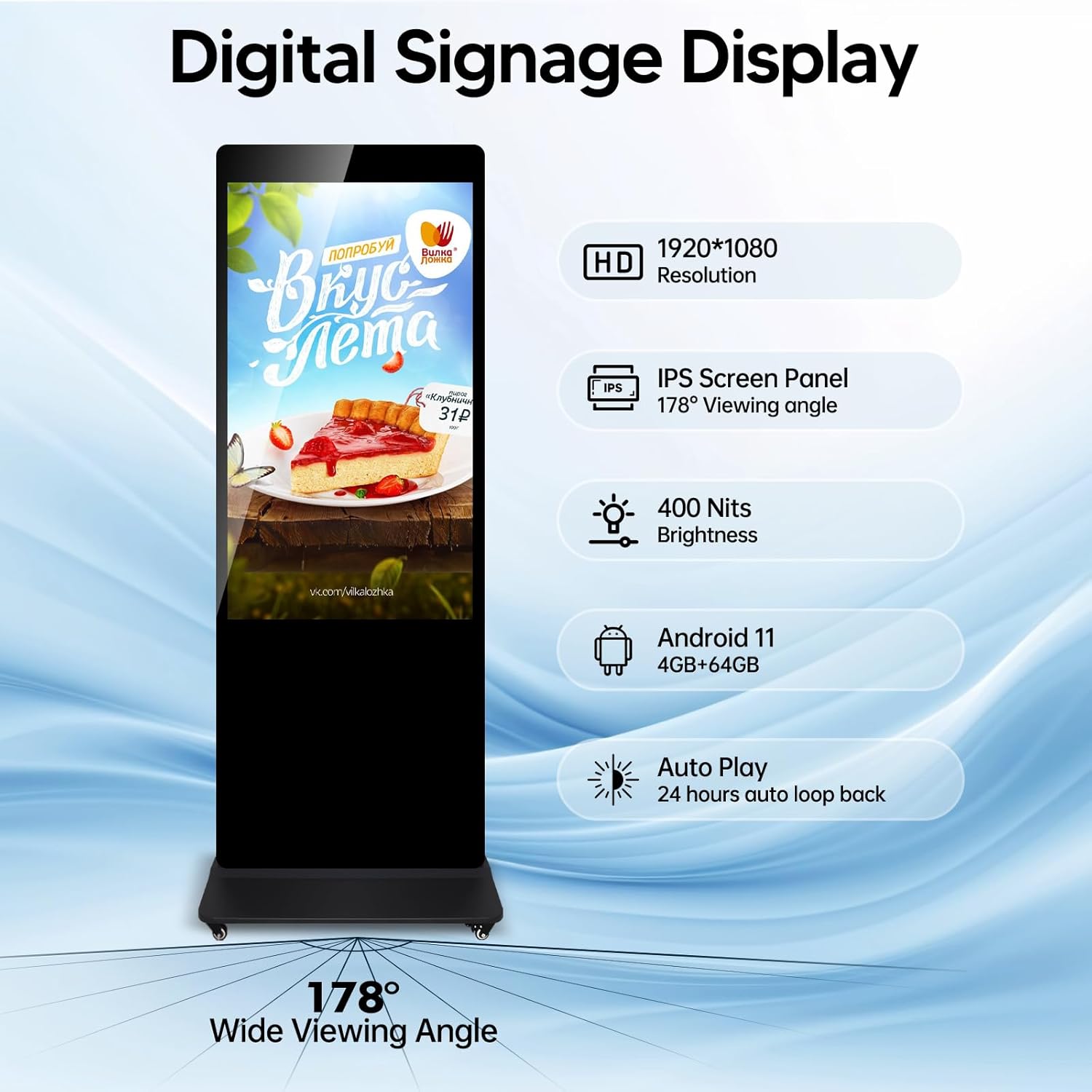
A digital signage kiosk with an overlay detailing its specifications: 1920x1080 resolution, IPS screen panel, 178° viewing angle, 400 Nits brightness, Android 11 (4GB+64GB), and auto-play.
| Feature | Detail |
|---|---|
| Brand | RXFSP |
| Model Number | GGJ |
| Screen Size | 49 Inches |
| Resolution | 1920 x 1080 Pixels (2K FHD) |
| Aspect Ratio | 16:9 |
| Brightness | 400 cd/m² |
| Viewing Angle | 178° (IPS Panel) |
| Operating System | Android 11.0 |
| RAM | 4GB |
| ROM | 64GB |
| Connectivity | WiFi (2.4+5G), HDMI-in, USB, Ethernet |
| Product Dimensions | 27.51 x 19.68 x 71.65 inches |
| Item Weight | 158.6 pounds |
| Batteries | 1 CR2 battery required (included) |
10. Warranty and Support
The RXFSP 49-inch Digital Signage Display Kiosk comes with a 2-year warranty. For any queries or concerns, please contact our dedicated after-sales support team. You can find more information and contact details on the RXFSP Store on Amazon.
11. Applications
This digital signage display is suitable for various indoor environments requiring dynamic content display.
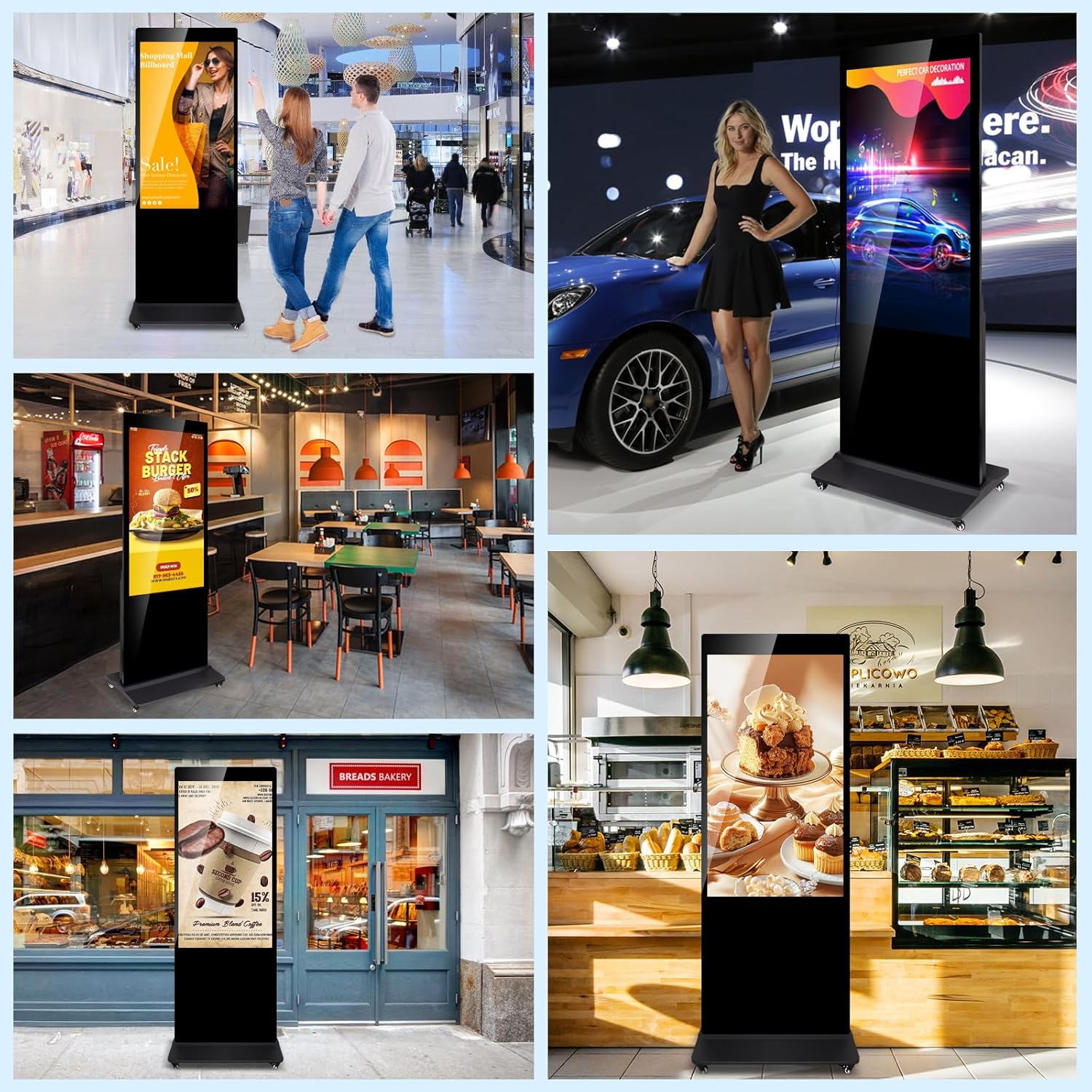
A collage of images showing the digital signage kiosk in different settings such as a shopping mall, restaurant, and car dealership, demonstrating its versatility for advertising and information display.
- Large shopping malls
- Supermarkets
- Hotel lobbies
- Restaurants
- Theaters
- Retail stores
- Corporate offices