
1. Introduction
This manual provides essential instructions for the installation, operation, and maintenance of your incifum QLED Touchscreen Stereo Radio Upgrade for Ford F150 models from 2009 to 2012. Please read this manual thoroughly before installation and use to ensure proper function and to prevent damage. Retain this manual for future reference.
2. What's in the Box
Verify that all components listed below are included in your package:
- Android Car Radio Unit
- Wiring Harness with Canbus Box
- Dash Kit Frame
- GPS Module
- Antenna Adapter
- USB Ports
- Microphone
- Camera Adapter
- Installation Instruction
- User Manual
- Pry Tool
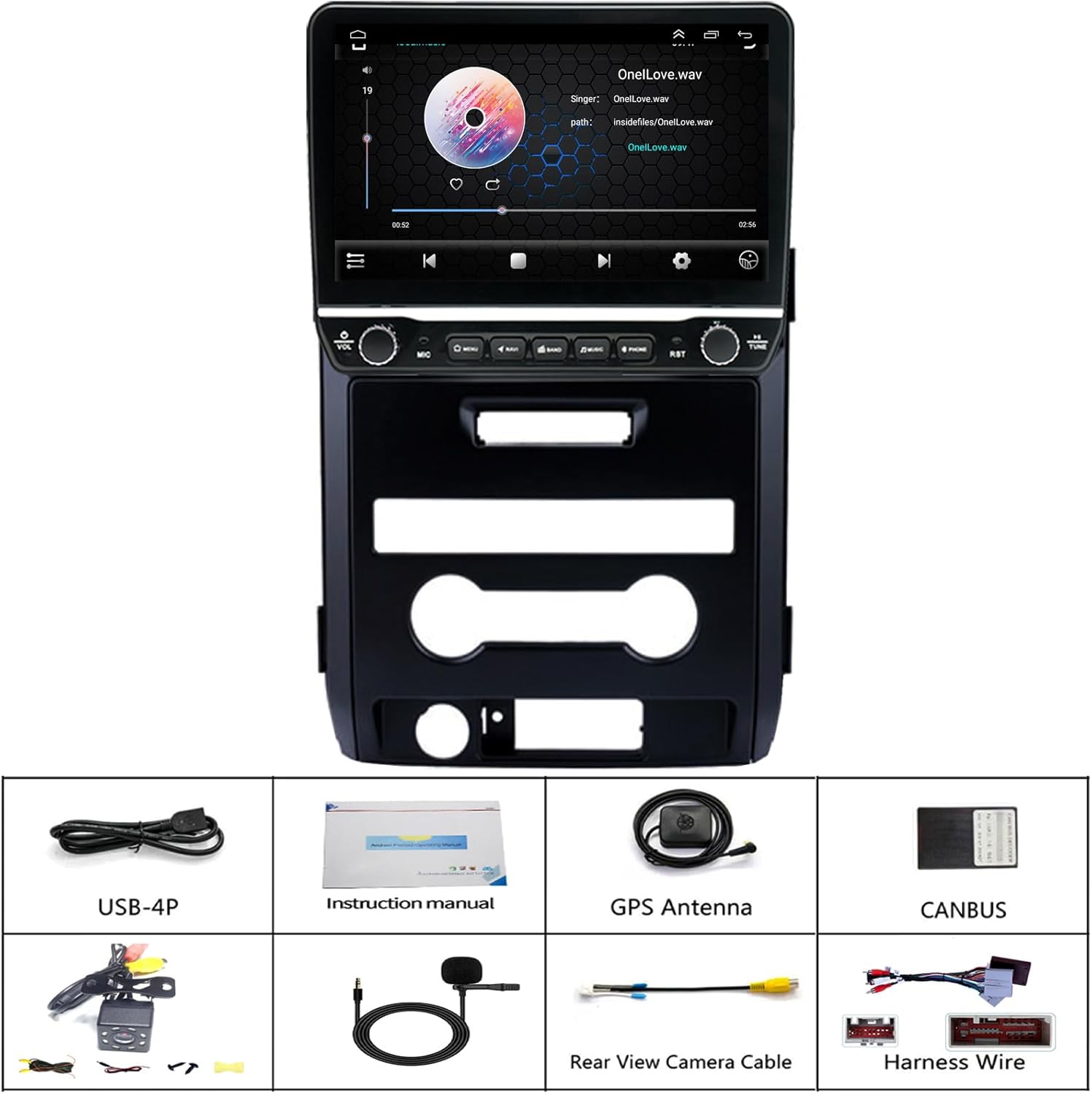
Figure 2.1: Package Contents Overview. This image displays the main Android car radio unit, the custom dash kit frame, wiring harness with Canbus box, GPS module, antenna adapter, USB cables, microphone, camera adapter, and the included installation manual and pry tool.
3. Compatibility
This incifum QLED Touchscreen Stereo Radio Upgrade is specifically designed for Ford F150 models manufactured between 2009 and 2012. It is crucial to note that this unit is only compatible with vehicles equipped with manual air conditioning controls. It will not fit models with automatic climate control systems.

Figure 3.1: Compatibility with Manual AC. This image illustrates the difference between manual and automatic AC controls in a Ford F150 dashboard, highlighting which configuration is compatible with the radio upgrade.
4. Setup and Installation
The incifum QLED Touchscreen Stereo Radio Upgrade features a plug-and-play design for simplified installation. A detailed installation instruction guide is included in your package. For optimal results and to avoid potential damage, it is recommended to follow the provided instructions carefully. If you are unfamiliar with car audio installations, professional assistance is advised.
4.1 Key Installation Steps
- Preparation: Ensure the vehicle's battery is disconnected before beginning installation.
- Factory Radio Removal: Carefully remove the existing factory radio and associated trim panels using the provided pry tool. Refer to the specific instructions for your Ford F150 model year.
- Wiring Connections: Connect the new wiring harness and Canbus box to the vehicle's existing wiring. Ensure all connections are secure. Pay close attention to the Canbus connection, as it is essential for retaining factory features like steering wheel controls.
- GPS Module & Antenna: Install the GPS module and antenna adapter, positioning the GPS antenna in a location with a clear view of the sky for optimal signal reception.
- USB & Microphone: Connect the USB ports and external microphone. Position the microphone for clear voice input.
- Backup Camera (Optional): If installing the included backup camera, route the camera cable to the rear of the vehicle and connect it to the camera adapter. Ensure the camera receives power (e.g., from the reverse light circuit) and is properly grounded.
- Unit Installation: Mount the new Android car radio unit into the dash kit frame and secure it in the vehicle's dashboard opening.
- Testing: Reconnect the vehicle's battery and power on the unit to test all functions before fully reassembling the dashboard.
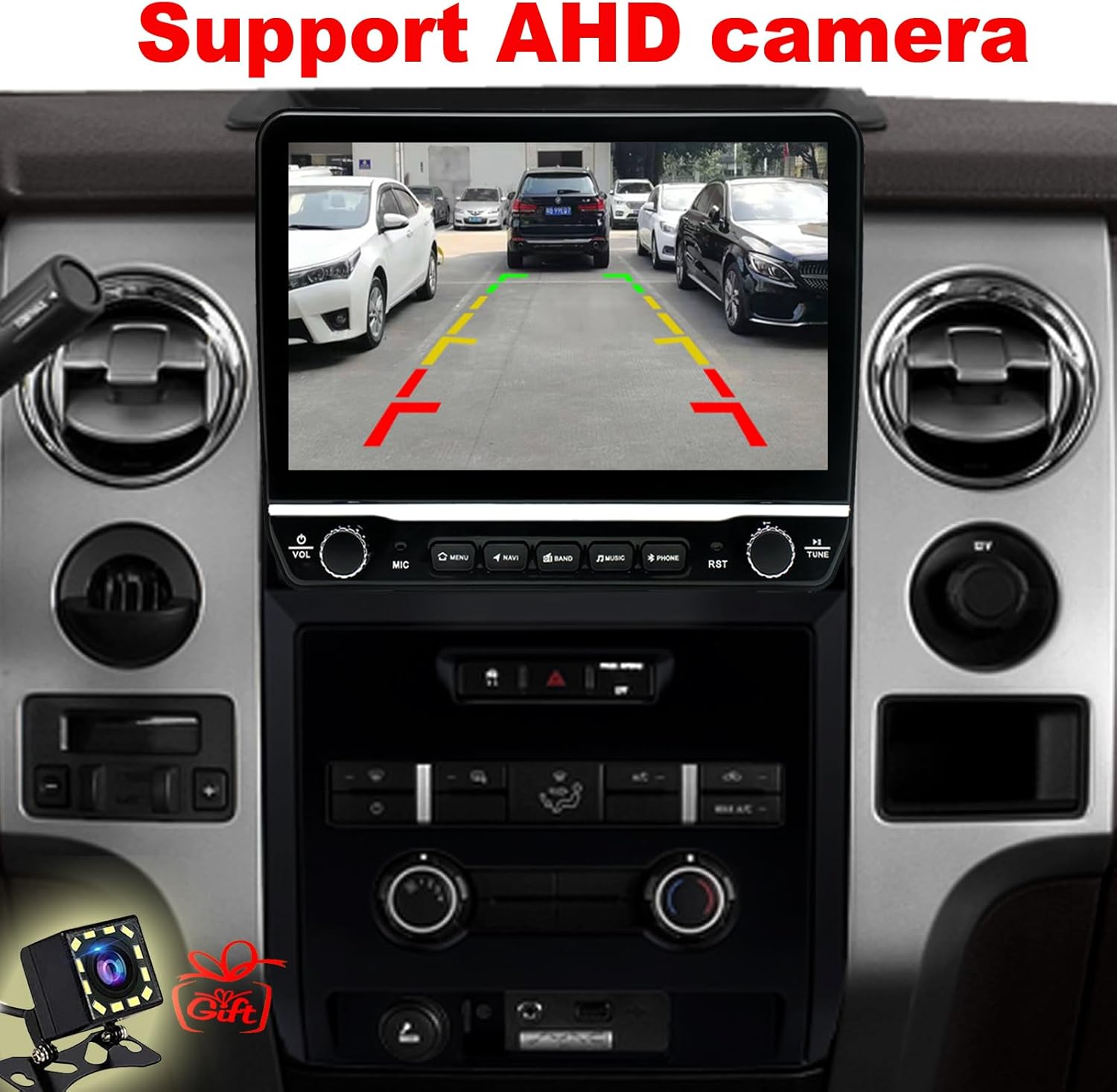
Figure 4.1: Main Unit and Dash Kit. This image displays the primary radio unit, the custom dash kit frame for Ford F150, and the associated wiring, providing a visual reference for installation components.
5. Operating Instructions
Your incifum QLED Touchscreen Stereo is powered by an Android operating system, offering a wide range of functionalities. The capacitive touchscreen provides intuitive control.
5.1 Basic Operation
- Power On/Off: The unit typically powers on with the vehicle's ignition. Use the physical power button or touchscreen controls for manual power management.
- Volume Control: Adjust volume using the physical knobs or on-screen controls.
- Navigation: Access pre-installed navigation apps or download your preferred navigation software from the Play Store.
- Multimedia Playback: Play audio and video files from USB, Bluetooth, or streaming apps.
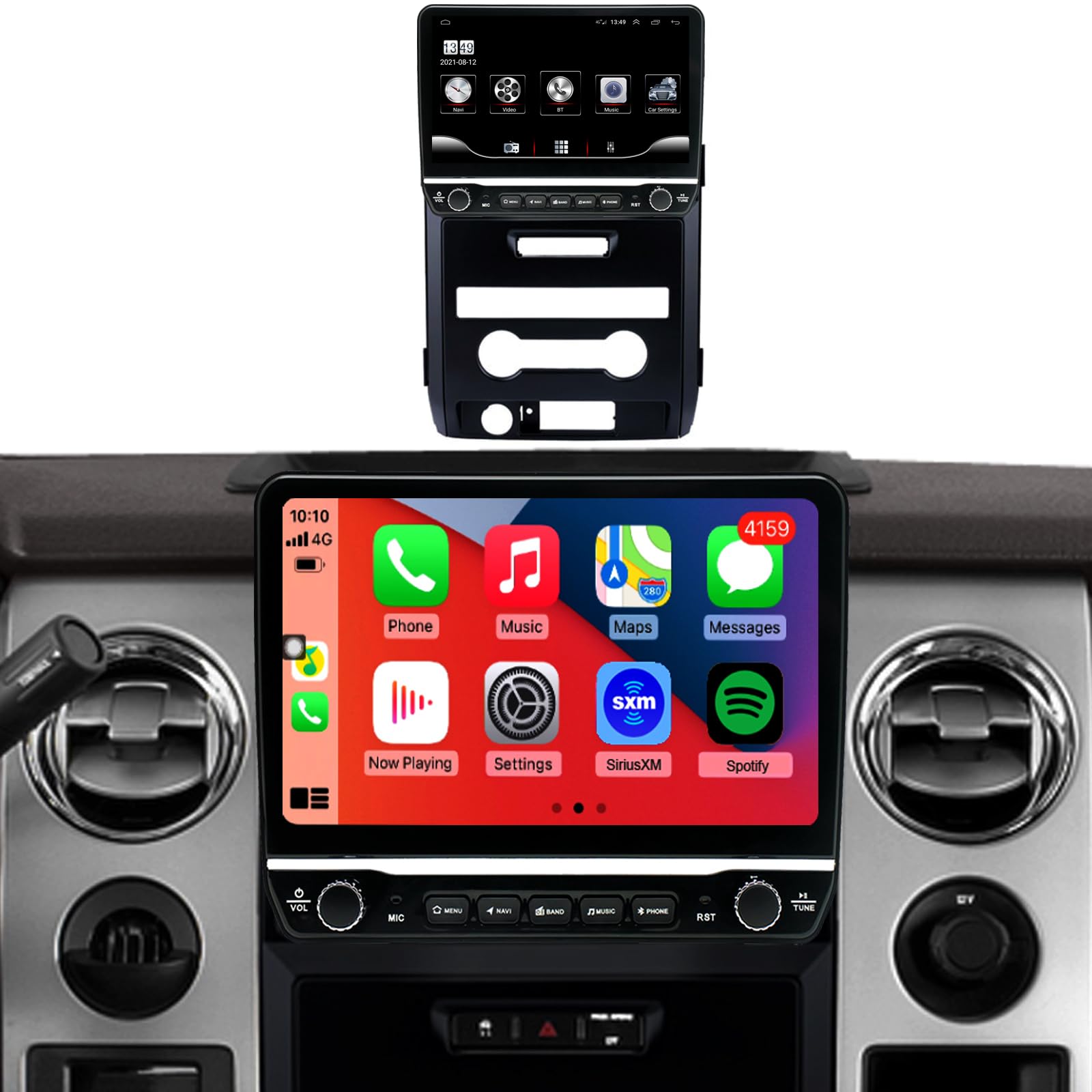
Figure 5.1: Main Android Interface. This image shows the unit's home screen with various application icons, demonstrating the Android operating system interface.
5.2 Wireless CarPlay & Android Auto
The unit supports wireless CarPlay and Android Auto for seamless smartphone integration.
- Pairing: Enable Bluetooth and Wi-Fi on your smartphone. On the stereo, navigate to the CarPlay or Android Auto application and follow the on-screen instructions to pair your device.
- Automatic Connection: Once paired, your phone should automatically connect to CarPlay or Android Auto when the stereo powers on.

Figure 5.2: Wireless CarPlay in Operation. This image demonstrates the Apple CarPlay interface on the unit's screen, showing a smartphone wirelessly connected.
5.3 Bluetooth Connectivity
Connect your smartphone via Bluetooth for hands-free calling and audio streaming.
- Pairing: Go to the Bluetooth settings on the stereo and enable Bluetooth. Search for available devices on your phone and select the stereo's name to pair.
- Hands-Free Calling: Once paired, you can make and receive calls directly through the stereo.
- Audio Streaming: Stream music and other audio from your phone to the stereo.
5.4 Backup Camera Functionality
When properly installed, the backup camera automatically displays the rear view on the screen when the vehicle is shifted into reverse.
Figure 5.3: Backup Camera Display. This image illustrates the clear visual output of the backup camera on the unit's screen, complete with parking guidelines.
5.5 Audio Settings and Equalizer
Customize your audio experience using the built-in equalizer and sound settings.
- Accessing EQ: Navigate to the "DSP Setting" or "Audio Setting" app on the main screen.
- Adjustments: Fine-tune bass, treble, and other frequency bands to match your preferences.

Figure 5.4: Audio Equalizer Interface. This image shows the unit's comprehensive equalizer settings, allowing users to adjust various audio frequencies for personalized sound.
6. Key Features
- Vehicle Compatibility: Designed for Ford F150 models (2009, 2010, 2011, 2012) with manual AC.
- Operating System: Android OS for versatile functionality and app access.
- Display: 10-inch QLED capacitive touchscreen for vivid colors and sharp resolution.
- Performance: 8-Core CPU with 2GB RAM and 32GB ROM for smooth operation.
- Wireless Connectivity: Integrated Wireless CarPlay and Android Auto for seamless smartphone integration.
- Network: Built-in WiFi and Bluetooth for internet access and hands-free communication.
- Steering Wheel Control: Retains factory OEM steering wheel control functionality.
- Rearview Camera Support: Includes a rearview camera for enhanced safety during reversing.
- Multimedia: Supports navigation, audio playback, hands-free calling, and access to thousands of apps.
- Audio Output: Stereo audio output with 5.1 surround sound channel configuration support.
- Video Encoding: Supports H.264 and H.265/HEVC video encoding.
7. Maintenance
Proper maintenance ensures the longevity and optimal performance of your incifum QLED Touchscreen Stereo.
- Screen Cleaning: Use a soft, lint-free cloth specifically designed for electronic screens. Dampen the cloth slightly with water or a screen cleaner solution. Avoid harsh chemicals or abrasive materials.
- Software Updates: Periodically check for available software updates through the unit's settings or the manufacturer's website to ensure you have the latest features and bug fixes.
- General Care: Keep the unit free from dust and debris. Avoid exposing it to extreme temperatures or direct sunlight for extended periods. Ensure all connections remain secure.
8. Troubleshooting
If you encounter issues with your incifum QLED Touchscreen Stereo, refer to the following common problems and solutions:
| Problem | Possible Cause / Solution |
|---|---|
| Unit does not power on. | Check power connections and vehicle's fuse box. Ensure the battery is properly connected. |
| Steering wheel controls do not work. | Verify the Canbus box is correctly connected to the wiring harness and the vehicle. Check the unit's settings for steering wheel control mapping options. Some vehicles may require manual configuration. |
| Wireless CarPlay/Android Auto fails to connect or disconnects frequently. | Ensure Bluetooth and Wi-Fi are enabled on your phone and the stereo. Try re-pairing the device. Check for software updates for both the stereo and your phone. A factory reset of the stereo may resolve persistent issues (note: this will erase all user data). |
| Poor microphone quality during calls. | Ensure the external microphone (if used) is securely connected and positioned correctly. Check microphone settings within the unit. |
| Backup camera not displaying. | Verify the camera adapter and camera power connections. Ensure the camera is properly grounded. Check the unit's settings for camera input. |
| Touchscreen accuracy issues. | Check for any protective films that might interfere with touch. Some units may have a screen calibration option in settings. A factory reset might be necessary if calibration is not available or ineffective. |
| Screen does not dim with headlights or night mode is stuck. | Check the unit's display settings for brightness and night mode options. Ensure the wiring harness connection related to illumination is correct. |
| Sound quality issues or volume fluctuations. | Check equalizer settings. Ensure all speaker wire connections are secure. Verify audio output settings. |
If the problem persists after attempting these solutions, please contact customer support for further assistance.
9. Specifications
| Brand | incifum |
| Model Number | 4c51a658-9227-4b17-acbd-1e5c247fc9da |
| Screen Size | 10 Inches |
| Display Technology | QLED Touchscreen |
| Processor | 8-Core CPU |
| RAM | 2 GB |
| ROM (Internal Storage) | 32 GB |
| Connectivity Technology | Android Auto, Bluetooth, Carplay, USB, WLAN (Wi-Fi) |
| Controller Type | Touchscreen |
| Special Features | Built-in Bluetooth, Integrated Bluetooth, Lane Assist, Touchscreen |
| Compatible Devices | Camera, Smartphone, iPhone |
| Connector Type | USB |
| Audio Output Mode | Stereo |
| Surround Sound Channel Config. | 5.1 |
| Video Encoding | H.264, H.265/HEVC |
| Weight | 2.5 Kilograms |
| Color | Black |
10. Warranty and Support
For warranty information, please refer to the documentation included with your purchase or contact the seller directly. The manufacturer provides professional after-sales online support 24/7 to assist with any queries or issues you may encounter.
For technical assistance or support, please reach out to the incifum customer service team through the contact details provided at the point of purchase or on the official incifum website.