
1. Introduction
This manual provides comprehensive instructions for the QDSYLQ Pencil 2nd Generation, a versatile stylus designed for use with compatible iPad models. It features magnetic wireless charging, tilt sensitivity, palm rejection, and convenient shortcut functions to enhance your digital writing, drawing, and navigation experience.

Image: The QDSYLQ Pencil 2nd Generation shown with its packaging and three replacement nibs.
2. Package Contents
- QDSYLQ Pencil 2nd Generation Stylus
- Replacement Nibs (typically 3 included)
- User Manual (this document)
3. Compatibility
The QDSYLQ Pencil 2nd Generation is ONLY compatible with iPad models released in 2018 or later. Please confirm your iPad model before use. It is not compatible with iPhones, Android devices, or Microsoft devices.
Compatible iPad Models:
- iPad 6th, 7th, 8th, 9th, 10th Generation
- iPad mini 5th, 6th Generation
- iPad Air 3rd, 4th, 5th Generation
- iPad Pro 11-inch 1st, 2nd, 3rd, 4th Generation
- iPad Pro 12.9-inch 3rd, 4th, 5th, 6th Generation
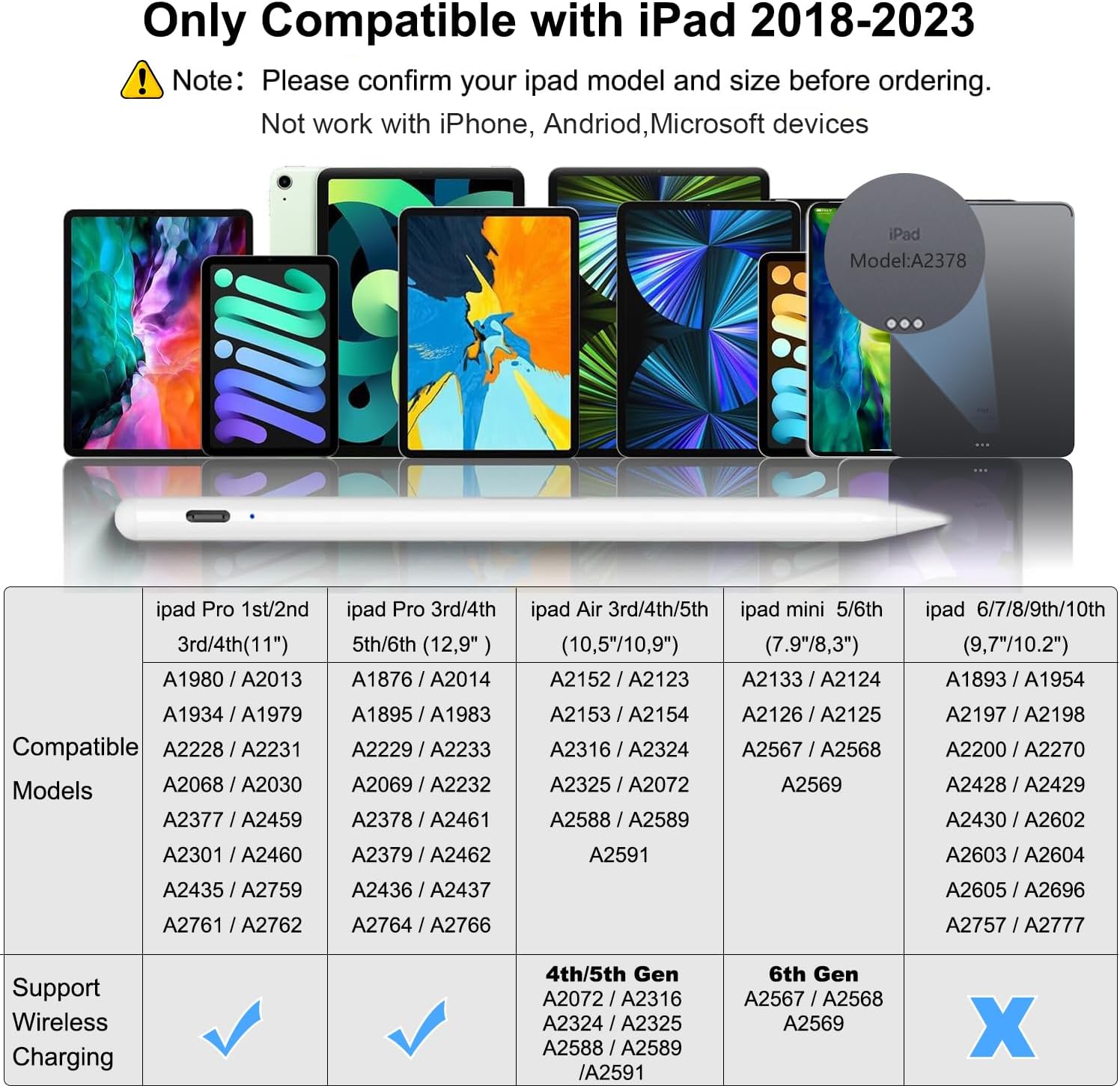
Image: Visual compatibility chart showing various iPad models and their supported status with the stylus.
4. Setup and Charging
4.1 Initial Setup (Bluetooth Pairing)
- Ensure your iPad's Bluetooth is enabled.
- Attach the QDSYLQ Pencil magnetically to the side of your compatible iPad.
- The stylus will automatically connect via Bluetooth. You can observe the power level of the stylus on your iPad's screen.
4.2 Charging Methods
The QDSYLQ Pencil offers two convenient charging methods:
- Magnetic Wireless Charging: Simply snap the stylus to the side of your compatible iPad. This will initiate wireless charging and trigger startup. The power display will show on your iPad.
- Type-C Quick Charging: For a full charge, connect the stylus using a Type-C data cable. A full charge takes approximately 60 minutes and provides up to 10 hours of working time.

Image: Diagram illustrating both magnetic wireless charging and Type-C wired charging methods for the stylus, along with charging times.
Video: Demonstration of the QDSYLQ Pencil's wireless charging and various features.
5. Operating Instructions
5.1 Shortcut Functions
After connecting via Bluetooth, the button at the top of the stylus provides convenient shortcut functions:
- Single Tap: Returns to the main screen.
- Double Tap: Opens the APP selection page or task manager, showing recently used applications.
- Screenshot: Swipe from the bottom left to the top right corner of the iPad screen using the stylus to take a screenshot.

Image: Visual guide to the single-tap and double-tap shortcut functions on the stylus.
5.2 Palm Rejection
The advanced palm rejection technology allows you to comfortably rest your hand on the iPad screen while writing or drawing, just as you would on paper, without unintended marks.
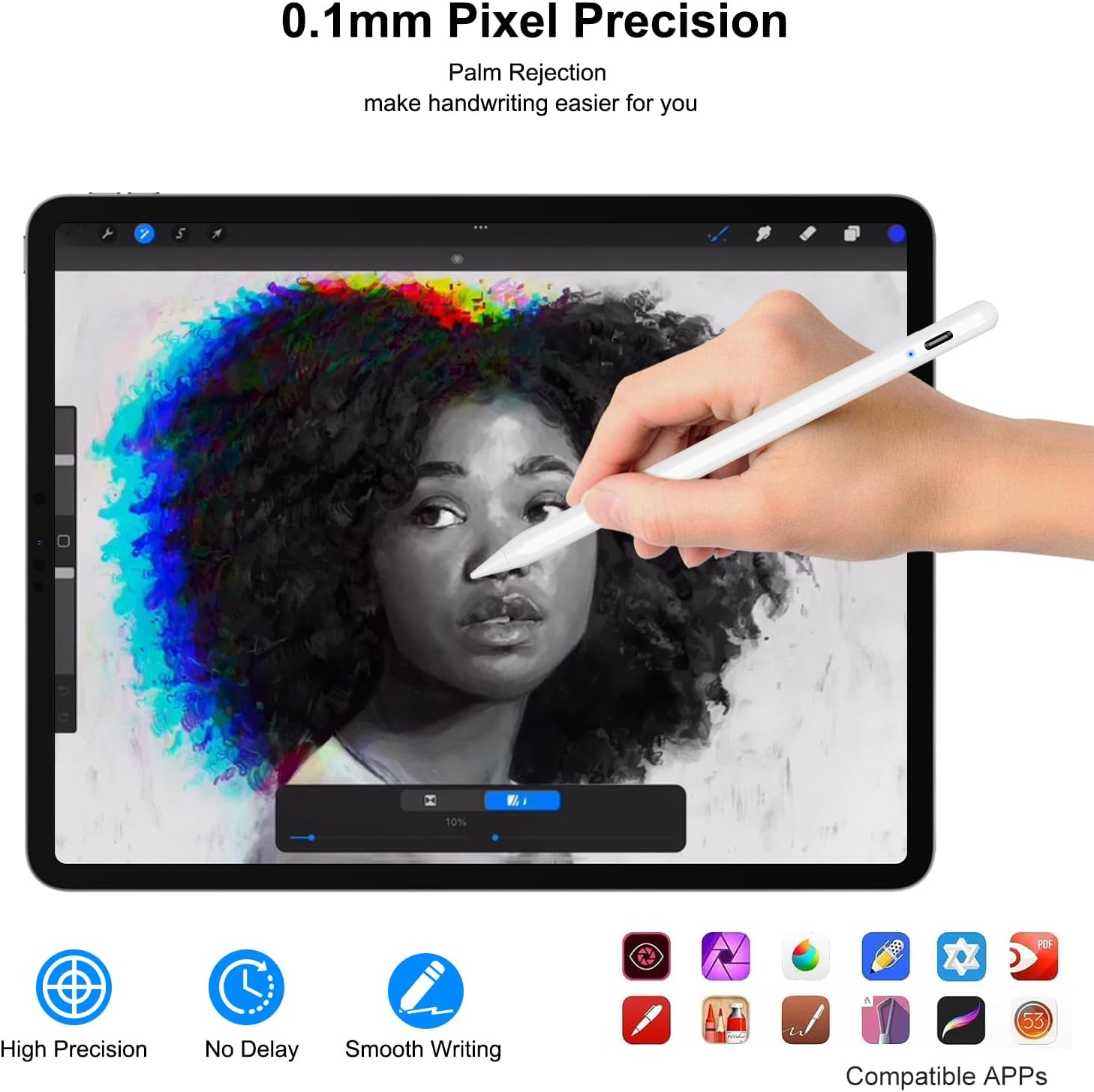
Image: A hand resting on an iPad screen while using the stylus, demonstrating the palm rejection feature.
5.3 Tilt Function
The tilt and thickening function enables you to draw lines of varying thickness and depth by simply altering the inclination of the stylus tip. This is ideal for sketching, shading, and artistic applications.
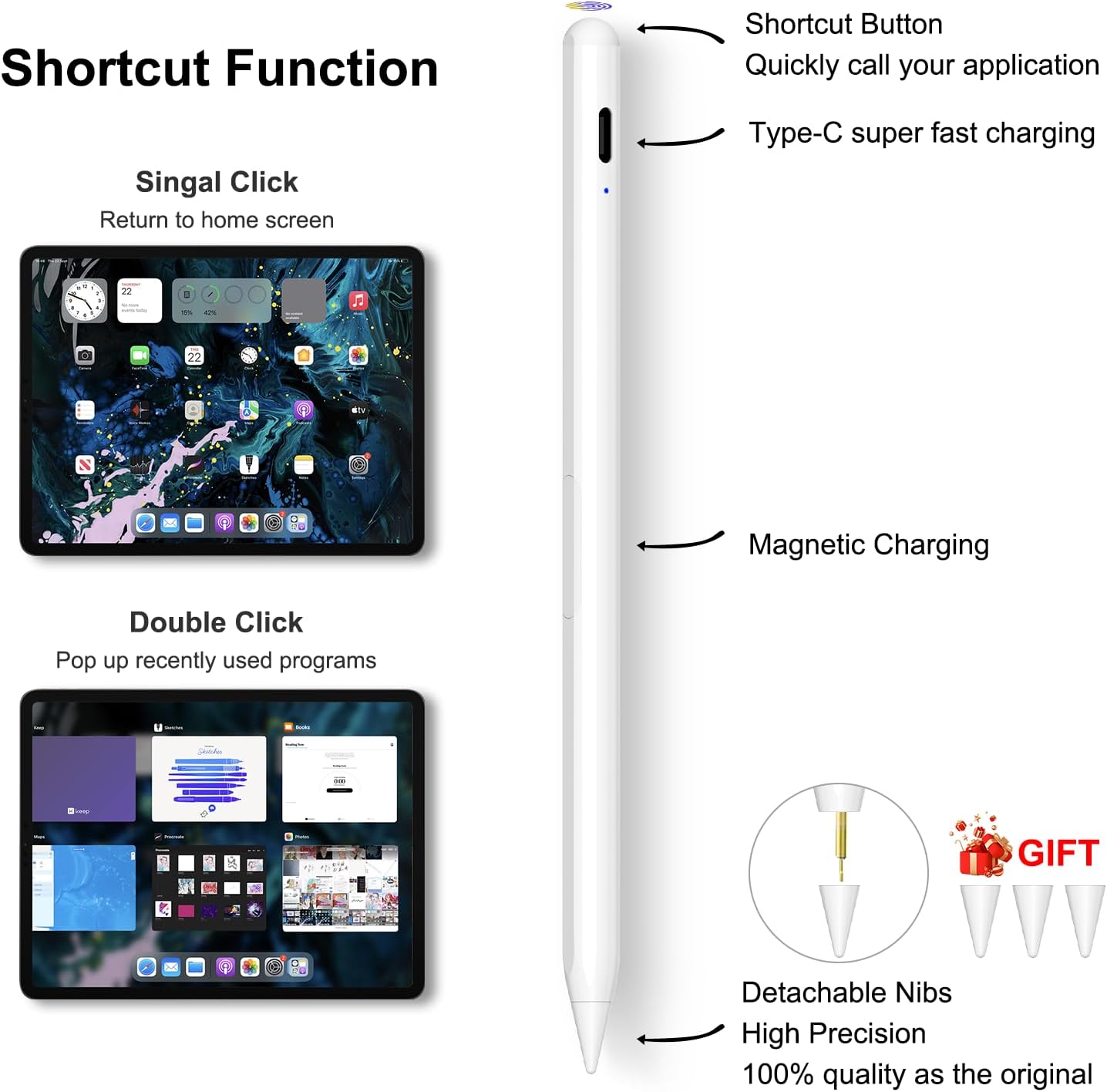
Image: Illustration showing how different tilt angles of the stylus produce varying line thicknesses.
5.4 Precision and Smoothness
The 1.5mm pen tip provides precise control, allowing for fine instructions and smooth gliding across the tablet screen without lag, offset, or breakpoints. It offers higher sensitivity and a more accurate signal compared to ordinary styluses.
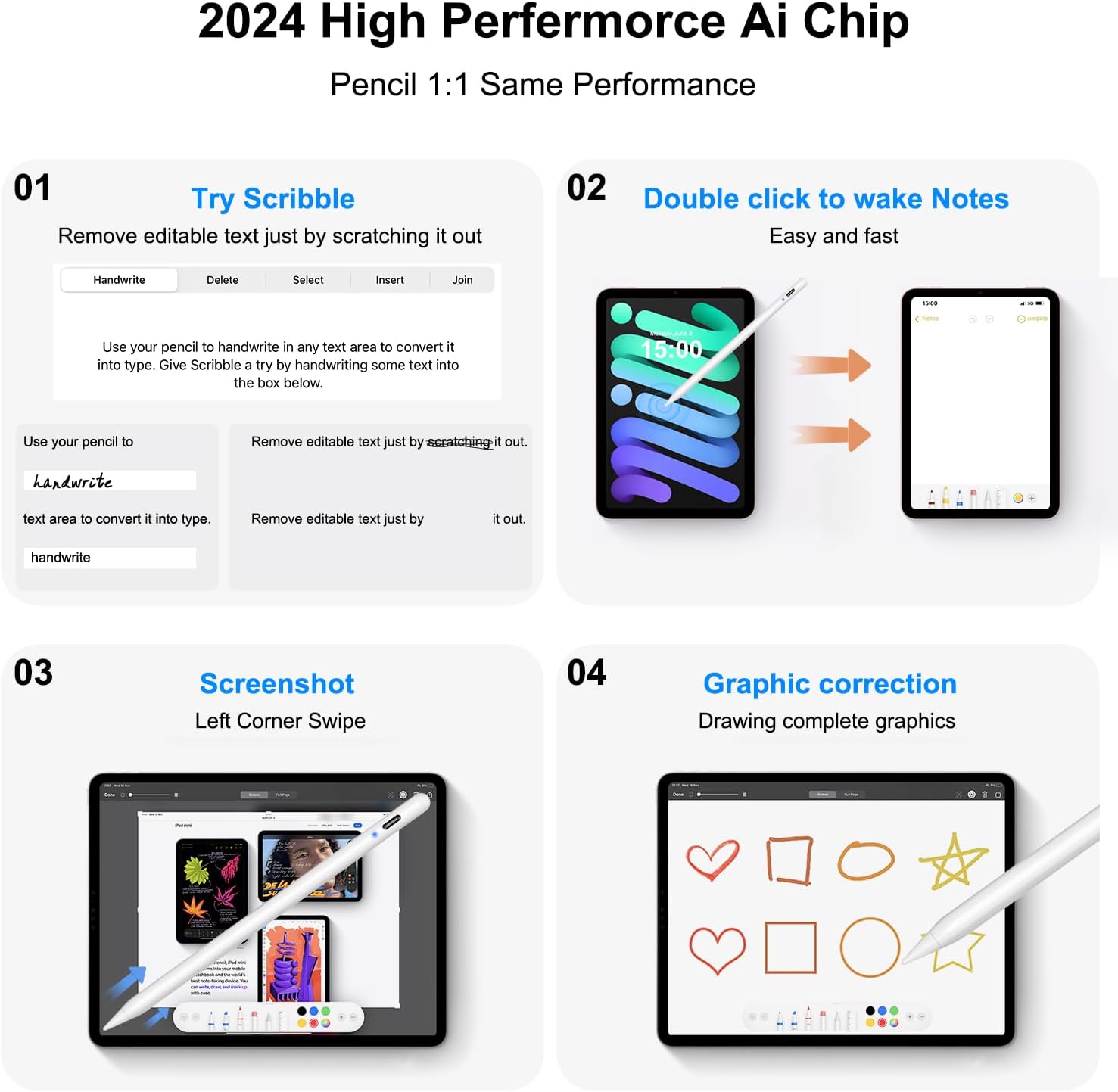
Image: Examples of Scribble, Notes, Screenshot, and Graphic Correction features enabled by the stylus's precision.
6. Maintenance
- Cleaning: Wipe the stylus body with a soft, dry cloth. Do not use harsh chemicals or abrasive materials.
- Nib Replacement: The stylus comes with replacement nibs. If the tip becomes worn or damaged, gently twist the old nib counter-clockwise to remove it, and then twist a new nib clockwise until secure.
- Storage: Store the stylus in a safe place when not in use, ideally attached magnetically to your iPad or in a protective case, to prevent loss or damage.
7. Troubleshooting
| Issue | Possible Cause | Solution |
|---|---|---|
| Stylus not connecting/pairing. | Bluetooth is off on iPad, stylus battery is low, or iPad model is incompatible. |
|
| Stylus not charging. | Not properly aligned for magnetic charging, or Type-C cable/port issue. |
|
| Lag or inaccurate input. | Low battery, worn nib, or software issue. |
|
| Palm rejection not working. | Not all apps support palm rejection, or a setting issue. |
|
8. Specifications
| Feature | Detail |
|---|---|
| Product Dimensions | 0.39 x 0.39 x 0.04 inches |
| Item Weight | 0.564 ounces (16 Grams) |
| Battery Type | 1 Lithium Ion battery (included) |
| Charging Time | Approx. 60 minutes (Type-C) |
| Working Time | Approx. 10 hours |
| Auto Sleep | After 20 minutes of inactivity |
| Material | Aluminum |
| Color | White |
9. Warranty and Support
For any questions or needs regarding your QDSYLQ Pencil, please contact our after-sales service team. We are committed to providing the best solution and meeting your needs.
Note: Specific warranty details may vary. Please refer to your purchase documentation or contact customer support for precise warranty terms.