Introduction
This manual provides detailed instructions for the QLWAHK 51 MCU Development Board, featuring the STC89C52 main control chip. This board is designed for learning and development, offering a comprehensive platform for microcontroller projects, including applications like intelligent car testing. The board integrates various components and interfaces to facilitate easy experimentation and project development. Please read this manual thoroughly before operating the device.
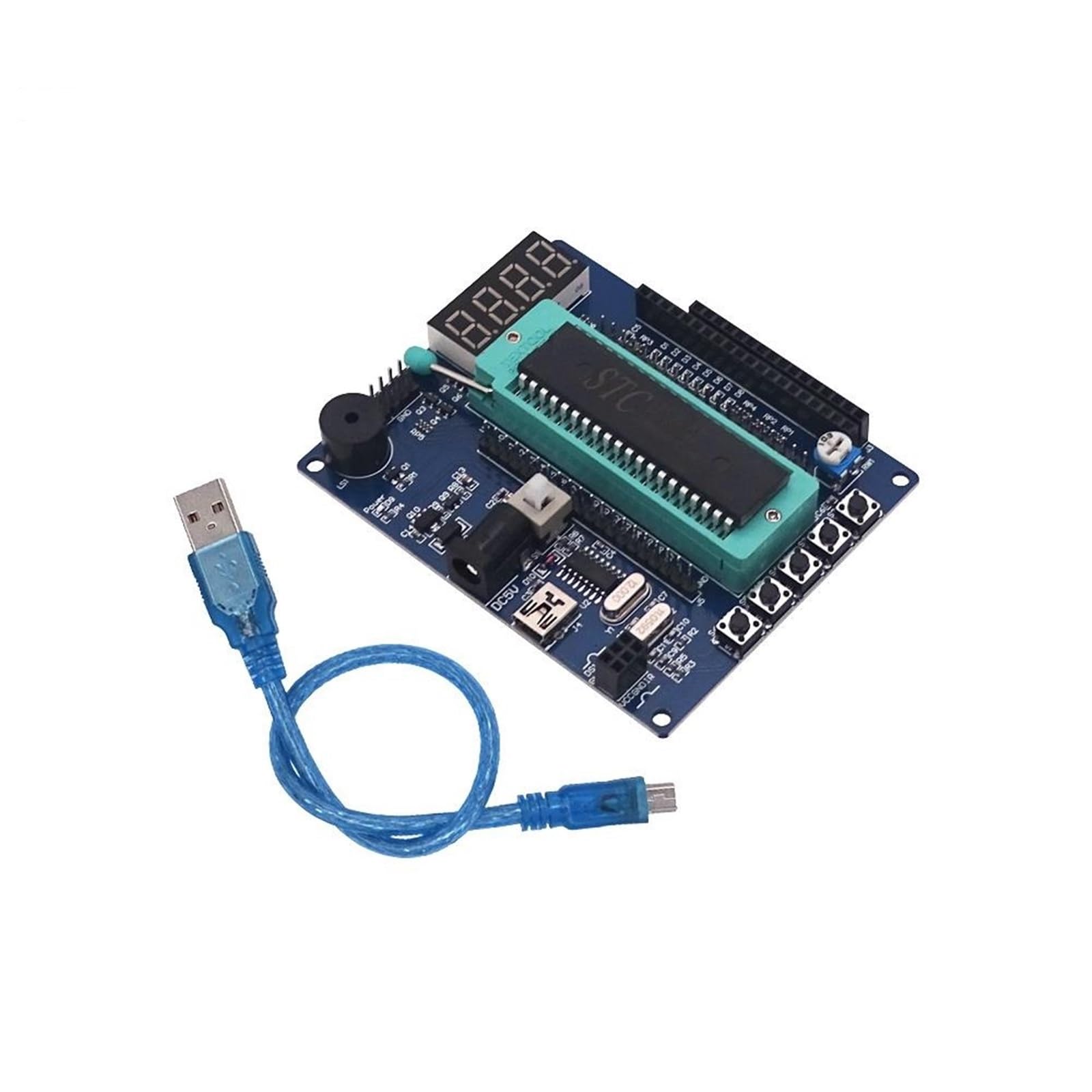
Image: Top-down view of the QLWAHK 51 MCU Development Board, showing the STC89C52 chip in a ZIF socket, 7-segment display, buttons, and various headers.
Setup
Follow these steps to set up your QLWAHK 51 MCU Development Board:
- Power Supply Connection: The board supports two power supply modes:
- External 5V DC Power Supply: Connect a 5V DC power adapter to the DC input jack on the board.
- USB Interface Power Supply: Connect the provided 30cm USB cable (mini) from the board's USB interface to a computer or a 5V USB power source.
Ensure the power switch is in the OFF position before connecting power.
- Power On: After connecting the power source, switch the power button to the ON position. The power indicator LED should illuminate.
- Microcontroller Installation: If not already installed, carefully insert the STC89C52 (or compatible AT89S51) microcontroller chip into the ZIF (Zero Insertion Force) pluggable chip base. Ensure correct orientation, then lower the ZIF socket lever to secure the chip.
- USB Communication Setup: For communication with a computer, connect the USB cable. The board utilizes a CH340 communication chip, which may require driver installation on your computer. Drivers are typically available from CH340 manufacturer websites or common microcontroller development resources.
- ISP Download Interface: If using AT89S52 or ATmega16 microcontrollers, the ISP download interface can be used for programming. Refer to your specific programmer's instructions for connection.

Image: Angled view of the development board, highlighting the power input options (DC jack and USB port) and the main microcontroller socket.
Operating the Development Board
The QLWAHK 51 MCU Development Board offers a variety of onboard resources for experimentation:
- Passive Buzzer: Located on the board, this can be controlled by the microcontroller to generate sounds.
- Power Indicator: An LED that illuminates when the board is powered on, indicating operational status.
- DS18B20 Temperature Sensor Interface: A dedicated header for connecting a DS18B20 digital temperature sensor.
- 38k Infrared Receiver Interface: An interface for connecting a 38kHz infrared receiver module, enabling remote control or infrared communication projects.
- LCD Interfaces (1602 & 12864): Headers are provided for connecting both 16x2 character LCDs (LCD1602) and 128x64 graphical LCDs (LCD12864). An onboard potentiometer allows for contrast adjustment of the connected LCD.
- 8-bit LED Array: An array of 8 LEDs for visual output, useful for displaying status, binary numbers, or simple animations.
- Independent Keys (4): Four tactile push buttons for user input, programmable for various functions.
- Reset Button: A dedicated button to reset the microcontroller, restarting its program execution.
- Pin Headers: All pins of the single-chip microcomputer are led out via pin headers, allowing for easy connection to external circuits and modules.

Image: Close-up view of the development board, highlighting the four independent keys, the reset button, and the 8-bit LED array.
Maintenance
To ensure the longevity and proper functioning of your development board, observe the following maintenance guidelines:
- Handle with Care: Avoid dropping the board or subjecting it to physical shock.
- Keep Dry: Protect the board from moisture and liquids. Water damage can cause short circuits and permanent damage.
- Cleanliness: Keep the board free from dust and debris. Use a soft, dry brush or compressed air for cleaning. Avoid using liquid cleaners.
- Static Electricity: Always handle the board in an anti-static environment or take precautions to discharge static electricity from your body before touching the board.
- Storage: When not in use, store the board in a protective, anti-static bag in a cool, dry place.
Troubleshooting
If you encounter issues with your development board, consider the following troubleshooting steps:
- No Power Indicator:
- Check if the power supply is correctly connected and providing 5V DC.
- Ensure the power switch on the board is in the ON position.
- Try a different power source or USB cable.
- Microcontroller Not Responding:
- Verify the microcontroller chip is correctly seated in the ZIF socket and the lever is down.
- Ensure the chip is compatible with the board (STC89C52 or AT89S51).
- Press the reset button to restart the program.
- Check your programming setup and code for errors.
- USB Communication Issues:
- Confirm that the CH340 driver is installed correctly on your computer.
- Try a different USB port or cable.
- Check the device manager for any unrecognized devices.
- LCD Display Problems:
- Ensure the LCD module is correctly connected to its respective header.
- Adjust the LCD contrast potentiometer on the board.
- Verify your code for LCD initialization and display commands.
Specifications
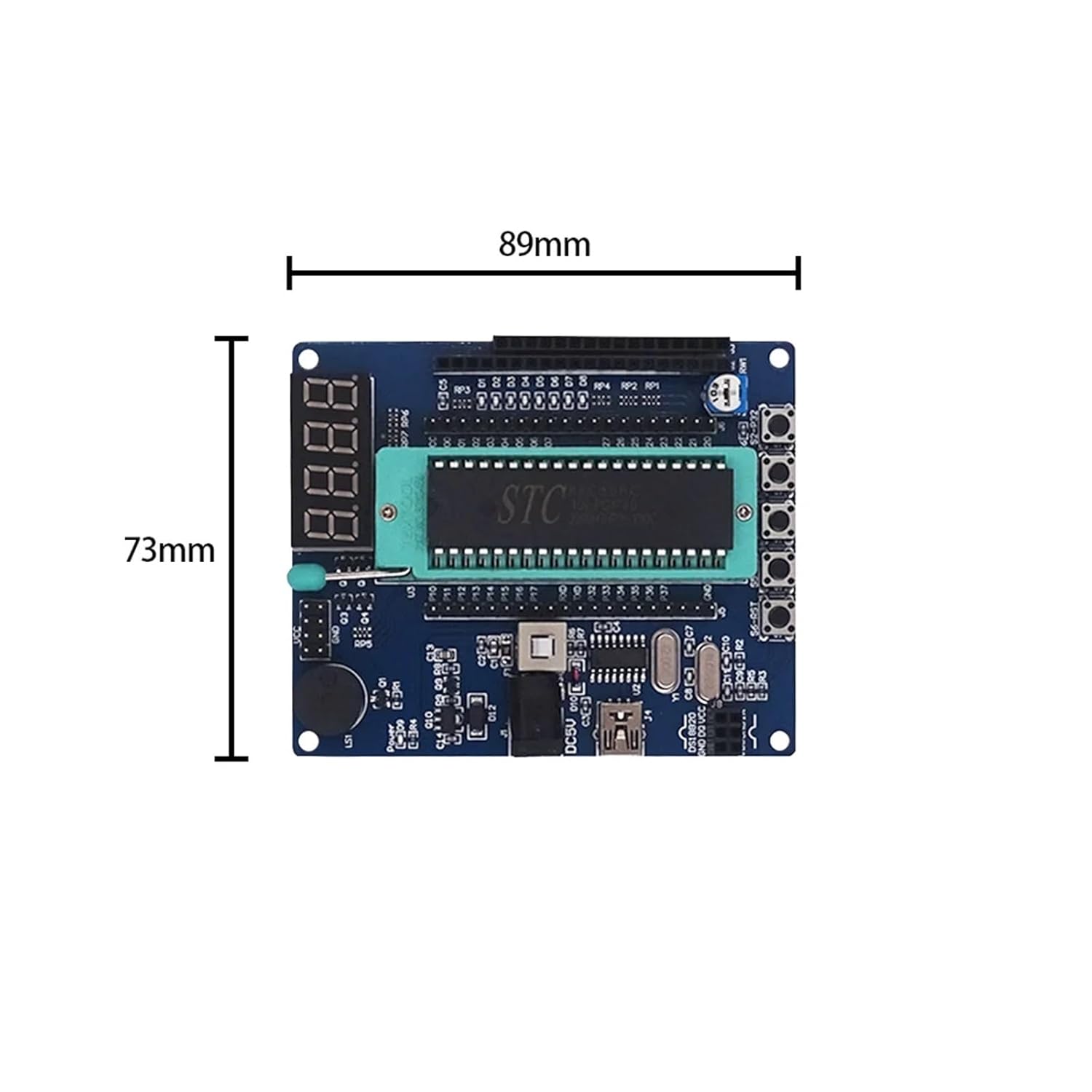
Image: Top-down view of the development board with dimensions indicated: 73mm x 89mm.
| Parameter | Value |
|---|---|
| Product Name | nh5100 development board |
| Main Control Chip | STC89C52 |
| Crystal Frequency | 11.0592MHz / 12MHz |
| Input Voltage | DC 5V |
| Output Voltage | DC 5V / DC 3.3V |
| Power Supply Mode | External 5V DC power supply, USB interface power supply |
| PCB Size | 73mm * 75mm |
| Brand | QLWAHK |
| Model Number | QLWAHK (as per product data) |
| Item Weight | 50 Grams |
| ASIN | B0DCSP9D6Y |
Warranty Information
No specific warranty information is provided with this product. Please refer to the retailer's return policy or contact the seller directly for details regarding returns or defects.
Customer Support
For technical assistance or further inquiries, please contact the seller through the platform where the product was purchased. No direct manufacturer support contact information is available in the product details.