
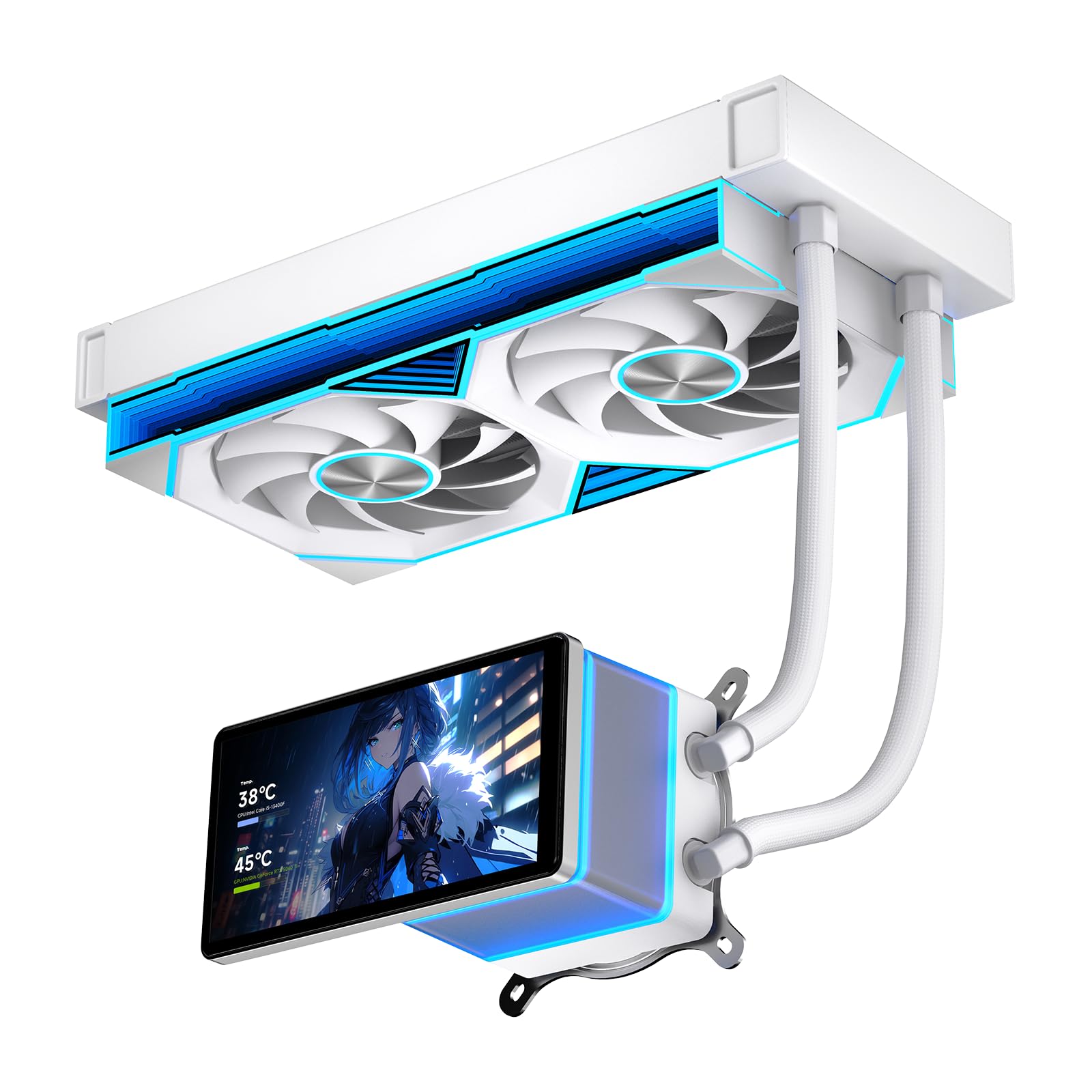
Image: The Jungle Leopard PF 240 CPU Water AIO Cooler, showcasing its design and integrated LCD screen.
1. Important Safety Information
Please read this manual carefully before installing and using the Jungle Leopard PF 240 CPU Water AIO Cooler. Failure to follow these instructions may result in product damage, system malfunction, or personal injury.
- Ensure your system is powered off and unplugged from the wall outlet before installation.
- Handle components with care to avoid damage.
- Wear anti-static gloves or use an anti-static wrist strap to prevent electrostatic discharge (ESD).
- Keep all packaging materials and small parts away from children.
- Do not attempt to disassemble the pump or radiator, as this will void the warranty.
- Use only the provided mounting hardware.
2. Package Contents
Verify that all components are present and in good condition before proceeding with installation.
- Jungle Leopard PF 240 AIO Cooler (Radiator, Fans, Pump/Water Block with LCD Screen)
- Mounting Hardware for Intel (LGA1851/1700/1200/115X)
- Mounting Hardware for AMD (AM4/AM5)
- Thermal Paste
- Fan/ARGB Splitter Cables
- USB Control Cable
- User Manual (this document)

Image: Overview of the Jungle Leopard PF 240 AIO Cooler and its main components.
3. Specifications
| Brand | Jungle Leopard |
| Model | PF 240 |
| Cooling Method | Liquid |
| Radiator Size | 277 x 120 x 27mm (for 240mm model) |
| Fan Size | 120 x 120 x 25mm (2 fans for 240mm model) |
| Fan Speed | 800-2000 ± 10% RPM |
| Air Flow Capacity | Up to 110.5 CFM (total for 2 fans) |
| Noise Level | ≤ 30 dBA |
| Pump Speed | 2700 ± 10% RPM |
| TDP Support | Up to 270W |
| LCD Screen Size | 5.5-inch |
| LCD Resolution | 960x480 |
| Compatibility | Intel: LGA1851/1700/1200/115X, AMD: AM4/AM5 |

Image: Detailed view of the radiator, highlighting its design for efficient heat dissipation.
4. Installation Guide
This section provides step-by-step instructions for installing your Jungle Leopard PF 240 AIO Cooler. Please refer to the accompanying video for visual guidance.
4.1. Pre-Installation Steps
- Prepare Motherboard: For AMD AM4/AM5 platforms, remove the motherboard's pre-installed CPU cooler fixing buckles and screws. For Intel platforms, ensure the correct backplate is in place if required by your motherboard.
- Install Mounting Studs: Identify the correct mounting studs for your CPU socket (AMD or Intel). For AMD, use the studs with the AMD logo, noting the unequal length of the two sides. The shorter end is installed into the fixed holes on the motherboard.
- Apply Thermal Paste: Apply a small, pea-sized amount of the provided thermal paste to the center of the CPU's Integrated Heat Spreader (IHS).
4.2. Water Block Installation
- Attach Fixing Bracket: Take out the water-cooled fixing bracket. For AMD platforms, install the bracket onto the water block base, aligning it with the corresponding logo. Ensure to remove the protective film from the water block base before attachment.
- Mount Water Block: Carefully place the water block onto the CPU, aligning the holes in the bracket with the installed mounting studs. For optimal memory clearance, position the water cooling pipes facing the memory side.
- Secure Water Block: Use the provided fixing screws to tighten the water block onto the motherboard. Tighten screws in a diagonal pattern to ensure even pressure.
Video: Installation tutorial for the Jungle Leopard PF 360 Cooler on an AMD AM4/AM5 platform. The steps for the PF 240 model are similar.
4.3. Cable Connections
The water block and fans require several connections to the motherboard for power, control, and ARGB lighting.
- Water Pump Power: Plug the water pump control interface cable into the AIO_PUMP socket on your motherboard.
- ARGB Lighting (Water Block): Connect the ARGB interface cable from the water block into a 5V 3-pin ARGB header on your motherboard.
- Fan Power (PWM): Connect the PWM interface cable from the radiator fans (or fan splitter) into the CPU_FAN socket on your motherboard.
- ARGB Lighting (Fans): Connect the ARGB interface cable from the radiator fans (or ARGB splitter) into a 5V 3-pin ARGB header on your motherboard.
- USB Control: Plug the USB control interface cable into an available USB header on your motherboard (e.g., USB_1617 or similar). This is essential for the LCD screen functionality and software control.
4.4. LCD Screen Attachment
The 5.5-inch LCD screen attaches magnetically to the water block.
- Align and Attach: The screen has four metal contacts on its back. Align these contacts with the corresponding points on the water block. The magnetic connection will secure it in place.
- Adjust Orientation: The screen supports 270-degree rotation, allowing you to adjust its orientation for optimal viewing within your PC case.
Video: Demonstrates the magnetic attachment and 270-degree rotation of the 5.5-inch LCD screen.
5. Operating Instructions
The Jungle Leopard PF 240 features a customizable LCD screen for displaying system information and personalized content.
5.1. Jungle Leopard Display HUB Software
- Software Download: Download the official "Jungle Leopard Display HUB" software from the manufacturer's website. Ensure you download the correct version for your operating system.
- Customization: The software allows you to:
- Monitor real-time computer data (CPU temperature, usage, etc.).
- Set custom images (PNG, JPG, GIF) or videos (MP4) as the screen background.
- Adjust screen brightness and interface layout.
- Create and manage personalized display themes.
- Connectivity: The USB control cable connected during installation enables communication between the software and the LCD screen.
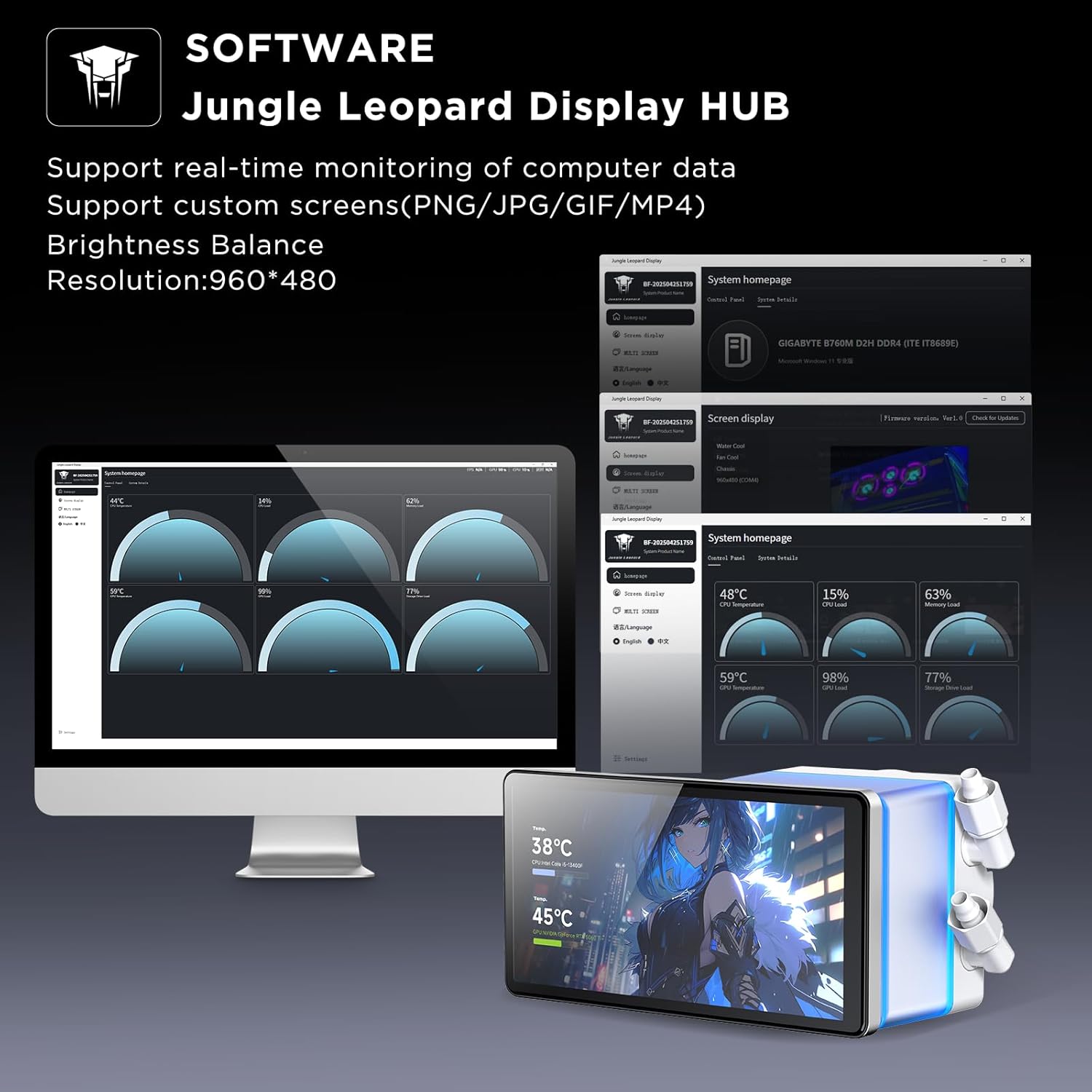
Image: Screenshot of the Jungle Leopard Display HUB software interface, showing data monitoring and customization options.
Video: Demonstrates various display modes and customization options on the 5.5-inch LCD screen.
6. Maintenance
Regular maintenance helps ensure the longevity and optimal performance of your AIO cooler.
- Dust Cleaning: Periodically clean dust from the radiator fins and fans using compressed air. Ensure fans are not spinning during cleaning.
- Cable Management: Ensure all cables are neatly routed and not obstructing airflow or fan movement.
- Liquid Level Check: While AIO coolers are sealed, monitor for any signs of leaks or unusual noises from the pump, which could indicate an issue with the liquid circulation.
- Software Updates: Keep the "Jungle Leopard Display HUB" software updated to ensure compatibility and access to new features.

Image: Close-up view of the radiator fans, illustrating their design for efficient airflow.
7. Troubleshooting
If you encounter any issues with your Jungle Leopard PF 240 AIO Cooler, refer to the following common solutions:
- No Display on LCD Screen:
- Check the USB control cable connection to both the water block and the motherboard.
- Ensure the LCD screen is securely attached to the water block via its magnetic contacts. A loose connection can cause intermittent display or flashing.
- Verify that the "Jungle Leopard Display HUB" software is installed and running correctly.
- High CPU Temperatures:
- Confirm that the water block is securely mounted to the CPU with even pressure.
- Check that the thermal paste was applied correctly and evenly.
- Ensure all fans are spinning and connected to the CPU_FAN header.
- Verify that the pump is running (check for subtle vibrations or listen for a low hum). Ensure the AIO_PUMP header is providing sufficient power.
- Clean any dust buildup on the radiator fins.
- ARGB Lighting Not Working:
- Check the 5V 3-pin ARGB connections from both the water block and fans to the motherboard.
- Ensure your motherboard's ARGB software (e.g., ASUS Aura Sync, MSI Mystic Light, Gigabyte RGB Fusion) is installed and configured correctly.
- Software Not Detecting Device:
- Ensure the USB control cable is properly connected.
- Try restarting your computer and the software.
- Reinstall the "Jungle Leopard Display HUB" software.
8. Warranty and Support
Jungle Leopard products are designed for reliability and performance. For warranty information, technical support, or to report any issues, please contact Jungle Leopard customer service through their official website or the retailer where the product was purchased.
Keep your proof of purchase for warranty claims.