
1. Introduction
This user manual provides comprehensive instructions for the installation, operation, and maintenance of your PHILIPS 15-watt Smart Wi-Fi Downlighter. This LED Surface Wiz Connected Downlighter is designed to offer versatile lighting solutions, compatible with Amazon Alexa and Google Assistant, allowing for tunable white light control.
Please read this manual thoroughly before using the product to ensure safe and optimal performance.
2. Important Safety Information
- Always disconnect power before installation, removal, or servicing.
- Installation should be performed by a qualified electrician in accordance with local electrical codes.
- Do not use with dimmers other than those specified for smart lighting control via app or voice assistant.
- Ensure the product is used within its specified voltage and wattage limits.
- Avoid direct exposure to water or excessive humidity unless the product is specifically rated for outdoor use (this product is for indoor use).
- Do not disassemble or modify the product. This will void the warranty.
- Keep out of reach of children.
3. Package Contents
Verify that all components are present and undamaged upon opening the package.
- 2 x PHILIPS 15-watt Smart Wi-Fi Downlighter (LED Surface Wiz Connected Downlighter)
- Installation Guide (this manual)

Image: The package contains two Philips Smart Wi-Fi Downlighters, each in its individual box, ready for installation.
4. Setup and Installation
4.1 Physical Installation
- Turn off Power: Before beginning installation, ensure the power supply to the fixture location is turned off at the circuit breaker.
- Prepare Mounting Surface: The downlighter is designed for surface mounting. Ensure the mounting surface is clean, dry, and structurally sound.
- Connect Wiring: Connect the electrical wires from the ceiling to the downlighter's terminals according to local electrical codes (typically Live, Neutral, and Earth). Ensure secure connections.
- Mount the Downlighter: Secure the downlighter to the ceiling using appropriate screws and anchors (not included, typically). Ensure it is firmly attached.
- Restore Power: Once installation is complete, restore power at the circuit breaker. The light should turn on.
4.2 Smart Connectivity Setup (Wiz Connected)
The Philips Smart Wi-Fi Downlighter uses Wiz connected technology for smart control.
- Download Wiz App: Download the "Wiz Connected" app from your smartphone's app store (Google Play Store or Apple App Store).
- Create Account: Open the app and create a new Wiz account or log in if you already have one.
- Add Device: Follow the in-app instructions to add your new downlighter. This typically involves ensuring the light is powered on and in pairing mode (often by cycling the power switch a few times).
- Connect to Wi-Fi: The app will guide you to connect the downlighter to your home Wi-Fi network (2.4 GHz band required).
- Name Your Light: Assign a name to your light (e.g., "Living Room Ceiling Light") for easy control.
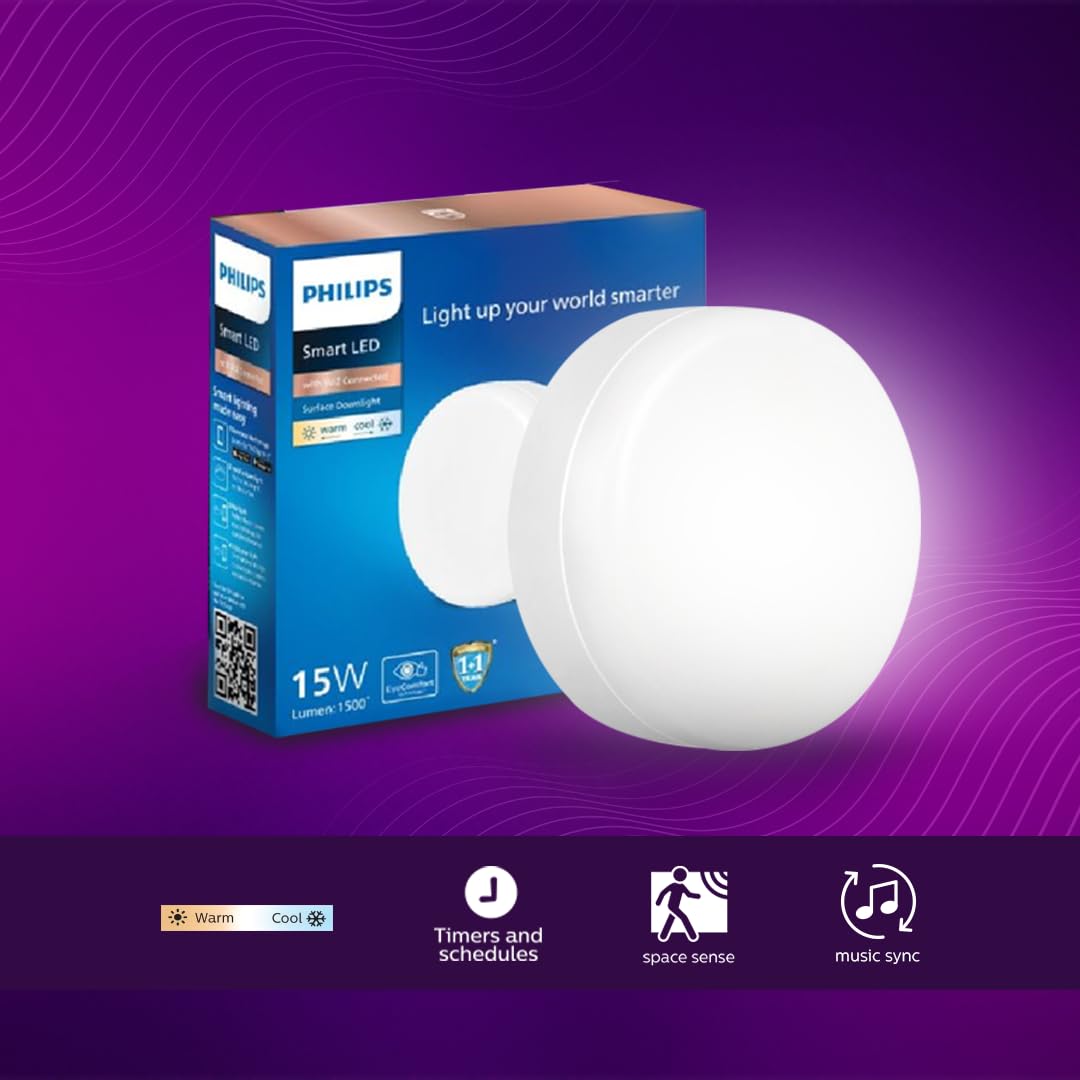
Image: The Philips Smart LED Downlighter highlighting its features: tunable white light (warm to cool), timers and schedules, SpaceSense technology, and music synchronization capabilities.
5. Operating Instructions
5.1 Basic Control via Wiz App
- On/Off: Tap the light icon in the app to turn the light on or off.
- Brightness Control: Use the slider in the app to adjust the brightness from 1% to 100%.
- Tunable White: Select the "Tunable White" option to adjust the color temperature from warm white to cool white, creating various ambiances.
- Preset Modes: The app offers various preset lighting modes (e.g., Focus, Relax, TV Time) that automatically adjust brightness and color temperature.

Image: The Philips Smart LED Downlighter illustrating its advanced control features: ability to schedule and automate, control from anywhere, smart dimming, and applying preset modes.
5.2 Advanced Features
- Remote Control: Control your lights from anywhere using the Wiz app, even when you are away from home.
- Scheduling and Automation: Set schedules for your lights to turn on/off or change modes at specific times. Automate lighting routines for convenience and energy saving.
- SpaceSense Technology: This feature automatically turns lights on when motion is detected in a room and off when no motion is detected for a set period. Enable and configure this in the Wiz app settings for energy efficiency.
- Voice Control:
- Amazon Alexa: Link your Wiz account to your Alexa app. Then, use commands like "Alexa, turn on [Light Name]", "Alexa, set [Light Name] to 50%", or "Alexa, change [Light Name] to warm white."
- Google Assistant: Link your Wiz account to your Google Home app. Use commands like "Hey Google, turn off [Light Name]", "Hey Google, dim [Light Name]", or "Hey Google, set [Light Name] to cool white."

Image: An example of the Philips Smart Wi-Fi Downlighter efficiently illuminating a modern kitchen area, providing bright and uniform light.

Image: The Philips Smart Wi-Fi Downlighters brightening a balcony area for cozy outdoor evenings, demonstrating their ability to create inviting ambiances.

Image: A staircase illuminated by a Philips Smart Wi-Fi Downlighter, showcasing its sleek design and effective lighting for transitional spaces.
6. Maintenance
- Cleaning: Ensure the light is off and cool before cleaning. Wipe the surface with a soft, dry, or slightly damp cloth. Do not use abrasive cleaners or solvents.
- No User-Serviceable Parts: The LED light source is integrated and not replaceable. Do not attempt to open the fixture.
7. Troubleshooting
| Problem | Possible Cause | Solution |
|---|---|---|
| Light does not turn on. | No power supply; loose wiring; faulty fixture. | Check circuit breaker. Ensure wiring is secure. If problem persists, consult a qualified electrician. |
| Cannot connect to Wi-Fi. | Incorrect Wi-Fi password; 5GHz network; light too far from router; network congestion. | Verify Wi-Fi password. Ensure you are connecting to a 2.4 GHz network. Move light closer to router or use a Wi-Fi extender. Try resetting the light (cycle power 3-5 times). |
| Voice control not working. | Wiz account not linked; incorrect device name; internet connectivity issue. | Ensure Wiz account is linked to Alexa/Google Home. Verify the light name in the app matches your voice command. Check internet connection. |
| Light flickers or behaves erratically. | Unstable power supply; Wi-Fi interference; software glitch. | Check power supply stability. Reduce Wi-Fi interference. Try restarting the light by cycling power. Ensure Wiz app and firmware are updated. |
8. Specifications
| Feature | Detail |
|---|---|
| Brand | PHILIPS |
| Model Number | 9290038242 |
| Wattage | 15 Watts |
| Brightness | 1500 Lumen |
| Light Source Type | LED |
| Light Colour | Tunable White (Warm White, Cool White) |
| Control Method | App, Voice (Amazon Alexa, Google Assistant) |
| Power Source | Electric |
| Indoor/Outdoor Usage | Indoor |
| Room Type | Living Room, Bedroom, Indoor |
| Item Weight | 0.48 Kilograms (per unit) |
| Dimensions (LxWxH) | 48 x 48 x 158 Millimeters (approx.) |
| Country of Origin | India |
9. Warranty and Support
This PHILIPS Smart Wi-Fi Downlighter comes with a manufacturer's warranty. Please refer to the warranty card included in your product packaging for specific terms and conditions, including warranty period and coverage.
For technical support, troubleshooting assistance, or warranty claims, please contact Philips customer service. Contact details can typically be found on the product packaging or on the official Philips website for your region.
Manufacturer: Signify Innovations India Limited
For more information, visit the official PHILIPS Store on Amazon.