
Comsey B0DCNTMF6S
Comsey Cat Eye Camera User Manual
Model: B0DCNTMF6S
Product Overview
The Comsey Cat Eye Camera is a compact, high-definition mini WiFi camera designed for home security. It offers 1080p HD video recording with night vision capabilities, allowing for clear footage in various lighting conditions. Its small size and magnetic rotating bracket provide flexible placement options. The camera supports remote access via WiFi, enabling users to monitor live feeds from a smartphone or tablet.
Key features include:
- Compact Design: Small form factor for discreet placement.
- 1080p HD Video: Captures clear and crisp footage.
- Night Vision: Ensures visibility in low light or dark environments.
- Wireless Connectivity (WiFi): Remote access to live feed from anywhere.
- Easy Installation: Designed for quick and straightforward setup.
- Local Storage: Supports recording directly to a memory card (not included).
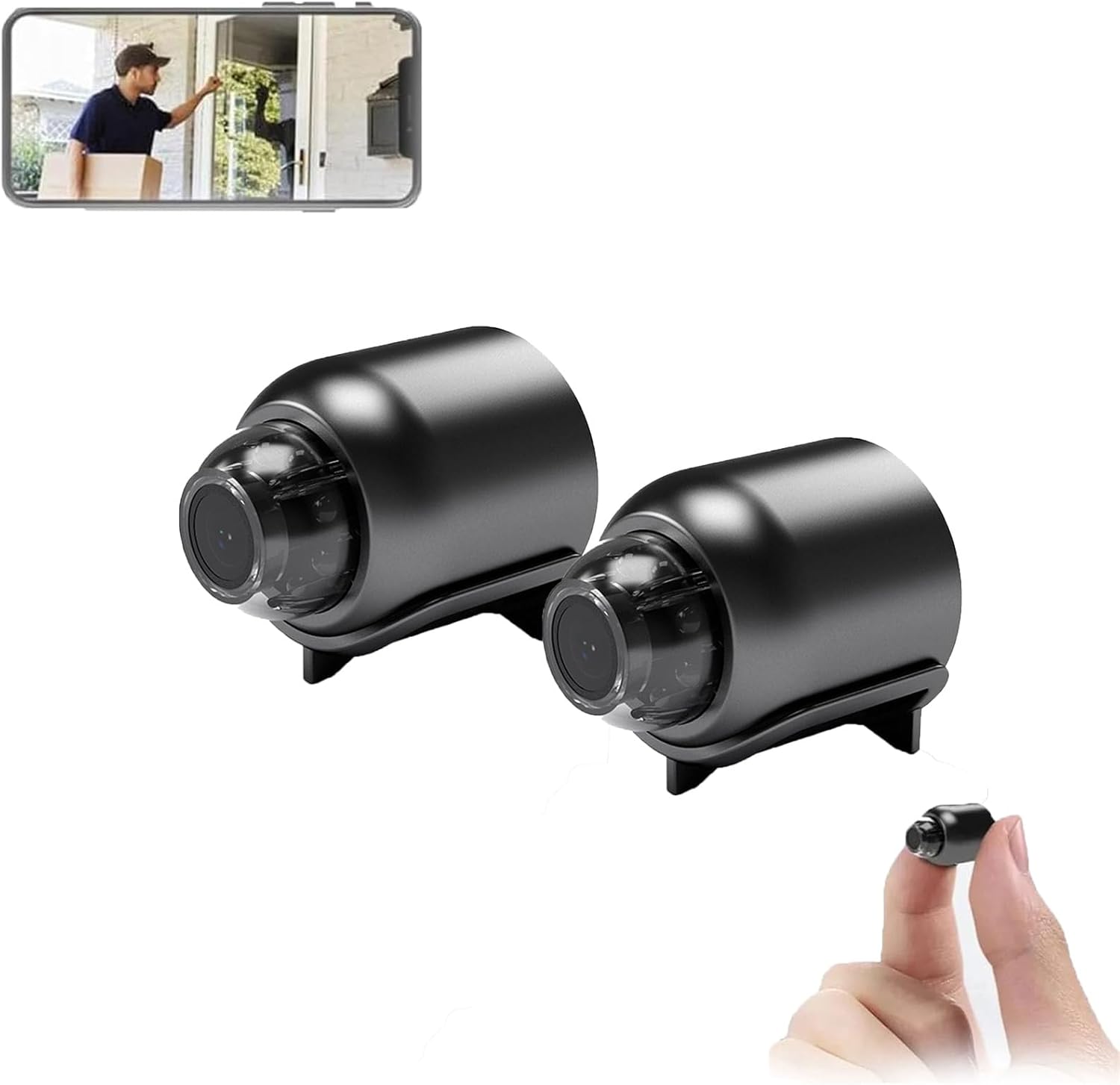
Image: Two Comsey Cat Eye Cameras, illustrating their compact size and a smartphone showing a live view from the camera, highlighting remote monitoring capabilities.
Setup Guide
Follow these steps to set up your Comsey Cat Eye Camera:
- Charge the Camera: Ensure the camera is fully charged before initial use. Connect it to a power source using the provided cable.
- Download the App: Search for the official "Cat Eye Camera" application on your smartphone's app store (compatible with Android and iOS). Install the application.
- Power On the Camera: Press and hold the power button on the camera until the indicator light illuminates.
- Connect to WiFi:
- Open the installed application on your smartphone.
- Follow the in-app instructions to add a new device. This typically involves scanning a QR code on the camera or connecting to the camera's temporary WiFi hotspot.
- Once connected to the camera's hotspot, configure the camera to connect to your home or office WiFi network.
- Mount the Camera: Utilize the magnetic rotating bracket to position the camera in your desired location. Ensure the camera has a clear view of the area you wish to monitor.
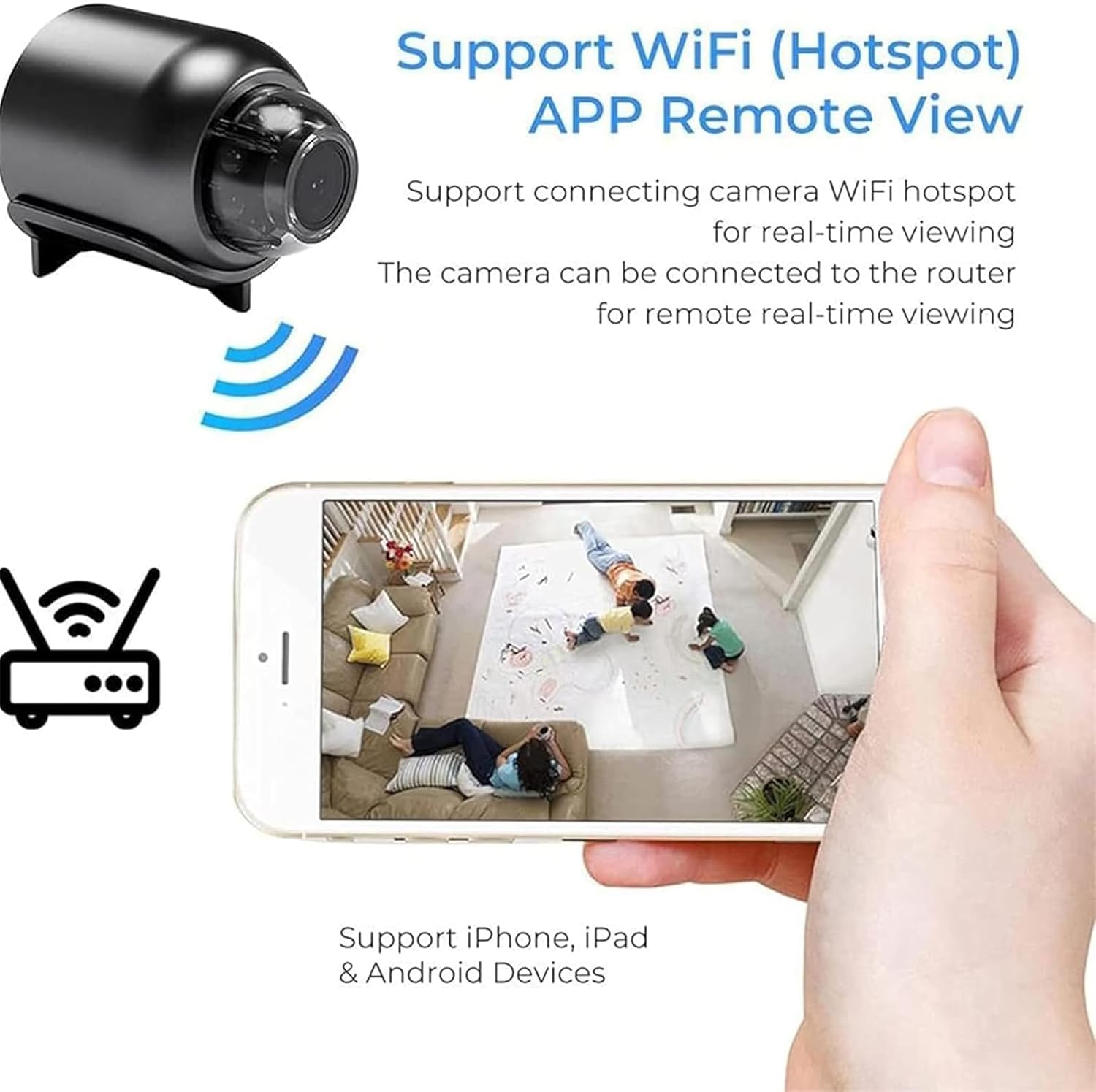
Image: A smartphone screen showing a live view from the camera, with icons indicating support for WiFi hotspot and remote viewing, demonstrating the connectivity process.
Operating Instructions
Once your camera is set up and connected, you can begin monitoring:
- Live View: Open the application on your smartphone to access the live video feed from your camera. You can view the monitored area in real-time.
- Night Vision: The camera automatically switches to night vision mode in low-light conditions, providing clear black-and-white footage.
- Recording:
- Memory Card Recording: Insert a compatible memory card (not included) into the camera for continuous or motion-activated recording. The camera supports recording even without a WiFi connection when a memory card is present.
- Remote Playback: Access recorded video files remotely through the application. You can view past footage stored on the memory card from anywhere.
- Motion Detection: Enable motion detection alerts in the app settings. You will receive notifications on your smartphone when motion is detected in the camera's field of view.
- Multi-User Access: The application may support sharing camera access with multiple authorized users. Refer to the app's specific features for details.

Image: A smartphone screen displaying a list of recorded video files, demonstrating the remote playback feature of the camera system.
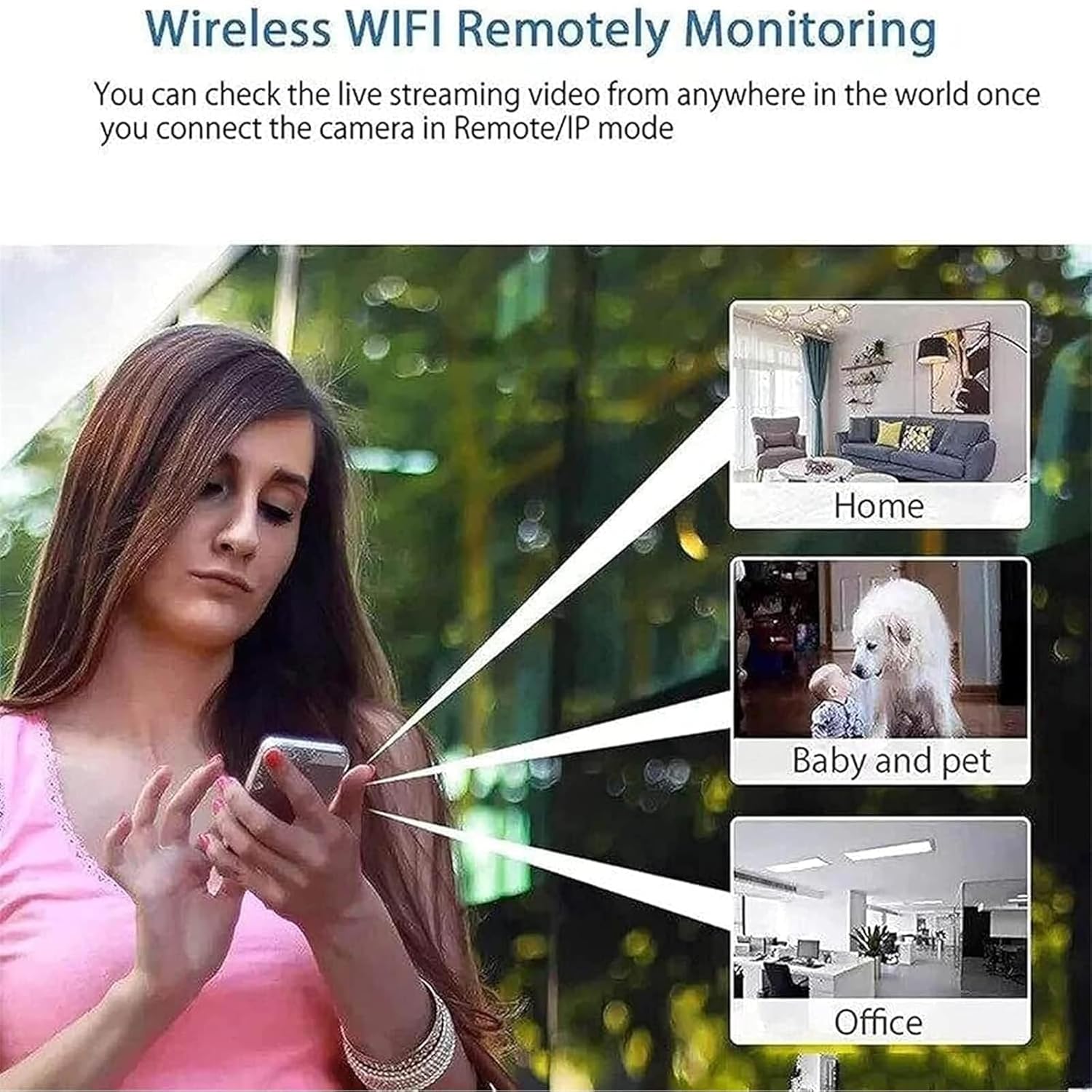
Image: A visual representation of wireless WiFi remotely monitoring, showing a user checking live streams from different locations like home, for baby and pets, and office.
Maintenance
To ensure optimal performance and longevity of your Comsey Cat Eye Camera, follow these maintenance guidelines:
- Cleaning: Gently wipe the camera lens and body with a soft, dry, lint-free cloth. Avoid using harsh chemicals or abrasive materials that could scratch the lens or damage the casing.
- Environmental Conditions: Do not expose the camera to extreme temperatures, direct sunlight for prolonged periods, or excessive moisture. The camera is designed for indoor use.
- Firmware Updates: Periodically check the companion application for any available firmware updates for your camera. Keeping the firmware updated ensures the best performance and security features.
- Memory Card Management: If using a memory card, regularly back up important footage and format the card periodically to maintain recording efficiency.
Troubleshooting
If you encounter issues with your Comsey Cat Eye Camera, refer to the following common troubleshooting steps:
- Camera Not Turning On:
- Ensure the camera is fully charged. Connect it to a power source and wait for the charging indicator.
- Verify that the power button is pressed and held correctly.
- Cannot Connect to WiFi / App Issues:
- Ensure your WiFi network is 2.4GHz, as many smart devices do not support 5GHz networks.
- Check your WiFi password for accuracy.
- Restart your WiFi router and the camera.
- Ensure the camera is within range of your WiFi router.
- Verify that the app has necessary permissions on your smartphone (e.g., network access, storage).
- If instructions are unclear, try searching for online tutorials or support resources related to the specific app.
- Poor Video Quality / Night Vision Not Working:
- Clean the camera lens with a soft cloth.
- Ensure there are no obstructions blocking the camera's view.
- For night vision, ensure the environment is sufficiently dark for the infrared lights to activate.
- Camera Size Discrepancy:
- While marketed as "mini," actual size may vary slightly from perceived size in promotional images. Refer to the product specifications for exact dimensions.
If problems persist, contact customer support for further assistance.
Specifications
| Feature | Detail |
|---|---|
| Model | B0DCNTMF6S |
| Brand | Comsey |
| Resolution | 1920x1080P (1080p HD) |
| Lens Angle | 140 degrees (Wide-angle) |
| Connectivity | Wi-Fi (2.4GHz) |
| Night Vision | Included |
| Power Supply | Power bank power supply, household power supply |
| Operating System Compatibility | Android / iOS |
| Material | ABS |
| Dimensions | 40mm x 35mm (approx. 1.57in x 1.38in) |
| Alert Type | Motion Only |
| Mounting Type | Door Mount |
Note: Dimensions are approximate and may have a slight error due to manual measurement.
Warranty and Support
For warranty information, please refer to the documentation included with your purchase or contact the seller directly. Comsey products are designed for reliability, but should you encounter any issues not covered in this manual, please reach out to customer support.
Customer Support:
- Refer to the contact information provided on the product packaging or the seller's page on the platform where you purchased the item.
- When contacting support, please have your product model (B0DCNTMF6S) and purchase details ready.
Ask a question about this manual
Ask about setup, troubleshooting, compatibility, parts, safety, or missing instructions. Manuals+ will review the question and use this page’s manual context to help answer it.