
1. Introduction
This manual provides comprehensive instructions for the setup, operation, and maintenance of your TeinenRon 10x6 Inch Graphics Drawing Tablet. Please read this guide thoroughly to ensure optimal performance and longevity of your device. This graphics tablet is designed for digital art, graphic design, online teaching, and other creative applications, offering a precise and responsive drawing experience.
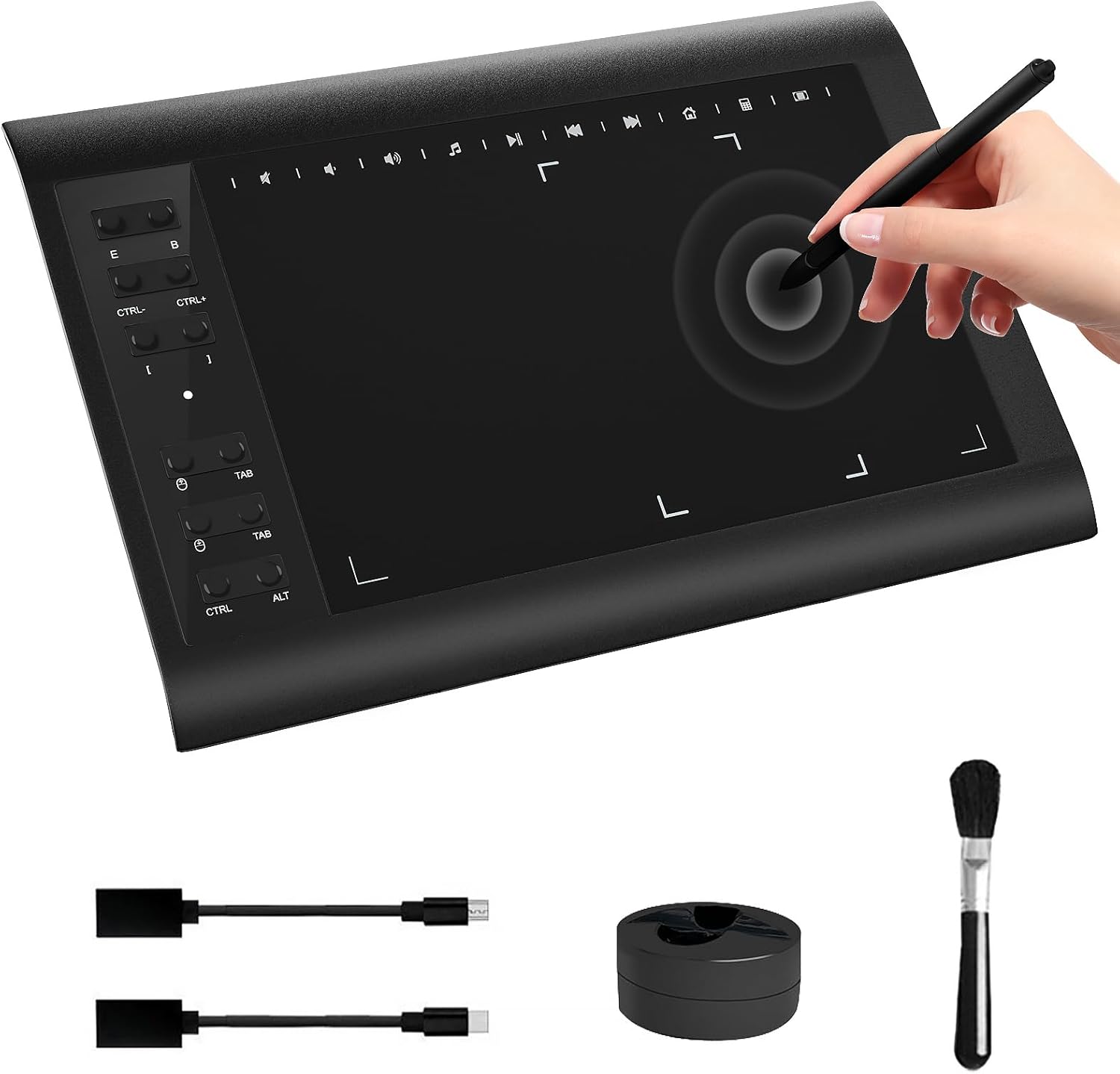
Figure 1.1: The TeinenRon 10x6 Inch Graphics Drawing Tablet, showing the tablet, battery-free stylus, USB adapters, nib holder, and cleaning brush.
2. Package Contents
Please verify that all items listed below are included in your package:
- 1 x Graphics Drawing Tablet (10x6 Inch)
- 1 x Battery-free Stylus
- 1 x Pen Holder
- 1 x USB Cable
- 1 x Type-C OTG Adapter
- 1 x Micro-USB OTG Adapter
- 1 x Cleaning Cloth
- 1 x Nibs Remove Tool
- 30 x Replacement Pen Nibs
- 2 x Glove
- 1 x Instruction Manual

Figure 2.1: A visual representation of all items included in the TeinenRon Graphics Drawing Tablet package, clearly labeled for identification.
3. Setup Guide
3.1 Driver Installation
- Download Driver: Visit the official TeinenRon website to download the latest driver compatible with your operating system (Windows or Mac).
- Uninstall Previous Drivers: If you have any other tablet drivers installed, uninstall them before proceeding to avoid conflicts.
- Install Driver: Run the downloaded installer and follow the on-screen instructions.
- Restart Computer: After installation, restart your computer to ensure the driver is properly loaded.
Note for Mac Users:
- After installation, navigate to System Preferences > Security & Privacy.
- Grant necessary permissions for the tablet driver under Accessibility, Input Monitoring, and Full Disk Access. Failure to do so may prevent the tablet from functioning correctly.
3.2 Connecting the Tablet
The TeinenRon Graphics Drawing Tablet supports connection to PCs, Macs, and Android devices.
- For PC/Mac: Connect the tablet to your computer using the provided USB cable.
- For Android Devices: Use the appropriate Type-C or Micro-USB OTG adapter to connect the tablet to your Android phone or tablet. Ensure your Android device supports OTG functionality. (Note: Not compatible with iPhone/iPad/Chromebook.)

Figure 3.1: The TeinenRon graphics tablet positioned on a wooden desk next to a laptop, illustrating a typical setup for creative work.
4. Operation
4.1 Basic Usage
Once connected and drivers are installed, the tablet's active area maps to your screen. Move the stylus across the tablet surface to control the cursor. Pressing the stylus tip to the tablet surface simulates a mouse click.
4.2 Battery-Free Stylus
The included stylus operates without batteries, providing a lightweight and responsive drawing experience. It features 8192 levels of pressure sensitivity, allowing for fine control over line thickness and opacity. The stylus also supports 60° tilt recognition, enabling natural brush strokes and shading effects.

Figure 4.1: An illustration detailing the key features of the TeinenRon battery-free stylus, including 8192 pressure levels, 60-degree tilt support, and replacement pen nibs.
4.3 Customizable Hotkeys
The tablet features 12 customizable shortcut keys and 10 media keys. These keys can be programmed through the tablet driver software to perform various functions, such as undo, redo, zoom in/out, brush size adjustment, and media playback controls. Refer to the driver software interface for detailed customization options.

Figure 4.2: A close-up view of the TeinenRon graphics tablet, highlighting its 10x6 inch large working area and the arrangement of its customizable shortcut keys.
4.4 Compatibility
The TeinenRon Graphics Drawing Tablet is compatible with a wide range of operating systems and creative software:
- Operating Systems: Windows XP/7/8/10/11, Android 4.4 and above, Mac OS 10.7.0 and above.
- Compatible Software: Supports popular applications such as Adobe Photoshop, Illustrator, Corel Painter, Clip Studio Paint, GIMP, Krita, and more.

Figure 4.3: A diagram illustrating the TeinenRon graphics tablet's extensive compatibility with various operating systems (Android, Windows, Mac) and creative software applications for both mobile and desktop use.
5. Maintenance
- Cleaning: Use the provided cleaning cloth or a soft, dry cloth to wipe the tablet surface and stylus. Avoid using harsh chemicals or abrasive materials.
- Stylus Nibs: Replace the stylus nib when it becomes worn. Use the nib removal tool to gently pull out the old nib and insert a new one.
- Storage: Store the tablet and stylus in a dry, cool place away from direct sunlight and extreme temperatures.
- Cable Care: Avoid bending or twisting the USB cable excessively to prevent damage.
6. Troubleshooting
6.1 Common Issues and Solutions
- Tablet Not Responding:
- Ensure the USB cable is securely connected to both the tablet and your computer/device.
- Restart your computer/device.
- Reinstall the tablet driver.
- Try connecting to a different USB port.
- Stylus Not Working:
- Check if the stylus nib is properly inserted. Replace if worn.
- Ensure the tablet driver is correctly installed and running.
- Test the stylus on a different area of the tablet.
- Pressure Sensitivity Not Working:
- Verify that the tablet driver is installed and calibrated.
- Check the settings within your drawing software to ensure pressure sensitivity is enabled.
- Ensure there are no conflicting drivers from other tablet devices.
- Mac OS Driver Issues:
- As noted in the setup section, ensure all necessary permissions (Accessibility, Input Monitoring, Full Disk Access) are granted in System Preferences > Security & Privacy after driver installation.
- If issues persist, check the TeinenRon support website for updated Mac drivers or specific troubleshooting steps for your macOS version.
7. Specifications
| Feature | Specification |
|---|---|
| Brand | TeinenRon |
| Model Number | HX-Tei-T1060-LJ |
| Product Dimensions | 13 x 1.6 x 0.1 inches |
| Item Weight | 2.1 pounds |
| Connectivity Technology | USB |
| Pressure Sensitivity | 8192 Levels |
| Operating System Compatibility | Windows XP/7/8/10/11, Android 4.4+, Mac OS 10.7.0+ |
| Special Feature | 60° Tilt Support |
8. Warranty and Support
For warranty information and technical support, please refer to the documentation included with your product or visit the official TeinenRon website. You may also contact the seller directly for assistance.
Visit the TeinenRon Store on Amazon for more product information and support resources.