
1. Introduction
Welcome to the user manual for your new ZCGIOBN A9T Modern Daytime Projector. This projector is designed to deliver a superior viewing experience with its 1800 ANSI Lumens brightness, 4K decoding resolution, and advanced smart features. This manual provides essential information for setting up, operating, maintaining, and troubleshooting your device to ensure optimal performance and longevity.
Please read this manual thoroughly before using the projector and keep it for future reference.
2. Setup
2.1 Unpacking and Initial Placement
Carefully remove all components from the packaging. Ensure all accessories listed in the 'What's in the Box' section are present. Place the projector on a stable, flat surface. For optimal projection, ensure the lens is clear of obstructions.

Figure 2.1: ZCGIOBN A9T Modern Projector and included remote control.
2.2 Power Connection
Connect the power adapter to the projector's power input and then plug it into a suitable electrical outlet. The power indicator light will illuminate.
2.3 Automatic Screen Adaptation
The A9T Modern projector features 3rd-Gen Uninterrupted Screen Adaptation Technology with 3D ToF+CMOS modules for real-time auto-focus, auto-keystone correction, auto-screen fit, and obstacle avoidance. This ensures a clear and perfectly aligned image automatically upon startup or movement.
- Auto-Focus: The projector automatically adjusts the image clarity.
- Auto-Keystone Correction: Corrects trapezoidal distortion to ensure a rectangular image.
- Auto-Screen Fit: Adjusts the image size to fit your projection surface.
- Obstacle Avoidance: Detects and adjusts the image to avoid objects in the projection path.

Figure 2.2: Advanced automatic screen adaptation features.
2.4 Network Connection
The projector supports both 2.4G and 5G dual-band Wi-Fi, including Wi-Fi 6 for stable streaming. To connect:
- Navigate to the Settings menu on the projector's interface.
- Select Network.
- Choose your Wi-Fi network from the list and enter the password.

Figure 2.3: Dual-Band Wi-Fi 6 connectivity for stable streaming.
3. Operating Instructions
3.1 Navigating the Android TV OS
Your A9T Modern projector runs on Android TV OS, providing access to over 8000 apps, including popular streaming services like Netflix, YouTube, and Prime Video. Use the included remote control to navigate the interface.

Figure 3.1: Access to a wide range of streaming applications.
3.2 Image Quality and Brightness
With 1800 ANSI Lumens, the projector delivers bright and clear visuals even in well-lit environments. It supports 4K decoding resolution, HDR10+, and a 20000:1 contrast ratio for stunning detail and vibrant colors.

Figure 3.2: High brightness for versatile viewing conditions.

Figure 3.3: 4K decoding and wide color gamut for superior image quality.
3.3 Audio Features
The projector is equipped with 38W HIFI speakers and DSP Enhanced Digital Sound for immersive audio. It also supports Bidirectional Bluetooth 5.2, allowing it to function as a standalone Bluetooth speaker or connect to external speakers.

Figure 3.4: Immersive audio experience with 38W speakers.

Figure 3.5: Bidirectional Bluetooth for flexible audio options.
3.4 NFC Screen Mirroring
Effortlessly mirror your phone's screen to the projector using NFC functionality. This also allows your phone to act as a remote control for enhanced user experience.

Figure 3.6: Seamless NFC screen mirroring and remote control functionality.
3.5 Connectivity Ports
The projector offers a variety of ports for connecting external devices:
- LAN port for wired network connection.
- Audio output (3.5mm Jack) for external audio systems.
- AV input.
- VGA input for older devices.
- Two HDMI ports (HDMI1, HDMI2) for high-definition input.
- Two USB ports (USB1, USB2) for media playback or connecting peripherals.

Figure 3.7: Comprehensive connectivity options.
4. Maintenance
4.1 Dustproof Optical Engine
The A9T Modern projector features a Full-Sealed Dustproof Optical Engine with a HEPA air filter. This design effectively reduces dust accumulation and prevents black spots on the screen, ensuring long-lasting image quality and extending the projector's lifespan up to 100,000 hours.
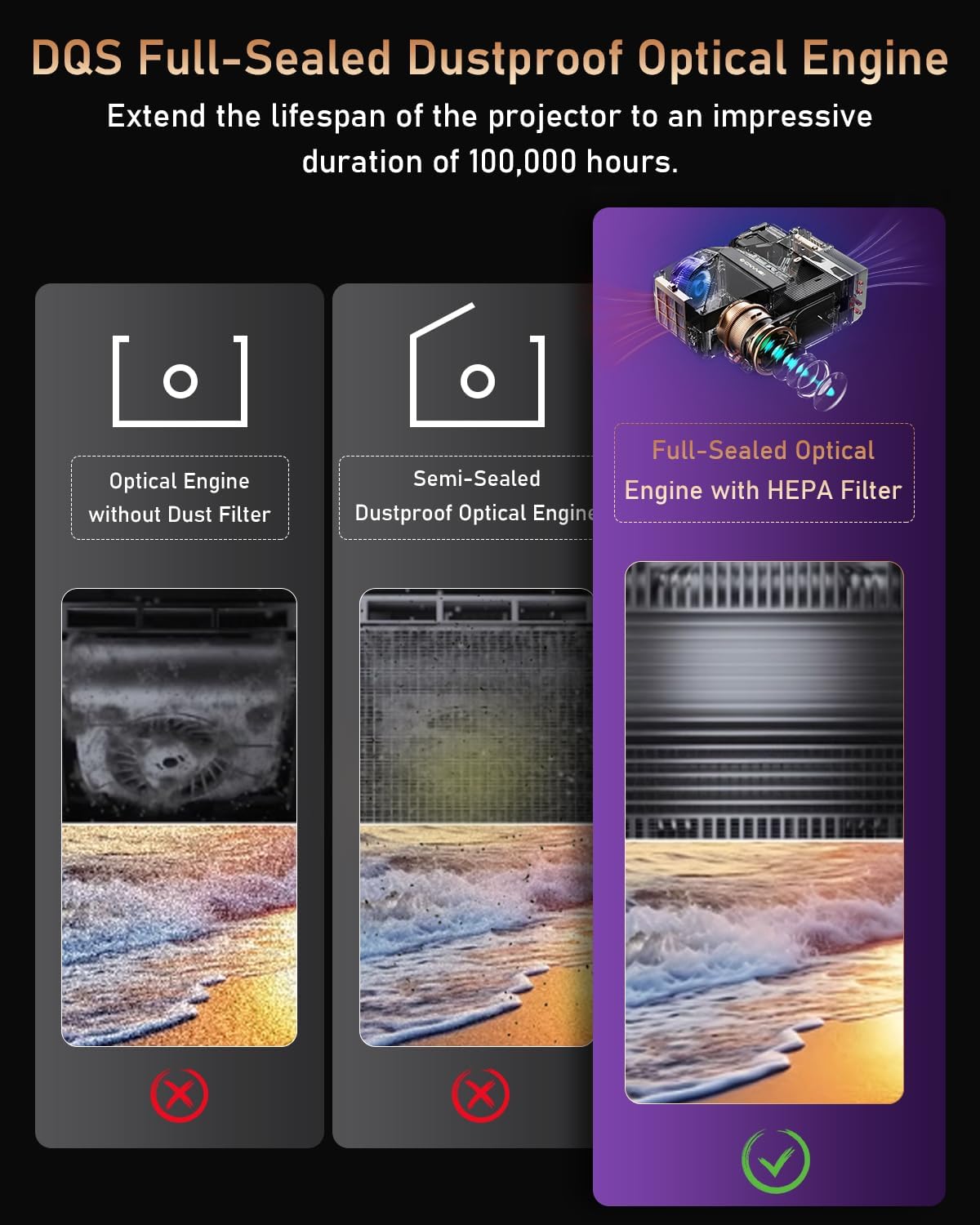
Figure 4.1: Full-sealed dustproof optical engine for enhanced durability.
4.2 General Cleaning
- Use a soft, dry cloth to clean the exterior of the projector.
- For the lens, use a lens cleaning cloth and specialized lens cleaning solution. Avoid abrasive materials.
- Ensure the projector is unplugged before cleaning.
5. Troubleshooting
If you encounter issues with your projector, please refer to the following common solutions:
| Problem | Possible Cause / Solution |
|---|---|
| No image or blurry image |
|
| Image is trapezoidal or distorted |
|
| No sound or poor sound quality |
|
| Cannot connect to Wi-Fi or streaming apps |
|
| Projector overheating or unusual noise |
|
6. Specifications
| Feature | Detail |
|---|---|
| Brand | ZCGIOBN |
| Model Number | 83fdd68e-274b-42b4-aa8f-11947d248e67 |
| Brightness | 1800 ANSI Lumens |
| Display Resolution | 1920 x 1080 (4K Decoding Supported) |
| Contrast Ratio | 20000:1 |
| Throw Ratio | 1.2:1 (100" screen at 8.7ft) |
| Operating System | Android TV OS (8000+ apps) |
| Connectivity | 3.5mm Jack, Bluetooth 5.2, USB (x2), VGA, Wi-Fi (2.4G/5G Dual-Band, Wi-Fi 6), HDMI (x2), LAN |
| Audio | 38W HIFI Speakers, DSP Enhanced Digital Sound, Bidirectional Bluetooth |
| Special Features | ToF+CMOS Laser Autofocus, Auto-Keystone, Auto-Screen Fit, Obstacle Avoidance, NFC Screen Mirroring, Full-Sealed Dustproof Optical Engine with HEPA Filter, Eye-Friendly (Anti-blue light lens, No strobe light source), Ultra-Quiet Operation (25dB) |
| Item Weight | 8.33 pounds |
| Package Dimensions | 15.05 x 13.13 x 7.33 inches |
| Max Screen Diagonal | 300" / 762 cm |
7. Warranty and Support
For warranty information, product registration, or technical support, please refer to the official ZCGIOBN website or contact their customer service directly. Keep your purchase receipt as proof of purchase for any warranty claims.
Optional protection plans are available for extended coverage:
- 2-Year Protection Plan
- 3-Year Protection Plan
- Complete Protect (monthly subscription)
These plans offer additional peace of mind beyond the standard manufacturer's warranty.