
1. Introduction
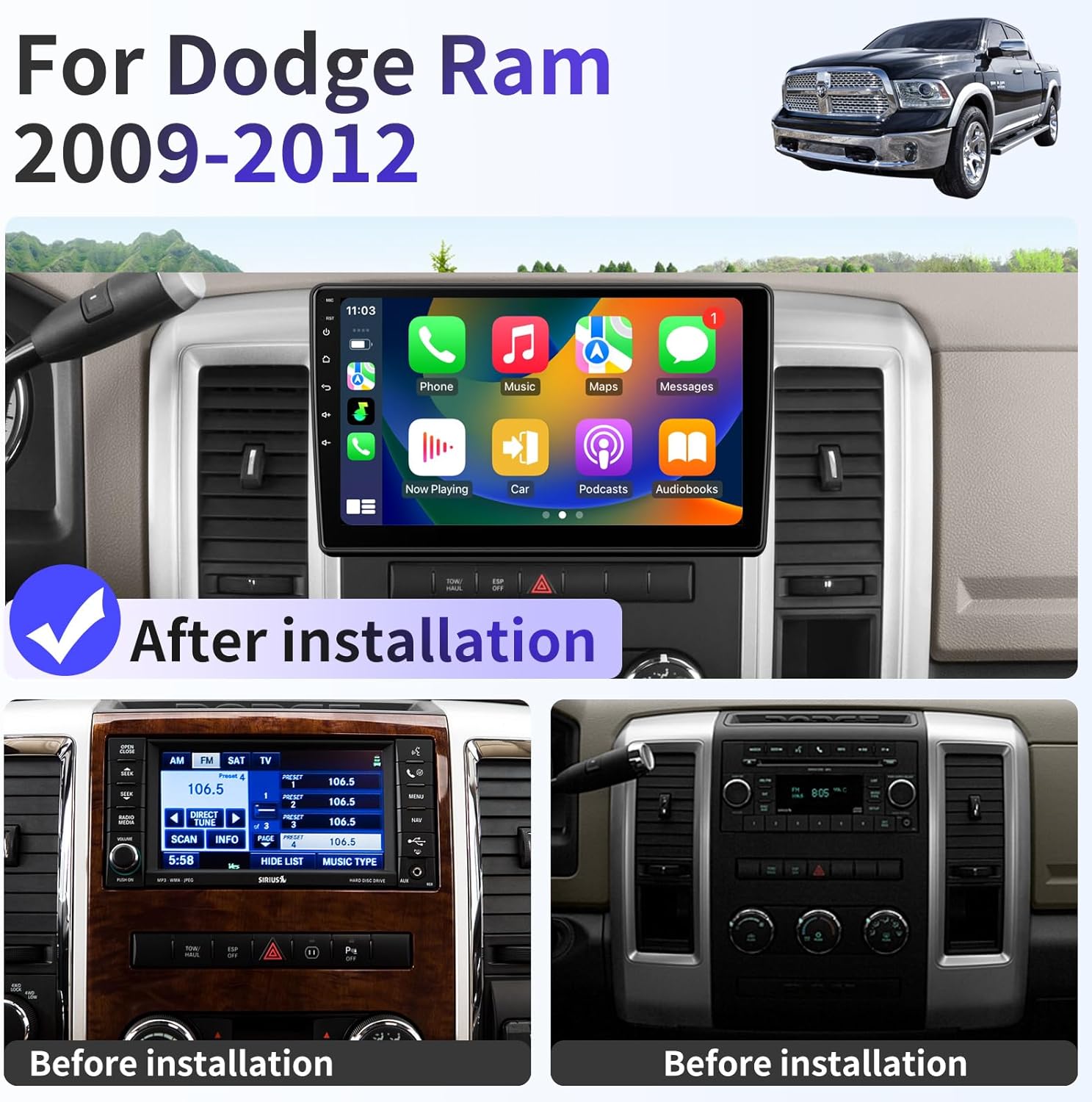
This manual provides comprehensive instructions for the installation, setup, operation, and maintenance of your new Toeeklsa Car Radio. Please read this manual thoroughly before installation and use to ensure proper functionality and to prevent damage. This unit is designed specifically for Dodge Ram 1500, 2500, and 3500 models manufactured between 2009 and 2012.
2. Safety Information
- Professional Installation Recommended: If you are not experienced with car electronics installation, it is recommended to seek professional assistance.
- Disconnect Battery: Always disconnect the vehicle's negative battery terminal before beginning any electrical installation to prevent short circuits and damage.
- Wiring: Ensure all wiring connections are secure and properly insulated to avoid electrical hazards.
- Driving Safety: Do not operate the unit in a way that distracts you from driving. Always prioritize road safety.
- Ventilation: Ensure adequate ventilation around the unit to prevent overheating.
3. Package Contents
Verify that all components are present in the package:
- Toeeklsa Car Radio Unit
- Power Cable Harness
- RCA Cables
- GPS Antenna
- USB Cables
- AHD Backup Camera (if included in package)
- Installation Tools
- User Manual
4. Installation Guide
This section outlines the general steps for installing the Toeeklsa Car Radio. Specific vehicle disassembly procedures may vary. For detailed vehicle-specific instructions, consult your vehicle's service manual or online resources.
4.1 Compatibility Check
This car radio is designed for 2009-2012 Dodge Ram 1500, 2500, and 3500 models. If you are unsure about compatibility, please send a picture of your car's central control panel to customer support for verification before installation.
4.2 Pre-Installation Steps
- Disconnect Battery: Turn off the vehicle and disconnect the negative terminal of the car battery.
- Remove Old Unit: Carefully remove the existing factory radio and trim panels.
4.3 Wiring Connections
Connect the provided wiring harness to the car radio and the vehicle's factory harness. Ensure all connections are secure. Refer to the wiring diagram below for specific connections.

Amplifier Connection: If your car is equipped with an amplifier, connect 'A' to 'A2' and connect the "AMP-CONT" line on the RCA line to the "AMP DET" line on the power line. If there is no amplifier, simply connect 'A' to 'A1'.
4.4 Mounting the Unit
Carefully install the new car radio into the dashboard opening. Secure it using the appropriate mounting brackets and screws. Reinstall any removed trim panels.
4.5 Final Steps
- Reconnect Battery: Reconnect the negative terminal of the car battery.
- Test Functionality: Turn on the vehicle and test all functions of the car radio.
5. Initial Setup
Upon first power-on, the unit may guide you through an initial setup process. This typically includes:
- Language Selection: Choose your preferred language.
- Time and Date: Set the correct time zone, date, and time.
- Wi-Fi Connection: Connect to an available Wi-Fi network for updates and online features.
- GPS Calibration: Ensure the GPS antenna is properly positioned for optimal signal reception.
6. Operating Instructions
Your Toeeklsa Car Radio features an Android 14 system with a 10.1-inch HD touchscreen, offering a range of functionalities.
6.1 Wireless CarPlay & Android Auto
The unit supports both wireless CarPlay and Android Auto for seamless smartphone integration.

For Wireless CarPlay:
- Establish a Bluetooth connection between your smartphone and the car stereo.
- Open the "Tlink5" application on the car stereo.
- Enjoy wireless Apple CarPlay functionality.
For Wireless Android Auto:
- Download the Android Auto app on your phone.
- Establish a Bluetooth connection between your smartphone and the car stereo.
- Open the "Tlink5" application on the car stereo.
- Enjoy wireless Android Auto functionality (Note: Not supported by some Samsung phones).

6.2 GPS Navigation & Wi-Fi/Hotspot
The car stereo supports Wi-Fi and hotspot connectivity, enabling access to online navigation apps and other internet-based services.
- Online/Offline Maps: Utilize GPS functionality for navigation with online or downloaded offline maps.
- Real-time Traffic: Access real-time traffic updates and advanced route planning.
- App Access: Connect to popular social media platforms and other applications via Wi-Fi or mobile hotspot.

6.3 Bluetooth 5.0 & FM Radio
The unit features Bluetooth 5.0 for stable hands-free communication and audio streaming, along with a high-quality FM radio tuner.
- Hands-Free Calling: Connect your smartphone via Bluetooth for hands-free calls, improving driving safety.
- Bluetooth Music: Stream audio directly from your Bluetooth-enabled devices.
- FM Radio: Tune into your favorite FM radio stations.


6.4 AHD Backup Camera & Steering Wheel Control
The unit supports an AHD backup camera for enhanced safety during reversing and integrates with your vehicle's steering wheel controls.
- Backup Camera: When connected to a reversing camera, the screen automatically displays the rear view when the vehicle is put into reverse gear. The camera offers HD resolution, night vision, a 170-degree wide angle, and is waterproof.
- Steering Wheel Control (SWC): Control various functions of the car stereo directly from your steering wheel buttons, such as volume, track skipping, and answering calls.


6.5 Digital Sound Processor (DSP)
The built-in DSP allows for advanced audio customization with 48-band EQ, sound adjustment, and exclusive music settings to enhance your listening experience.

6.6 Split Screen Functionality
The split-screen feature allows you to run two applications simultaneously on the display, such as a video player and a web browser.

6.7 HD Touch Screen
The unit features a 10.1-inch IPS HD touchscreen with a resolution of 1280x720, providing a clear and responsive display.

6.8 Product Demonstration Video
7. Maintenance
- Screen Cleaning: Use a soft, lint-free cloth to clean the touchscreen. Avoid abrasive cleaners or solvents.
- Software Updates: Periodically check for and install software updates to ensure optimal performance and access to new features.
- General Care: Keep the unit free from dust and extreme temperatures.
8. Troubleshooting
If you encounter issues, refer to the following common problems and solutions:
| Problem | Possible Solution |
|---|---|
| Unit does not power on | Check power connections and vehicle's fuse box. Ensure battery is properly connected. |
| No sound | Verify speaker wiring, volume settings, and amplifier connections (if applicable). |
| GPS signal lost or inaccurate | Ensure GPS antenna is installed in a clear line of sight to the sky. Check antenna connection. |
| Bluetooth connection issues | Ensure Bluetooth is enabled on both the unit and your smartphone. Try unpairing and re-pairing the devices. |
| Steering wheel controls not working | Verify SWC wiring connections. Access the unit's settings to configure or calibrate the steering wheel controls. |
| Display shows km/h instead of mph | Check the unit's system settings for a unit of measurement option (e.g., General Settings, Navigation Settings). Adjust from metric to imperial if available. |
| GPS/Cellular features not working with US SIM cards | This unit may have limitations with certain regional SIM cards for cellular data or specific GPS functionalities. Consult customer support for compatibility details regarding US SIM cards. |
If the problem persists, please contact customer support for further assistance.
9. Specifications
| Feature | Detail |
|---|---|
| Operating System | Android 14 |
| CPU | 4 Core |
| RAM | 2GB |
| ROM | 32GB |
| Display Size | 10.1 Inches |
| Resolution | 1280 x 720 |
| Connectivity | Bluetooth 5.0, Wi-Fi |
| Special Features | Wireless CarPlay, Android Auto, Touchscreen, GPS Navigation, AHD Backup Camera Support, Steering Wheel Control, DSP, FM Radio |
| Audio Output Mode | Stereo |
| Item Weight | 7.5 pounds |
| Package Dimensions | 13 x 11 x 3.5 inches |
10. Warranty and Support
Your Toeeklsa Car Radio comes with a 1-year warranty.
For any issues during installation or use, Toeeklsa provides 24-hour technical support service and a 30-day refund service.
10.1 How to Contact Support
If you require technical assistance, please follow these steps:
- Visit the seller's storefront on Amazon.
- Locate the "Ask a question" button to send your inquiry.
