
1. Introduction
The MHCOZY WIFI Smart Power Meter is designed to monitor your home's electricity usage in real-time. This device, equipped with two 80A Current Transformer (CT) clamps, allows for comprehensive measurement of voltage, current, wattage, power factor, active power, and energy consumption (kWh). It supports bilateral monitoring, making it suitable for homes with solar PV systems to track both generated and consumed energy. The meter connects to your 2.4G WiFi network and integrates with the Tuya or Smart Life mobile applications for remote monitoring and data analysis.

Image 1.1: MHCOZY WIFI Smart Power Meter module with two 80A Current Transformer clamps.
2. Safety Information
- Electrical Hazard: Installation involves working with high voltage electricity. Ensure all power supply to the equipment is turned off before installation or maintenance.
- Qualified Personnel: Installation should only be performed by qualified electricians or individuals with a thorough understanding of electrical systems.
- Avoid Contact: Do not touch the terminals of the device during testing or when power is applied.
- Indoor Use Only: This device is intended for indoor use in dry environments.
- Voltage Range: Ensure the input voltage (85-250VAC) is within the specified range for safe operation.
- CT Clamp Installation: The CT clamp can only be clipped on one phase (L line or N line) for accurate measurement.
3. Package Contents
Please verify that all items are present in the package:
- 1 x MHCOZY WIFI Smart Power Meter Module
- 2 x 80A Current Transformer (CT) Clamp Sensors
4. Specifications
| Feature | Specification |
|---|---|
| Rated Voltage | 85-250VAC, 50/60Hz |
| Accuracy | Class 1 (1%) |
| CT Current Transformer | 80A-10MM |
| Measuring Range | 0.2A to 80A |
| Data Refreshing Rate | 1 time / 15 seconds |
| Wireless Connection | 2.4G WiFi Only (5G WiFi not supported) |
| Measurements | Voltage (V), Current (A), Wattage (W), Power Factor, Active Power, Energy Consumption (kWh) |
| Operating Temperature | -20°C to 70°C |
| Dimensions | 2.87 x 1.81 x 1.14 inches |
| Model Number | TYWBDPM2CH |
5. Setup and Installation
5.1. Electrical Installation
Important: Before proceeding, ensure the main power supply to the circuit where the meter will be installed is completely turned off at the breaker.
- Power Connection: Connect the input terminals of the smart power meter to an AC 85-250V power source. The device requires a hardwired 120V power supply.
- CT Clamp Connection: Connect the two 80A Current Transformer (CT) clamps to the designated ports on the smart power meter module.
- CT Clamp Placement:
- For monitoring a specific circuit, clip each CT clamp around one of the live (L) or neutral (N) wires of the circuit you wish to monitor.
- For bidirectional metering (e.g., with solar PV), refer to the wiring diagram for correct placement to monitor both grid consumption and solar generation.
- Ensure each CT clamp is clipped around only one wire (either L or N) and not both, as this will result in inaccurate readings.
- Secure Connections: Ensure all wire connections are secure and properly insulated.
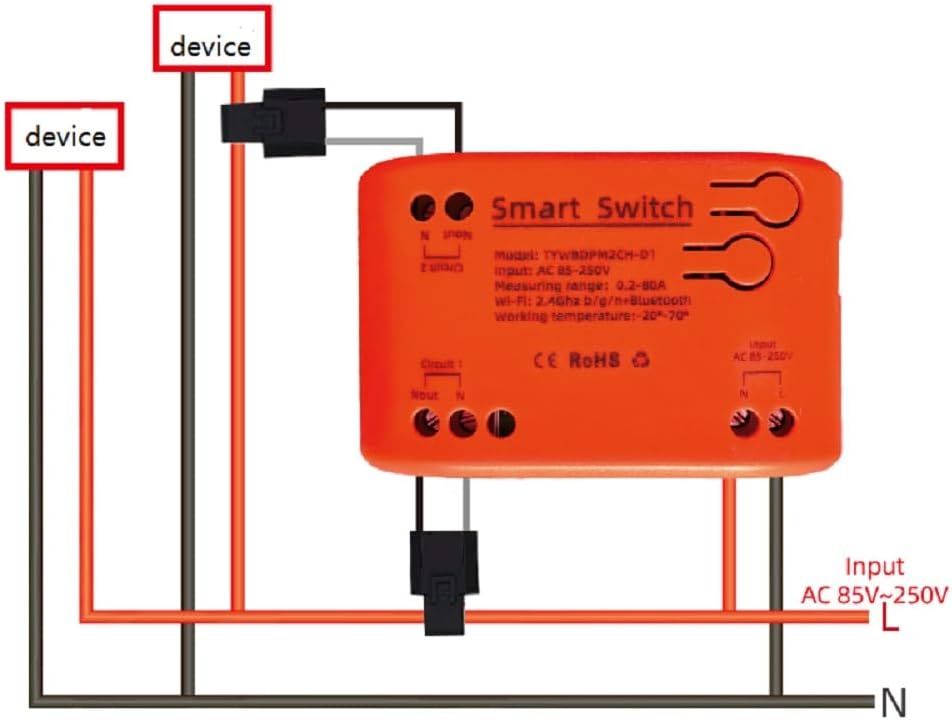
Image 5.1: Wiring diagram for the Smart Power Meter, illustrating connections for input power and CT clamps to monitor devices.
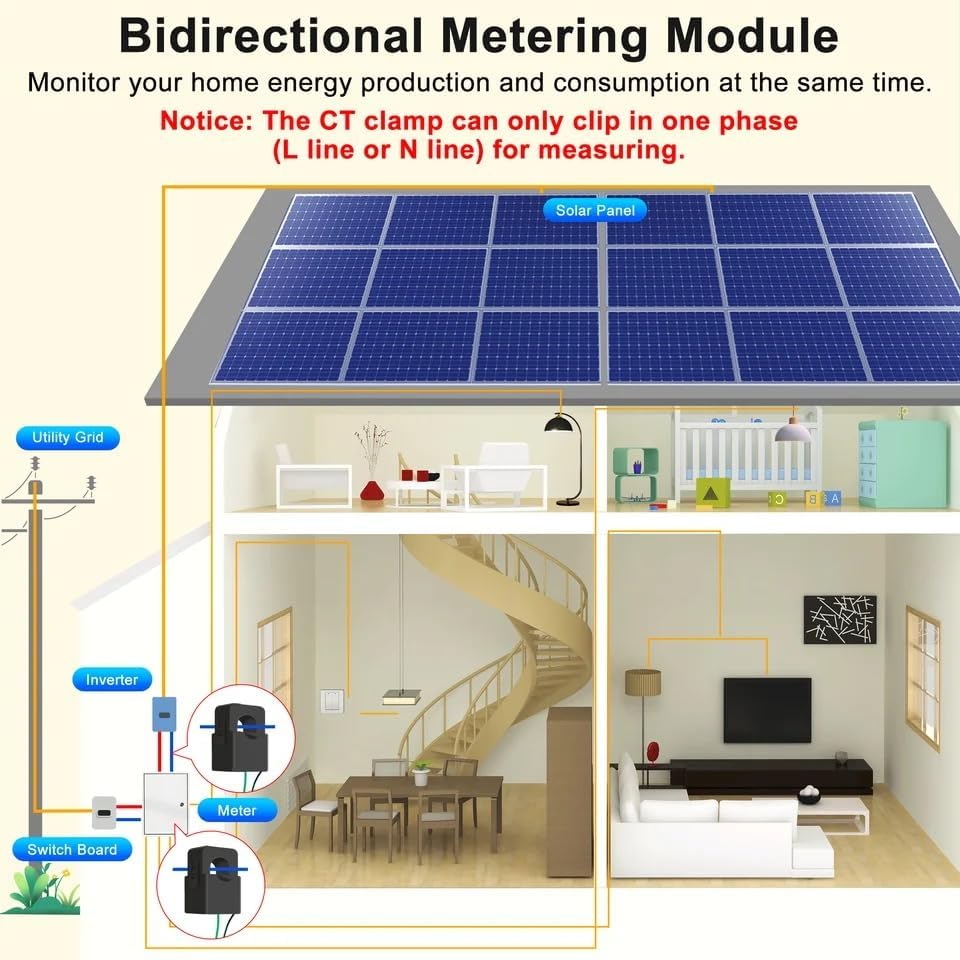
Image 5.2: Bidirectional metering setup, demonstrating how the CT clamps are positioned to monitor both energy consumption from the utility grid and energy production from solar panels.
5.2. App Installation and Wi-Fi Connection
- Download App: Download the "Tuya Smart" or "Smart Life" application from your mobile device's app store (Google Play Store for Android or Apple App Store for iOS).
- Register/Login: Open the app and register for a new account or log in with an existing one.
- Add Device:
- Restore power to the circuit where the smart meter is installed. The device should enter pairing mode (indicated by a blinking LED, refer to device LED indicator for specific pattern).
- In the app, tap the "+" icon to add a new device.
- Select the appropriate device category (e.g., "Electrical" -> "Power Meter" or "Energy Monitor").
- Follow the on-screen instructions to connect the device to your 2.4G WiFi network. Note: 5G WiFi networks are not supported.
- Device Renaming: Once connected, you can rename the device for easier identification within the app.

Image 5.3: The Smart Power Meter module with CT clamps, demonstrating its connection and the corresponding real-time data display on the Tuya/Smart Life mobile application.
6. Operating Instructions
6.1. Real-time Monitoring
Once the device is successfully connected to the Tuya Smart or Smart Life app, you can monitor your electricity usage in real-time from anywhere with an internet connection.
- Voltage (V): Displays the current line voltage.
- Current (A): Shows the real-time current draw of the monitored circuit.
- Wattage (W) / Active Power: Indicates the instantaneous power consumption.
- Power Factor: Provides insight into the efficiency of power usage.
- Energy Consumption (kWh): Accumulates the total energy consumed over time.
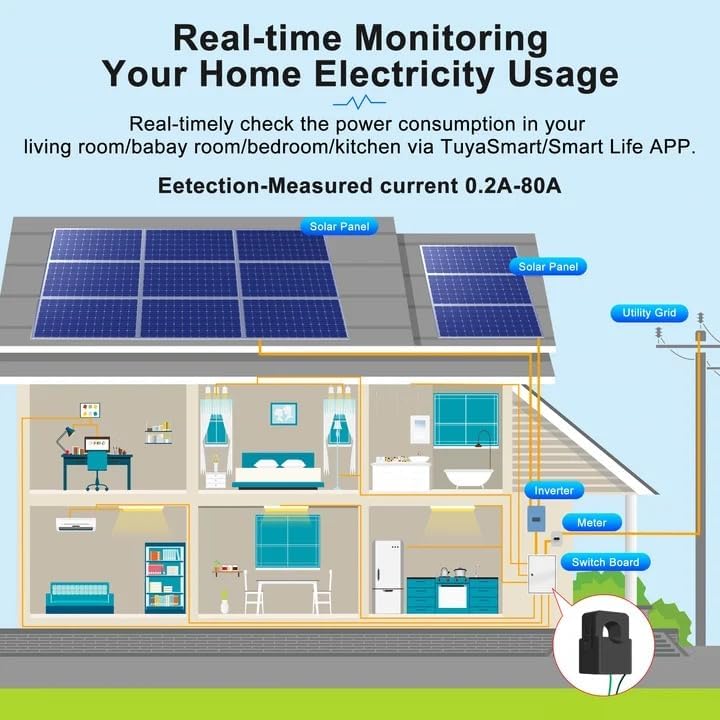
Image 6.1: Illustration of real-time electricity usage monitoring within a household, including solar panel integration, accessible through the TuyaSmart or Smart Life application.
6.2. Historical Data and Statistics
The app provides historical data, allowing you to review energy consumption patterns over various periods.
- View energy statistics by time slot, day, month, or year.
- Analyze trends to identify peak usage times and potential areas for energy savings.

Image 6.2: Screenshot of the mobile application interface, showing real-time electrical parameters (voltage, current, power) and a historical graph of total energy consumption (kWh) over a selected period.
6.3. Smart Scene Creation
Utilize the app's smart scene features to automate actions based on energy usage.
- Set up notifications for abnormal power consumption.
- Trigger other smart devices to turn off or on to avoid overload or optimize energy use.
7. Maintenance
- Cleaning: Wipe the device with a dry, soft cloth. Do not use abrasive cleaners or solvents.
- Firmware Updates: Periodically check the Tuya Smart or Smart Life app for available firmware updates to ensure optimal performance and security.
- Environmental Conditions: Ensure the device is operated within its specified temperature range and away from excessive moisture or direct sunlight.
8. Troubleshooting
| Problem | Possible Cause | Solution |
|---|---|---|
| Device does not power on. | No power supply or incorrect wiring. | Verify that the input power (AC 85-250V) is correctly wired and the circuit breaker is on. Consult a qualified electrician if unsure. |
| Cannot connect to Wi-Fi. | Incorrect Wi-Fi band (5G), weak signal, or incorrect password. |
|
| Inaccurate readings or no data. | CT clamps incorrectly installed or faulty. |
|
| App shows device offline. | Loss of internet connection or device power. |
|
9. Warranty and Support
For warranty information and technical support, please refer to the documentation provided with your purchase or contact MHCOZY customer service through their official website or the contact information available in the Tuya Smart/Smart Life application.