Introduction
This manual provides essential information for setting up, operating, maintaining, and troubleshooting your Lenovo ThinkPad T490 laptop. The ThinkPad T490 is a 14-inch laptop designed for productivity, featuring an Intel Core i7-8665U processor, 16GB DDR4 RAM, and a 1TB NVMe SSD. It comes pre-installed with Windows 11 Pro and includes a 1080p Full HD touchscreen display, USB-C Thunderbolt 3, HDMI, and an integrated webcam.
Please read this manual thoroughly to ensure proper use and to maximize the performance and longevity of your device.
What's in the Box
Upon unboxing your Lenovo ThinkPad T490, verify that the following items are included:
- Lenovo ThinkPad T490 Laptop
- AC Power Adapter
Setup
1. Connecting the Power Adapter
- Connect the AC power adapter to the USB-C power port on your laptop.
- Plug the power cord into a wall outlet.
- Allow the battery to charge sufficiently before first use, or use it while connected to power.
2. Initial Power On and Windows 11 Setup
- Open the laptop lid.
- Press the power button, typically located on the top right of the keyboard deck.
- Follow the on-screen instructions to complete the Windows 11 Pro initial setup, including language selection, network connection, and user account creation.
3. Port Identification
Familiarize yourself with the various ports and connectors on your ThinkPad T490:
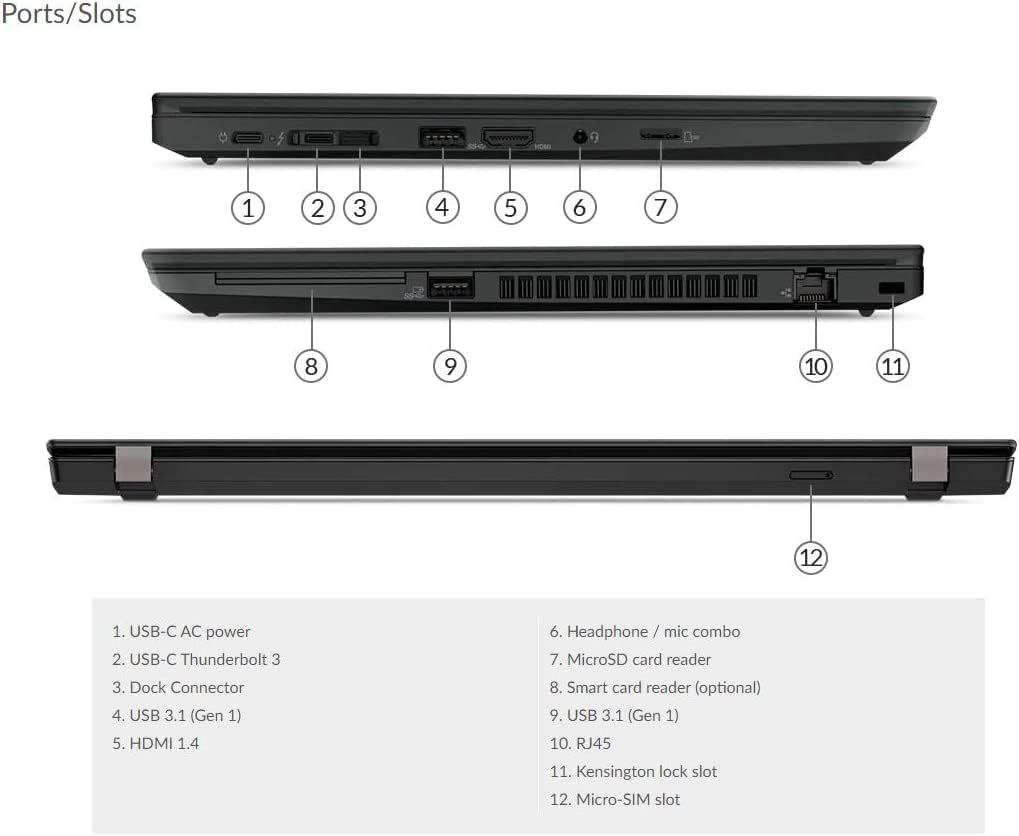
Detailed diagram illustrating the location and type of each port and slot on the ThinkPad T490, including USB-C, HDMI, USB 3.1, RJ45, and more.
- 1. USB-C AC power: For connecting the power adapter.
- 2. USB-C Thunderbolt 3: High-speed data transfer, video output, and power delivery.
- 3. Dock Connector: For connecting to a compatible docking station.
- 4. USB 3.1 (Gen 1): Standard USB port for peripherals.
- 5. HDMI 1.4: For connecting to external displays.
- 6. Headphone / mic combo: For audio input/output.
- 7. MicroSD card reader: For reading microSD memory cards.
- 8. Smart card reader (optional): For smart card authentication.
- 9. USB 3.1 (Gen 1): Another standard USB port.
- 10. RJ45: Ethernet port for wired network connection.
- 11. Kensington lock slot: For securing the laptop with a compatible lock.
- 12. Micro-SIM slot: For mobile broadband connectivity (if equipped).
Operating the Laptop
1. Power Management
- Power On: Press the power button.
- Sleep Mode: Close the lid or press the power button briefly.
- Shut Down: Click the Windows Start button, then Power > Shut down.
- Restart: Click the Windows Start button, then Power > Restart.
2. Keyboard and Input Devices
- Keyboard: Use the integrated keyboard for typing. Function keys (Fn) combined with F1-F12 provide additional controls (e.g., volume, brightness).
- TrackPoint: The red pointing stick in the center of the keyboard allows for precise cursor control. Use the three buttons below the spacebar for left-click, right-click, and scroll functions.
- Touchpad: The multi-touch touchpad below the keyboard supports gestures for navigation and control.
- Touchscreen: Interact directly with the display using touch gestures for navigation and input.
3. Connecting External Devices
- USB Devices: Connect USB drives, mice, or keyboards to the USB 3.1 ports.
- External Display: Use the HDMI port or a USB-C Thunderbolt 3 adapter to connect an external monitor or projector.
- Audio Devices: Plug headphones or external speakers into the headphone/mic combo jack.
- Network: Connect an Ethernet cable to the RJ45 port for a wired internet connection.
- Bluetooth: Enable Bluetooth in Windows settings to pair with wireless devices like headphones or mice.
4. Webcam and Microphone
The integrated webcam and microphone are located at the top of the display. They are ready for use with video conferencing applications and voice recording. Ensure the camera shutter (if present) is open for video calls.
Maintenance
1. Cleaning the Laptop
- Screen: Use a soft, lint-free cloth lightly dampened with water or a screen cleaner. Do not spray liquid directly onto the screen.
- Keyboard and Casing: Use a soft, dry cloth. For stubborn dirt, a slightly damp cloth with mild soap solution can be used, ensuring no liquid enters openings.
- Ports: Use compressed air to gently clear dust from ports.
2. Battery Care
- Avoid fully discharging the battery frequently.
- Store the laptop in a cool, dry place if not used for extended periods.
- For optimal battery health, avoid prolonged exposure to extreme temperatures.
3. Software Updates
Regularly check for and install Windows updates to ensure system stability, security, and performance. Go to Settings > Windows Update to manage updates.
4. Storage Management
Periodically review and delete unnecessary files to maintain optimal performance of your 1TB NVMe SSD. Utilize Windows Disk Cleanup or Storage Sense features.
Troubleshooting
This section addresses common issues you might encounter with your ThinkPad T490.
1. Laptop Not Powering On
- Ensure the AC adapter is securely connected to both the laptop and a working power outlet.
- Verify the power outlet is functional by plugging in another device.
- If the battery is completely drained, allow it to charge for at least 30 minutes before attempting to power on.
2. Screen Issues (No Display, Flickering)
- Adjust the screen brightness using the function keys (Fn + F5/F6).
- Connect an external monitor to the HDMI port to check if the issue is with the laptop's internal display or the graphics output.
- Restart the laptop.
3. Wi-Fi or Bluetooth Connectivity Problems
- Ensure Wi-Fi or Bluetooth is enabled in Windows settings.
- Restart your router/modem for Wi-Fi issues.
- Update network adapter drivers through Device Manager.
- Forget and reconnect to the Wi-Fi network or re-pair the Bluetooth device.
4. Slow Performance
- Close unnecessary applications running in the background.
- Check Task Manager for processes consuming high CPU or RAM.
- Ensure Windows and drivers are up to date.
- Run a disk cleanup and defragmentation (for HDD, though NVMe SSDs don't require defragging).
Specifications
Key technical specifications for the Lenovo ThinkPad T490:
| Feature | Specification |
|---|---|
| Model Name | T490 |
| Screen Size | 14 Inches |
| Screen Resolution | 1920 x 1080 pixels (Full HD) |
| Processor | Intel Core i7-8665U |
| RAM | 16 GB DDR4 |
| Storage | 1 TB NVMe SSD |
| Graphics Card | Integrated Intel Graphics |
| Operating System | Windows 11 Pro |
| Wireless Connectivity | 802.11ac, 802.11n, Bluetooth |
| Product Dimensions (LxWxH) | 0.7 x 8.94 x 12.95 inches |
| Color | Black |
Warranty and Support
This Lenovo ThinkPad T490 is a renewed product. Renewed products are fully functional and come with generic or original accessories and packaging. For specific warranty details and support, please refer to the seller's policy or contact the seller directly. Typically, renewed products come with a limited warranty or return period, such as the 90-day return policy mentioned for this product.
For technical assistance or service inquiries, please reach out to the vendor from whom you purchased this renewed laptop. They will be able to provide specific support related to your purchase.


