
Yealink MP54-TEAMS-E2
Yealink MP54-TEAMS-E2 User Manual
Model: MP54-TEAMS-E2
1. Introduction
This manual provides comprehensive instructions for the setup, operation, and maintenance of your Yealink MP54-TEAMS-E2 IP Phone. Designed for modern office environments, this device integrates advanced communication features with a user-friendly interface, optimized for Microsoft Teams.
The Yealink MP54 E2 is an Android 13-based phone offering faster response speeds and a dedicated Teams button, making it ideal for office workers, front desks, and common areas. It delivers unparalleled audio clarity with Yealink’s Optima HD Voice and Noise Proof Technology. The MP54 E2 supports SIP&Teams Hybrid mode, Wi-Fi, Bluetooth, and USB headsets for enhanced collaboration.
Key Features:
- Android 13 Operating System for enhanced performance.
- 4-inch (480 x 800) capacitive touch screen for intuitive navigation.
- Optimal HD audio with Yealink Noise Proof Technology for clear conversations.
- Dedicated Microsoft Teams Button for quick access to Teams functionalities.
- Microsoft Teams-tailored User Interface for a seamless experience.
- Built-in Bluetooth 5.2 and Dual Band 2.4G/5G Wi-Fi for flexible connectivity.
- 1 USB Type A port, supporting USB headsets.
- Dual-port Gigabit Ethernet with Power over Ethernet (PoE) support.
- Magnetic Handset for secure placement.
- Note: Power Adapter is NOT Included.
2. Package Contents
Please check the package carefully for the following items. If any item is missing or damaged, contact your vendor immediately.
- Yealink MP54-TEAMS-E2 Phone Unit
- Handset
- Handset Cord
- Ethernet Cable (Network Cable)
Note: A power adapter is not included in the package. The device supports Power over Ethernet (PoE) for power supply.
3. Product Overview
Familiarize yourself with the components of your Yealink MP54-TEAMS-E2 phone.
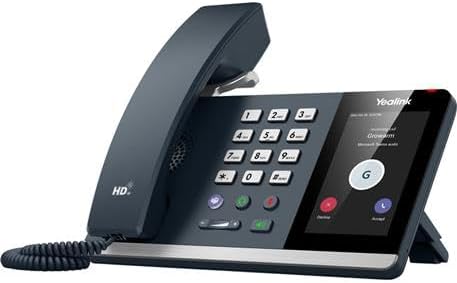
Figure 3.1: Front view of the Yealink MP54-TEAMS-E2 phone. This image displays the phone with its handset lifted, revealing the 4-inch capacitive touch screen on the right and the numeric keypad on the left. The screen shows a Microsoft Teams interface with an active call or meeting. The phone's sleek design and the "Yealink" logo are visible.

Figure 3.2: Front view of the Yealink MP54-TEAMS-E2 phone with handset on-hook. This image shows the phone in an idle state, with the handset resting securely on the base. The touch screen displays the current time and date, along with various icons representing common functions like calls, contacts, and voicemail. The keypad is clearly visible.
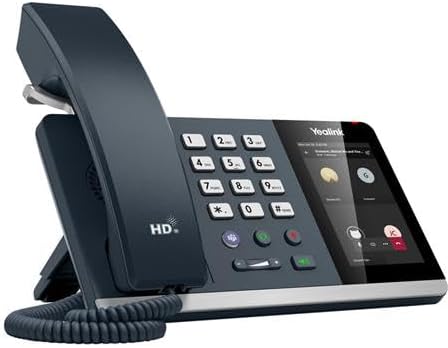
Figure 3.3: Angled view of the Yealink MP54-TEAMS-E2 phone. This perspective highlights the ergonomic design of the phone, showing the slight tilt of the main unit and the magnetic attachment point for the handset. The side profile of the handset and the base are visible, emphasizing its compact and modern form factor.
Physical Components:
- Handset: Ergonomically designed for comfortable calls, featuring a magnetic attachment.
- Keypad: Standard numeric keypad (0-9, *, #) along with navigation and function keys.
- 4-inch Capacitive Touch Screen: Main interface for navigating menus, contacts, and Teams functionalities.
- Dedicated Teams Button: Quick access to Microsoft Teams features.
- Function Keys: Context-sensitive keys for various operations.
- Volume Control: Buttons to adjust handset, speaker, and headset volume.
- USB Type-A Port: For connecting USB headsets or other compatible accessories.
- Ethernet Ports (2x Gigabit): For network connection and PoE.
4. Setup
4.1 Connecting the Phone
- Connect the Handset: Plug one end of the handset cord into the handset port on the phone base and the other end into the handset.
- Connect to Network (PoE):
- Connect one end of the Ethernet cable to the Internet port on the phone.
- Connect the other end of the Ethernet cable to a Power over Ethernet (PoE) enabled switch or hub. The phone will power on automatically.
- (Optional) Connect USB Headset: If using a USB headset, plug it into the USB Type-A port on the phone.
Important: This model does not include a power adapter. Ensure your network infrastructure supports PoE for proper operation.
4.2 Initial Boot-up and Configuration
Upon first boot-up, the phone will display the Yealink logo and then proceed to load the Android 13 operating system and Microsoft Teams application. This process may take a few minutes.
- Network Connection: The phone will attempt to obtain an IP address via DHCP. If successful, it will connect to your network.
- Microsoft Teams Sign-in: Follow the on-screen prompts to sign in to your Microsoft Teams account. You may need to enter your credentials or use a device code for authentication.
- Time and Date: The phone will typically synchronize time and date automatically from the network.
5. Operating Instructions
5.1 Basic Call Functions
- Making a Call:
- Lift the handset or press the Speakerphone button.
- Dial the number using the keypad or select a contact from the Teams interface.
- Press the Call button on the screen or the green call button on the keypad.
- Answering a Call:
- Lift the handset or press the Speakerphone button when the phone rings.
- Alternatively, tap the "Answer" button on the touch screen.
- Ending a Call:
- Replace the handset or press the "End Call" button on the screen or the red hang-up button on the keypad.
- Adjusting Volume: Use the volume control buttons on the phone to adjust the volume during a call or for the ringer.
5.2 Microsoft Teams Integration
The Yealink MP54-TEAMS-E2 is optimized for Microsoft Teams, providing a dedicated user interface and button for seamless collaboration.
- Dedicated Teams Button: Press the Teams button to quickly access your Teams dashboard, including chats, calls, calendar, and contacts.
- Calendar: View your Teams calendar and join scheduled meetings directly from the phone's screen.
- Chat: Access and respond to Teams chats.
- Contacts: Synchronize and manage your Teams contacts.
- Voicemail: Listen to your Teams voicemails directly from the phone.
5.3 Wi-Fi and Bluetooth Connectivity
- Wi-Fi:
- Navigate to Settings on the touch screen.
- Select "Wi-Fi" and choose your desired network.
- Enter the password if prompted.
- Bluetooth:
- Navigate to Settings on the touch screen.
- Select "Bluetooth" and enable it.
- Pair with compatible Bluetooth headsets or devices.
6. Maintenance
Proper maintenance ensures the longevity and optimal performance of your Yealink MP54-TEAMS-E2 phone.
- Cleaning:
- Use a soft, dry, and lint-free cloth to clean the phone's surface and screen.
- For stubborn marks, slightly dampen the cloth with water or a mild, non-abrasive cleaner.
- Do not use harsh chemicals, abrasive cleaners, or aerosol sprays directly on the phone.
- Environmental Conditions:
- Keep the phone away from direct sunlight, heat sources, and excessive moisture.
- Avoid placing the phone in dusty environments.
- Cable Management: Ensure all cables are neatly arranged and not kinked or strained to prevent damage.
7. Troubleshooting
This section addresses common issues you might encounter with your Yealink MP54-TEAMS-E2 phone.
| Problem | Possible Cause | Solution |
|---|---|---|
| Phone does not power on. | No PoE connection or faulty Ethernet cable. | Ensure the Ethernet cable is securely connected to a PoE-enabled port. Try a different Ethernet cable or PoE port. |
| No dial tone or cannot make calls. | Network issue, incorrect Teams/SIP registration, or account problem. | Check network cable connection. Verify your Teams account is signed in correctly. Contact your IT administrator for network or account issues. |
| Poor audio quality (echo, static). | Network congestion, faulty handset/headset, or environmental noise. | Check network stability. Try a different handset or headset. Ensure Yealink Noise Proof Technology is enabled in settings if available. |
| Touch screen unresponsive. | Temporary software glitch. | Restart the phone by unplugging and re-plugging the Ethernet cable. If the issue persists, contact support. |
| Cannot connect to Wi-Fi or Bluetooth. | Incorrect password, out of range, or device not discoverable. | Double-check Wi-Fi password. Ensure the phone is within range of the Wi-Fi network or Bluetooth device. Make sure the Bluetooth device is in pairing mode. |
8. Specifications
| Feature | Detail |
|---|---|
| Model Number | MP54-TEAMS-E2 |
| Operating System | Android 13 |
| Display | 4-inch (480 x 800) capacitive touch screen |
| Audio Technology | Optimal HD audio, Yealink Noise Proof Technology |
| Connectivity | Built-in Bluetooth 5.2, Dual Band 2.4G/5G Wi-Fi |
| Ports | 1 USB Type A port, Dual-port Gigabit Ethernet (PoE support) |
| Power Source | PoE (Power Adapter NOT Included) |
| Dimensions (L x W x H) | 10 x 8 x 5 inches (approximate) |
| Item Weight | 2.18 pounds (approximate) |
| Material | Plastic |
| Color | Gray |
| Compatible Devices | SIP, Microsoft Teams, VoIP services, communication devices |
| Recording Capacity | 16 Minutes (Digital Answering System) |
9. Warranty and Support
Yealink products are designed for reliability and performance. For specific warranty terms and conditions, please refer to the warranty card included with your product or visit the official Yealink website.
For technical support, troubleshooting assistance beyond this manual, or service inquiries, please contact your vendor or Yealink customer support through their official channels. Ensure you have your product model number (MP54-TEAMS-E2) and serial number ready when contacting support.
Online Resources:
- Official Yealink Website: www.yealink.com
- Product Support Page: (Refer to Yealink's website for the specific MP54-TEAMS-E2 support page)