
PIONEER DMH-A5650BT
Pioneer DMH-A5650BT 6.8" AV Receiver User Manual
Model: DMH-A5650BT
1. Introduction
This manual provides detailed instructions for the proper installation, operation, and maintenance of your Pioneer DMH-A5650BT 6.8" AV Receiver. Please read this manual thoroughly before using the product to ensure safe and optimal performance.
The Pioneer DMH-A5650BT is a 6.8" capacitive touch screen AV receiver featuring wireless Apple CarPlay, wireless Android Auto, dual Bluetooth mobile connection, and mirroring by Weblink Cast. It includes a new 1-DIN short chassis design, reverse camera input, AM/FM tuner, and USB with full HD video playback support.
2. Safety Information
Always observe the following safety precautions to prevent accidents and damage to the unit.
- Do not operate the system while driving. Distraction can lead to accidents.
- Ensure proper wiring and installation to prevent electrical shorts or fire hazards. Consult a qualified technician for installation if unsure.
- Keep the volume at a level that allows you to hear outside sounds, such as emergency vehicles.
- Avoid exposing the unit to extreme temperatures, direct sunlight for prolonged periods, or excessive moisture.
3. Package Contents
Verify that all items are present in the package:
- Pioneer DMH-A5650BT AV Receiver Unit
- Power/Speaker Harness
- USB Extension Cable
- Microphone
- Mounting Screws
- User Manual (this document)
- Warranty Card
4. Setup and Installation
4.1. Wiring Diagram
Refer to the wiring diagram provided in the separate installation guide for detailed connections. Ensure all connections are secure and insulated.
4.2. Mounting the Unit
The DMH-A5650BT features a 1-DIN short chassis design for flexible installation. Securely mount the unit in your vehicle's dashboard using the provided mounting screws and brackets. Ensure adequate ventilation around the unit.
4.3. Initial Power On and Settings
After installation, turn on your vehicle's ignition. The unit should power on. Follow the on-screen prompts for initial setup, including language selection and time zone settings.

Figure 4.3.1: Front view of the Pioneer DMH-A5650BT AV Receiver showing the main interface with app icons.
5. Operating Instructions
5.1. Touch Screen Operation
The 6.8" capacitive touch screen allows for intuitive control. Tap icons to select functions, swipe to navigate menus, and use pinch-to-zoom gestures where applicable.
5.2. Audio Functions
- Radio (AM/FM): Select the "Radio" icon to access the AM/FM tuner. Use the on-screen controls to tune stations, save presets, and switch bands.
- Bluetooth Audio: Pair your mobile device via Bluetooth to stream audio. Select the "Bluetooth Audio" icon and follow the pairing instructions on screen and on your device.
- USB Playback: Connect a USB device to the USB port for audio and video playback. The unit supports full HD video playback.
- Equalizer (DSP): Access the equalizer settings to customize audio output. Adjust bass, treble, and other sound characteristics to your preference.
5.3. Smartphone Integration
5.3.1. Wireless Apple CarPlay
Connect your iPhone wirelessly to access Apple CarPlay features. Ensure Wi-Fi and Bluetooth are enabled on your iPhone. Select the "Apple CarPlay" icon on the receiver's screen. Follow the prompts to establish the connection.

Figure 5.3.1: Apple CarPlay interface on the DMH-A5650BT.
5.3.2. Wireless Android Auto
Connect your Android phone wirelessly to use Android Auto. Ensure Wi-Fi and Bluetooth are enabled on your Android device. Select the "Android Auto" icon on the receiver's screen. Follow the prompts to establish the connection.
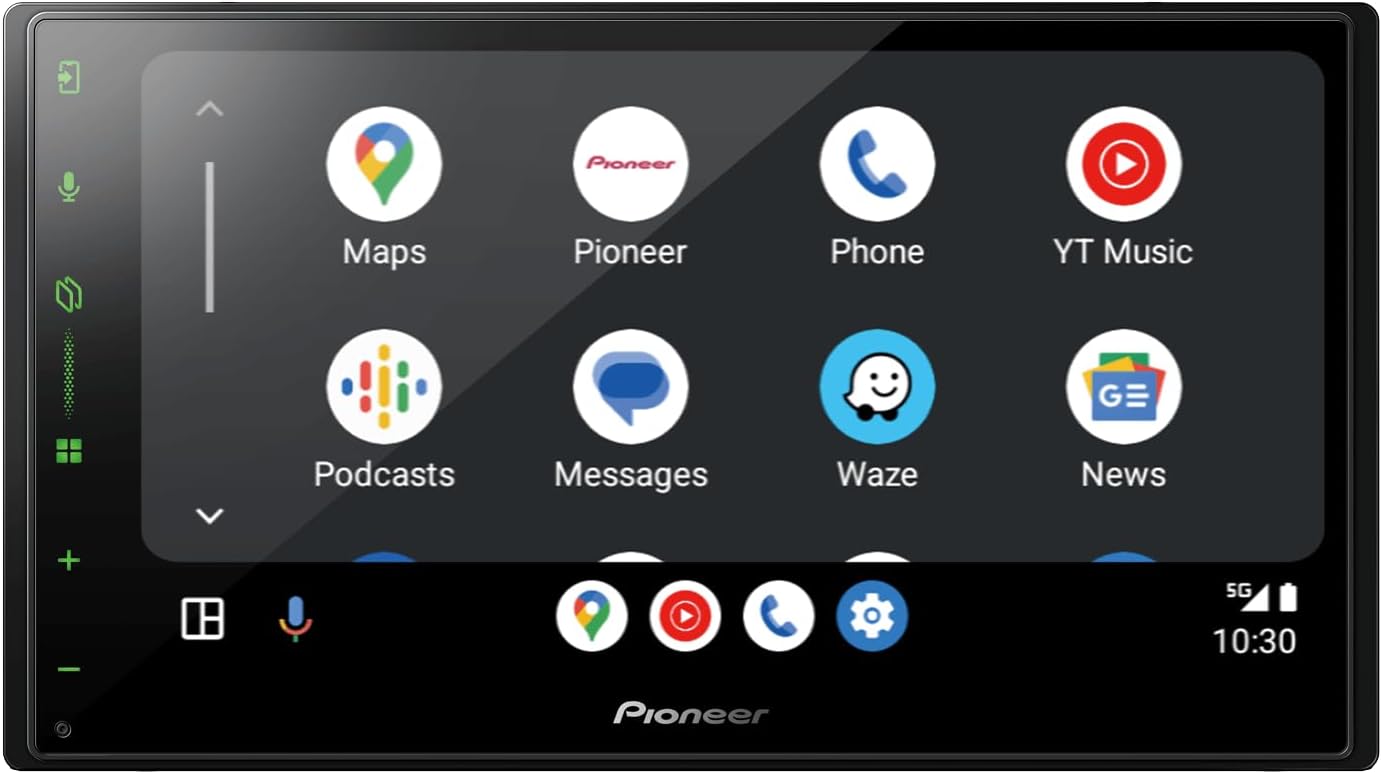
Figure 5.3.2: Android Auto interface on the DMH-A5650BT.
5.3.3. Mirroring by Weblink Cast
The unit supports mirroring your smartphone screen via Weblink Cast (cable connection required). Connect your smartphone using a compatible USB cable and select the "WebLink" icon. Follow the on-screen instructions to enable mirroring.
5.4. Reverse Camera Input
If a compatible reverse camera is connected, the display will automatically switch to the camera view when the vehicle is put into reverse gear. This feature enhances safety during parking and maneuvering.
6. Maintenance
- Cleaning the Screen: Use a soft, dry cloth to wipe the touch screen. For stubborn smudges, slightly dampen the cloth with water or a screen-safe cleaner. Do not use abrasive cleaners or solvents.
- General Cleaning: Keep the unit free from dust and debris. Use a soft brush or compressed air to clean vents and button areas.
- Firmware Updates: Periodically check the Pioneer website for firmware updates to ensure optimal performance and compatibility. Follow the instructions provided with the update files carefully.
7. Troubleshooting
| Problem | Possible Cause | Solution |
|---|---|---|
| No power | Incorrect wiring; Blown fuse | Check power connections; Replace fuse if necessary. |
| No sound | Speaker wires disconnected; Volume too low; Mute activated | Check speaker connections; Increase volume; Deactivate mute. |
| Bluetooth not connecting | Device not in pairing mode; Interference; Unit not discoverable | Ensure device is in pairing mode; Move closer to unit; Reset Bluetooth on both devices. |
| Apple CarPlay/Android Auto not launching | Incorrect USB cable; Software issue on phone; Permissions not granted | Use a certified USB cable; Restart phone and unit; Check app permissions on phone. |
If the problem persists after attempting these solutions, contact Pioneer customer support or a qualified service center.
8. Specifications
| Feature | Specification |
|---|---|
| Model Number | DMH-A5650BT |
| Screen Size | 6.8 inches |
| Display Type | Capacitive Touch Screen |
| Connectivity | Bluetooth, USB, Wireless (Wi-Fi for CarPlay/Android Auto) |
| Smartphone Integration | Wireless Apple CarPlay, Wireless Android Auto, Weblink Cast |
| Built-in Amplifier | MOSFET 50W x 4 |
| Tuner | AM/FM |
| Video Playback | Full HD via USB |
| Dimensions (Product) | 25.4 x 25.4 x 16.5 cm |
| Item Weight | 1.85 Kilograms |
9. Warranty and Support
9.1. Warranty Information
This product is covered by a manufacturer's warranty. Please refer to the warranty card included in your package for specific terms and conditions, including warranty period and coverage details. Keep your proof of purchase for warranty claims.
Extended warranty options may be available from third-party providers:
- 2-Year Extended Warranty by Salama Care
- 1-Year Extended Warranty by Salama Care
9.2. Customer Support
For technical assistance, troubleshooting, or service inquiries, please contact Pioneer customer support. Visit the official Pioneer website for contact information and additional resources.
Pioneer Official Website: www.pioneer-car.eu