1. Introduction
This user manual provides comprehensive instructions for the operation and maintenance of the V020 Car Scanner. The V020 is a state-of-the-art automotive fault diagnosis tool designed for modern vehicles, offering seamless connectivity and comprehensive diagnostic capabilities. It utilizes an OBD2 interface to identify and resolve various vehicle issues.
Please read this manual thoroughly before using the device to ensure proper operation and to maximize its benefits.

Image 1.1: The V020 Car Scanner device. This compact device connects to your vehicle's OBD2 port for diagnostic functions.
2. Key Features
The V020 Car Scanner offers a range of functionalities to assist with vehicle diagnostics:
- One-Click Automatic Connection: Effortlessly pairs with your vehicle for immediate diagnostics.
- Dedicated APP Pairing: Syncs with an exclusive mobile application for enhanced control and insights.
- Automotive Fault Diagnosis: Utilizes the OBD2 interface to diagnose a wide range of vehicle issues.
- Read Engine Fault Codes: Quickly identifies Diagnostic Trouble Codes (DTCs) indicating vehicle malfunctions.
- Clear Trouble Codes: Resets the vehicle's system and turns off the Malfunction Indicator Light (MIL) after repairs.
- Vehicle Information: Provides access to vital data about your car's performance and health, including VIN and calibration numbers.
- Battery Voltage Reading: Monitors the vehicle's battery health.
- Monitored Test and Freeze Frame Data Stream: Captures and analyzes critical data points during tests and at the moment a fault code is set.
- Performance Test: Evaluates vehicle capabilities such as acceleration and braking performance.
- MIL (Malfunction Indicator Light) Status: Checks the status of your vehicle's warning system.
- Multi-language Support: Supports English, German, French, Spanish, Russian, Chinese, Japanese, and Uygur languages.
- Operating System Compatibility: Supports Apple iOS and Android operating systems for the dedicated app.

Image 2.1: Screenshot of the V020 Car Scanner app interface, highlighting major functions such as reading/clearing fault codes, vehicle information, and battery voltage reading.
3. Specifications
The following table details the technical specifications of the V020 Car Scanner:
| Parameter | Value |
|---|---|
| Product Model | V020 |
| Operating Voltage | 9-16V |
| Operating Environment Temperature | -20 to 65°C (-4 to 149°F) |
| Storage Temperature | -30 to 70°C (-22 to 158°F) |
| Product Size | 62.5 x 46.4 x 23.5 mm |
| Product Weight | 27g (Product only) / 42g (with packaging) |
| Supported Languages | English, German, French, Spanish, Russian, Chinese, Japanese, Uygur |
| Power Source | Corded Electric (via OBD2 port) |
| Manufacturer | CHAOYUE |

Image 3.1: Visual representation of the V020 Car Scanner's specification parameters, including dimensions, weight, and operating conditions.
4. Setup and Initial Connection
Follow these steps to set up your V020 Car Scanner and establish an initial connection:
- Locate the OBD2 Port: The OBD2 port is typically located under the dashboard on the driver's side of the vehicle. Refer to your vehicle's owner's manual if you cannot find it.
- Connect the V020 Scanner: Firmly plug the V020 Car Scanner into the vehicle's OBD2 port. Ensure a secure connection. The device will power on automatically.
- Download the Dedicated App: Search for the official V020 diagnostic app on your mobile device's app store (Apple App Store for iOS or Google Play Store for Android). Download and install the app.
- Enable Bluetooth: On your mobile device, ensure Bluetooth is enabled.
- Open the App and Connect: Launch the V020 app. The app will automatically detect and attempt to connect to the V020 Car Scanner via Bluetooth. Follow any on-screen prompts to complete the pairing process.

Image 4.1: The V020 Car Scanner connecting automatically via Bluetooth to the dedicated mobile application. The app initializes and displays connection status.
5. Operating Instructions
Once connected, the V020 app provides access to various diagnostic functions. Ensure your vehicle's ignition is in the "ON" position (engine off or running, depending on the test) for accurate readings.
5.1. Reading and Clearing Engine Fault Codes
This function allows you to identify and clear Diagnostic Trouble Codes (DTCs) that trigger the Malfunction Indicator Light (MIL).
- From the main app interface, select "Read Trouble Codes" or a similar option.
- The app will scan the vehicle's systems and display any stored, pending, or permanent DTCs.
- To clear codes, select "Clear Trouble Codes" or "Clear MIL". Confirm the action when prompted. This will turn off the MIL.
Note: Clearing codes only turns off the light; it does not fix the underlying problem. Address the issue before clearing codes to prevent recurrence.
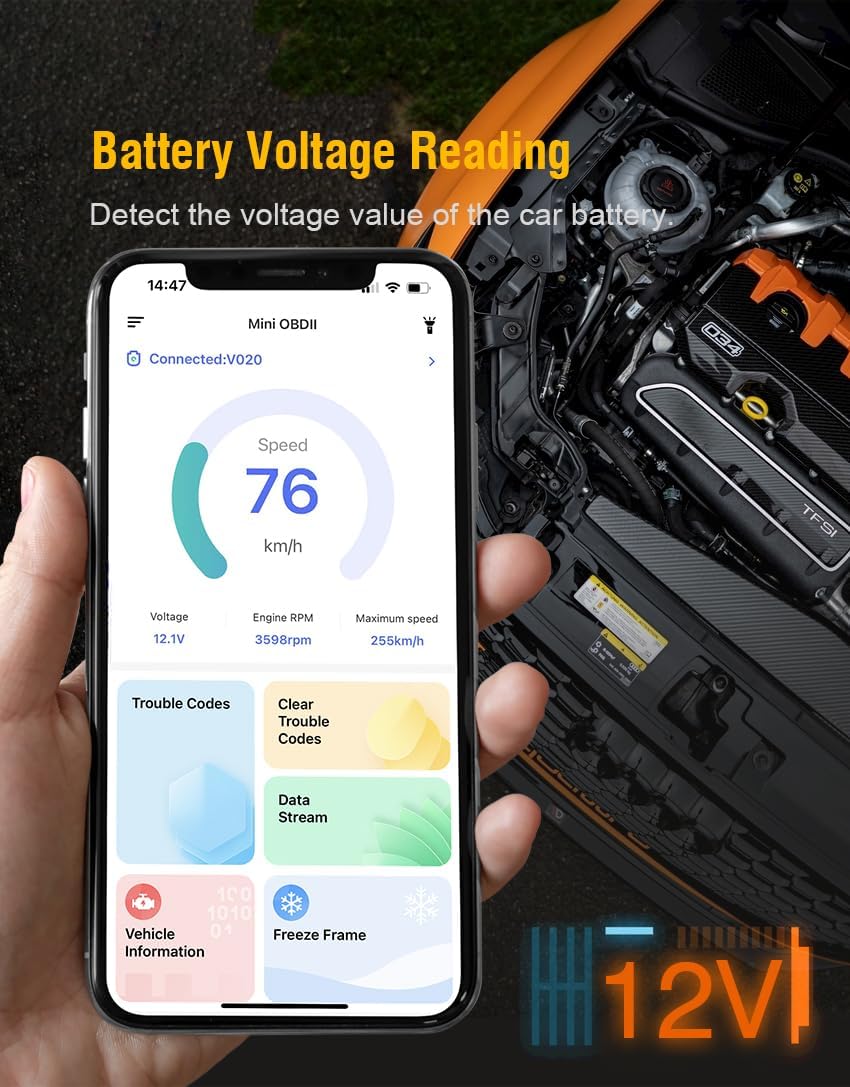
Image 5.1: The V020 app displaying a list of engine fault codes (DTCs) and the option to clear them, demonstrating the process of turning off the Malfunction Indicator Light.
5.2. Vehicle Information
Access important vehicle identification and calibration data.
- Select "Vehicle Information" from the app menu.
- View details such as Vehicle Identification Number (VIN), Calibration Identification (CAL ID), and Calibration Verification Numbers (CVN).
5.3. Battery Voltage Reading
Monitor your vehicle's battery voltage in real-time.
- Navigate to the "Battery Voltage Reading" section in the app.
- The app will display the current battery voltage, helping you assess its health.
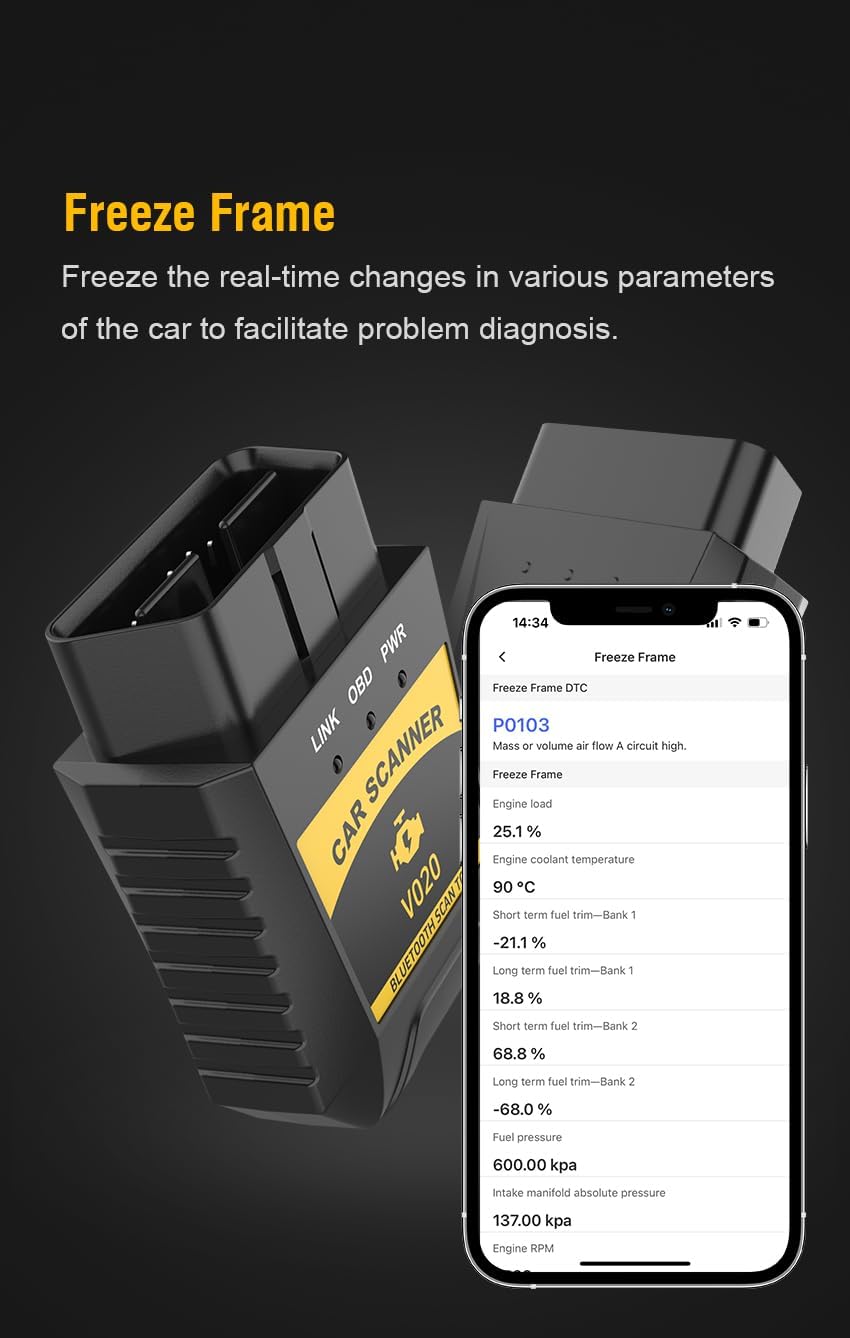
Image 5.2: The V020 app displaying real-time battery voltage readings, along with other vehicle parameters like speed and engine RPM.
5.4. Monitored Test and Freeze Frame Data Stream
These functions provide detailed insights into vehicle performance and fault conditions.
- Monitored Test: Allows you to check the status of various vehicle monitors (e.g., Misfire, Fuel System, O2 Sensor) since DTCs were last cleared.
- Freeze Frame: Captures a snapshot of engine conditions (parameters like engine RPM, coolant temperature, fuel pressure) at the exact moment a fault code is set. This data is crucial for diagnosing intermittent issues.
- Data Stream: Displays real-time sensor data from the vehicle, allowing for live monitoring of various parameters.
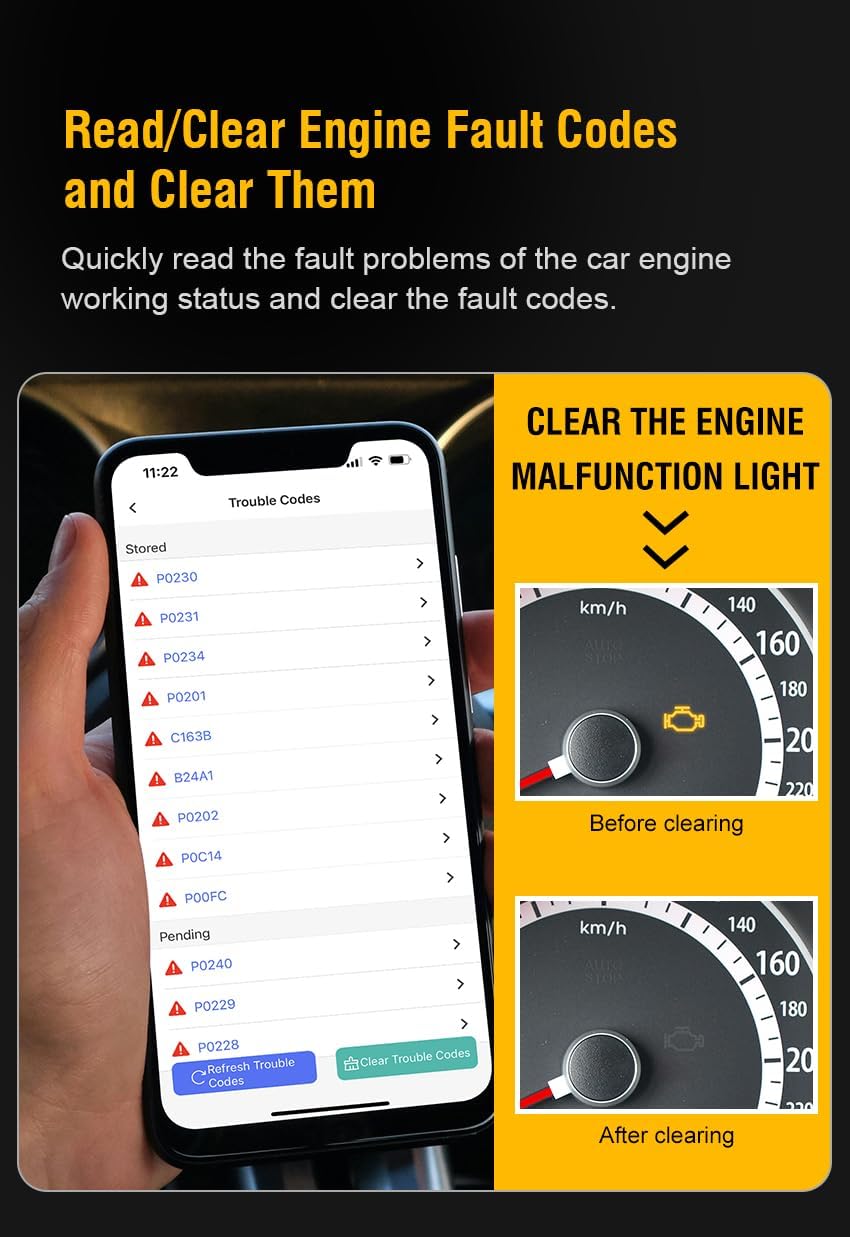
Image 5.3: Screenshots from the V020 app illustrating Monitored Test results, MIL (Malfunction Indicator Light) status, and detailed Vehicle Information.

Image 5.4: The V020 app displaying Freeze Frame data, which captures various engine parameters at the moment a Diagnostic Trouble Code (DTC) was recorded.
5.5. Performance Test
Evaluate your vehicle's acceleration and braking performance.
- Select "Performance Test" in the app.
- Follow the on-screen instructions to perform tests such as 0-100 km/h acceleration, braking distance from a certain speed, and distance testing (e.g., time to travel 500 meters).
Image 5.5: The V020 app's Performance Test section, illustrating options for measuring acceleration, braking performance, and distance traveled.
6. Maintenance
To ensure the longevity and optimal performance of your V020 Car Scanner, follow these maintenance guidelines:
- Cleaning: Wipe the device with a soft, dry cloth. Do not use abrasive cleaners or solvents.
- Storage: Store the scanner in a cool, dry place, away from direct sunlight and extreme temperatures.
- Handling: Avoid dropping the device or subjecting it to strong impacts.
- Software Updates: Periodically check the dedicated app for software updates to ensure compatibility and access to new features.
7. Troubleshooting
If you encounter issues while using the V020 Car Scanner, refer to the following common problems and solutions:
| Problem | Possible Cause | Solution |
|---|---|---|
| Device does not power on. | Loose connection to OBD2 port; Vehicle ignition not on; Vehicle battery low. | Ensure the scanner is firmly plugged into the OBD2 port. Turn the vehicle ignition to the "ON" position. Check vehicle battery voltage. |
| App cannot connect to the scanner. | Bluetooth not enabled on mobile device; Scanner not powered on; App not updated; Interference. | Enable Bluetooth on your mobile device. Ensure the scanner is powered on (connected to OBD2 port). Update the app to the latest version. Move away from strong electromagnetic interference sources. |
| Cannot read fault codes. | Vehicle ignition off; OBD2 port issue; Vehicle not OBD2 compliant. | Ensure vehicle ignition is in the "ON" position. Check the OBD2 port for damage. Verify your vehicle is OBD2 compliant (most vehicles manufactured after 1996 in the US are). |
| Codes clear but MIL comes back on. | Underlying vehicle issue not resolved. | Clearing codes only resets the light. The underlying problem must be diagnosed and repaired for the MIL to stay off. |
8. Support and Warranty Information
For technical assistance, product inquiries, or warranty claims, please contact the manufacturer or your point of purchase. Refer to the packaging or product documentation for specific contact details.
The V020 Car Scanner comes with a standard manufacturer's warranty. Please retain your proof of purchase for warranty service. Warranty terms and conditions may vary; consult the provided warranty card or contact customer support for details.


