
1. Introduction
Welcome to the user manual for your Hipipooo XS18Pro MAX Mini Smartphone. This guide provides essential information on how to set up, operate, maintain, and troubleshoot your device. Please read this manual carefully to ensure optimal performance and longevity of your smartphone.
The Hipipooo XS18Pro MAX is a compact 4G smartphone featuring a 4.3-inch IPS display, dual SIM capability, a 2750 mAh battery, and a dual camera system (2MP front, 13MP rear). It runs on Android 10.0 and includes features like facial recognition and OTG support.
2. Device Overview
Familiarize yourself with the physical components of your smartphone.
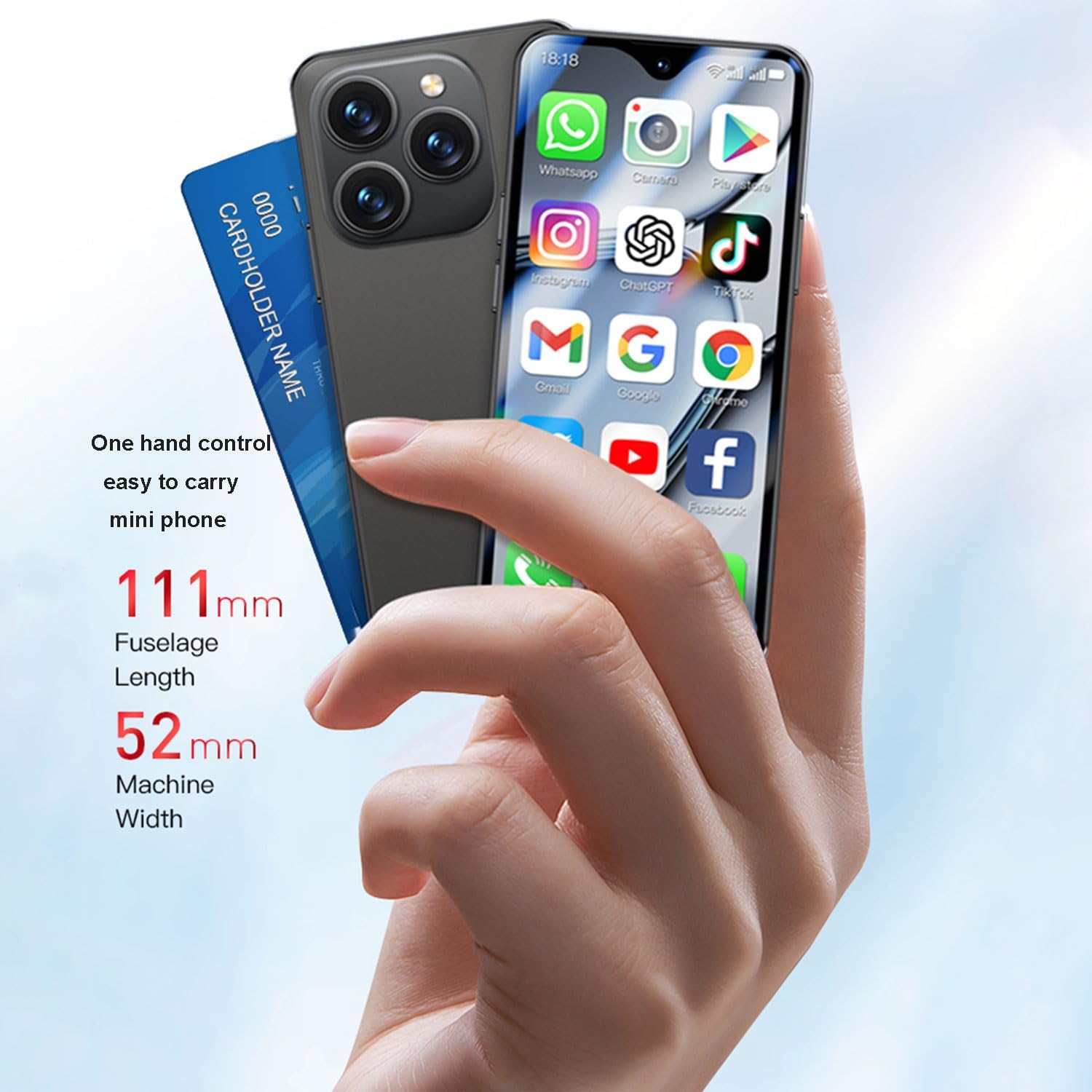
Figure 2.1: Front and back view of the Hipipooo XS18Pro MAX Mini Smartphone.

Figure 2.2: The compact size of the smartphone, measuring 111mm in length and 52mm in width, shown next to a credit card for scale.
3. Setup
3.1. SIM Card Installation
Your Hipipooo XS18Pro MAX supports dual 4G SIM cards. Follow these steps to install your SIM cards:
- Locate the SIM card tray on the side of the phone.
- Insert the SIM ejector tool (if provided) into the small hole next to the tray to open it.
- Place your Nano-SIM cards into the designated slots on the tray. Ensure the gold contacts are facing down and the cards are correctly oriented.
- Carefully push the tray back into the phone until it is flush with the device.
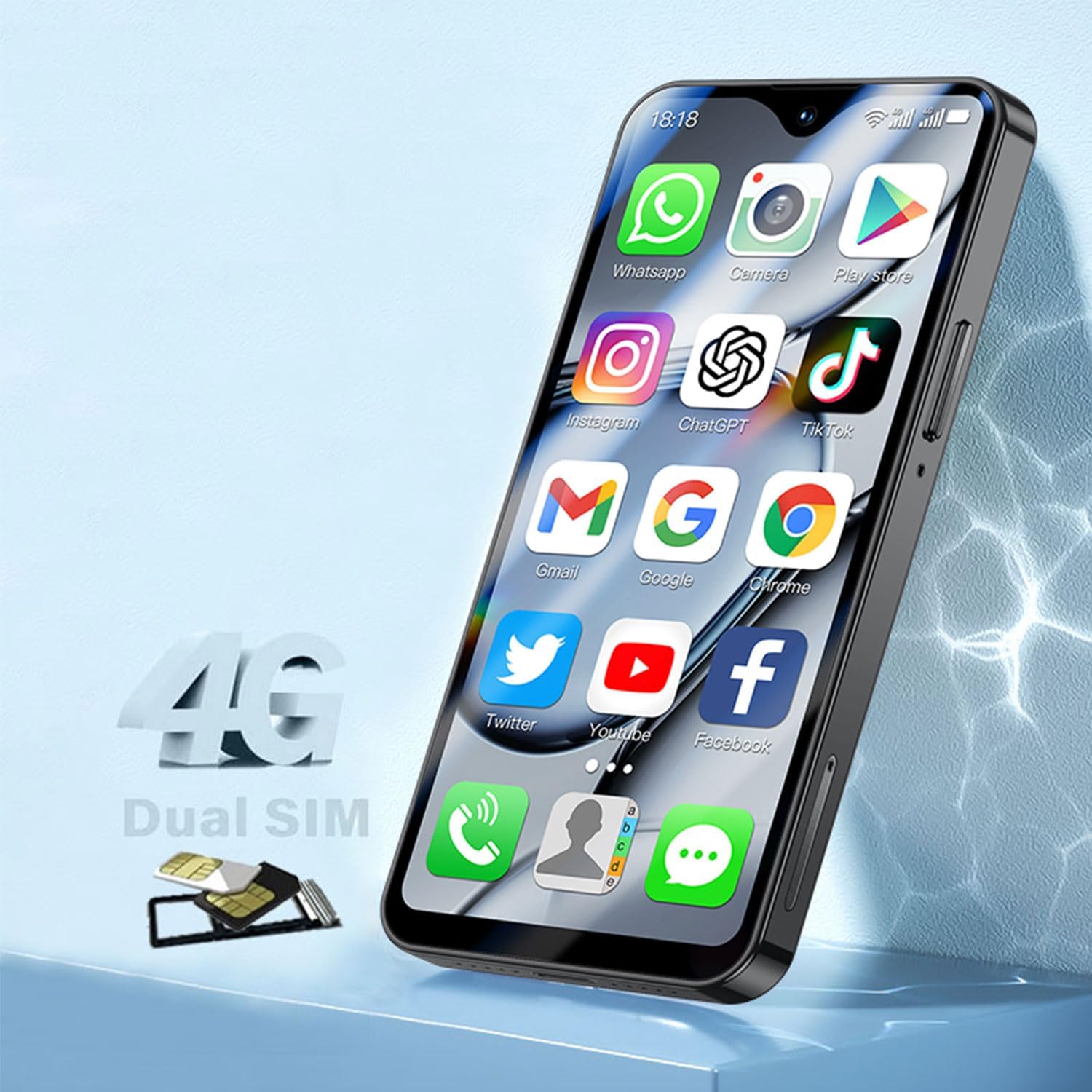
Figure 3.1: Illustration of dual SIM card installation.
3.2. Initial Charging
Before first use, it is recommended to fully charge your smartphone. The device is equipped with a 2750 mAh battery.
- Connect the USB Type-C cable to the charging port at the bottom of the phone.
- Connect the other end of the cable to a compatible power adapter and plug it into a wall outlet.
- The charging indicator will appear on the screen. Allow the phone to charge until the battery icon shows full.

Figure 3.2: The smartphone connected to a charger, illustrating the 2750mAh battery capacity.
3.3. Powering On/Off
- To Power On: Press and hold the Power button (usually on the right side) until the screen lights up and the Hipipooo logo appears.
- To Power Off: Press and hold the Power button until the power options menu appears. Select "Power off" and confirm.
- To Restart: Press and hold the Power button until the power options menu appears. Select "Restart" and confirm.
4. Operating Your Smartphone
4.1. Basic Navigation
Your smartphone runs on Android 10.0. Use touch gestures to navigate the interface:
- Tap: To select an item or open an app.
- Swipe: To scroll through screens or lists.
- Pinch: To zoom in or out on photos and web pages.
- Long Press: To access contextual menus or move app icons.
4.2. Camera Functions
The Hipipooo XS18Pro MAX features a 2 MP front camera and a 13 MP rear camera for capturing photos and videos.
- Open the "Camera" application from your home screen or app drawer.
- Switch between front and rear cameras using the camera toggle icon.
- Tap the shutter button to take a photo.
- Tap the video icon to record a video, and tap again to stop.

Figure 4.1: Overview of the smartphone's 2MP front camera and 13MP rear camera system.
4.3. Facial Recognition
Unlock your phone quickly and securely using facial recognition.
- Go to "Settings" > "Security & Location" > "Face Unlock".
- Follow the on-screen instructions to register your face. Ensure you are in a well-lit area.
- Once registered, simply lift your phone to your face to unlock it.

Figure 4.2: Demonstrating the facial recognition feature for quick unlocking.
4.4. OTG (On-The-Go) Functionality
The OTG feature allows your smartphone to act as a host for USB devices, enabling data exchange and charging with other devices via the USB interface.
- Connect a compatible OTG adapter to your phone's USB Type-C port.
- Plug in a USB device, such as a flash drive, keyboard, or mouse, into the OTG adapter.
- Your phone will automatically detect the connected device, allowing you to access files or use the peripheral.

Figure 4.3: The OTG data transmission feature, allowing convenient data exchange and storage.
4.5. Audio and Multimedia
Experience clear audio with the surround sound stereo speaker.
- Use the volume buttons on the side of the phone to adjust audio levels during calls, media playback, or notifications.
- Connect Bluetooth headphones or speakers via "Settings" > "Connected devices" > "Bluetooth".
- Enjoy music, videos, and other multimedia content through the built-in speaker or connected audio devices.

Figure 4.4: The smartphone's surround sound stereo speaker, offering Hi-Fi quality audio.
5. Maintenance
5.1. Battery Care
- Avoid extreme temperatures, as they can degrade battery life.
- Do not let the battery completely drain frequently. Charge it before it reaches very low levels.
- Use only the provided or certified charging accessories.
- If the phone will not be used for an extended period, charge it to about 50% before storing.

Figure 5.1: Internal view of the smartphone highlighting the 2750mAh long-lasting battery.
5.2. General Device Care
- Keep your phone clean by gently wiping it with a soft, lint-free cloth.
- Avoid exposing the phone to water or excessive moisture.
- Protect the screen with a screen protector and use a protective case to prevent scratches and damage from drops.
- Regularly clear cache and unnecessary files to maintain optimal performance.
6. Troubleshooting
6.1. Common Issues and Solutions
| Problem | Solution |
|---|---|
| Phone does not turn on | Ensure the battery is charged. Connect to a charger for at least 30 minutes. If still unresponsive, perform a forced restart by holding the Power button for 10-15 seconds. |
| Battery drains quickly | Reduce screen brightness, close unused apps, disable Wi-Fi/Bluetooth/GPS when not in use. Check battery usage in Settings to identify power-hungry apps. |
| Apps are crashing or freezing | Clear the app's cache (Settings > Apps > [App Name] > Storage > Clear Cache). If the issue persists, uninstall and reinstall the app. Ensure your Android system is up to date. |
| Cannot connect to Wi-Fi/Mobile Data | Restart your phone. Check if Wi-Fi/Mobile Data is enabled in Quick Settings or Settings. For Wi-Fi, forget the network and reconnect. For mobile data, ensure SIM card is properly inserted and data plan is active. |
| Facial recognition not working | Ensure your face is well-lit and unobstructed. Re-register your face in Settings > Security & Location > Face Unlock. Clean the front camera lens. |
7. Specifications
Key technical specifications of the Hipipooo XS18Pro MAX Mini Smartphone:
| Feature | Detail |
|---|---|
| Model Name | XS18Pro MAX |
| Brand | Hipipooo |
| Operating System | Android 10.0 |
| CPU | Quad Core (MT6737A) at 1.3 GHz |
| RAM | 2 GB |
| Internal Storage | 16 GB |
| Screen Size | 4.3 Inches |
| Display Resolution | 540 x 1200 IPS |
| Rear Camera | 13 Megapixels |
| Front Camera | 2 Megapixels |
| Battery Capacity | 2750 mAh |
| Connectivity | 2G, 3G, 4G Cellular, Bluetooth, WiFi, GPS |
| SIM Support | Dual 4G SIM |
| Special Features | Facial Recognition, OTG Support |
| Dimensions (L x W x T) | 111 x 52 x 9.9 mm |
| Weight | 139 g |
8. Warranty and Support
For warranty information and customer support, please refer to the documentation included with your purchase or visit the official Hipipooo website. Keep your proof of purchase for warranty claims.
If you encounter issues not covered in this manual, please contact Hipipooo customer service for assistance.