
1. Introduction
This manual provides detailed instructions for the installation, operation, and maintenance of your Toeeklsa 7-inch Android Double Din Car Radio Stereo. Please read this manual thoroughly before use to ensure proper functionality and to prevent damage.
Key Features:
- 7-inch 1024*600 IPS Touch Screen
- Android 12 Operating System with 4-core CPU, 2GB RAM & 64GB ROM
- Wireless Apple CarPlay & Android Auto with Voice Control
- GPS Navigation with Online/Offline Maps
- WiFi & Bluetooth 5.0 Connectivity
- DSP 10-band Equalizer & FM Radio
- Steering Wheel Control Support
- AHD Backup Camera Compatibility
2. Compatibility
This car radio is designed for a plug-and-play installation in various VW Volkswagen, Seat, and Skoda models. No cutting or modification of original car wiring is typically required. If you are unsure about compatibility, please contact customer support.
Compatible Car Models:
- For VW: Golf V (2003-2008), Golf VI (2008-2013), Golf Plus (2003-2013), Golf Cabriolet (2011-2013), Wagon (2010-2013), Golf GTI (2010-2013), Golf R (2010-2013), Golf Estate (2009-2012), Passat (2005-2013), Passat Sedan (2006-2013), Passat Alltrack (2012-2013), Passat CC (2008-2013), Jetta (2005-2013), Jetta GLI (2006-2013), Touran (2003-2013), Tiguan (2007-2013), Sharan (2010-2013), Scirocco (2008-2013), EOS (2006-2013), WT5 Transporter (2010-2014), Polo (2009-2013), Polo Sedan (2012-2013), Polo V 6R (2009-2013), New Beetle 2 (2011-2013), Rabbit (2007-2013), T5 Transporter (2010-2013), WT5 Caravelle (2010-2013), Multivan T5 (2010-2013), Beetle (2011-2013), Caddy (2003-2013), Amarok (2010-2013)
- For Seat: Altea (2004, 2005, 2007-2012), Leon (2006-2013), Altea XL (2007-2013), Alhambra (2010-2016), Toledo (2004-2015)
- For Skoda: Fabia Limousine (2004-2008), Fabia (2011-2013), Praktic (2004-2008), Roomster (2006-2010), Octavia (2009-2012), Octavia Combi (2004-2006), Octavia Limousine (2004-2006), Octavia II & III (2004-2010), Yeti (2009-2015), Superb (2008-2013)

Image: Detailed list of compatible VW, Seat, and Skoda car models.
3. Package Contents
Your Toeeklsa car radio package includes the following items:
- Car Multimedia Player (Main Unit)
- User Manual
- RCA Cable
- Rear Camera Input Cable
- GPS Antenna
- Power Cable 1 (Standard Version Car Wiring)
- Power Cable 2 (High-End Version Car Wiring)
- Canbus Protocol Box (if required by vehicle model)
- USB Cables (x2)
- AHD Backup Camera (optional, if included in package)
- Installation Tools (optional, if included in package)

Image: Overview of the car radio unit and included accessories.
4. Setup and Installation
Proper installation is crucial for optimal performance. It is recommended to consult a professional for installation if you are unfamiliar with car audio wiring. Ensure the vehicle's ignition is off before starting installation.
4.1 Removing the Original Car Radio:
- Carefully pry off the trim panel around the original radio using a plastic pry tool to avoid scratching the dashboard.
- Unscrew the mounting screws securing the original radio.
- Gently pull out the original radio and disconnect all wiring harnesses and antenna cables from its rear.
Video: Detailed guide on removing the original car radio from a Volkswagen vehicle.
Video: Comprehensive Volkswagen radio installation and removal guide.
4.2 Wiring the New Car Radio:
Identify the correct power harness for your vehicle model (Standard or High-End version). Connect the necessary cables as shown in the diagrams and videos.
- Connect Power Harness: Select the appropriate power cord based on your vehicle model. For standard wiring, connect the A/B interface and then the car receiver's power cord. For high-end wiring, connect the protocol box first, then the car receiver's power cord, and finally the protocol box cable to the car machine.
- Connect RCA Cables: Plug in the RCA cables for audio output and auxiliary input.
- Connect GPS Antenna: Attach the GPS antenna to the designated port on the rear of the unit. Position the antenna in a location with a clear view of the sky for optimal signal reception.
- Connect USB Cables: Plug in the USB cables for data transfer and charging.
- Connect Backup Camera (if applicable): Connect the rear camera input cable to the unit. Ensure the trigger cable from the camera is connected to the reverse light power (12V) and the corresponding trigger wire on the car radio's power harness.
Video: Wiring diagram for VW car radio installation, showing connections for standard and high-end versions.
Video: Wiring guide for the reversing camera function in a VW car radio.
4.3 Testing and Final Assembly:
- Before fully reassembling, turn on the car ignition to test the radio's basic functions (power on, touch screen response, audio).
- Test the backup camera by engaging reverse gear. If the camera image is distorted (snow/9-grid display), adjust the image format in Factory Settings (Password: 8888 or 1617) -> Camera-RVC Channel Config -> AHD720P25 or AHD.
- Once all functions are verified, carefully slide the radio into the dashboard slot and secure it with screws.
- Reattach the trim panel.
5. Operating Instructions
5.1 Bluetooth 5.0 Connectivity:
Connect your smartphone via Bluetooth for hands-free calls, phonebook access, and audio streaming.
- On the car radio, navigate to the Bluetooth application.
- Enable Bluetooth on your smartphone and search for available devices.
- Select the car radio's device name (e.g., RK3326CB716) from your phone's Bluetooth list to pair.
- Confirm the pairing on both devices.

Image: Bluetooth 5.0 interface for calls and music.
5.2 Apple CarPlay & Android Auto:
Enjoy seamless integration with your smartphone for navigation, music, messages, and voice control.
- Ensure your phone's Bluetooth is connected to the car radio.
- Open the Apple CarPlay or Android Auto application on the car radio.
- Follow on-screen prompts to complete the connection. Voice control (Siri/Google Assistant) can be activated for hands-free operation.

Image: Wireless and wired CarPlay/Android Auto interface.
Video: Demonstration of Bluetooth wireless CarPlay and Android Auto for VW.
Video: Guide to 4G+64G Wireless CarPlay/Android Auto Connection.
5.3 GPS Navigation:
Utilize the built-in GPS for accurate navigation with real-time updates, online/offline maps, and voice guidance.
- Connect to WiFi (home network or phone hotspot) to download and update maps.
- Open the Navigation app (e.g., Google Maps, Waze) and enter your destination.
- Follow the voice-guided directions and on-screen map.

Image: WiFi connection and GPS navigation.
5.4 DSP 10-Band Equalizer & FM Radio:
Customize your audio experience with the 10-band equalizer and enjoy FM radio with manual and automatic station search.
- Access the EQ settings to adjust sound frequencies and select preset music effects (Jazz, Pop, Vocal, Heavy Metal, Normal).
- Open the FM Radio app to scan for stations or manually tune to your preferred frequencies.

Image: Built-in DSP and 10-band equalizer.

Image: FM radio interface.
5.5 Steering Wheel Control:
Program your steering wheel buttons to control radio functions for safer driving.
- Go to Settings > Car Settings > SWC Type (or similar, refer to your specific unit's menu).
- Follow the on-screen instructions to map each steering wheel button to the desired function (e.g., volume, track change, call answer).
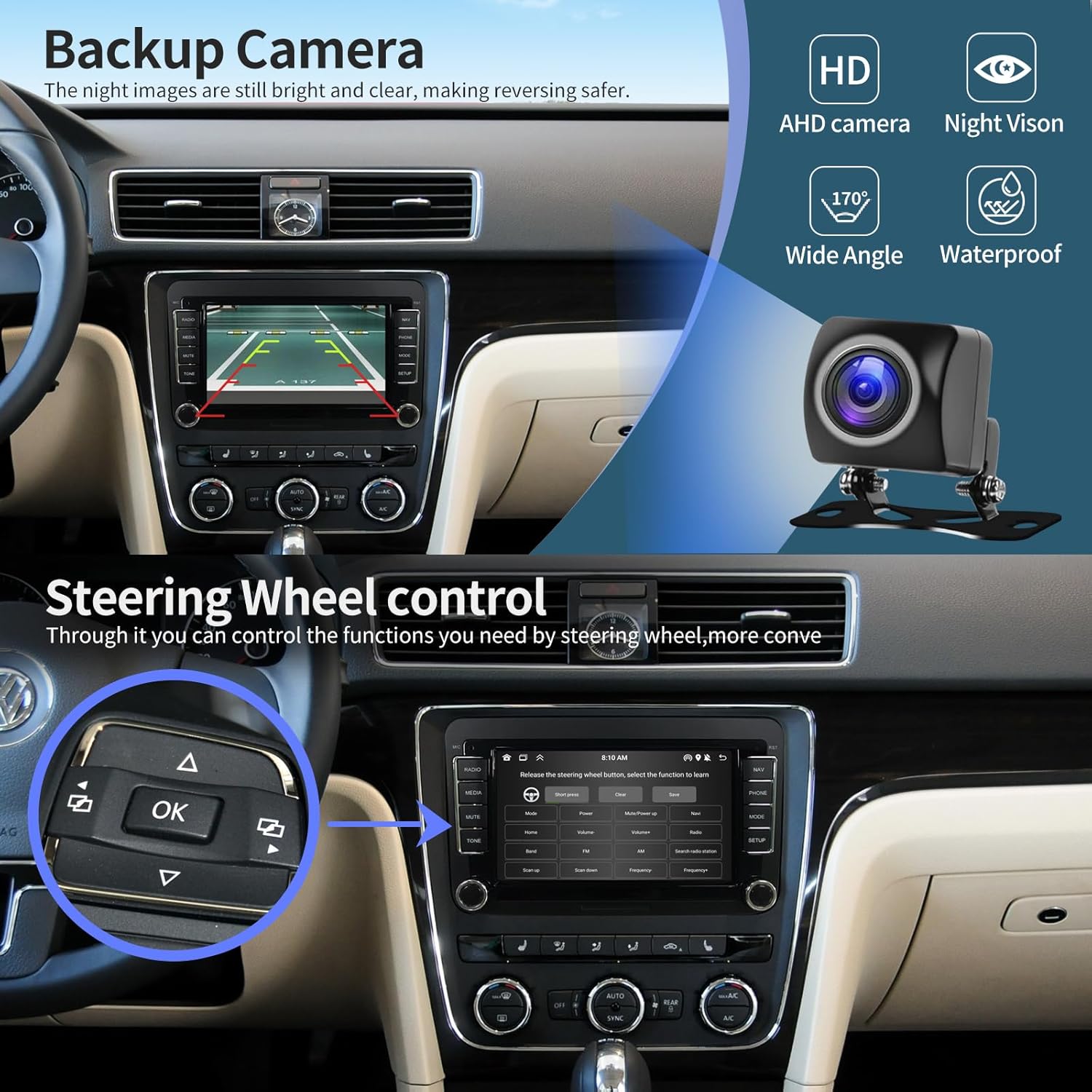
Image: Steering wheel control and backup camera view.
5.6 Backup Camera:
The AHD backup camera provides clear night vision for enhanced safety during reversing.
- When the vehicle is shifted into reverse gear, the camera feed will automatically display on the screen.
- The display includes parking guidelines to assist with maneuvering.
6. Troubleshooting
- Radio Not Turning On: Ensure all power cables are securely connected. If your vehicle model requires a Canbus protocol box, verify it is correctly connected. If the issue persists, contact customer support.
- CarPlay/Android Auto Not Working: Ensure Bluetooth is paired correctly. Some models may require a firmware update. Contact customer support for assistance with firmware updates.
- Constant On Problem (Radio doesn't turn off with ignition): This may indicate an issue with the wiring harness adapter or Canbus settings. Consult the wiring diagram and vehicle-specific instructions. Adjusting Canbus protocol settings in Factory Mode (Password: 8888 or 1617) -> Vehicle -> Vehicle Type Type -> Simple -> VW-Car Model -> Restart Unit may resolve this.
- Backup Camera Issues (Snow/9-grid display): Fix via format settings. Long-press the screen for 5 seconds to access image format settings, or go via path: Settings -> Factory Settings (Password: 8888 or 1617) -> Camera-RVC Channel Config -> AHD. Select AHD720P25 or AHD.
- Steering Wheel Controls Not Responding: Ensure the steering wheel control wires are correctly connected and programmed in the unit's settings. Refer to section 5.5.
-
Documents - Toeeklsa – 7-inch Android Double Din Car Radio
no relevant documents
Ask a question about this manual
Ask about setup, troubleshooting, compatibility, parts, safety, or missing instructions. Manuals+ will review the question and use this page’s manual context to help answer it.