
1. Introduction
The ETOFIXEE FindXeink ET-EK A110 E-Ink Finder Tag Tracker is a compact and versatile item locator designed to help you keep track of your belongings. It integrates seamlessly with Apple's Find My application, allowing iOS users to locate items such as keychains, pets, children, or luggage. A unique feature of this tracker is its customizable E-Ink display, which can show personalized images, text, or contact information for easy identification.
2. Safety Information
- Keep the device and its components out of reach of small children to prevent choking hazards.
- The device uses a CR2032 Lithium metal battery. Ensure proper disposal of used batteries according to local regulations.
- Do not expose the device to extreme temperatures, direct sunlight for prolonged periods, or moisture.
- Avoid disassembling the device beyond battery replacement, as this may void the warranty and cause damage.
3. Package Contents
Verify that all items are present in your package:
- FindXeink ET-EK A110 E-Ink Finder Tag Tracker
- CR2032 Lithium metal battery (pre-installed or separate)
- Small screwdriver for battery compartment
- Spare screws
- Key ring attachment
4. Product Overview
The FindXeink ET-EK A110 features a durable aluminum casing and a square E-Ink display. It includes a small loop for attaching the key ring and a button for interaction.
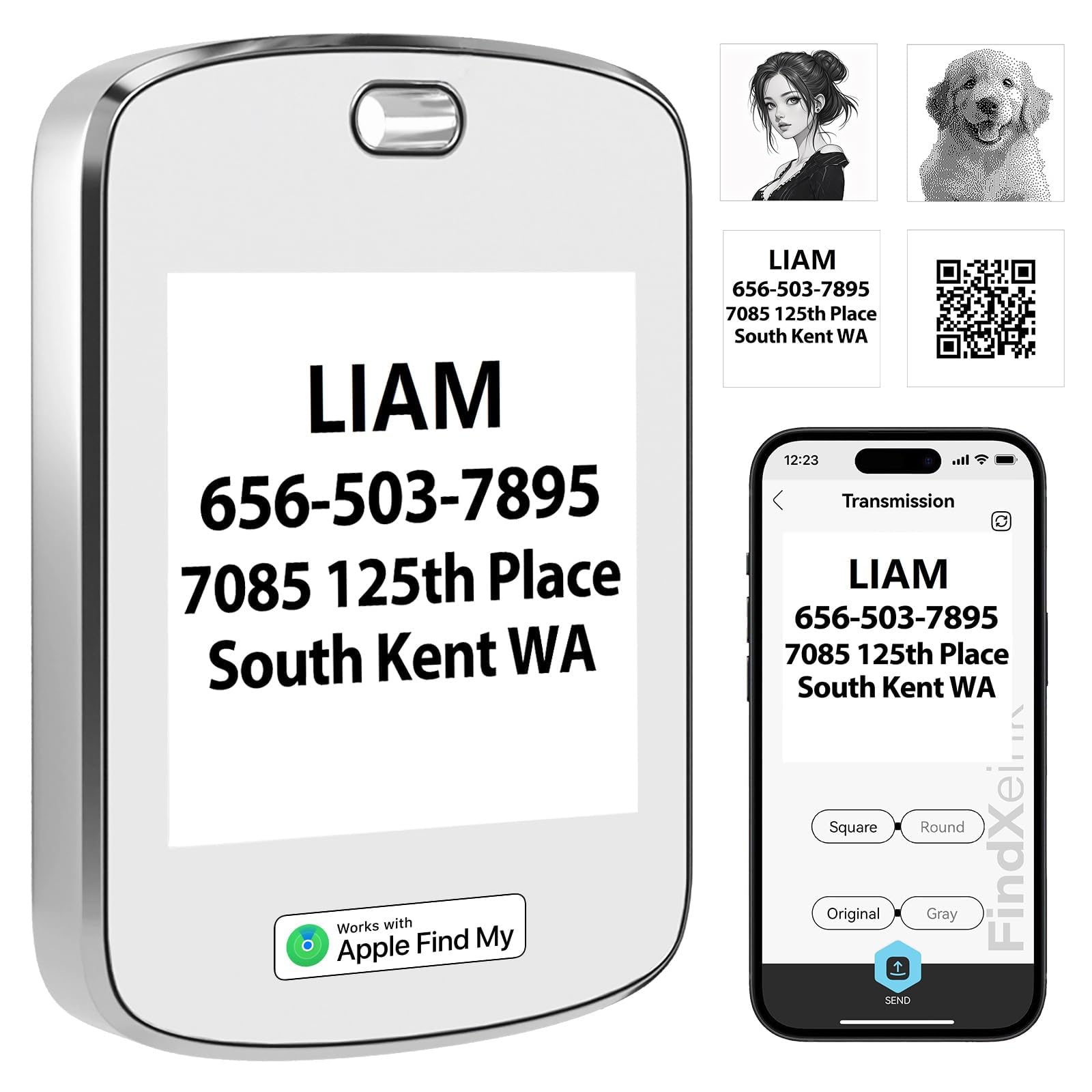
Image 1: Front view of the FindXeink ET-EK A110 E-Ink Finder Tag Tracker, showcasing its square E-Ink display and key ring attachment.

Image 2: The FindXeink ET-EK A110 tracker displayed on a pedestal, highlighting its sleek design.
5. Setup
5.1. Pairing with Apple Find My
- Ensure your iOS device (iPhone) is running the latest software version.
- Open the 'Find My' app on your iPhone.
- Navigate to the 'Items' tab.
- Tap the '+' icon and select 'Add Other Item'.
- Follow the on-screen instructions to pair your FindXeink ET-EK A110 tracker. The tracker will emit a sound to confirm pairing.
5.2. Customizing the E-Ink Display
The E-Ink display allows for personalization with images or text. This feature requires the dedicated FindXeink app.
- Download the 'FindXeink' app from the Apple App Store.
- Open the app and connect to your FindXeink ET-EK A110 tracker.
- To display an image: Select the image option within the app. You can choose a photo from your gallery. Note that the app may force images to a square aspect ratio, and pixelation may occur if the original image resolution is not optimized for the E-Ink screen.
- To display text: Select the text option. Enter your desired text (e.g., contact information). Adjust the font size using the provided slider. Due to the nature of the app, text customization may require trial and error to achieve the desired appearance, as there is no direct 'edit' function for previously sent text.
- Once customized, the image or text will remain on the E-Ink display even when the device is off.
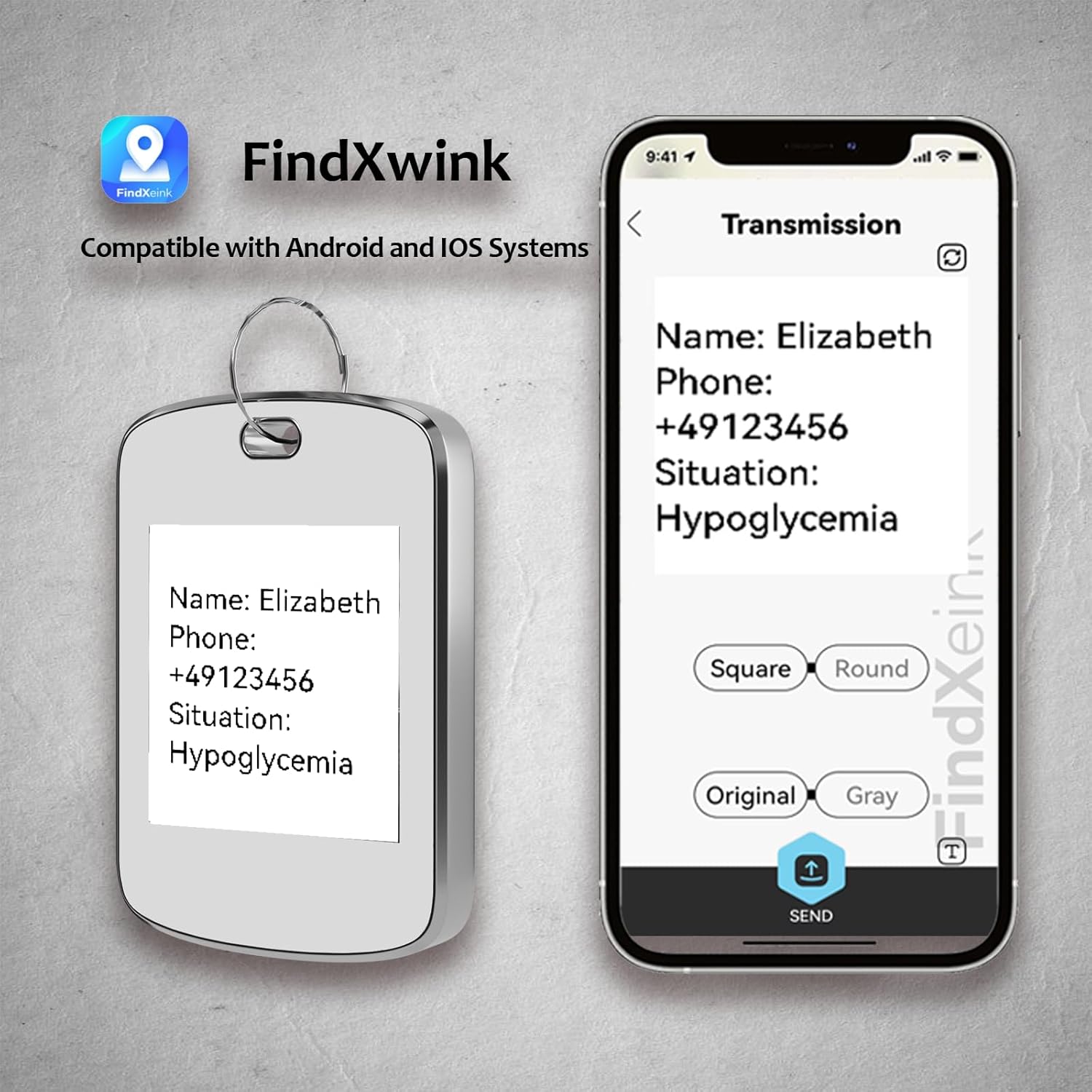
Image 3: The FindXeink ET-EK A110 tracker alongside a smartphone displaying the customization app interface.
6. Operating Instructions
6.1. Locating Items
Use the Apple Find My app on your iPhone to locate your FindXeink ET-EK A110 tracker. The app will show the tracker's last known location on a map. You can also play a sound to help find the item when it's nearby.
6.2. Two-Way Locator Function
The FindXeink ET-EK A110 can also help you locate your iPhone. Press the button on the tracker (usually a triple-click) to trigger an alert sound on your paired iPhone, even if it's on silent mode.
6.3. Changing E-Ink Display Content
To update the image or text on the E-Ink display, repeat the steps outlined in Section 5.2 using the FindXeink app.

Image 4: Examples of the FindXeink ET-EK A110 being used as a keychain, pet tag, necklace, and attached to a bag.
7. Maintenance
7.1. Battery Replacement
The FindXeink ET-EK A110 uses a replaceable CR2032 Lithium metal battery.
- Using the provided small screwdriver, carefully remove the screws securing the battery compartment cover.
- Remove the old CR2032 battery.
- Insert a new CR2032 battery with the positive (+) side facing up.
- Replace the battery compartment cover and secure it with the screws. Do not overtighten.
7.2. Cleaning
Wipe the device with a soft, dry cloth. Avoid using abrasive cleaners or solvents, as they may damage the E-Ink display or casing.
8. Troubleshooting
- Device not pairing with Find My: Ensure your iPhone is updated and you are selecting 'Add Other Item' in the Find My app. Try resetting the tracker (refer to the FindXeink app or manufacturer's website for specific reset instructions).
- E-Ink display content appears pixelated or distorted: This can occur if the original image resolution or aspect ratio is not ideal for the E-Ink screen. Try optimizing your image before uploading.
- Text on E-Ink display is too small/large or incorrectly formatted: Use the text size slider in the FindXeink app. Due to the app's design, you may need to re-enter text and adjust the slider multiple times to achieve the desired result.
- Screws for battery compartment do not fit: Ensure you are using the correct screwdriver and applying gentle, even pressure. If issues persist, contact customer support.
- Sound alert is not loud enough: The tracker's sound alert is designed for proximity location. Its volume may vary based on environmental noise.
9. Specifications
- Brand: ETOFIXEE
- Model Number: ET-EK A110
- Compatible Devices: iPhone (iOS only)
- Battery Type: CR2032 Lithium metal (1 included)
- Material: Aluminum
- Dimensions: 5.5L x 3.7W x 0.8H centimeters
- UPC: 768556525827
10. Warranty and Support
For warranty information, technical support, or service inquiries, please refer to the official ETOFIXEE website or contact their customer service directly. Keep your purchase receipt as proof of purchase.