
1. Introduction
This instruction manual provides essential information for the safe and correct installation, usage, and maintenance of your new Generic Laptop Bottom Case. Please read this manual thoroughly before attempting any installation to ensure proper fit and function, and to prevent damage to your device or the product. Keep this manual for future reference.
2. Product Overview
The Generic Laptop Bottom Case is a replacement component designed to restore the structural integrity and appearance of your compatible laptop. It serves as the protective base for internal components and provides mounting points for various parts.
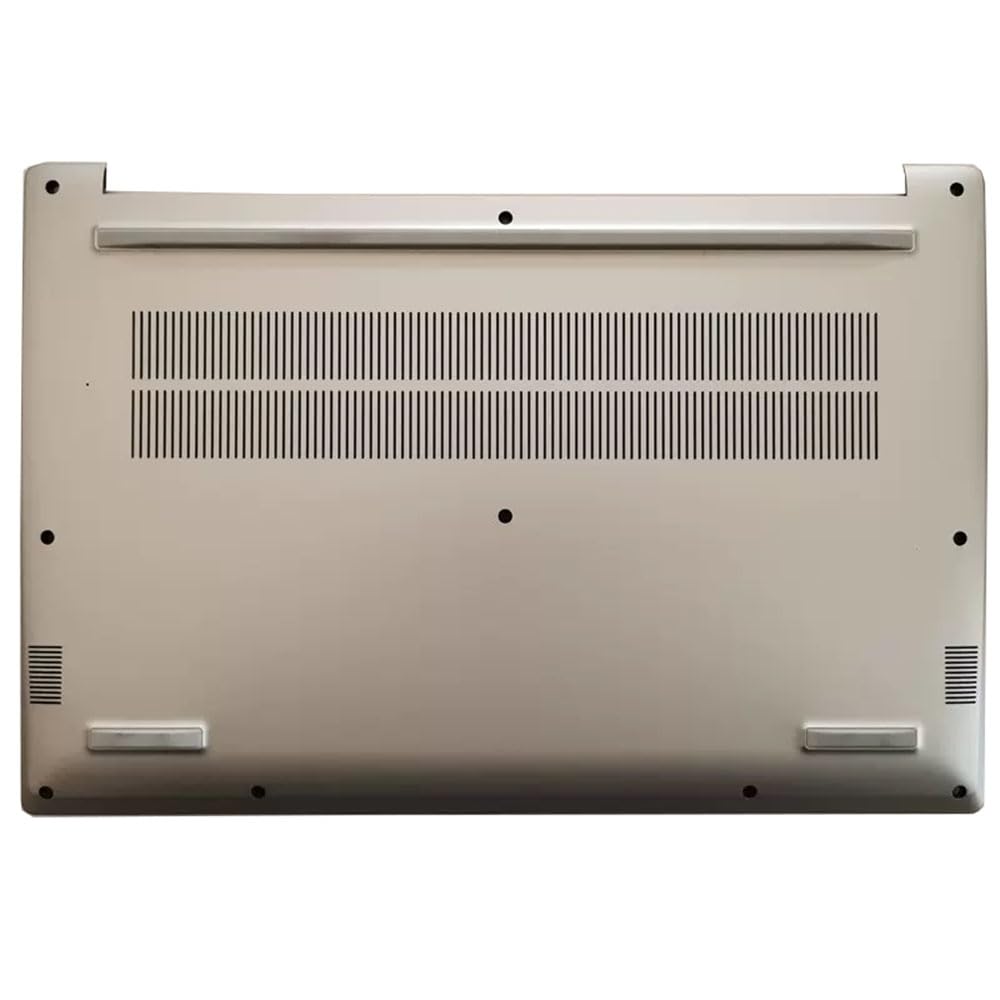
Figure 2.1: The Generic Laptop Bottom Case. This image displays the silver-colored bottom case, highlighting its various screw mounting points, ventilation grilles, and structural design. It is a direct replacement part for specific laptop models.
3. Compatibility
This laptop bottom case is specifically designed for the following MEDION AKOYA laptop models:
- MEDION AKOYA P15648
- MEDION AKOYA MD63490
- MEDION AKOYA MD63510
- MEDION AKOYA MD63570
Please verify your laptop's model number before proceeding with installation to ensure compatibility.
4. Installation Guide
Important Safety Precautions: Before beginning, ensure your laptop is powered off and disconnected from all power sources. Disconnect the battery if possible. Work on a clean, static-free surface. Use appropriate tools to avoid damaging screws or plastic components.
- Prepare the Laptop: Power off your laptop completely and unplug the AC adapter. If your laptop has a removable battery, remove it.
- Remove Existing Bottom Case: Carefully unscrew all visible screws securing the old bottom case. Note the different screw lengths and locations if applicable.
- Detach the Old Case: Gently pry open the old bottom case using a plastic opening tool. Start from an edge and work your way around, being careful not to damage any internal clips or components.
- Inspect Internal Components: Before installing the new case, inspect the internal components for any dust or debris. Clean if necessary using compressed air.
- Position the New Case: Align the new bottom case with the laptop's chassis. Ensure all clips and mounting points are correctly aligned.
- Secure the New Case: Gently press the new case into place, ensuring all clips engage. Reinsert and tighten all screws that were removed in step 2. Do not overtighten.
- Reconnect Battery and Power: If the battery was removed, reinsert it. Reconnect the AC adapter.
- Test Functionality: Power on the laptop to ensure it functions correctly. Check for any unusual noises or loose parts.
If you are unsure about any step, it is recommended to seek assistance from a qualified technician.
5. Usage Considerations
After installation, handle your laptop with care. Avoid dropping or subjecting it to excessive force, as this can damage the bottom case and internal components. Ensure proper ventilation by not blocking the air vents on the bottom case during use.
6. Maintenance
To maintain the longevity and appearance of your laptop bottom case:
- Cleaning: Wipe the exterior surface with a soft, damp cloth. Avoid abrasive cleaners or solvents that may damage the finish.
- Ventilation: Regularly check and clean the ventilation grilles to prevent dust buildup, which can impede airflow and lead to overheating.
- Inspection: Periodically inspect the case for any loose screws or cracks. Tighten screws as needed, but do not overtighten.
7. Troubleshooting
If you encounter issues after installing the bottom case, consider the following:
- Case Not Fitting Properly:
- Ensure all internal components are correctly seated and not obstructing the case.
- Verify that the case is aligned with all clips and screw posts before applying pressure.
- Double-check that you have the correct model bottom case for your laptop.
- Loose Screws:
- Ensure all screws are tightened appropriately. Avoid overtightening, which can strip the threads.
- Confirm that the correct screw types and lengths are used in their respective positions.
- Laptop Not Powering On:
- Recheck all internal connections, especially the battery connector, if it was disconnected during installation.
- Ensure the battery is properly seated and charged.
For persistent issues, consult a professional repair service.
8. Specifications
| Feature | Detail |
|---|---|
| Product Type | Laptop Bottom Case |
| Brand | Generic |
| Compatible Models | MEDION AKOYA P15648, MD63490, MD63510, MD63570 |
| Color | Silver |
| Item Weight | Approximately 2 Kilograms |
9. Warranty and Support
This Generic Laptop Bottom Case comes with a 3-month warranty from the date of purchase, covering manufacturing defects. This warranty does not cover damage caused by improper installation, misuse, accidents, or unauthorized modifications.
For warranty claims or technical support, please contact your retailer or the seller directly. Please have your purchase receipt and product details available when contacting support.
For additional resources or general laptop repair guides, you may find helpful information on reputable tech support websites or forums. Always prioritize official service manuals for your specific laptop model when available.


