
ETOFIXEE ET-EK A110
FindXeink E-Ink Finder Tag User Manual
Your guide to setting up, operating, and maintaining your FindXeink E-Ink Finder Tag.

The FindXeink E-Ink Finder Tag, Black Square model, is a compact tracking device designed to help you locate misplaced items and display custom information.
1. Setup
1.1 Initial Pairing with FindXwink App
To begin using your FindXeink E-Ink Finder Tag, you first need to pair it with the dedicated FindXwink app. This app allows you to customize the E-Ink display and manage certain device settings.
- Download the FindXwink App: Search for "FindXwink" in your device's app store (compatible with Android and iOS systems).

FindXwink App Icon
- Enable Bluetooth and Location: Ensure Bluetooth is enabled on your smartphone and grant location permissions to the FindXwink app.
- Add Device: Open the FindXwink app. Navigate to the "My Devices" section and tap the '+' icon to search for your FindXeink tag.

Adding a new device in the FindXwink app.
- Confirm Pairing: Select your FindXeink tag from the search results and confirm the pairing.

Confirming device pairing.
1.2 Apple Find My Integration (iOS Only)
The FindXeink E-Ink Finder Tag works seamlessly with Apple's Find My network for precise item tracking. This feature is available for iOS 14 and above.
- Open Find My App: On your iOS device, open the Apple Find My app.
- Add Other Item: Go to the "Items" tab and tap the '+' icon. Select "Add Other Item".
- Follow On-Screen Prompts: The Find My app will search for nearby compatible items. Follow the on-screen instructions to link your FindXeink tag to your Apple ID. You will be prompted to name the item and choose an emoji.
- Confirm Link: Agree to the terms to complete the linking process.

The FindXeink tag integrates with the Apple Find My app for location tracking.
This video demonstrates the process of pairing the FindXeink tag with the FindXwink app, customizing its E-Ink display, and linking it to the Apple Find My network for tracking.
2. Operating Instructions
2.1 Customizing the E-Ink Display
The unique E-Ink display allows for personalization with images, text, or contact information. This content remains visible even when the device is off.
- Access Control Interface: In the FindXwink app, navigate to the "Control" section.

Accessing the control interface in the FindXwink app.
- Upload Images: Select "Local" to upload a picture from your phone. You can adjust the image (square/round, original/gray) before uploading.

The E-Ink display can show custom images, such as a personal photo.
- Input Text: Select "Text" to type custom messages. Adjust font size, color, and spacing as needed.
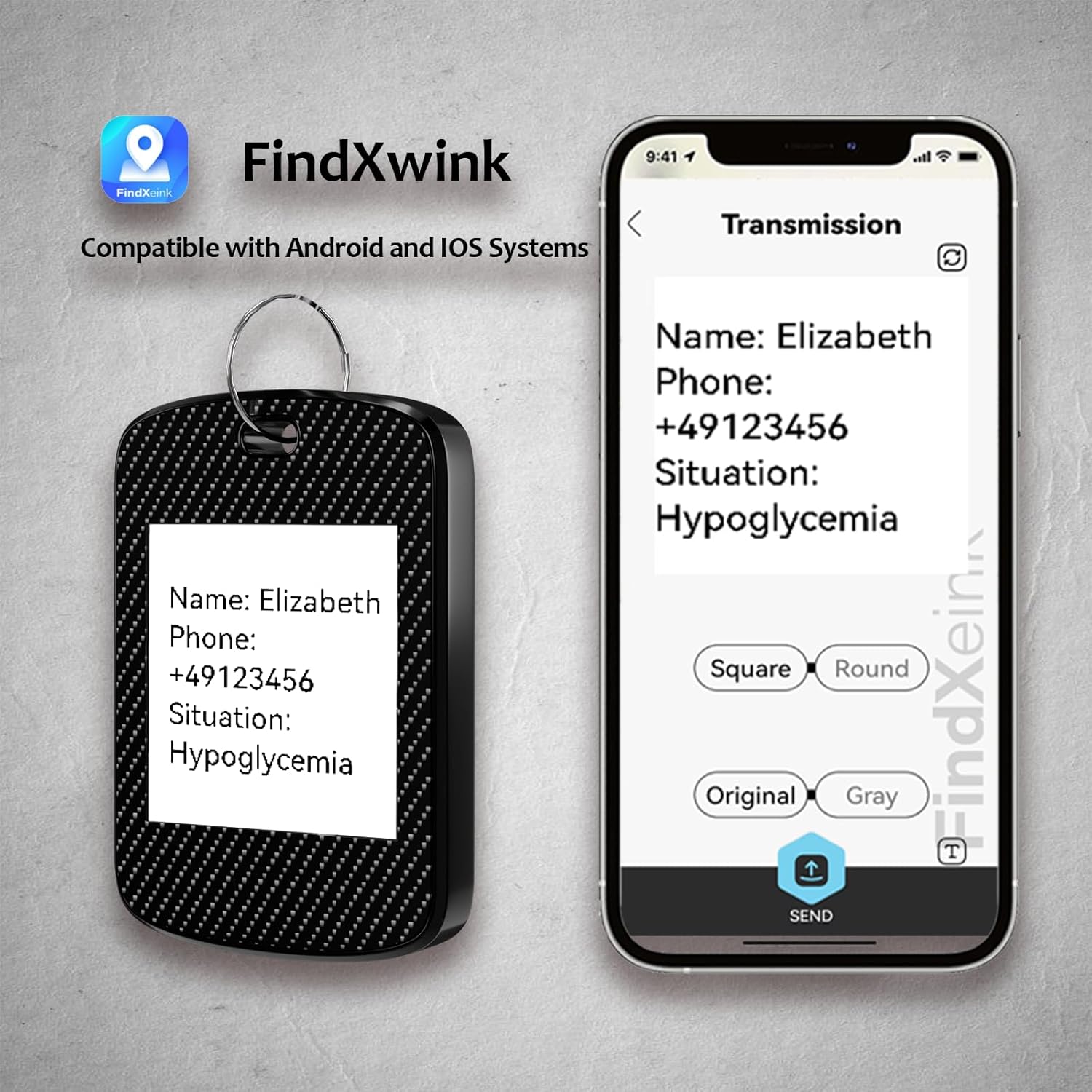
Customize the E-Ink display with important text information, such as contact details or medical alerts.
- Set Contact Information: Use the "Contacts" interface to set up contact details (e.g., name, phone number, address) that can be displayed.

The E-Ink display can show a QR code, which can be linked to contact information or other data.
- Send to Device: After customizing, tap "Send" to transmit the content to your FindXeink tag.

The FindXeink tag offers versatile display options, including photos, text, and QR codes, for various tracking and identification needs.
2.2 Locating Your Item with Apple Find My
Once linked, you can use the Apple Find My app to locate your FindXeink tag.
- View on Map: Open the Find My app and select your FindXeink tag from the "Items" list to see its current or last known location on a map.
- Play Sound: If the tag is nearby, tap "Play Sound" to make it emit an audible alert, helping you pinpoint its exact location.
- Find Nearby: For precise location when close, use the "Find Nearby" feature (if supported by your iOS device and the tag).
2.3 Two-Way Locator Function
The FindXeink tag also offers a two-way locator function, allowing you to find your phone using the tag itself.
- Trigger Phone Alert: Press the button on your FindXeink tag (usually a triple-click, refer to specific device instructions if different) to make your paired phone ring, even if it's on silent mode.

The FindXeink tag is versatile and can be used to track luggage, keys, pets, and personal bags.
3. Maintenance
3.1 Battery Replacement
The FindXeink E-Ink Finder Tag uses a CR2032 Lithium Metal battery. When the battery is low, you may notice reduced performance or the device becoming unresponsive.
- Locate Battery Compartment: The battery compartment is typically secured with small screws.
- Open Compartment: Use a small screwdriver (often included with the product) to carefully remove the screws and open the battery cover.
- Replace Battery: Remove the old CR2032 battery and insert a new one, ensuring correct polarity (+/-).
- Secure Compartment: Replace the battery cover and tighten the screws.
3.2 Cleaning
To maintain the appearance and functionality of your FindXeink tag:
- Wipe Clean: Use a soft, dry, lint-free cloth to gently wipe the surface of the device.
- Avoid Liquids: Do not use liquid cleaners, aerosols, or solvents, as these can damage the device or the E-Ink display.
4. Troubleshooting
| Issue | Possible Cause / Solution |
|---|---|
| Device not connecting to app / Find My. |
|
| E-Ink display not updating or showing distorted images/text. |
|
| Location updates are slow or inaccurate. |
|
| Two-way locator (finding phone) not working. |
|
5. Specifications
| Feature | Detail |
|---|---|
| Product Dimensions | 2.16 x 1.45 x 0.3 inches (5.49 x 3.68 x 0.76 cm) |
| Item Weight | 0.87 ounces (24.66 grams) |
| Model Number | ET-EK A110 |
| Battery Type | 1 Lithium Metal battery (CR2032, included) |
| Connectivity | Bluetooth, Apple Find My Network (iOS only) |
| Display Type | E-Ink (Customizable) |
| Color | Black Square |
| Material | Aluminum |
| Manufacturer | ETOFIXEE |
Ask a question about this manual
Ask about setup, troubleshooting, compatibility, parts, safety, or missing instructions. Manuals+ will review the question and use this page’s manual context to help answer it.