1. Introduction
This manual provides detailed instructions for the safe and correct installation, operation, and maintenance of the Generic Laptop GPU Fan, model G2721_02 1A. This fan is specifically designed as a replacement part for BOXX GOBOXX SLM MS-17G3 17.3 series laptops to ensure optimal GPU cooling performance.
2. Product Overview
The Generic Laptop GPU Fan is a critical component for maintaining the thermal integrity of your laptop's Graphics Processing Unit (GPU). Proper functioning of this fan prevents overheating, which can lead to performance degradation, system instability, and potential hardware damage. This replacement fan ensures your laptop's cooling system operates efficiently.
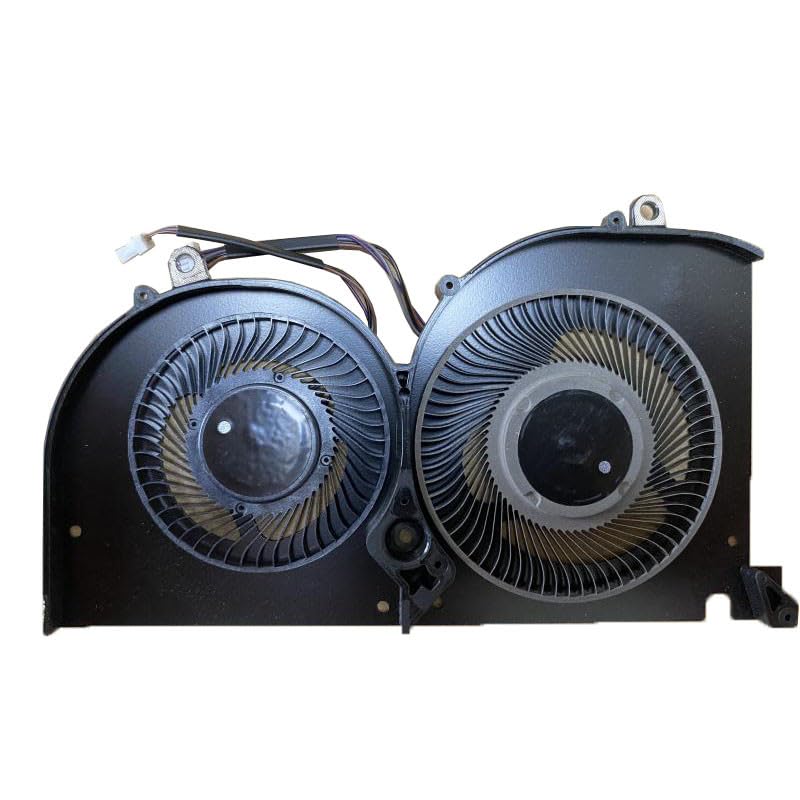
Image showing the Generic Laptop GPU Fan, model G2721_02 1A, with its connector cable. This is the replacement part for your laptop's GPU cooling system.
3. Setup and Installation
Important Safety Precautions: Before beginning any installation, ensure your laptop is completely powered off and disconnected from all power sources. Disconnect the battery if it is externally removable. Static electricity can damage electronic components; consider using an anti-static wrist strap or touching a grounded metal object before handling the fan.
3.1 Tools Required
- Small Phillips-head screwdriver
- Plastic prying tool (optional, for opening laptop casing)
- Thermal paste (recommended for GPU reapplication)
- Isopropyl alcohol and lint-free cloth (for cleaning old thermal paste)
3.2 Installation Procedure
- Power Down: Shut down your BOXX GOBOXX SLM MS-17G3 laptop completely and unplug the AC adapter. Remove the battery if it is user-removable.
- Access Internal Components: Carefully open the laptop's bottom casing. Refer to your laptop's specific service manual for precise instructions on how to open the case and locate the GPU fan.
- Locate and Disconnect Old Fan: Identify the existing GPU fan. Gently disconnect its power cable from the motherboard. Note the routing of the cable for reassembly.
- Remove Old Fan: Unscrew the mounting screws securing the old GPU fan to the heatsink or laptop chassis. Carefully lift and remove the old fan.
- Clean Heatsink and GPU (if applicable): If the fan is attached to a heatsink that also covers the GPU, clean any old thermal paste from the GPU chip and the heatsink contact area using isopropyl alcohol and a lint-free cloth.
- Apply New Thermal Paste (if applicable): Apply a small, pea-sized amount of new thermal paste to the center of the GPU chip.
- Install New Fan: Position the new Generic GPU Fan (model G2721_02 1A) in its designated spot. Ensure it aligns correctly with the screw holes and any heatsink components.
- Secure Fan: Fasten the new fan with the appropriate mounting screws. Do not overtighten.
- Connect Power Cable: Carefully connect the new fan's power cable to the corresponding header on the motherboard. Ensure the connection is secure and correctly oriented.
- Reassemble Laptop: Route any cables neatly and reattach the laptop's bottom casing. Ensure all screws are replaced.
- Initial Test: Reconnect the battery (if removed) and the AC adapter. Power on the laptop and observe if the fan spins. Listen for any unusual noises. Monitor system temperatures using software if available.
4. Operating Instructions
Once correctly installed, the Generic Laptop GPU Fan operates automatically. The laptop's system will control the fan speed based on the GPU's temperature, increasing speed during heavy loads (e.g., gaming, video editing) and decreasing it during lighter tasks to maintain optimal cooling and minimize noise.
5. Maintenance
Regular maintenance helps prolong the life of your fan and ensures efficient cooling.
- Dust Cleaning: Periodically (e.g., every 3-6 months), open the laptop casing and gently clean dust from the fan blades and heatsink fins using compressed air or a soft brush. Ensure the fan is held stationary while using compressed air to prevent over-spinning.
- Check for Obstructions: Ensure no cables or debris are obstructing the fan's rotation.
- Thermal Paste: If you notice consistently high GPU temperatures despite the fan running, consider reapplying thermal paste to the GPU after a few years of use.
6. Troubleshooting
- Fan Not Spinning:
- Ensure the fan's power cable is securely connected to the motherboard.
- Verify the fan is correctly seated and not obstructed.
- If the issue persists, the fan may be faulty and require replacement.
- Unusual Noise (Grinding, Whining):
- Check for any loose screws or foreign objects caught in the fan blades.
- If the noise is constant and no obstructions are found, the fan bearings may be worn, indicating a need for replacement.
- Laptop Overheating Despite Fan Running:
- Ensure the heatsink fins are clean and free of dust.
- Verify that thermal paste was correctly applied to the GPU.
- Confirm the fan is spinning at appropriate speeds (can be checked with monitoring software).
- Other system components or software issues might be contributing to overheating.
7. Specifications
| Feature | Specification |
|---|---|
| Model Number | G2721_02 1A |
| Voltage | DC5V |
| Current | 0.5A |
| Compatibility | BOXX GOBOXX SLM MS-17G3 17.3 Laptops |
8. Warranty Information
This Generic Laptop GPU Fan comes with a 90-day warranty from the date of purchase. This warranty covers manufacturing defects. Damage resulting from improper installation, misuse, or accidental damage is not covered. Please retain your proof of purchase for warranty claims.
9. Support
If you encounter issues not covered in this manual or require further assistance, please contact the seller or a qualified laptop repair technician. Attempting repairs beyond your skill level may void your laptop's warranty or cause further damage.


