
1. Introduction
This manual provides detailed instructions for the installation, operation, and maintenance of your CAMECHO Android 13 Car Stereo. Please read this manual thoroughly before using the product to ensure proper functionality and safety.

Figure 1.1: CAMECHO Android 13 Car Stereo integrated into a Hyundai Accent dashboard.
Key Features:
- Android 13 Operating System with 8-Core Processor
- 9-inch IPS Touch Screen (1280*720 resolution)
- 4GB RAM + 64GB ROM
- Wireless Carplay & Android Auto Support
- Built-in Bluetooth 5.0 for Hands-free Calling and Music
- FM/RDS Radio with 30 Preset Stations
- 32-Band EQ DSP for Enhanced Sound Quality
- GPS Navigation (Online/Offline Maps)
- WiFi Connectivity for App Downloads
- Steering Wheel Control Support
- Includes Backup Camera
2. Setup and Installation
This section guides you through the physical installation of the car stereo and its components.
2.1 Package Contents
Before beginning installation, verify that all components are present in the package:

Figure 2.1: Included components and unit dimensions.
- CAMECHO Android Car Stereo Unit
- Backup Camera
- Microphone
- USB Cables (x2)
- RCA Cable
- Power Cable
- Rear Camera Input Cable
- GPS Antenna
- Installation Tools
- User Manual (this document)
2.2 Compatibility Check
Ensure your vehicle is a 2010-2016 Hyundai Accent, Verna, or Solaris. The stereo is designed to fit the specific dashboard dimensions of these models.

Figure 2.2: Visual comparison of the dashboard before and after stereo installation.
2.3 Wiring Diagram (Backup Camera)
The included backup camera requires specific wiring for proper operation. Connect the camera as shown in the diagram below.

Figure 2.3: Rear view camera wiring instructions. Ensure the reversing input is connected even if the camera is not immediately used.
- Red Cable (1): Connect to the positive pole of the car reversing light.
- Black Cable (2): Connect to the negative pole of the car reversing light (GND).
- Video Cable (3): Connect to the camera video output.
- Red Extension Cables (4): These are typically not needed for standard installation.
3. Operating Instructions
Familiarize yourself with the various functions and features of your new car stereo.
3.1 Wireless Carplay & Android Auto
Connect your smartphone wirelessly or via USB to access navigation, music, messages, and calls directly from the stereo display. Supports voice commands like 'Hey Siri' or 'OK Google'.
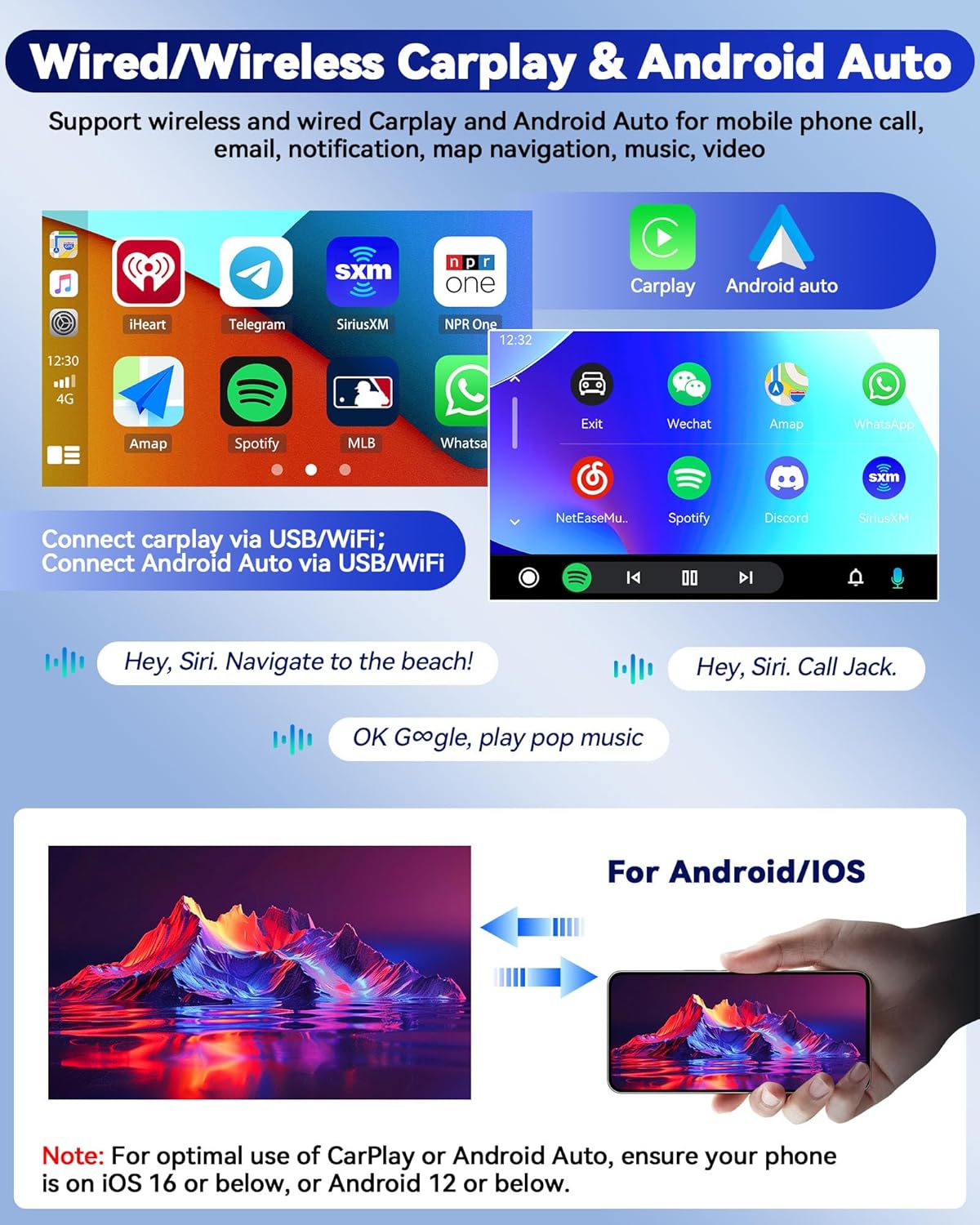
Figure 3.1: Wireless Carplay and Android Auto functionality with voice control examples.
Note: For optimal use of Carplay or Android Auto, ensure your phone's operating system is iOS 16 or below, or Android 12 or below.
3.2 Mirror Link (for Android/iOS)
Mirror your smartphone's screen directly onto the car stereo display, allowing you to view content from your phone.

Figure 3.2: Mirror Link feature for both Android and iOS devices.
3.3 Built-in GPS Navigation & WiFi
The stereo supports both online and offline navigation applications. Connect to WiFi to download maps, stream content, and access various apps from the app store.

Figure 3.3: Integrated GPS navigation and WiFi connectivity for online services and app downloads.
3.4 Bluetooth 5.0 and FM/RDS Radio
Enjoy hands-free calling and Bluetooth audio streaming. The built-in FM/RDS radio allows you to listen to local broadcasts, traffic updates, and weather forecasts.

Figure 3.4: Bluetooth hands-free calling and FM/RDS radio interface.
3.5 Steering Wheel Control
Control essential functions like answering calls, adjusting volume, and switching music tracks directly from your vehicle's steering wheel controls for safer driving.

Figure 3.5: Steering wheel control integration for convenient operation.
3.6 DSP and EQ Adjustment
The Digital Signal Processor (DSP) and 32-band Equalizer (EQ) allow for precise audio tuning, enhancing sound quality and reducing distortion for an optimal listening experience.

Figure 3.6: DSP and EQ settings for customized audio output.
3.7 Multi-UI Themes & Split Screen
Personalize your stereo's interface with 59 UI desktop themes. Utilize the split-screen function to run two applications simultaneously, such as navigation and music.

Figure 3.7: Customizable UI themes and split-screen multitasking.
4. Maintenance
To ensure the longevity and optimal performance of your CAMECHO car stereo, follow these maintenance guidelines:
- Cleaning: Use a soft, dry cloth to clean the screen and exterior. Avoid abrasive cleaners or solvents.
- Software Updates: Periodically check for and install software updates to ensure the system runs efficiently and has the latest features and security patches. Updates can typically be found via the system settings when connected to WiFi.
- Temperature: Avoid exposing the unit to extreme temperatures, both hot and cold, for extended periods.
- Power: Ensure stable power supply to prevent damage. Avoid frequent power interruptions.
5. Troubleshooting
If you encounter issues with your car stereo, refer to the following common problems and solutions:
- No Power: Check all power connections and fuses. Ensure the car's ignition is on.
- No Sound: Verify speaker connections. Check volume levels and mute settings. Ensure the correct audio source is selected.
- GPS Not Working: Ensure the GPS antenna is properly connected and has a clear view of the sky. Check GPS settings and map data.
- Bluetooth Connectivity Issues: Ensure Bluetooth is enabled on both the stereo and your device. Try unpairing and re-pairing the devices.
- Touch Screen Unresponsive: Try restarting the unit. If the issue persists, a factory reset might be necessary (note: this will erase all user data).
- Backup Camera Not Displaying: Check the camera's power and video connections. Ensure the reversing input wire is correctly connected to the car's reverse light circuit.
For persistent issues, please contact customer support.
6. Specifications
| Feature | Specification |
|---|---|
| Operating System | Android 13 |
| Processor | 8-Core |
| RAM | 4GB |
| ROM | 64GB |
| Display Size | 9 Inches |
| Display Resolution | 1280*720 IPS |
| Bluetooth Version | 5.0 |
| Connectivity | Bluetooth, USB, Wi-Fi |
| Audio Output Mode | Stereo |
| Item Weight | 3.56 pounds |
| Package Dimensions | 14.17 x 12.83 x 4.49 inches |
7. Warranty and Support
7.1 Warranty Information
This CAMECHO car stereo comes with a 1-year warranty from the date of purchase. This warranty covers manufacturing defects and malfunctions under normal use. Please retain your proof of purchase for warranty claims.
7.2 Customer Support
For technical assistance, troubleshooting, or warranty inquiries, please contact CAMECHO customer support:
- Email: camechovip@126.com

Figure 7.1: CAMECHO offers online help and user manual support.