
Introduction
This manual provides detailed instructions for the setup, operation, maintenance, and troubleshooting of your LetSketch Graphics Drawing Tablet WP9620C. Please read this manual thoroughly before using the device to ensure optimal performance and longevity.
Package Contents
Verify that all items listed below are included in your package:
- 1 x LetSketch Graphics Drawing Tablet
- 1 x Passive Electromagnetic Induction Pen
- 1 x Micro USB Link Cable
- 3 x Replacement Nibs
- 1 x USB to Type-C Adapter
- 1 x Nib Changer Tool
- 1 x User Manual (this document)
Setup
1. Connecting the Tablet
Connect the graphics tablet to your computer or Android device using the provided Micro USB Link Cable. If connecting to a device with a Type-C port, use the included USB to Type-C Adapter.
2. Driver Installation
For optimal performance and full functionality, it is recommended to install the latest drivers for your LetSketch Graphics Drawing Tablet. Drivers can typically be found on the official LetSketch support website. Follow the on-screen instructions for installation.
Note: Some basic functionality may be available without driver installation, but features like pressure sensitivity and customizable shortcut keys require the driver.
Operating Instructions
Using the Passive Electromagnetic Induction Pen
The included pen utilizes passive electromagnetic induction technology, meaning it does not require batteries or charging. It offers 8192 levels of pressure sensitivity and a 5080 LPI pen resolution for precise and natural drawing experience.

Image: The passive electromagnetic induction pen, highlighting its 8192 pressure levels, precision, tilt support, settable keys, and battery-free design. It also shows the three replacement nibs.
Working Area
The tablet features an active working area of approximately 8.26 x 5.51 inches, providing ample space for drawing and design tasks.

Image: A visual representation of the tablet's dimensions, showing an overall size of 11.7 inches by 7.5 inches, with the active working area clearly marked.
Customization
Customizable Shortcut Keys
The tablet is equipped with 5 customizable shortcut keys on the side panel. Additionally, the pen has 2 customizable buttons. These keys can be programmed through the driver software to perform various functions, enhancing your workflow and efficiency.
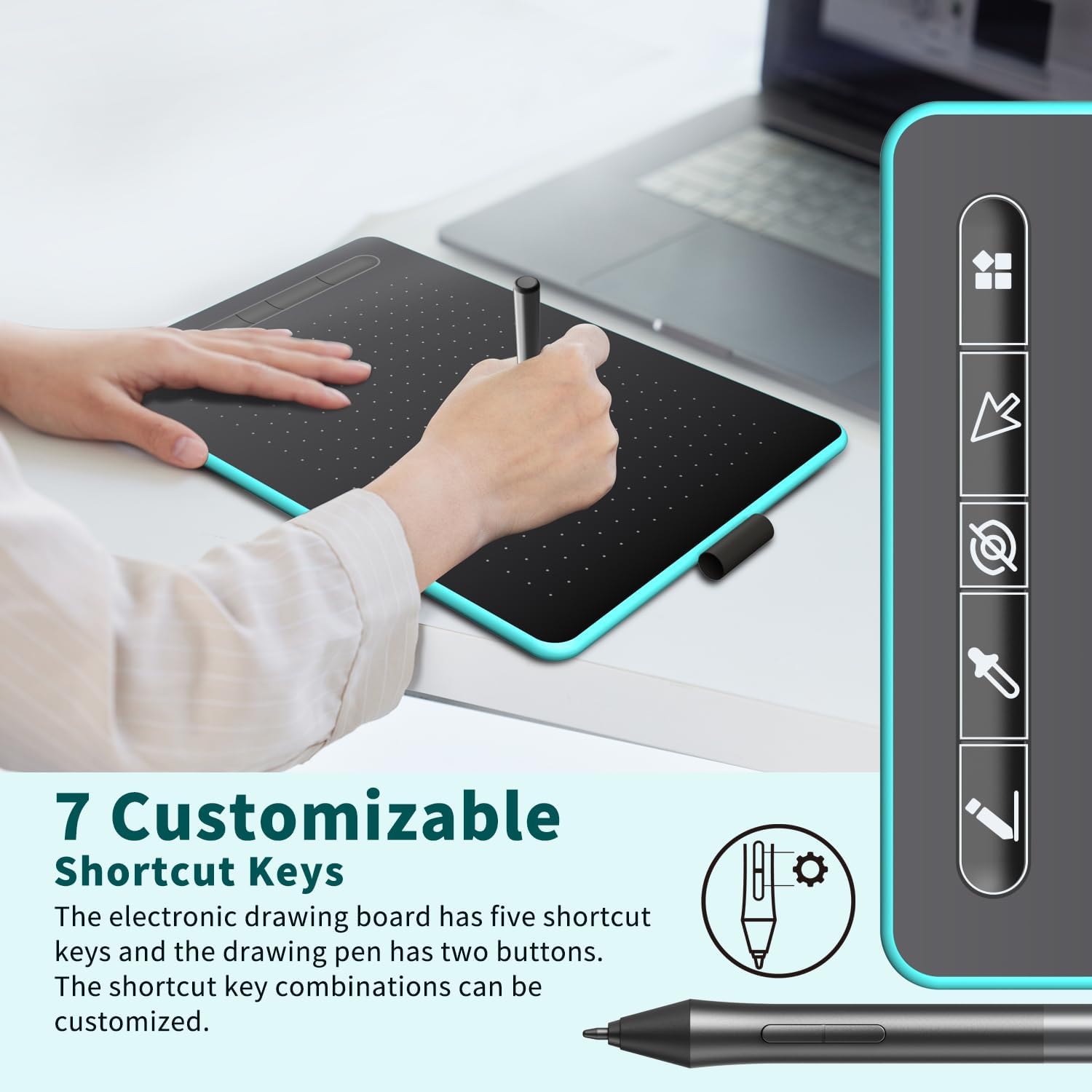
Image: The graphics tablet displaying its 5 customizable shortcut keys on the left side, along with the pen showing its two customizable buttons. This illustrates how users can personalize their drawing experience.
Left-Handed or Right-Handed Mode
The tablet supports both left-handed and right-handed modes. This setting can be adjusted within the driver software to suit your preference. The default setting is right-handed mode.
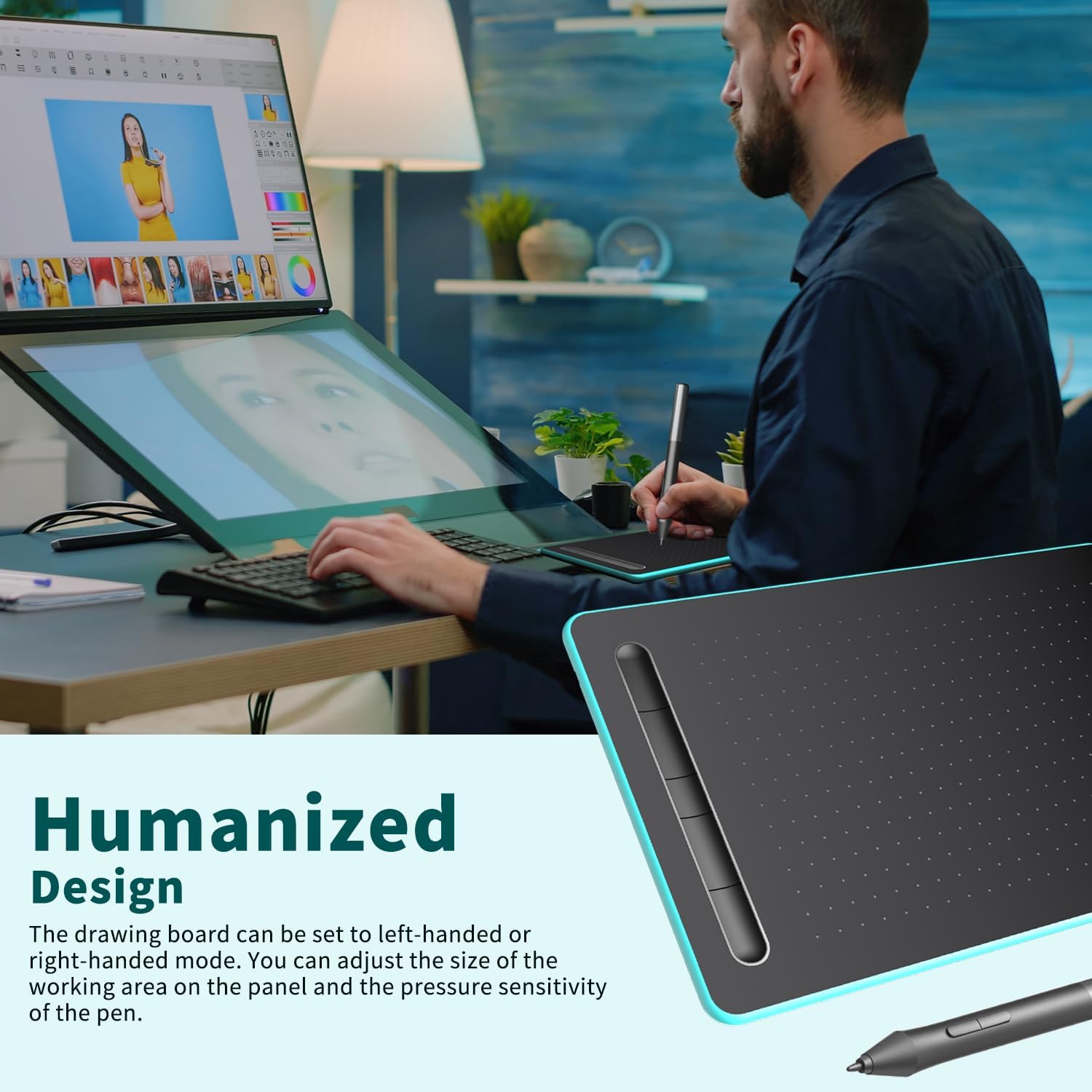
Image: A user operating the graphics tablet, demonstrating its ergonomic and humanized design. The image highlights the tablet's adaptability for both left-handed and right-handed users, and the ability to adjust working area and pressure sensitivity.
Adjusting Working Area and Pressure Sensitivity
Through the driver interface, you can also adjust the size of the active working area on the tablet and fine-tune the pressure sensitivity of the pen to match your drawing style and software requirements.
Compatibility
The LetSketch Graphics Drawing Tablet WP9620C offers broad compatibility with various operating systems and software applications.
Operating Systems
- Windows: Compatible with Windows 7 and above versions.
- Mac OS: Compatible with Mac OS 10.0 and above versions.
- Android: Compatible with mobile phones and tablets running Android 6.0 or above versions.
- Note: This tablet is not suitable for Chromebook devices.
Software Compatibility
The tablet is designed to work seamlessly with popular drawing, design, and office software. This includes applications for industrial design, painting creation, and light office work.

Image: An illustration showing the broad compatibility of the LetSketch Graphics Tablet with various operating systems (Windows, Apple, Android) and creative software applications such as Photoshop, Illustrator, SAI, CorelDRAW, Krita, Cinema 4D, FireAlpaca, and Blender 3D.
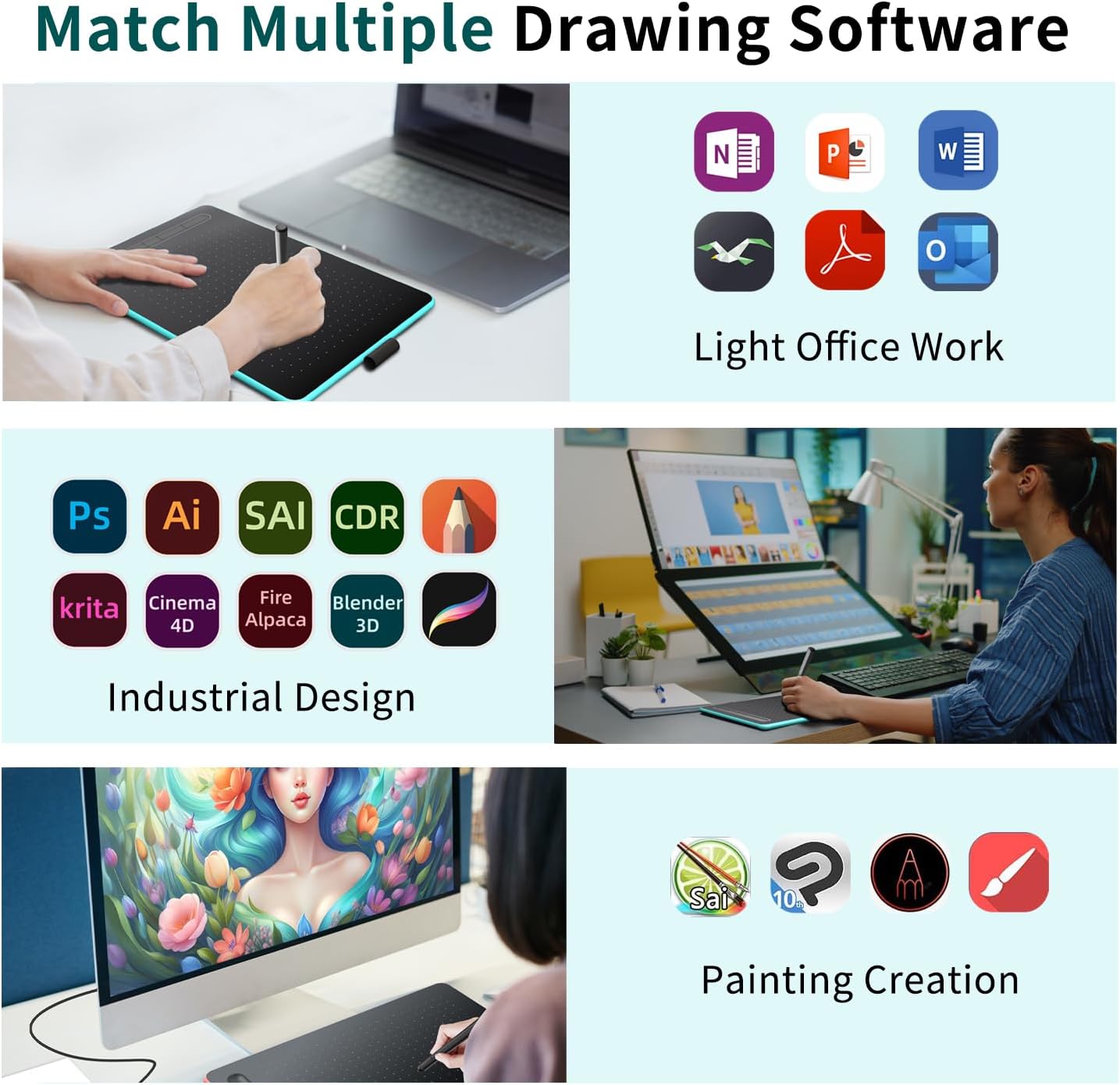
Image: Examples of the graphics tablet being used with various software, categorized into Light Office Work (e.g., OneNote, PowerPoint, Word), Industrial Design (e.g., Photoshop, Illustrator, SAI, CorelDRAW, Krita, Cinema 4D, FireAlpaca, Blender 3D), and Painting Creation (e.g., Sai, Clip Studio Paint, ArtRage, Sketchbook).
Maintenance
Cleaning the Tablet and Pen
- Use a soft, dry, lint-free cloth to clean the surface of the tablet and the pen.
- For stubborn smudges, lightly dampen the cloth with water or a mild, non-abrasive cleaner. Avoid harsh chemicals.
- Do not spray cleaning solutions directly onto the tablet or pen.
Replacing Pen Nibs
When the pen nib wears down, replace it with one of the provided replacement nibs using the nib changer tool. Gently pull out the old nib and insert a new one until it is secure.
Storage
Store the tablet and pen in a cool, dry place away from direct sunlight and extreme temperatures. Avoid placing heavy objects on the tablet.
Troubleshooting
Tablet Not Responding
- Ensure the USB cable is securely connected to both the tablet and your device.
- Try connecting the tablet to a different USB port or a different device to rule out port issues.
- Restart your computer or device.
- Verify that the correct drivers are installed and up to date. Reinstall drivers if necessary.
Pen Not Working or No Pressure Sensitivity
- Ensure the pen nib is properly inserted. Replace the nib if it appears worn or damaged.
- Check the driver settings to ensure pressure sensitivity is enabled and calibrated correctly.
- Test the pen in different drawing applications to see if the issue is software-specific.
Custom Shortcut Keys Not Functioning
- Ensure the tablet drivers are installed.
- Open the driver software and verify that the keys are correctly assigned to desired functions.
- Check for any conflicts with other software or system shortcuts.
Mac OS Specific Issues
Some users may experience difficulties with full functionality on Mac OS. Ensure you have downloaded the correct and latest drivers for Mac OS from the official website. Check system security and privacy settings to ensure the driver has necessary permissions (e.g., Accessibility, Input Monitoring).
Specifications
| Feature | Detail |
|---|---|
| Model | WP9620C |
| Brand | LetSketch |
| Product Dimensions | 28.45 x 19.05 x 0.1 cm (11.2 x 7.5 x 0.04 inches) |
| Active Working Area | 8.26 x 5.51 inches |
| Product Weight | 862 g |
| Pen Technology | Passive Electromagnetic Induction |
| Pressure Sensitivity | 8192 Levels |
| Pen Resolution | 5080 LPI |
| Pen Reading Height | 10 mm |
| Shortcut Keys | 5 customizable keys on tablet, 2 customizable keys on pen |
| Connectivity | Micro USB |
| Compatible OS | Windows 7+, Mac OS 10.0+, Android 6.0+ |
| Special Features | Extra-Slim, Programmable Press Key |
Warranty and Support
Warranty Information
Please refer to the warranty card included with your product or visit the official LetSketch website for detailed warranty terms and conditions. Keep your purchase receipt as proof of purchase for warranty claims.
Customer Support
For technical assistance, troubleshooting, or any inquiries regarding your LetSketch Graphics Drawing Tablet WP9620C, please contact LetSketch customer support. Contact details can typically be found on the official website or in your product packaging.
Official Website: www.letsketch.com (Note: This is a placeholder URL, please refer to your product documentation for the actual support website.)