
Introduction
This manual provides detailed instructions for the installation, operation, and maintenance of your Inefala 9-inch Android 13 Car Radio. This unit is specifically designed for Peugeot 407 models manufactured between 2004 and 2008. Please read this manual thoroughly before installation and use to ensure proper functionality and safety.
Package Contents
Verify that all items listed below are included in your package. If any items are missing or damaged, please contact customer support.
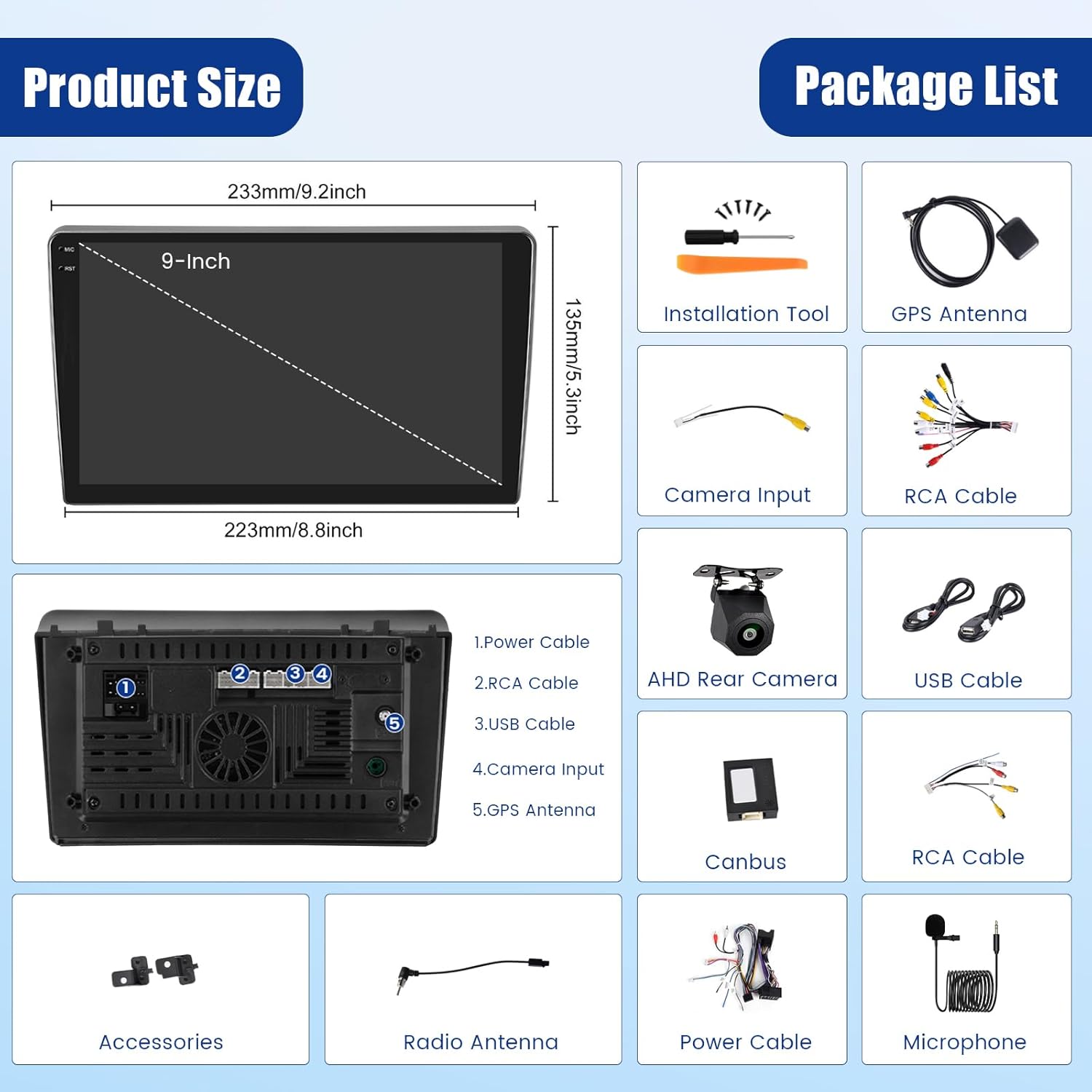
Image: Product dimensions and a visual list of included accessories.
- 1 x Android Car Radio Unit
- 1 x Power Cable
- 1 x GPS Antenna
- 1 x Rear Camera Input Cable
- 1 x RCA Cable
- 2 x USB Cables
- 2 x Mounting Brackets
- 4 x Screws
- 1 x User Manual
- 1 x Backup Camera
- 1 x External Microphone
Key Features
- Operating System: Android 13
- Processor: 8-Core CPU
- Memory: 4GB RAM + 64GB ROM
- Display: 9-inch IPS Touchscreen (1280*720 resolution)
- Audio: Built-in DSP with 32-band EQ
- Connectivity: Wireless CarPlay, Wireless Android Auto, Mirror Link (Android/iOS), Built-in WiFi, Bluetooth 5.0
- Navigation: Integrated GPS module with support for online and offline maps
- Radio: FM/RDS Radio
- Ports: Dual USB ports
- Additional Functions: Split-screen function, Steering Wheel Control (SWC) support, AHD/CVBS backup camera input, external microphone support, 58 customizable UI interfaces.

Image: Visual representation of the in-cell touchscreen, IPS display, and split-screen feature.
Setup and Installation
Installation of this car radio requires technical knowledge and experience with car electronics. Professional installation is highly recommended to avoid damage to the unit or your vehicle. Ensure the vehicle's power is disconnected before beginning installation.

Image: Before and after installation view of the car radio in a Peugeot 407 dashboard.
Wiring Connections
Carefully connect all cables according to the wiring diagram provided with your unit. Pay close attention to the power, speaker, and accessory connections. Incorrect wiring can cause malfunctions or damage.

Image: Guide for connecting AUX IN cables. Ensure these are connected for audio output from external sources like a CD player.
Note: If connecting an external audio source like a CD player, ensure the AUX IN cables (AUX IN R for right channel, AUX IN L for left channel) are correctly connected to the corresponding ports on the wiring harness. Failure to do so will result in no sound from your external audio device.
Operating Instructions
Power On/Off
Press and hold the power button (usually located on the front panel or a designated soft button on the screen) to turn the unit on or off. A short press typically mutes the audio or returns to the home screen.
Touchscreen Operation
The 9-inch IPS touchscreen supports multi-touch gestures. Tap to select, swipe to navigate, and pinch to zoom (where applicable).
Wireless CarPlay & Android Auto / Mirror Link
Connect your smartphone wirelessly via Bluetooth or USB cable to access CarPlay or Android Auto. This allows integration of your phone's apps, navigation, and communication features directly on the car radio display.

Image: Demonstrates wireless CarPlay, Android Auto, and Mirror Link capabilities for smartphones.
GPS Navigation & WiFi Connection
The unit features a built-in GPS module for accurate navigation. It supports both online and offline maps. Connect to a WiFi hotspot or tethering from your smartphone to access online maps, stream content, browse the web, and download applications.

Image: GPS navigation in action and the process of connecting to WiFi for internet access.
Bluetooth 5.0 & FM/RDS Radio
Utilize Bluetooth 5.0 for hands-free calling and audio streaming. Pair your device through the Bluetooth settings menu. The integrated FM/RDS radio allows you to listen to your favorite stations with clear sound quality. RDS provides additional information like station name and traffic updates.

Image: Bluetooth connection interface, FM/RDS radio display, and equalizer settings.
EQ Settings (Digital Sound Processing)
Enhance your audio experience with the built-in Digital Sound Processor (DSP) and its 32-band equalizer. Adjust frequency bands to customize the sound output to your preference, reducing noise and distortion.
Backup Camera & Steering Wheel Control (SWC)
When the vehicle is shifted into reverse gear, the system automatically displays the rear camera feed, aiding in safer parking and maneuvering. The unit supports your vehicle's original steering wheel controls, allowing you to manage functions like volume, track changes, and answering calls without taking your hands off the wheel.
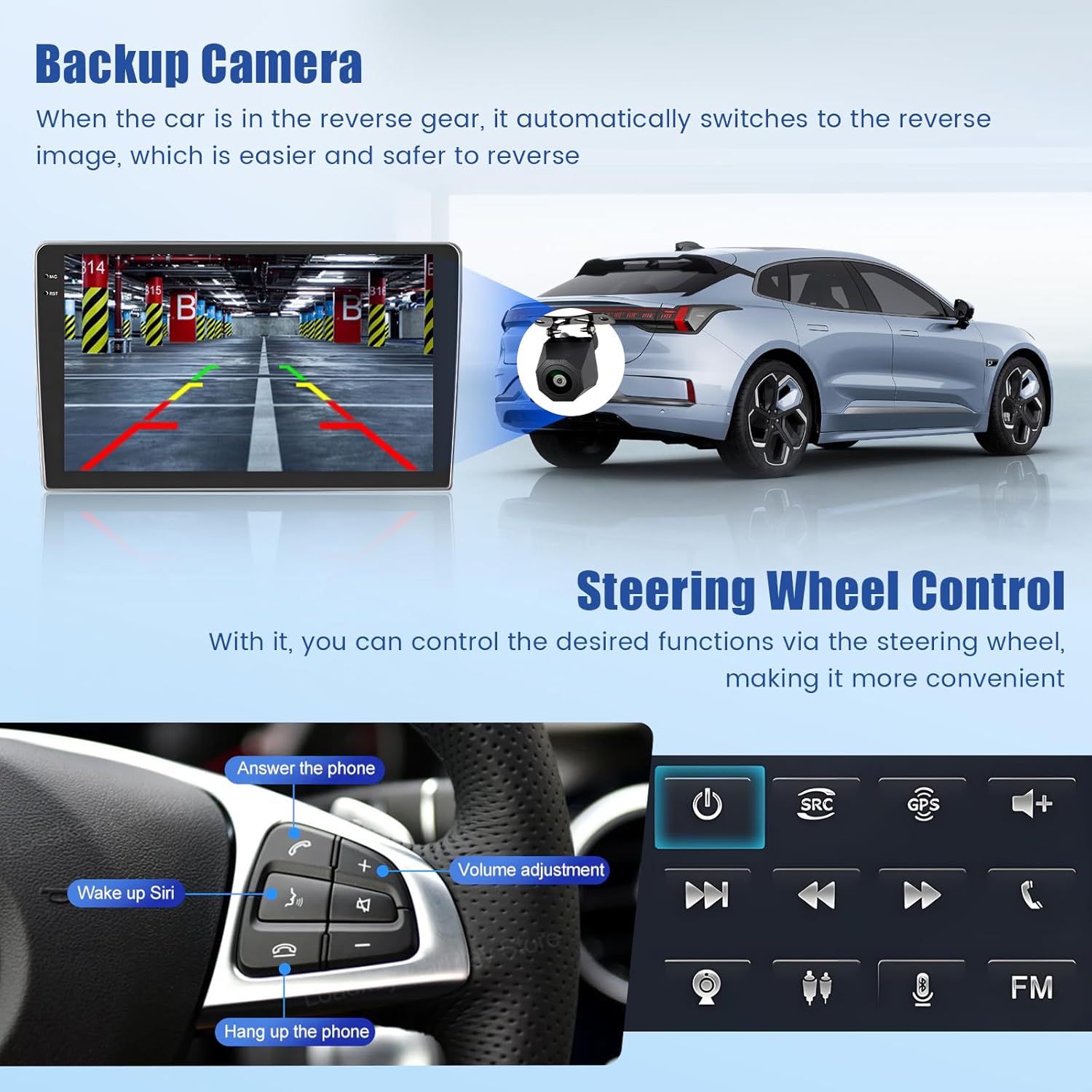
Image: Backup camera display and steering wheel control functions.
Split Screen Function
The split-screen feature allows you to run two applications simultaneously on the 9-inch display, such as navigation and music playback.
Specifications
| Feature | Specification |
|---|---|
| System | Android 13 |
| Chipset | 8257 |
| Screen Size | 9 inches |
| Memory (RAM+ROM) | 4GB + 64GB |
| Screen Resolution | 1280*720 |
| Radio Chip | 8035 |
| Output Power | 4*45W (Total 180W) |
| Bluetooth Version | 5.0 |
| Operating Temperature | -20℃ to 75℃ |
| Power Amplifier Chip | YD7388 |
| Radio Band | FM/RDS |
| Video Output | Supported |
| Reversing Input | AHD/CVBS |
| External Microphone | Supported |
| Split Screen | Supported |
| Maps | Built-in offline maps |
| USB Interface | Dual USB |
| Audio Formats | APE/FLAC/WAV/MP3/WMA, etc. |
| Video Formats | MKV/RMVB/AVI/MP4/MDV, etc. |
| Image Formats | PNG/JPEG/JPG/GIF/WBMP/BNP, etc. |
| Factory Settings Keyword | 1234 |
| Languages | Chinese/English/French/Italian/Korean/Japanese/Arabic/Spanish/Portuguese/Russian/Turkish/Vietnamese/Hebrew/Polish/German |
| Dimensions (D x W x H) | 20.8 x 23 x 8.5 cm |
Maintenance
To ensure the longevity and optimal performance of your car radio, follow these maintenance guidelines:
- Cleaning: Use a soft, dry cloth to clean the screen and exterior. Avoid abrasive cleaners or solvents.
- Temperature: Operate the unit within the specified temperature range (-20℃ to 75℃). Extreme temperatures can affect performance and lifespan.
- Software Updates: Periodically check for software updates to ensure the system runs efficiently and has the latest features.
- Avoid Liquids: Prevent liquids from entering the unit, as this can cause severe damage.
Troubleshooting
If you encounter issues with your car radio, refer to the following common problems and solutions:
- No Power: Check all power connections. Ensure the vehicle's ignition is on. Verify fuses are intact.
- No Sound: Check speaker connections. Ensure the volume is not muted or set too low. Verify AUX IN cables are connected if using an external audio source.
- Bluetooth Connection Issues: Ensure Bluetooth is enabled on both the car radio and your smartphone. Delete previous pairings and try reconnecting. Move closer to the unit if experiencing signal drops.
- GPS Signal Loss: Ensure the GPS antenna is properly installed and has a clear view of the sky.
- Unresponsive Touchscreen: Try restarting the unit. If the issue persists, a factory reset might be necessary (use keyword 1234).
- Steering Wheel Controls Not Working: Verify SWC wiring connections. Ensure the SWC function is enabled and configured in the unit's settings.
- System Lag/Slow Performance: Close unnecessary background applications. Clear cache if available in settings. Consider a factory reset if performance issues persist.
For persistent issues not covered here, please contact Inefala customer support.
Warranty and Support
Your Inefala car radio comes with a 24-month quality assurance warranty. We offer online consultation and aim to respond to inquiries within 24 hours. Additionally, a 30-day free return policy is available.

Image: Warranty and support information.
24/7 Technical Support
For technical assistance, follow these steps:
- Step 1: Click on the 'Inefala EU' seller name on the product page.
- Step 2: Send an email to the provided contact address (inefalatech@163.com).

Image: Instructions for contacting technical support.