
LOQRON TT-LOCK
LOQRON Smart Key Lock Box User Manual
Model: TT-LOCK
Introduction
The LOQRON Smart Key Lock Box with G2 Gateway provides a secure and convenient solution for managing access to keys and small items. This device integrates advanced technology, offering multiple unlocking methods and remote control capabilities through the TT-Lock APP.
Key Features:
- Five unlocking methods: App control, Fingerprint, Access Card, Password, and Manual Keys.
- Remote unlocking and management via G2 Gateway.
- Real-time monitoring of door status, battery life, and activity logs.
- Durable construction with premium zinc alloy body.

Image: The Smart Key Lock Box, G2 Gateway, and the TT-Lock mobile application interface, demonstrating the complete system.
Setup Guide
Follow these steps to set up your Smart Key Lock Box and G2 Gateway for optimal performance.
1. Initial Lock Box Setup
- Install Batteries: Open the battery compartment and insert the required batteries (not included).
- Initial Pairing: Follow the instructions in the TT-Lock App to add the lock box as a new device.
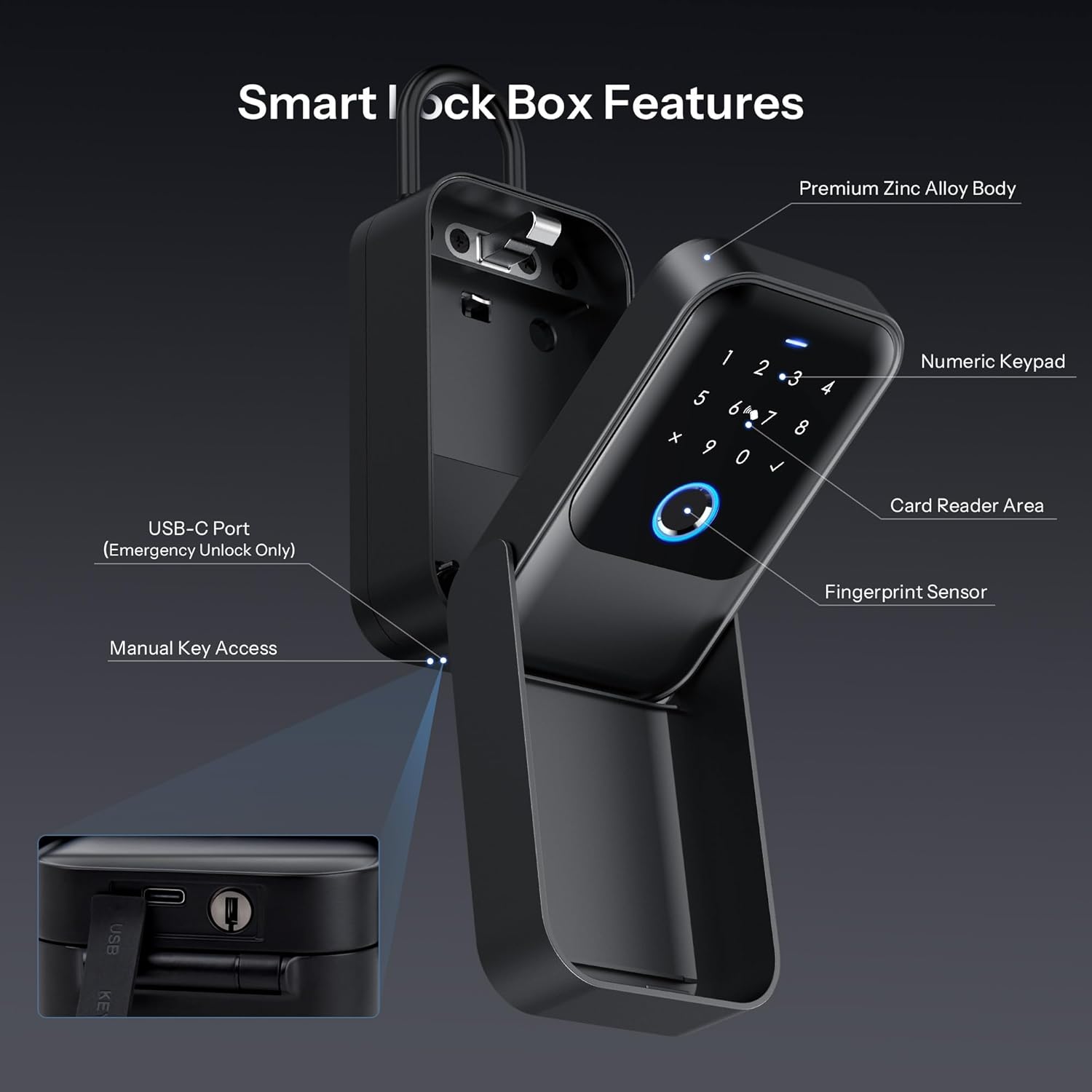
Image: Detailed view of the Smart Key Lock Box highlighting its components: premium zinc alloy body, numeric keypad, card reader area, fingerprint sensor, USB-C port for emergency unlock, and manual key access.
2. G2 Gateway Connection
The G2 Gateway enables remote control and advanced features for your lock box.
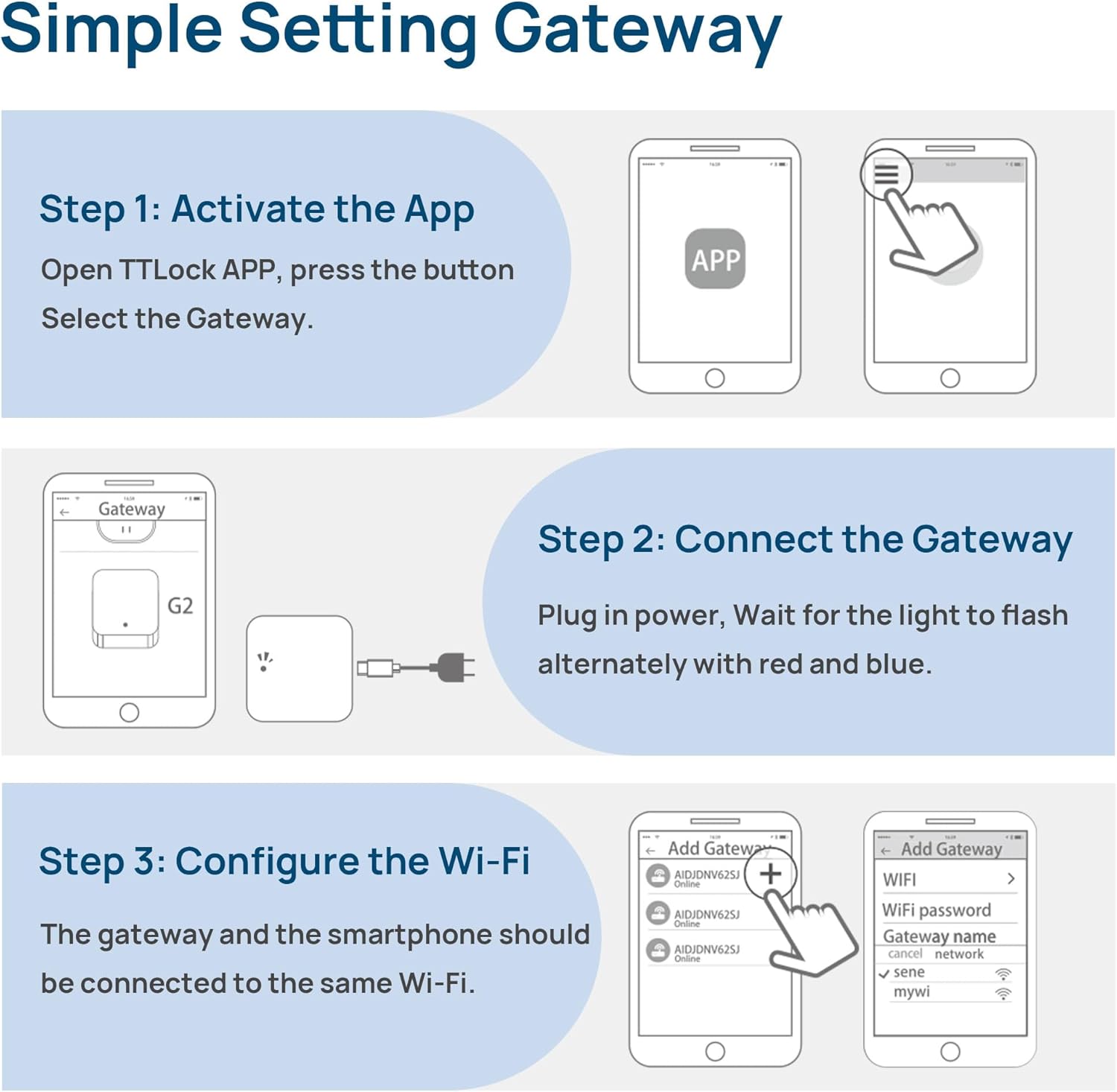
Image: Step-by-step guide for setting up the G2 Gateway, illustrating app activation, physical connection, and Wi-Fi configuration.
- Step 1: Activate the App. Open the TT-Lock APP and select the Gateway option.
- Step 2: Connect the Gateway. Plug the G2 Gateway into a power source. Wait for the indicator light to flash alternately with red and blue, indicating it's ready for pairing.
- Step 3: Configure Wi-Fi. Ensure both your smartphone and the gateway are connected to the same 2.4GHz Wi-Fi network (5GHz networks are not supported). Follow the in-app prompts to complete the Wi-Fi configuration.
Important: The gateway should be placed within 32 feet (approximately 10 meters) of the Smart Key Lock Box for stable wireless connection.

Image: Illustration of the wireless connection between the G2 Gateway and the Smart Key Lock Box, highlighting the recommended maximum distance of 32 feet for optimal signal.
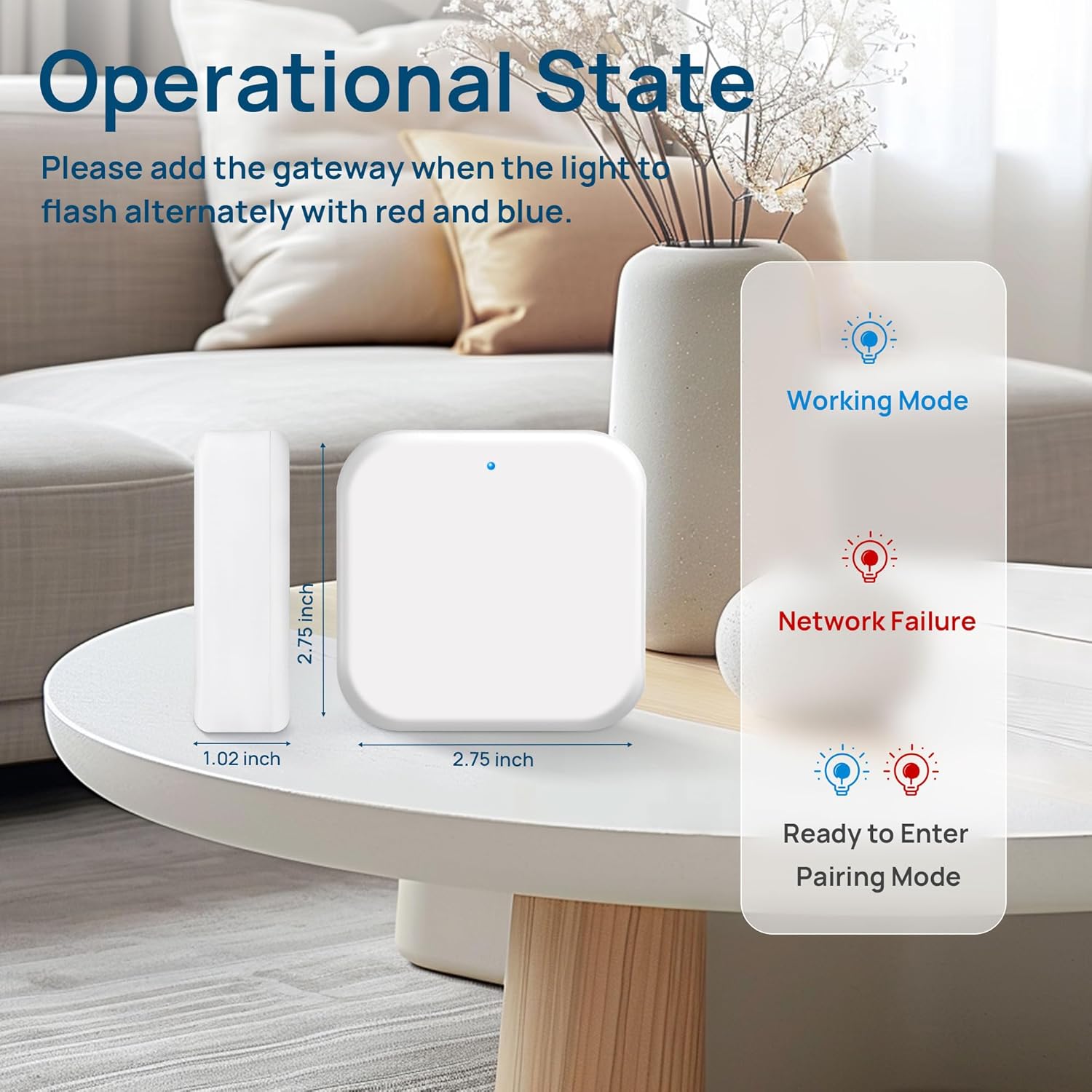
Image: Visual guide to the G2 Gateway's operational states, indicated by the color and pattern of its LED light: blue for working mode, red for network failure, and alternating red/blue for pairing mode.
Operating Instructions
The LOQRON Smart Key Lock Box offers five convenient methods for access.

Image: Overview of the five unlocking methods available for the Smart Key Lock Box: App Control, Fingerprint, Manual Key, Access Card, and Passcode.
Unlocking Methods:
- 1. App Control:
Open the TT-Lock App on your smartphone. Ensure Bluetooth is enabled and you are within range of the lock box (or connected via Gateway for remote access). Tap the unlock icon in the app to open the lock box.
- 2. Fingerprint Recognition:
Place your registered finger on the fingerprint sensor located on the keypad. The lock will unlock upon successful recognition. Ensure your finger is clean and dry.
- 3. Access Card:
Present a registered access card to the card reader area on the lock box. The lock will unlock after the card is successfully read.
- 4. Passcode:
Enter your pre-set passcode on the numeric keypad, then press the checkmark (✓) button. The lock will unlock if the passcode is correct.
- 5. Manual Keys:
In case of battery depletion or electronic malfunction, use the provided manual keys to unlock the lock box. The keyhole is typically located discreetly on the device.
Remote Control and Management (with G2 Gateway):
With the G2 Gateway connected, you can manage your lock box from anywhere in the world.

Image: Examples of remote control functionality, showing a user receiving a notification for access and another user remotely unlocking the device through the TT-Lock app.
- Remote Unlocking: Unlock the lock box from any location using the TT-Lock App.
- Access Code Management: Generate, modify, or delete temporary or permanent access codes remotely.
- Activity Logs: View a real-time log of all unlocking events, including method and time.
- Battery Monitoring: Check the current battery level of the lock box through the app.
- Share E-keys: Grant temporary or permanent access to others by sharing e-keys through the app.
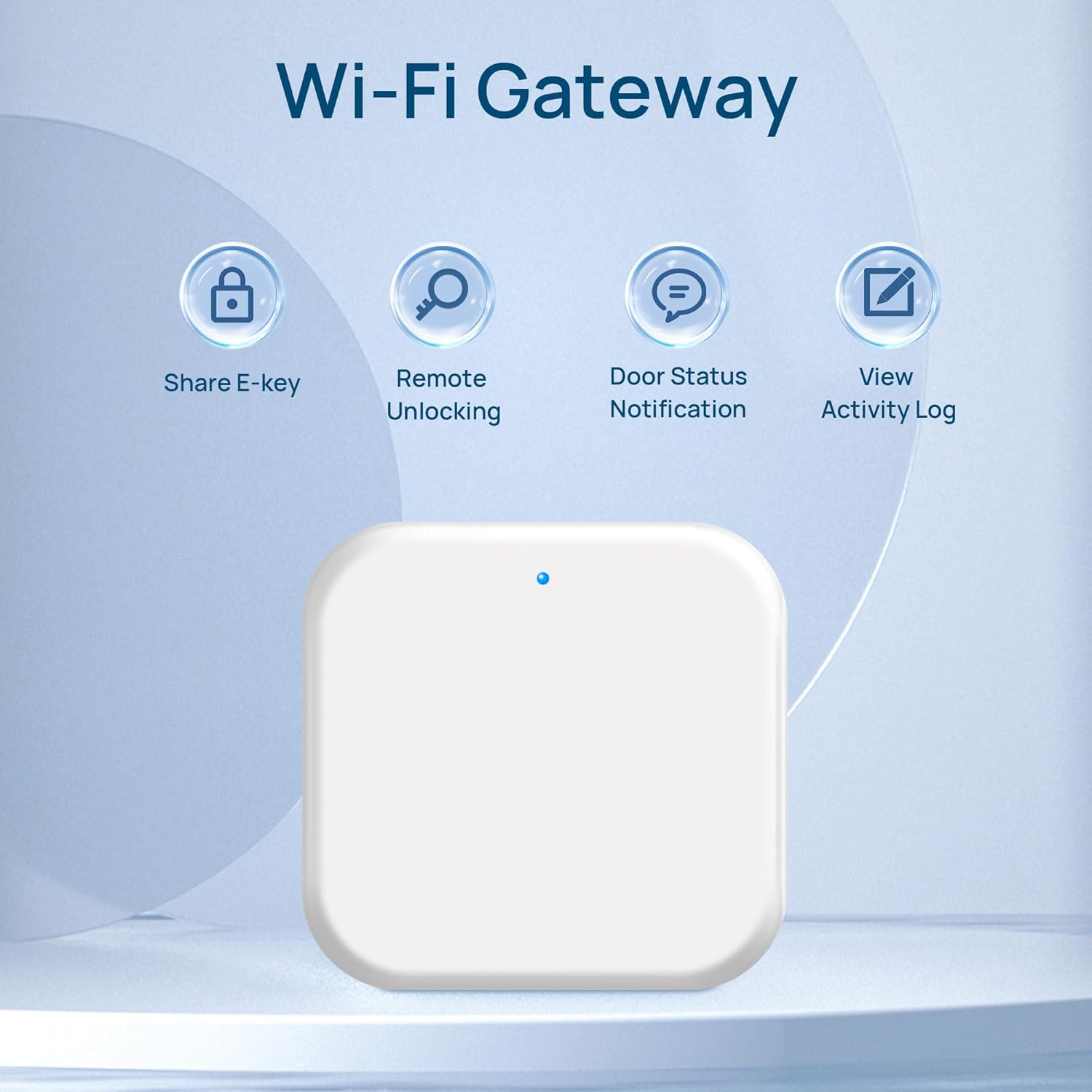
Image: Features enabled by the Wi-Fi Gateway, including sharing e-keys, remote unlocking, door status notifications, and viewing activity logs.
Maintenance
- Cleaning: Wipe the lock box and keypad with a soft, dry cloth. Avoid abrasive cleaners or solvents that could damage the finish or electronic components.
- Battery Replacement: When the battery level is low (indicated by the app or a warning light/sound on the device), replace all batteries with new ones of the specified type. Refer to the battery compartment for battery type.
- Fingerprint Sensor Care: Keep the fingerprint sensor clean and free of dirt or moisture to ensure accurate recognition.
- Environmental Conditions: While the lock box is designed for durability, avoid prolonged exposure to extreme temperatures or direct water immersion.

Image: The Smart Key Lock Box open, revealing its interior capacity for keys and cards, and demonstrating its robust, potentially water-resistant design.
Troubleshooting
- Lock Box Not Responding:
- Check battery level and replace if necessary.
- Ensure the lock box is properly powered on.
- Try using the manual key for access.
- Fingerprint Not Recognized:
- Ensure your finger is clean and dry.
- Try different angles or re-register your fingerprint if issues persist.
- App Connectivity Issues:
- Ensure Bluetooth is enabled on your phone.
- For remote access, verify the G2 Gateway is powered on and connected to a stable 2.4GHz Wi-Fi network.
- Restart the TT-Lock App or your smartphone.
- Gateway Not Pairing:
- Confirm the gateway's indicator light is flashing red and blue.
- Ensure your phone and gateway are on the same 2.4GHz Wi-Fi network.
- Relocate the gateway closer to your Wi-Fi router.
Specifications
| Feature | Detail |
|---|---|
| Brand | LOQRON |
| Model Number | TT-LOCK |
| Lock Type | Key Lock (Smart) |
| Material | Stainless Steel |
| Special Features | Keyless, Fingerprint, App Control, Remote Access |
| Connectivity Protocol | Wi-Fi (2.4GHz) |
| Controller Type | Hand Control, SmartThings (via App) |
Warranty and Support
For warranty information and technical support, please refer to the product packaging or contact LOQRON customer service directly. Details can often be found on the official LOQRON website or through your purchase platform.
Customer Support: Please visit the LOQRON store on Amazon or their official website for contact information and frequently asked questions.
Note: Keep your purchase receipt as proof of purchase for warranty claims.
Ask a question about this manual
Ask about setup, troubleshooting, compatibility, parts, safety, or missing instructions. Manuals+ will review the question and use this page’s manual context to help answer it.