
Acer P11-11-8113
Acer Iconia Tab P11 P11-11-8113 Tablet User Manual
Model: P11-11-8113 | Brand: Acer
1. Introduction
This manual provides comprehensive instructions for the Acer Iconia Tab P11 P11-11-8113 Tablet. It covers initial setup, operational guidelines, maintenance tips, and troubleshooting common issues to ensure optimal performance and longevity of your device.
The Acer Iconia Tab P11 is designed for both productivity and entertainment, featuring an 11-inch 2K QLED Quantum Dot Display with a 90Hz refresh rate, powered by a MediaTek Helio G99 Octa-Core processor and Android 14. It includes 8GB RAM and 256GB UFS storage, expandable up to 512GB via microSD.

Image: The Acer Iconia Tab P11 P11-11-8113 Tablet, showcasing its sleek design and display.
Video: Official product video for the Acer Iconia Tab P11 P11-11-8113 Tablet, highlighting its key features and design. Duration: 1 minute.
2. Setup
2.1 Initial Charging
Before first use, fully charge the tablet using the provided USB Type-C adapter and power cord. Connect the USB Type-C cable to the tablet's port and the adapter to a power outlet. The charging indicator will show the charging status.
2.2 Powering On/Off
- To Power On: Press and hold the power button located on the side of the tablet until the Acer logo appears.
- To Power Off: Press and hold the power button until a power-off menu appears on the screen. Select 'Power off' and confirm.
- To Restart: From the power-off menu, select 'Restart'.
2.3 Initial Setup Wizard
Upon first power-on, the tablet will guide you through an initial setup process. Follow the on-screen prompts to configure:
- Language selection
- Wi-Fi network connection
- Google account sign-in or creation
- Date and time settings
- Security options (PIN, pattern, password)
2.4 Inserting a MicroSD Card
The tablet supports expandable storage up to 512GB via a microSD card. Locate the microSD card slot on the side of the tablet. Gently insert the microSD card into the slot until it clicks into place. Ensure the card is oriented correctly as indicated by the diagram near the slot.
3. Operating Your Tablet
3.1 Navigation and Gestures
The Acer Iconia Tab P11 operates on Android 14, utilizing intuitive touch gestures for navigation:
- Tap: Select an item or open an application.
- Swipe: Scroll through pages, menus, or content.
- Pinch-to-Zoom: Enlarge or reduce content on the screen.
- Long Press: Access contextual menus or move icons.
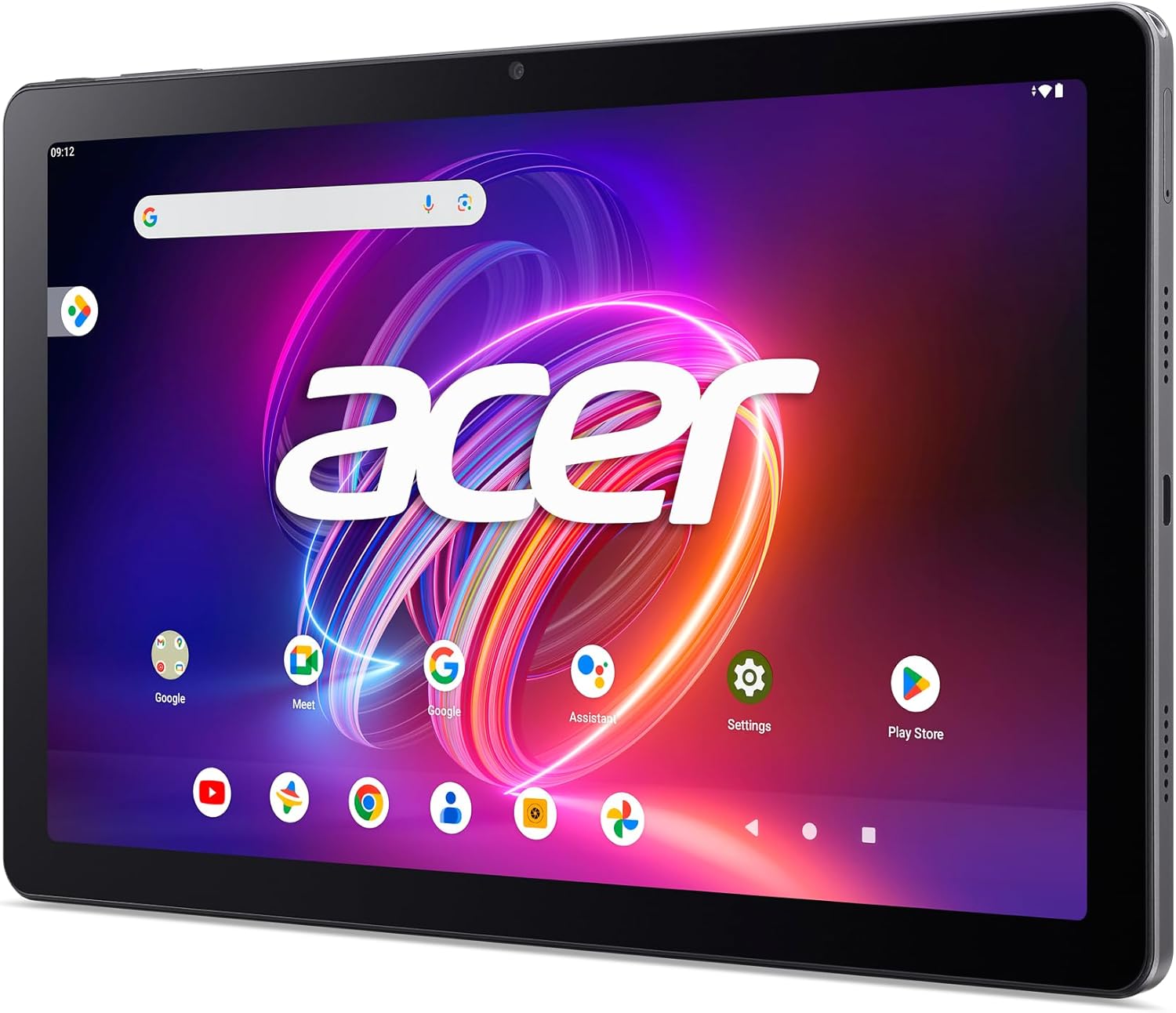
Image: The tablet displaying the Android 14 interface, demonstrating its capability for split-screen multitasking.
3.2 Display Features
The tablet features an 11-inch WUXGA (2000 x 1200) QLED Quantum Dot Display with a 90Hz refresh rate, providing vibrant colors and smooth visuals. The high brightness of 400 nits ensures clear visibility in various lighting conditions.

Image: Visual representation of the tablet's display technology, highlighting 90Hz refresh rate, QLED, and 2K resolution.
3.3 Audio
Experience impressive sound quality through the tablet's quad speakers. For private listening, a 3.5mm headphone jack is available.
3.4 Cameras
The tablet is equipped with a 5MP front camera for video calls and selfies, and a 13MP rear camera with autofocus and flash for capturing photos and videos.

Image: A user holding the tablet, illustrating the functionality of the 5MP front camera and 13MP rear camera.
3.5 Connectivity
Stay connected with dual-band Wi-Fi 5 (802.11ac) and Bluetooth capabilities for wireless accessories and internet access.
3.6 Battery Life
The 8,000mAh battery provides up to 13 hours of video playback. The tablet supports USB Power Delivery 2.0 Fast Charge for quick recharging.

Image: Two individuals using the tablet, with icons indicating 13 hours of battery life, 8000mAh capacity, and USB 2.0 Fast Charge.
3.7 Performance
The MediaTek Helio G99 Octa-Core CPU, combined with 8GB Dual-Channel LPDDR4X RAM and 256GB UFS storage, ensures smooth and responsive performance for various applications and multitasking.

Image: The tablet positioned to highlight its internal specifications: MediaTek Octa-Core processor, 8GB LPDDR4X RAM, and 512GB Micro SD expandability.
4. Maintenance
4.1 Cleaning
- Screen: Use a soft, lint-free cloth specifically designed for electronics. Lightly dampen the cloth with water or a screen cleaner if necessary. Avoid harsh chemicals or abrasive materials.
- Body: Wipe the aluminum alloy chassis with a soft, dry cloth. Keep liquids away from ports and openings.
4.2 Software Updates
Regularly check for and install system updates to ensure your tablet has the latest features, security patches, and performance improvements. Navigate to Settings > System > System update to check for available updates.
4.3 Battery Care
- Avoid extreme temperatures, as they can degrade battery life.
- Do not leave the tablet fully charged or fully discharged for extended periods.
- Use only the original or certified charging accessories.
4.4 Storage Management
Periodically review and manage your tablet's storage. Delete unnecessary files, uninstall unused applications, and utilize cloud storage or the microSD card for large media files to maintain optimal performance.
5. Troubleshooting
This section addresses common issues you might encounter with your Acer Iconia Tab P11 tablet.
| Problem | Possible Solution |
|---|---|
| Tablet does not power on | Ensure the battery is charged. Connect the charger and wait a few minutes before attempting to power on again. If unresponsive, perform a forced restart by holding the power button for 10-15 seconds. |
| Wi-Fi connection issues | Check if Wi-Fi is enabled in settings. Restart your Wi-Fi router. Forget the network and reconnect. Ensure you are within range of the Wi-Fi signal. |
| Slow performance | Close unused applications. Clear cache for frequently used apps. Check available storage space and free up memory if needed. Restart the tablet. |
| Apps crashing or freezing | Force close the app (Settings > Apps > [App Name] > Force Stop). Clear the app's cache and data. Uninstall and reinstall the app. Ensure the tablet's software is up to date. |
| Screen unresponsive | Restart the tablet. If the issue persists, consider a factory reset (Note: This will erase all data. Back up important files first.). |
5.1 Factory Reset
If persistent issues occur, a factory reset may resolve them. This action will erase all data on your tablet and restore it to its original factory settings. Before proceeding, ensure all important data is backed up. To perform a factory reset, navigate to Settings > System > Reset options > Erase all data (factory reset).
6. Specifications
Key technical specifications for the Acer Iconia Tab P11 P11-11-8113 Tablet:
| Feature | Detail |
|---|---|
| Model Number | P11-11-8113 |
| Operating System | Android 14 |
| Display Size | 11 Inches |
| Screen Resolution | 2000 x 1200 (WUXGA+) |
| Refresh Rate | 90Hz |
| Processor | MediaTek Helio G99 Octa-Core (2.2 GHz) |
| RAM | 8GB Dual-Channel LPDDR4X |
| Internal Storage | 256GB UFS |
| Expandable Storage | Up to 512GB via microSD Card Reader |
| Rear Camera | 13MP with Autofocus |
| Front Camera | 5MP |
| Wireless Connectivity | 802.11ac Wi-Fi 5, Bluetooth |
| Battery Capacity | 8,000mAh (Up to 13 hours video playback) |
| Charging | USB Power Delivery 2.0 Fast Charge |
| Dimensions (LxWxH) | 10.44 x 6.69 x 0.32 inches |
| Weight | 1.21 pounds (approx. 550g) |
| Color | Gray |
7. Warranty and Support
For detailed warranty information, please refer to the warranty card included with your product or visit the official Acer support website. The website provides access to drivers, software updates, FAQs, and contact information for technical support.
You can visit the official Acer store for additional information and support: Acer Store on Amazon