
1. Introduction
This manual provides comprehensive instructions for the installation, operation, and maintenance of your Marquis IPC-DL824 8MP PoE IP Turret Camera. This camera is designed for reliable outdoor surveillance, featuring high-resolution imaging, Power over Ethernet (PoE) connectivity, and advanced night vision capabilities. Please read this manual thoroughly before using the product to ensure proper setup and optimal performance.
The Marquis IPC-DL824 is an 8-megapixel (8MP) IP turret camera equipped with a 1/2.8" CMOS sensor, delivering clear video at up to 8MP resolution. It supports H.265/H.264 compression, dual-stream media, and offers remote access via web browsers, PC clients, and mobile applications. Key features include dual light (IR and warm light) for night vision, a built-in microphone for audio, and robust IP67 weather protection.
2. Product Overview
2.1 Key Features
- 8MP HD Resolution: Captures video at 8 Megapixels (3840 x 2160) for detailed surveillance, enabling facial recognition and license plate identification.
- Power over Ethernet (PoE): Simplifies installation by providing both power and data over a single Ethernet cable, reducing cabling costs.
- Dual Light Night Vision: Features both infrared (IR) and warm light LEDs, providing clear night vision up to 98 feet (30 meters). Default mode is IR.
- Built-in Microphone: Enables audio recording and two-way audio communication when connected to a compatible NVR.
- Wide Angle 2.8mm Lens: Offers a 103° horizontal field of view, covering a broad area with fewer cameras.
- H.265/H.264 Compression: Efficient video compression reduces file sizes and storage requirements without compromising quality.
- IP67 Weatherproof Rating: Designed for outdoor use, resistant to dust and water, and capable of operating in extreme temperatures (-40°F to 140°F).
- Wide Dynamic Range (WDR): Enhances image clarity in scenes with high contrast lighting.
- Motion Detection & Privacy Mask: Configurable settings for security alerts and privacy protection.
- Broad Compatibility: Supports ONVIF protocol and works with various third-party software like iSpy, BlueIris, and Milestone, as well as OEM PoE NVRs.
2.2 Camera Components
Familiarize yourself with the main components of your Marquis IPC-DL824 camera:

Figure 1: Front view of the Marquis IPC-DL824 Turret Camera, showing the lens, IR/warm lights, and microphone.
- Camera Lens: 2.8mm fixed lens for wide-angle viewing.
- Infrared (IR) LEDs / Warm Lights: Provide illumination for night vision.
- Microphone: Built-in for audio capture.
- RJ45 Ethernet Port: For PoE connection (power and data).
- DC Power Input (Optional): 12V DC input for non-PoE power supply (adapter not included).
- SD Card Slot: Supports up to 256GB Micro SD card for local storage (card not included).
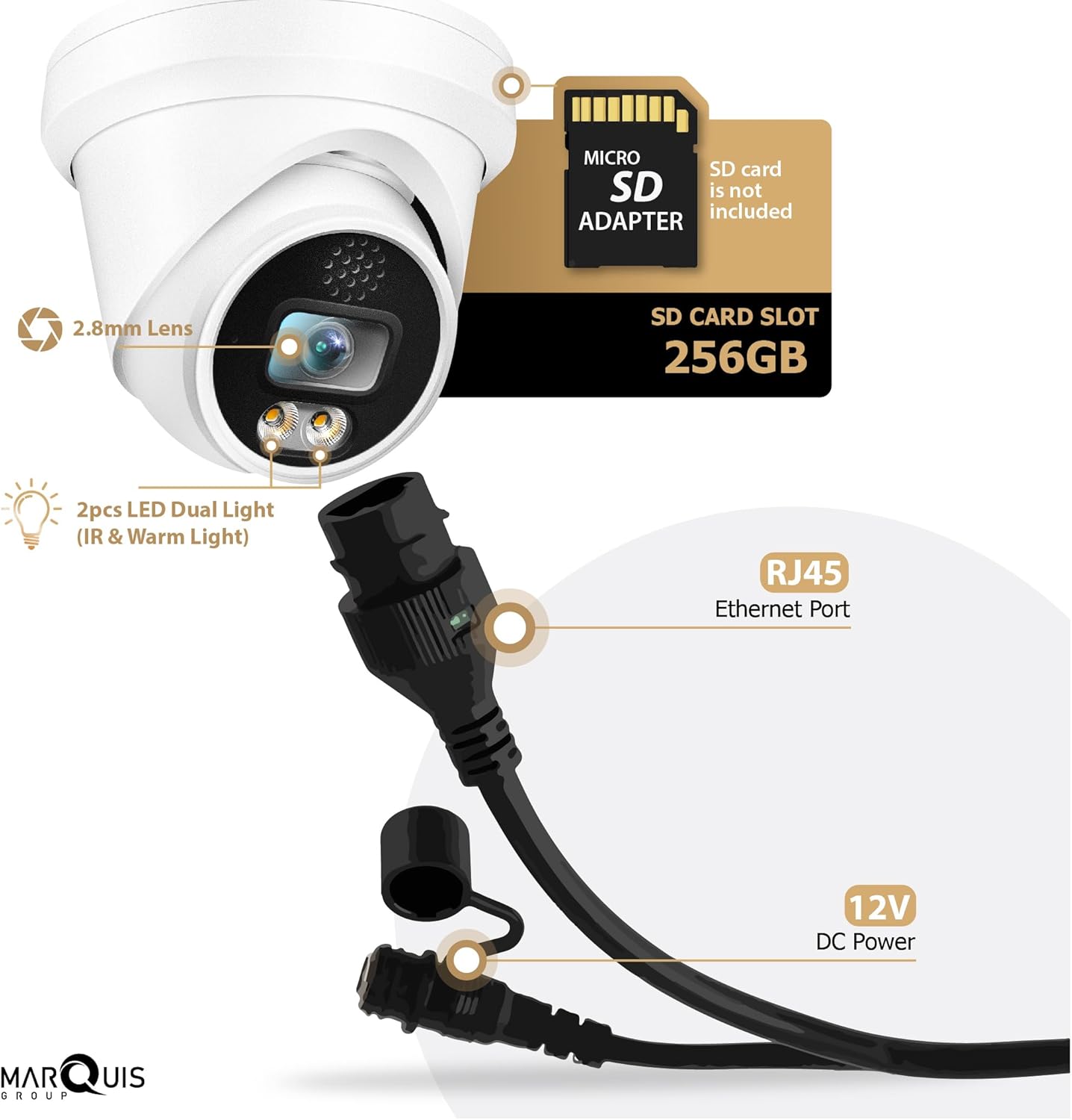
Figure 2: Detailed view of the camera's connections, including the RJ45 Ethernet port, optional 12V DC power input, and the internal SD card slot.
3. Setup and Installation
Before installation, ensure you have the necessary tools: drill, screwdriver, Ethernet cable, and a PoE switch or NVR.
3.1 Mounting the Camera
- Choose a Location: Select a suitable indoor or outdoor location. The camera is IP67 rated for weather resistance. Consider the desired field of view and proximity to your network infrastructure.
- Prepare the Surface: Use the provided mounting template (if applicable) to mark drill holes on the ceiling or wall.
- Drill Holes: Drill pilot holes for the mounting screws. Insert wall anchors if mounting on drywall or masonry.
- Secure the Camera: Attach the camera base securely to the mounting surface using the screws.
- Adjust Angle: Loosen the adjustment screws to position the camera lens for the desired viewing angle, then tighten them to secure.
3.2 Network and Power Connection (PoE)
The IPC-DL824 camera supports Power over Ethernet (PoE), simplifying wiring.
- Connect Ethernet Cable: Connect one end of an Ethernet cable to the camera's RJ45 port.
- Connect to PoE Device: Connect the other end of the Ethernet cable to a PoE-enabled NVR or a PoE switch. Ensure the PoE device is powered on.
- Verify Connection: The camera will power on automatically. Check the status indicator lights on your NVR or PoE switch to confirm a successful connection.
Note: If not using PoE, connect a 12V DC power adapter (not included) to the DC power input and connect the RJ45 port to a standard network switch or router.
3.3 SD Card Installation (Optional)
For local video storage, you can install a Micro SD card (up to 256GB, not included).
- Power Off Camera: Disconnect the camera from power before installing or removing the SD card.
- Locate SD Card Slot: The SD card slot is typically located under a cover on the camera body. Refer to Figure 2 for general location.
- Insert SD Card: Gently insert the Micro SD card into the slot until it clicks into place. Ensure correct orientation.
- Secure Cover: Replace the cover to maintain the camera's weather resistance.
- Format SD Card: After powering on, access the camera's web interface or NVR settings to format the newly installed SD card.
4. Operation
4.1 Accessing the Camera
You can access the camera's live view and settings through various methods:
- NVR Connection: If connected to a compatible PoE NVR, the camera will be automatically detected. Refer to your NVR's manual for adding and managing IP cameras.
- Web Browser: Use a web browser (e.g., Google Chrome, Mozilla Firefox, Microsoft Edge) to access the camera's web interface by entering its IP address. You may need to use a discovery tool to find the camera's IP address on your network.
- PC Client Software: Install the manufacturer's PC client software for advanced management and viewing.
- Mobile App: Download the official mobile application (e.g., Guard Viewer) for remote viewing and control on iOS and Android devices.

Figure 3: The Marquis IPC-DL824 camera is compatible with various software platforms and brands, including ONVIF, Hikvision, Dahua, iSpy, BlueIris, and Milestone.
4.2 Video Monitoring and Recording
- Live View: Access the live video feed through your NVR, web interface, or mobile app.
- Resolution: The camera supports up to 8MP resolution. Adjust resolution settings in the camera's interface or NVR for optimal storage and bandwidth usage.
- Recording: Configure recording schedules (continuous, motion-triggered, or scheduled) via your NVR or the camera's web interface. Recordings can be stored on the NVR, local SD card, or network storage.
- Playback: Review recorded footage through your NVR or client software.
4.3 Night Vision Modes
The camera features dual light technology for enhanced night vision.
- Infrared (IR) Mode (Default): In low-light conditions, the camera automatically switches to IR mode, providing black and white video with illumination from the IR LEDs.
- Warm Light Mode: The camera can also utilize warm white LEDs to provide full-color night vision in very dark environments. This mode can often be configured in the camera's settings.
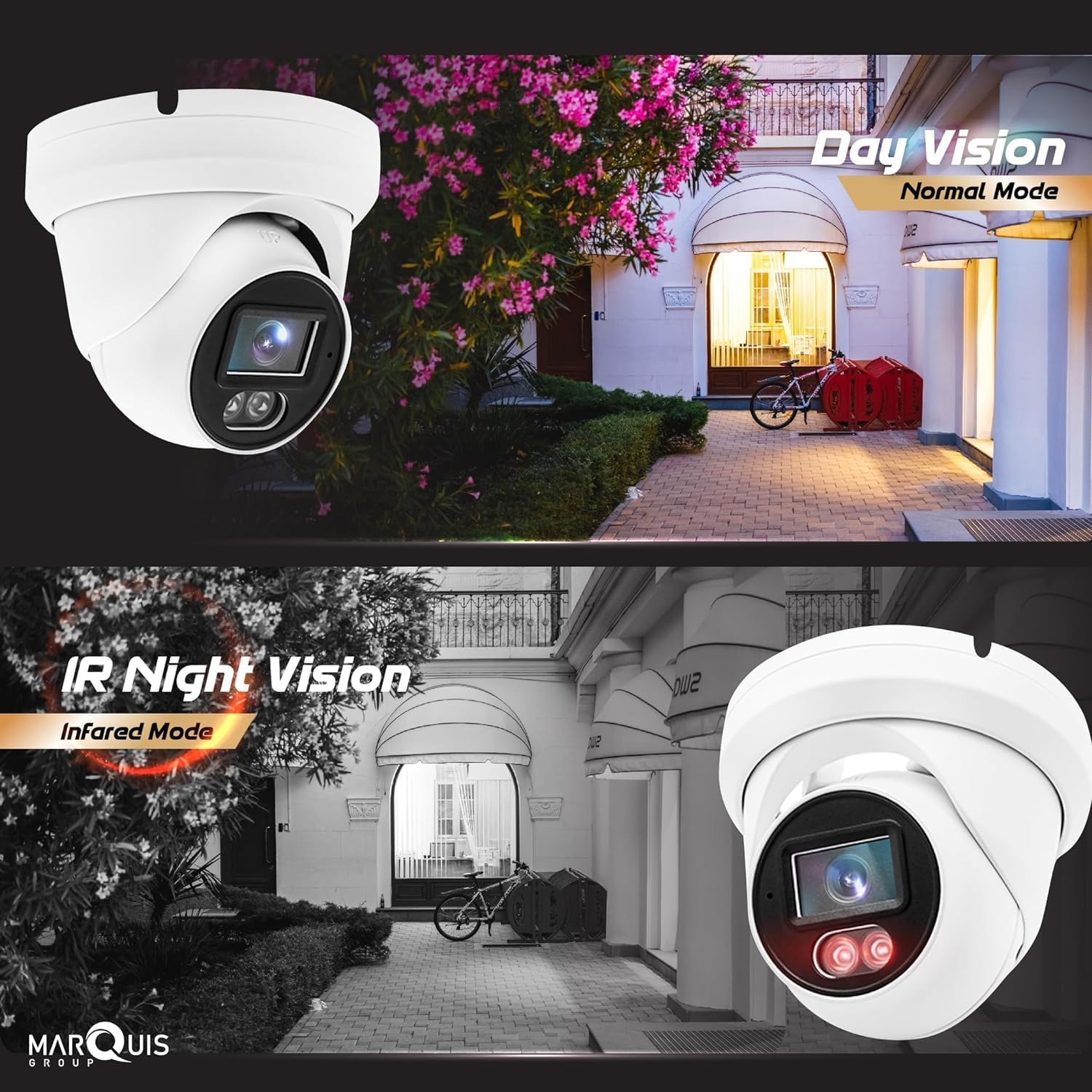
Figure 4: Comparison of day vision (normal mode) and IR night vision (infrared mode) captured by the Marquis IPC-DL824 camera.
4.4 Audio Features
The built-in microphone allows for audio monitoring. When connected to a compatible NVR, two-way audio functionality may be available, allowing you to speak through the camera.
4.5 Motion Detection and Alerts
Configure motion detection zones and sensitivity settings in the camera's web interface or NVR. When motion is detected, the camera can trigger recordings, send email alerts, or push notifications to your mobile app.
5. Maintenance
- Cleaning: Periodically clean the camera lens and housing with a soft, damp cloth. Avoid abrasive cleaners that could scratch the lens.
- Firmware Updates: Check the manufacturer's website regularly for firmware updates. Keeping your camera's firmware up-to-date ensures optimal performance, security, and access to new features.
- Cable Inspection: Periodically inspect all cables for wear, damage, or loose connections, especially for outdoor installations.
- Environmental Considerations: While the camera is IP67 rated, ensure it is not submerged in water or exposed to extreme physical impact.
6. Troubleshooting
| Problem | Possible Cause | Solution |
|---|---|---|
| No video feed / Camera offline | No power; Network cable disconnected; Incorrect IP address; PoE issue. |
|
| Poor image quality | Dirty lens; Low light conditions; Incorrect resolution settings; Network bandwidth issues. |
|
| Motion detection not working | Incorrect sensitivity settings; Motion detection zones not configured; Firmware outdated. |
|
If you encounter issues not covered here, please refer to the manufacturer's online support resources or contact customer service.
7. Specifications

Figure 5: Overview of the Marquis IPC-DL824 camera's technical specifications and physical dimensions.
| Feature | Detail |
|---|---|
| Model | IPC-DL824 |
| Image Sensor | 1/2.8" CMOS |
| Effective Still Resolution | 8 Megapixels (3840 x 2160) |
| Lens | 2.8mm Fixed Lens |
| Field of View (FoV) | Horizontal: 103°, Vertical: 71°, Diagonal: 132° |
| Night Vision Range | Up to 98 feet (30 meters) |
| Light Sensitivity | Low illumination 0.1 Lux |
| Video Compression | H.265 / H.264 |
| Audio | Built-in Microphone, 2-Way Audio (with compatible NVR) |
| Connectivity | Wired Ethernet (RJ-45 10/100 Base-T) |
| Power Source | Power over Ethernet (PoE) or 12V DC (adapter not included) |
| Storage | Micro SD Card Slot (up to 256GB, not included) |
| Weather Rating | IP67 |
| Operating Temperature | -40°F to 140°F (-40°C to 60°C) |
| Dimensions | Approx. 4.1" x 5.0" (Height x Diameter) |
| Weight | Approx. 1.33 lbs (0.6 kg) |
| Special Features | Dual Light (Default IR), D-WDR, Motion Detection, Privacy Mask, RTSP compatible, P2P Cloud Service |
| Compatibility | ONVIF, iSpy, BlueIris, Milestone, OEM PoE NVRs |
| UPC | 850052533113 |
8. Warranty and Support
For warranty information, please refer to the documentation included with your purchase or visit the official Marquis website. Marquis offers protection plans for extended coverage, which can be purchased separately.
For technical support, troubleshooting assistance, or further inquiries, please contact Marquis customer service through their official website or the contact information provided with your product.
Online resources and FAQs may also be available to help resolve common issues.